
Ever needed to connect a new device to your home WiFi but couldn’t remember the password? Or maybe you just wiped your phone and want to restore all your saved networks without typing each password manually. This guide is for anyone who wants to recover and restore WiFi passwords on an Android device — no root required. By the end, you’ll be able to view your saved WiFi passwords and even export them as a backup for future use.
We’ll cover two main methods: using ADB (Android Debug Bridge) commands to pull the WiFi configuration file directly from your phone, and using a dedicated recovery app that reads the same file. Both methods work on stock Android (no root), though some manufacturers (like Samsung or Xiaomi) may restrict access slightly. For those, we’ll also touch on alternative approaches like checking your router. If you’re looking for a quick app-based solution, check out our guide on a wifi password recovery app for android.
What You’ll Need
- An Android phone (Android 9 or later recommended)
- A computer (Windows, macOS, or Linux) with USB cable
- USB debugging enabled on your phone
- ADB tools installed on your computer (we’ll cover this)
- A file explorer app that can view system files (optional)
Step 1: Enable USB Debugging on Your Android Phone
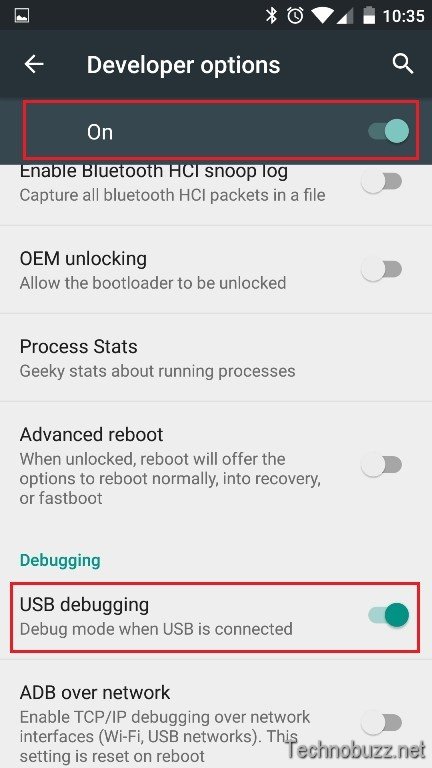
This is required to use ADB. Go to Settings > About Phone and tap ‘Build Number’ seven times to unlock Developer Options. Then go to Settings > System > Developer Options and toggle on ‘USB Debugging’. Connect your phone to your computer using a USB cable.
Step 2: Install ADB on Your Computer
Download the Android SDK Platform Tools from Google’s developer site. Extract the ZIP file to a folder (e.g., C:adb on Windows). Open a command prompt or terminal in that folder. On Windows, hold Shift + right-click and choose ‘Open PowerShell window here’. Type adb devices to verify your phone is detected. Accept the RSA key prompt on your phone if it appears.

Step 3: Pull the WiFi Configuration File
Android stores saved WiFi networks in /data/misc/wifi/wpa_supplicant.conf. Use ADB to pull this file to your computer. Run the following command: adb root (if available) or adb shell then cat /data/misc/wifi/wpa_supplicant.conf. Note that adb root usually requires a rooted phone. For non-rooted devices, you can use adb backup -f wifi_backup.ab -noapk com.android.settings to create a backup of settings, then extract the file with Android Backup Extractor. Alternatively, use a recovery app that can read the file directly—check our wifi password recovery without deleting profiles guide for a method that doesn’t remove saved networks.

Step 4: View and Export Your Passwords
Once you have the wpa_supplicant.conf file, open it with a text editor. You’ll see entries for each saved network with fields like ssid (network name) and psk (password). Copy the passwords you need. To keep a permanent record, you can export wifi passwords to text file by simply saving the conf file or copying the relevant lines into a Notepad document. If you prefer a more graphical method, consider using a wireless password recovery software that automates this process.

Step 5: Restore Passwords After a Factory Reset
If you backed up your wpa_supplicant.conf file before resetting, you can push it back to your phone using ADB: adb push wpa_supplicant.conf /data/misc/wifi/ (requires root). Without root, you can manually add networks in Settings > WiFi > Add Network. Alternatively, if you have a Google Backup from before the reset, your WiFi passwords may automatically restore when you sign in during setup. For a more reliable restore, follow our wifi password recovery tutorial router to get passwords directly from your router’s admin page.

Common Pitfalls
- Non-rooted phones block direct access to /data/misc/wifi/. You’ll need to use ADB backup or a recovery app that works without root.
- Some manufacturers (Samsung, Xiaomi) encrypt the WiFi config file. Try an alternative method like reading from the router or using a third-party app that requests access.
- Pulling the conf file via ADB backup may not include all networks if you have a work profile or multiple users. Back up your entire settings backup to be safe.
Where to Next
Now you know how to restore your WiFi passwords on Android. If you ever need to recover passwords on other devices, check out our guides on recovering passwords from a router or exporting passwords via script. Keep your wifi password recovery knowledge handy—you never know when you’ll need it again.



