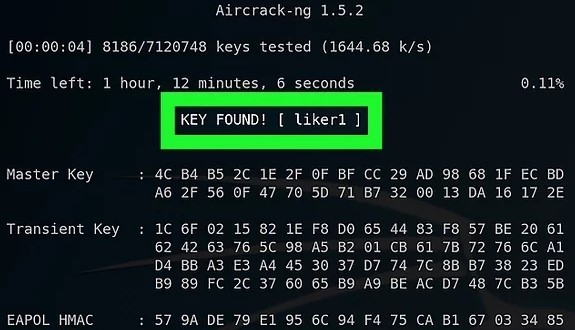
So you’ve got a shiny new Linux machine (or you’re using a friend’s) and you need to connect to a WiFi network, but the password is buried somewhere in your old phone or a sticky note that’s gone missing. Or maybe you just want to retrieve the key to your home network so you can share it with a guest. Whatever the reason, if you’ve ever connected to that network on any Linux computer, the password is almost certainly still stored on the machine. This tutorial will show you two dead-simple ways to pull that password out of the system’s memory — no brute force or hacking skills required.
By the end of this guide, you’ll have the plain-text WiFi password for any saved network. We’ll use two methods: the quick and modern nmcli command, and the old-school way of reading the config files directly. Both work on Ubuntu, Fedora, Mint, Debian, and pretty much any distro that uses NetworkManager (which is most of them). Let’s dive in.
What You’ll Need
- A computer running Linux (any distribution with NetworkManager – Ubuntu, Fedora, Mint, etc.)
- Sudo/root access (you’ll need to run commands as root)
- A saved WiFi network connection on that computer (you must have connected to it at least once)
- A terminal emulator (Ctrl+Alt+T on most distros)
Step 1: Open a Terminal and Check Your Network Interface
Fire up your terminal. The first thing we want to do is make sure NetworkManager is running and see what interfaces you have. Run: nmcli general status. If you see something like ‘connected’ or ‘running’, you’re good. To list all network devices, use nmcli device status. This step is just a sanity check — you don’t need to memorize anything, but it’s good to confirm the tool is there.

Step 2: List All Saved WiFi Connections
Now let’s see which WiFi networks your machine has stored. Run: nmcli connection show. This will list all saved connections — wired and wireless. Look for the one you want to recover; the name under ‘NAME’ is important. For example, if your home network is called ‘HomeSweetHome’, that’s what you’ll need in the next step.

Step 3: Reveal the Password for That Connection
Here’s the magic command: nmcli -s connection show "YourNetworkName" | grep 802-11-wireless-security.psk. Replace ‘YourNetworkName’ with the exact name from Step 2. The -s flag shows secrets (passwords) — without it you’ll see only asterisks. If the command outputs something like ‘802-11-wireless-security.psk: MySecretPassword’, you’re done! Copy that password and use it anywhere.
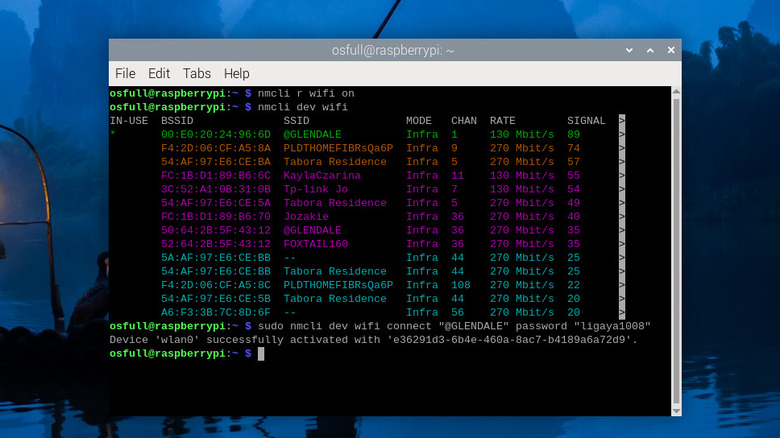
If you get no output, double-check the connection name — it’s case-sensitive. Use quotes if the name has spaces.
Step 4: Alternative Method — Read the Config File Directly
What if nmcli isn’t installed? No sweat. NetworkManager stores connection details in plain text (though the password is base64 encoded). Run: sudo cat /etc/NetworkManager/system-connections/YourNetworkName. Look for a line that starts with psk=. The value after the equals sign is your password, but it’s encoded. To decode it, use: echo 'YourEncryptedString' | base64 -d. For example, if psk= cGFzc3dvcmQ=, then run echo 'cGFzc3dvcmQ=' | base64 -d. That will give you the plain text. Note: on some newer distributions, the password might be stored in a keyring instead. If the file doesn’t exist or the psk line is missing, see the pitfalls below.

Common Pitfalls
- Not running commands as root. Most of these commands need
sudo. If you get ‘connection not found’ or ‘permission denied’, prependsudoto the command. - The network is not saved on this machine. These methods only work for networks you’ve connected to before. If you never connected on this Linux box, you’ll need to use a different approach like logging into your router (see our wifi password recovery with router login guide).
- Enterprise/802.1X networks. If your WiFi uses a username and password (like at work or school), the password won’t be in the psk field. You may need to look under 802-1x settings, but that’s beyond this tutorial.
Where to Next?
Now that you’ve recovered your password, consider backing it up somewhere safe. If you’re looking for a more automated way or need to recover passwords on another machine, check out our wifi password recovery setup guide for tips. For those using Windows, we have a separate tutorial on how to recover wifi password on windows that’s just as easy. And if you prefer a graphical interface, our wifi password recovery no command line method might be your speed. Happy surfing!





