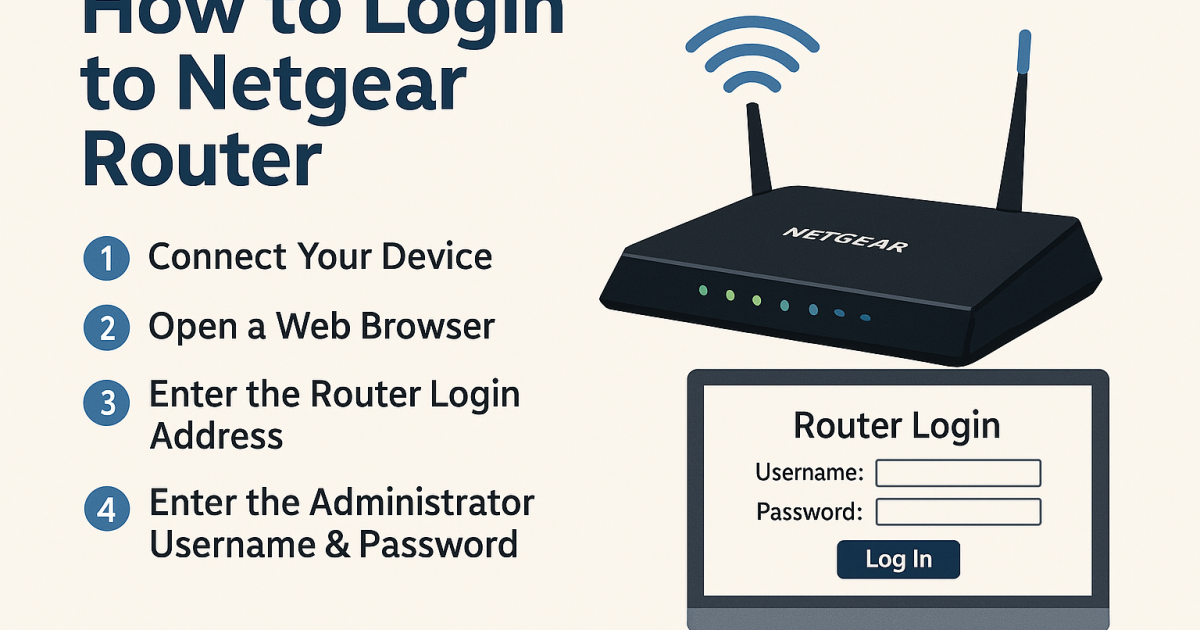
Ever been in that awkward spot where a friend asks for your WiFi password and you draw a blank? You’re not alone. If you can still connect to your network (or even if you can’t but have physical access to the router), this guide will show you how to dig up that password by logging into your router’s admin interface. No command line, no extra software—just a browser and a few minutes. This method is perfect if you prefer a no command line method.
By the end of this tutorial, you’ll have your WiFi password in hand. You’ll also learn a few tricks to avoid losing it again. This method works for nearly every home router, whether you’re on Windows, Mac, or even your phone. If you want a more thorough walkthrough for your specific device, check out our home users guide. Let’s get started.
What You’ll Need
- A device connected to your WiFi network (or a computer/phone physically near the router)
- Your router’s IP address (usually 192.168.1.1 or 192.168.0.1)
- Your router’s admin username and password (check a sticker on the router or the manual)
- A web browser (Chrome, Safari, Edge, etc.)
If you’re not sure about your router’s IP or admin credentials, start with our preparation guide to gather everything.
Step 1: Find Your Router’s IP Address
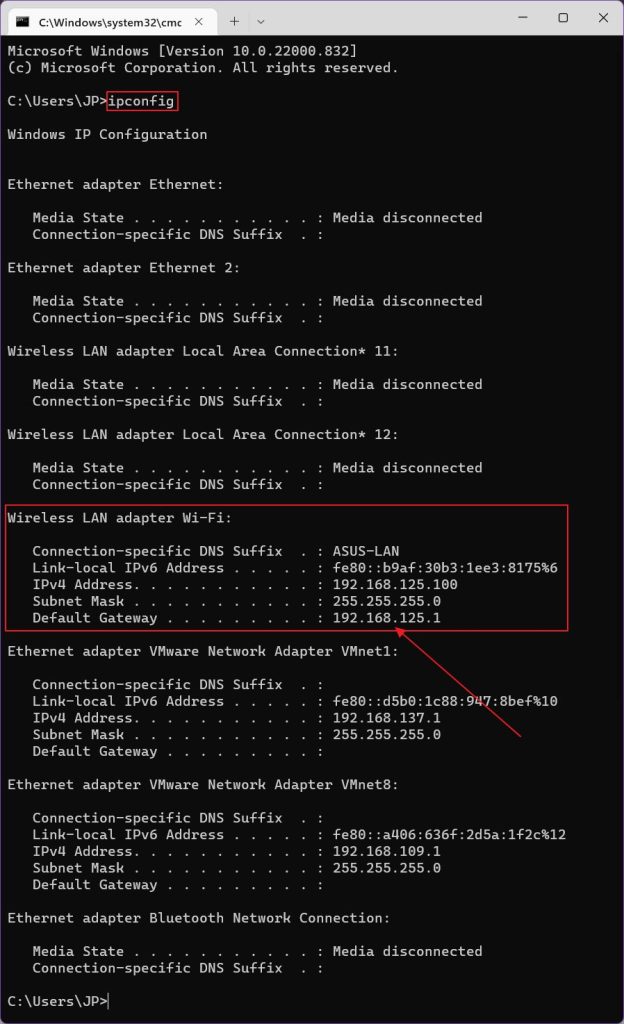
The router’s IP address is the key to its admin panel. On Windows, open Command Prompt and type ipconfig. Look for ‘Default Gateway’ under your active network adapter. On Mac, go to System Settings > Network > Wi-Fi > Details, and look for ‘Router’. On an iPhone, tap the ‘i’ next to your WiFi network and find the ‘Router’ line.
Step 2: Log Into Your Router
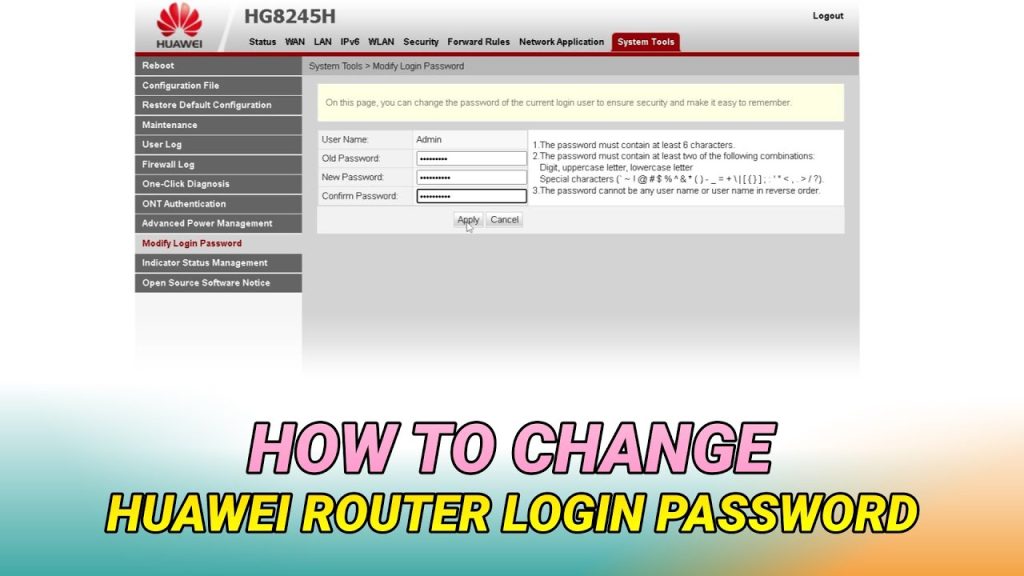
Open a web browser and type your router’s IP address into the address bar. Press Enter. You’ll see a login page. Enter the admin username and password. If you don’t know them, try the default combination: often ‘admin’ for both fields, or ‘admin’ / ‘password’. Check the sticker on your router.
Step 3: Navigate to Wireless Settings
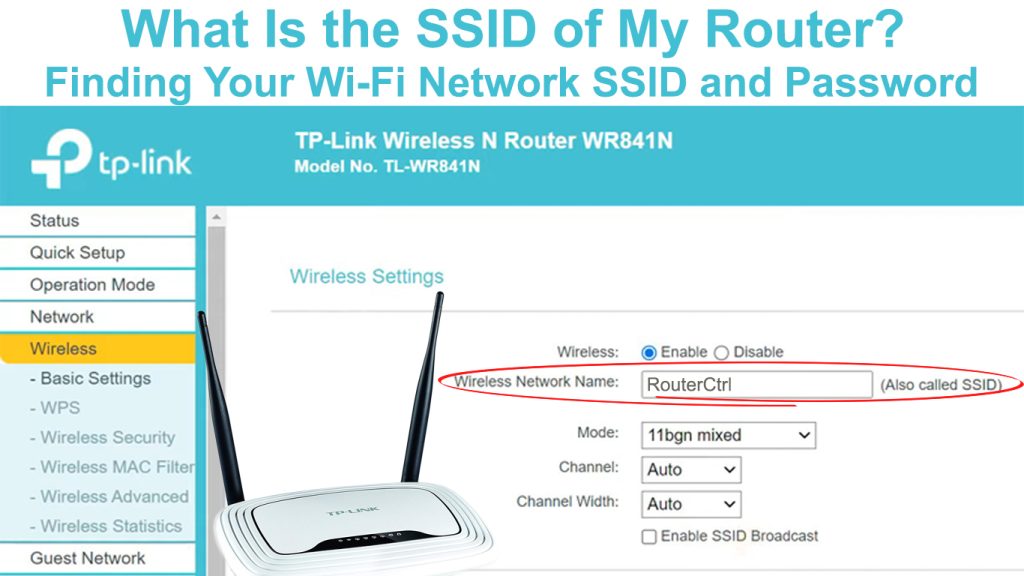
Once logged in, look for a section called Wireless, Wi-Fi, or Wireless Settings. This might be under a tab like Advanced Setup or Network Settings. Click it. You should see your network name (SSID) and security settings.
Step 4: Find the WiFi Password
Look for a field labeled ‘WPA Key’, ‘Passphrase’, ‘Security Key’, or ‘Password’. It’s usually hidden with dots. Click the ‘Show password’ checkbox or eye icon to reveal it. If you can’t find it, look under ‘Wireless Security’ options.

Step 5: Save or Change the Password
Write down the password exactly as shown. Take a screenshot or note it in a password manager. You can also change it to something easier to remember here, but then reconnect all devices. Once done, log out of the router admin.
Common Pitfalls
- Wrong IP address: If the IP doesn’t load, try 192.168.1.1, 192.168.0.1, or 10.0.0.1. You can also check your network settings again.
- Forgot admin credentials: Most routers have a reset button (pinhole). Hold it for 10 seconds to restore defaults—but this also wipes custom settings.
- Password not visible: Some routers hide the password field or show it only after enabling ‘show password’. If still hidden, try a different browser or check the manual.
If you reset your router, you’ll lose any custom settings like port forwarding or parental controls. Use router reset as a last resort.
Router manufacturer support document
Where to Next
Now that you’ve recovered your WiFi password, consider backing it up to avoid future headaches. Our backup guide shows you how to keep a secure copy. For power users, learn to export your saved passwords with PowerShell on Windows. If you prefer a software approach, our free tool in the home users guide can also help.





