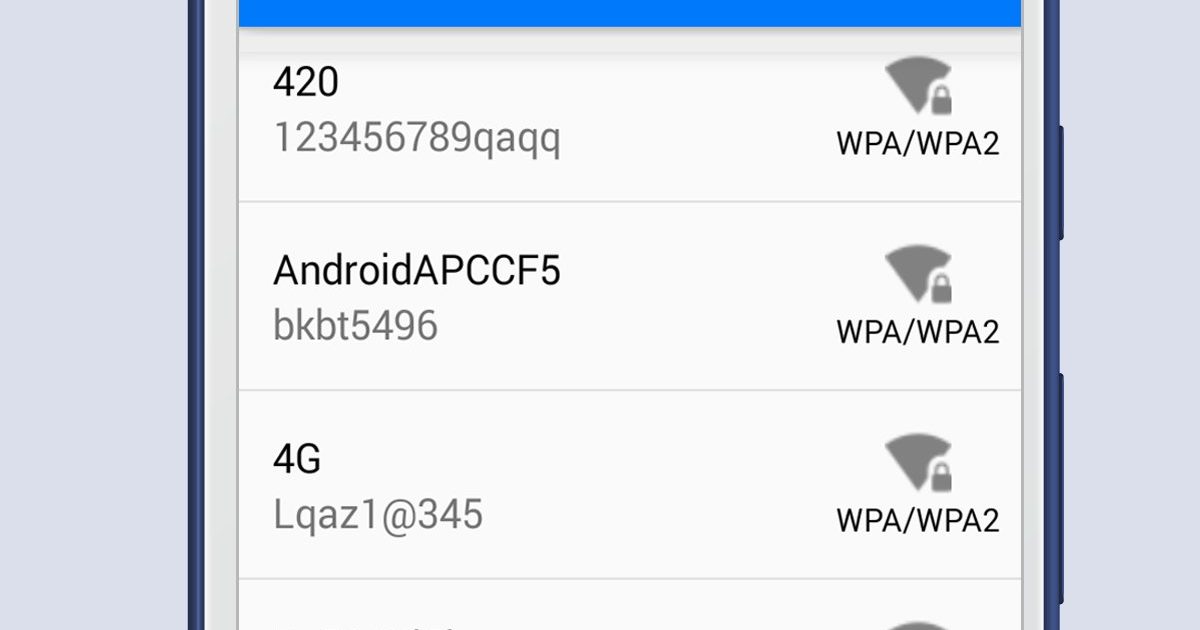
Ever been that person staring at the back of a router, squinting at tiny text, or bugging the IT guy for the hundredth time? We’ve all been there. Whether you just got a new phone, your friend needs to hop on your network, or you’re setting up a printer and it’s demanding that password you forgot ages ago—this guide is for you. By the end, you’ll know exactly which apps to use to recover any saved WiFi password on your devices, without needing a degree in networking.
We’re going to walk through the best free apps and built-in tools for Windows, Mac, Android, and even iPhone. No shady downloads, no command line wizardry (unless you want it), just straightforward steps that actually work. You’ll be back online in no time. And if you prefer a more manual approach, check out our free WiFi recovery software recommendations or the classic router login method—both work like a charm.
What You’ll Need
- A device that has connected to the WiFi network before (Windows PC, Mac, Android phone, or iPhone)
- Administrator or root access on the device (usually your own account is fine)
- Internet connection to download the recovery app (or you can use a friend’s hotspot)
- Optional: a USB drive or cloud storage to export the passwords
Before we dive in, a quick note: recovering WiFi passwords you don’t own is illegal. This guide is for recovering your own passwords or ones you have permission to access. Alright, let’s get started!
Step 1: Choose the Right App for Your Device
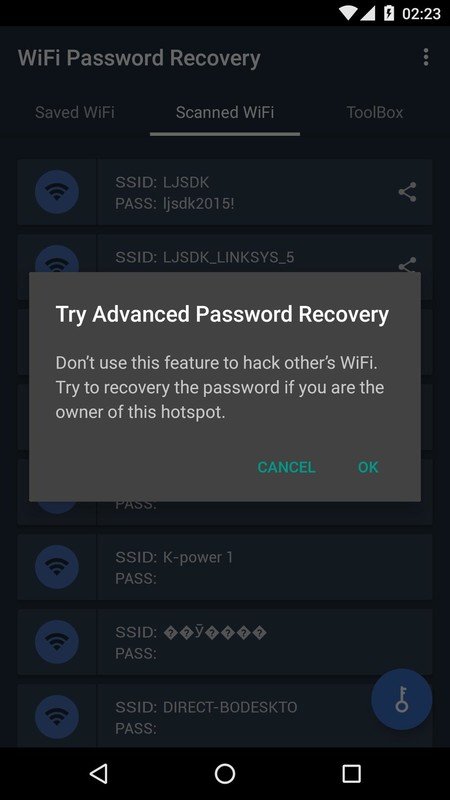
Not all recovery apps are created equal. For Windows, the best free app is WirelessKeyView (by NirSoft) because it’s lightweight, portable, and shows every saved key instantly. On Mac, you can use Keychain Access (built-in) or a third-party app like WiFi Password Revealer. Android users can try WiFi Key Recovery (requires root) or WiFi Password Viewer (no root, but limited). iPhone users have fewer options without jailbreak, but you can use the Router Login Method or the Keychain trick on a synced Mac—we cover that in our show Wi-Fi password on Mac guide.
For this guide, we’ll focus on WirelessKeyView (Windows) and Keychain Access (Mac) because they work out of the box and don’t require extra steps. If you want a broader overview of multiple tools, our WiFi password recovery setup guide compares the top picks.
Step 2: Install and Launch the App
For Windows, download WirelessKeyView from the official NirSoft website. It’s a zip file—extract it and run the .exe as Administrator (right-click > Run as administrator). No installation needed; it’s portable. On Mac, open Keychain Access from Applications > Utilities. If you already have a Mac that’s connected to the same iCloud account as your iPhone, you can also recover iOS passwords—check out our guide on how to recover Wi-Fi on Windows if you’re on a PC, or the Mac-specific steps below.
Don’t panic if a security warning pops up—some antivirus programs flag these tools because they access stored credentials. That’s normal. Just allow the app to run.
Step 3: Scan for Saved Networks
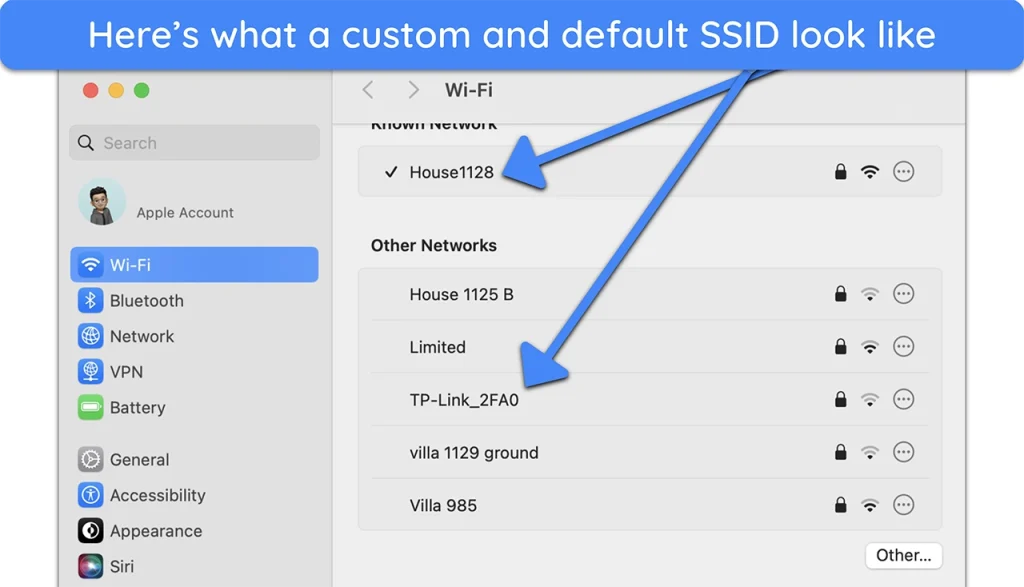
Once the app opens, it immediately scans your system for all saved WiFi profiles and displays them in a table. In WirelessKeyView, you’ll see columns like SSID, Key (Hex), and Key (Ascii)—the password is in the Ascii column. On Mac Keychain Access, search for your network’s name in the search box, double-click the entry, and check the ‘Show password’ box. You’ll be prompted for your Mac admin password.
That’s it! You can now see the password. If you want to export multiple passwords at once, WirelessKeyView lets you save everything as a text or HTML file. For advanced users, you can even export passwords with PowerShell—we have a dedicated guide for that.
Step 4: View and Export Passwords (Optional)
To keep a record of your passwords for future use, go to File > Save Selected Items (or press Ctrl+S) in WirelessKeyView. Choose a location and format—CSV or TXT works best. On Mac, you can copy the password directly or airdrop it to another device. If you’re managing multiple networks, this export is a lifesaver when you need to share credentials with guests or set up new devices.
A quick tip: store the exported file in a password manager like LastPass or Bitwarden for easy access later. Don’t leave it lying around on your desktop!
Common Pitfalls
- App doesn’t show any passwords: Make sure you run it as Administrator on Windows. Without admin rights, the app can’t access the stored keys. On Mac, check that you’re in the correct Keychain (usually ‘login’).
- Antivirus blocks the app: This is common with password recovery tools. Temporarily disable real-time protection or add an exception. Just remember to re-enable it afterward.
- No saved networks appear: The device must have connected to the WiFi at least once. If it’s a brand new network, you’ll need to connect first using the router login method (type the router’s IP in a browser, enter admin credentials, and look for WiFi settings).
Where to Next
Now you’ve got your passwords back! Consider backing them up regularly—our WiFi password recovery backup guide shows you how to keep a secure copy. If you’re on an office network, the steps might differ slightly; we cover that in our article on recovering WiFi passwords on an office network. And if you ever change your router, remember to update your saved passwords too. Happy surfing!





