Ever needed to connect a new device to your home WiFi but couldn’t remember the password? Or maybe a friend asked for the network key and you drew a blank. If you’re using a Mac that’s already connected (or has been connected in the past), you’re in luck — macOS stores all your WiFi passwords in the Keychain, and there are a few quick ways to retrieve them. This guide is for anyone who’s ever said ‘I forgot my WiFi password’ and wants to get it back without resetting the router. By the end, you’ll know how to find your saved WiFi password using Keychain Access, Terminal, or even your router’s admin page.
No extra software needed — everything is built right into macOS. We’ll walk through each method step by step, from the simplest visual approach to a command-line trick. Whether you’re a casual user or a tech enthusiast, you’ll have your password in hand in under five minutes.
What You’ll Need
- A Mac that is currently connected to the WiFi network (or has connected to it in the past and saved the password).
- An administrator account on that Mac (you’ll need to enter your admin username and password to reveal the WiFi key).
- Optional: Router login credentials (username and password) if you plan to look up the WiFi password from the router settings.
Step 1: Use Keychain Access (The Easiest Way)
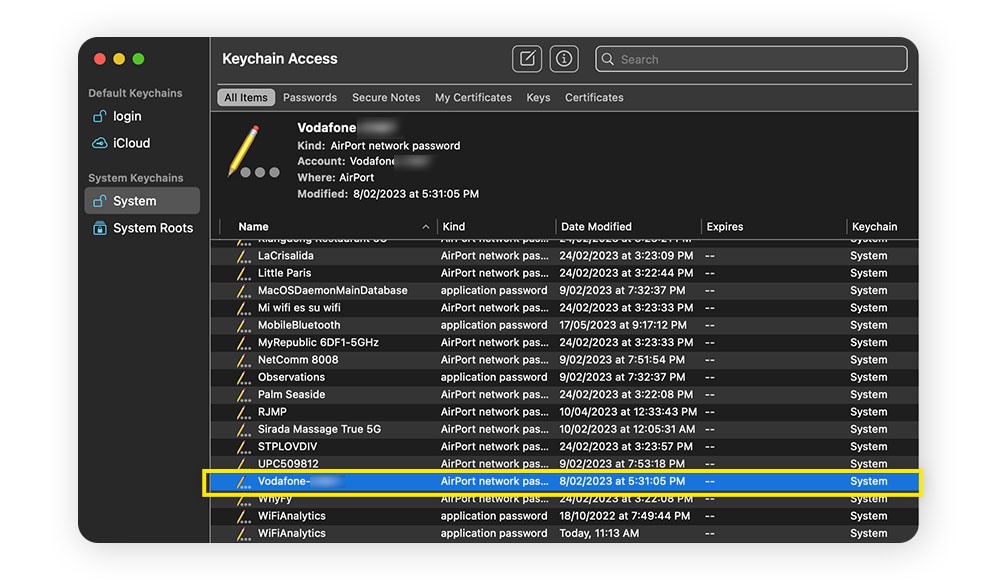
Keychain Access is macOS’s built-in password manager. It stores all your saved passwords, including WiFi network keys. To retrieve yours:
- Open ‘Keychain Access’ from the Utilities folder (Applications > Utilities > Keychain Access) or search for it using Spotlight (Cmd+Space, type ‘Keychain Access’).
- In the search bar at the top-right, type the name of your WiFi network (e.g., ‘HomeWiFi’). You’ll see an entry with a small lock icon labeled ‘AirPort network password’ or ‘Wi-Fi network password’.
- Double-click that entry to open the details window. Check the box next to ‘Show password’ — you’ll be prompted to enter your Mac’s admin username and password (the same one you use to log in).
- After authenticating, the password will be revealed in plain text. Write it down or take a screenshot — just don’t share it with strangers!
Step 2: Use Terminal (For Command-Line Fans)
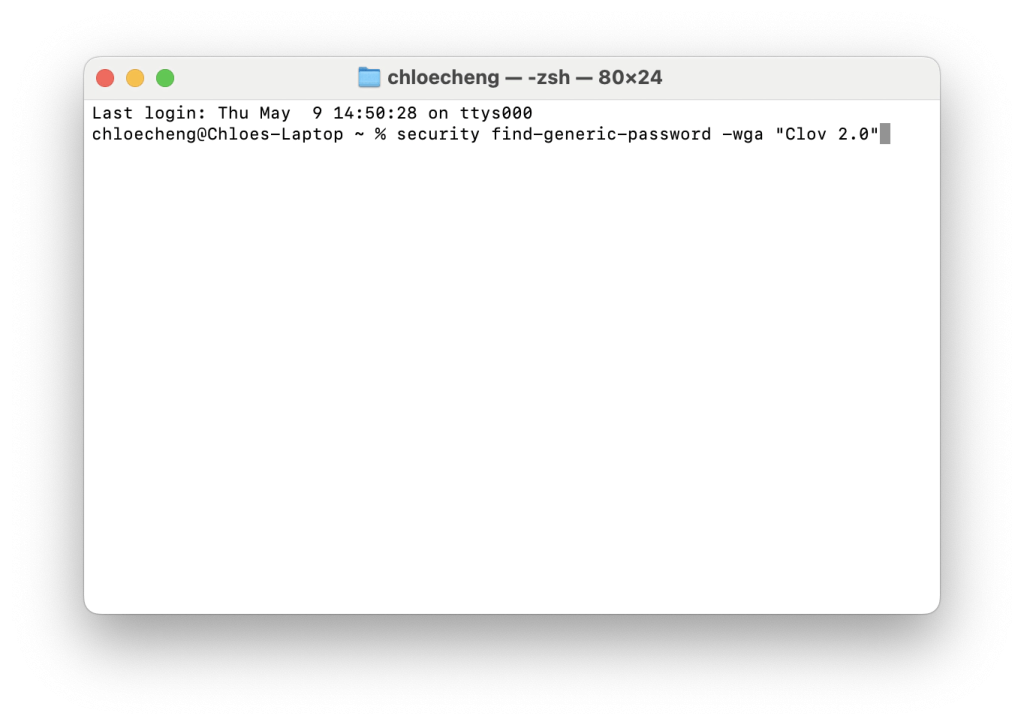
If you’re comfortable with the command line, Terminal offers a faster way. Just one command does the trick:
Open Terminal (Applications > Utilities > Terminal). Type the following command, replacing ‘YourNetworkName’ with the actual SSID of your WiFi:
Hit Enter. You’ll be asked for your admin password (the one you use to log into your Mac). Type it in — you won’t see characters as you type, that’s normal — then press Enter again. The WiFi password will appear on the next line. Copy it immediately, because the terminal buffer may not persist.
Step 3: Check Your Router Settings (If All Else Fails)
If your Mac has never connected to the network, or if you can’t access Keychain/Auth for some reason, you can still recover the WiFi password directly from your router. Every router has a web interface that displays the wireless security settings.
- Find your router’s IP address. On your Mac, go to System Settings > Network > Wi-Fi > Details. The router IP is usually under ‘Router’ (commonly 192.168.0.1 or 192.168.1.1).
- Open a web browser and enter that IP in the address bar. You’ll be prompted for the router’s admin username and password (not your WiFi password). If you never changed them, check the sticker on the router — often it’s ‘admin’ for both.
- Once logged in, look for a section called ‘Wireless’ or ‘Wi-Fi Settings’. There, you’ll see the current password (sometimes called ‘Pre-Shared Key’ or ‘Passphrase’). Note it down and save any changes if you updated it.
Common Pitfalls
- Forgot your Mac’s admin password? If you can’t remember the password you use to log in to your Mac, you won’t be able to reveal the WiFi key through Keychain or Terminal. You may need to reset your login password via Apple ID or Recovery Mode first.
- Multiple entries with the same network name? If you’ve connected to several networks with the same SSID (e.g., ‘attwifi’), Keychain may show several entries. Look for the one that says ‘AirPort network password’ or check the ‘Where’ column to see which network interface it belongs to.
- Can’t log into the router? Many routers have default passwords printed on the bottom, but if you changed it and forgot, you’ll need to perform a factory reset (press the reset button with a paperclip for 10 seconds). Be aware that this resets all router settings, not just the admin password.
Where to Next
Now that you’ve recovered your WiFi password, you might want to explore other scenarios. If you’re helping a friend, check out our guide on wifi password recovery for mac users. For MacBook-specific steps, see how to recover wifi password on macbook. If you recently updated macOS and lost saved passwords, we have tips for wifi password recovery after macos update. You can also learn to recover forgotten wifi password from router directly. For even simpler solutions, look into easy wifi password recovery software, or explore modern wifi password recovery methods that work across different devices.