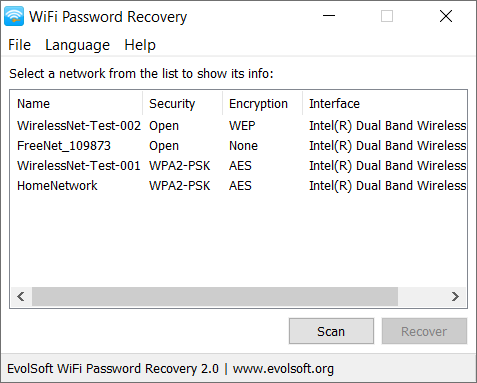
Ever needed to connect a new device to your home WiFi but couldn’t find the password? Or maybe you’re helping a friend set up their network and need to pull up the key you entered years ago. This guide is for anyone who’s connected to a WiFi network before but can’t remember the password. By the end, you’ll be able to recover that password on Windows, macOS, Android, and iOS using only built-in tools—no sketchy third-party software required.
We’ll cover the easiest methods first, then move on to backup options if those don’t work. Whether you’re on a laptop, phone, or tablet, there’s a way to get that password back. Let’s dive in.
What You’ll Need
- A computer or device already connected to the WiFi network you want the password for
- Optional: Admin access to your router (if you need to reset or view the password from there)
- Patience—some steps are very quick, but router access might take a minute
Step 1: Recover WiFi Password on Windows
Windows makes it easy to view saved WiFi passwords through the Control Panel or Command Prompt. This works for all versions from Windows 7 onward.
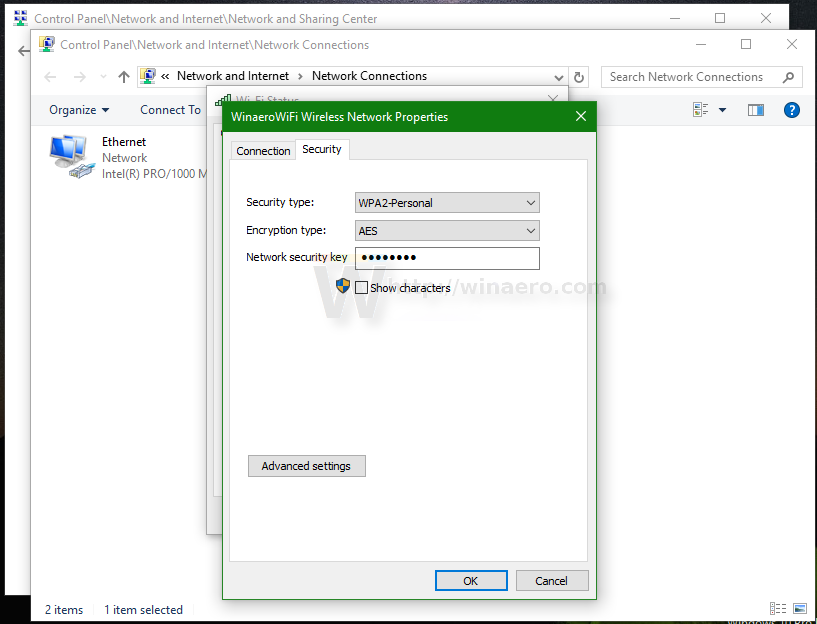
Using Control Panel: Open Control Panel > Network and Sharing Center > click the WiFi network name next to ‘Connections’ > Wireless Properties > Security tab > check ‘Show characters’. Your password appears in plain text.
Using Command Prompt (faster): Open Command Prompt as administrator and type: netsh wlan show profile name="YourNetworkName" key=clear. Look for ‘Key Content’ in the output. This is one of the most efficient simple WiFi recovery methods.
Step 2: Recover WiFi Password on macOS
On a Mac, all saved passwords live in Keychain Access. This covers recovering WiFi passwords on a Mac and works for any network you’ve joined before.
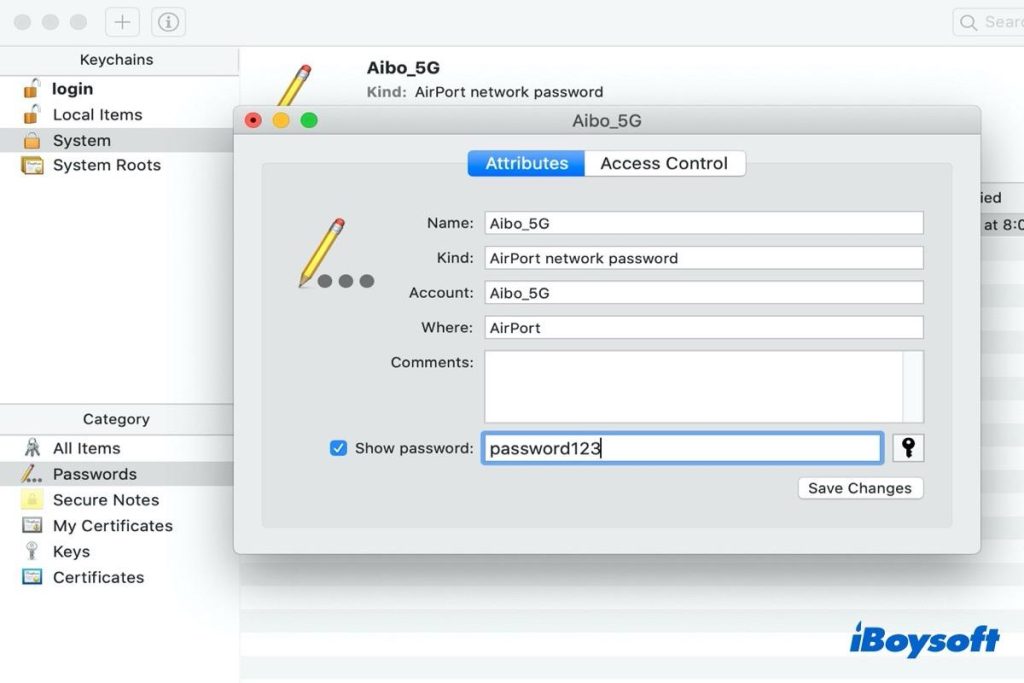
Open Keychain Access (from Applications > Utilities). In the search bar, type the name of your WiFi network. Double-click the entry, then check ‘Show password’. Enter your Mac admin credentials when prompted, and the password will be revealed. For detailed steps specific to laptops, see our MacBook WiFi recovery steps.
Step 3: Recover WiFi Password on Android (No Root)
Modern Android versions (Android 10+) let you view the password of your current network or generate a QR code others can scan to join.
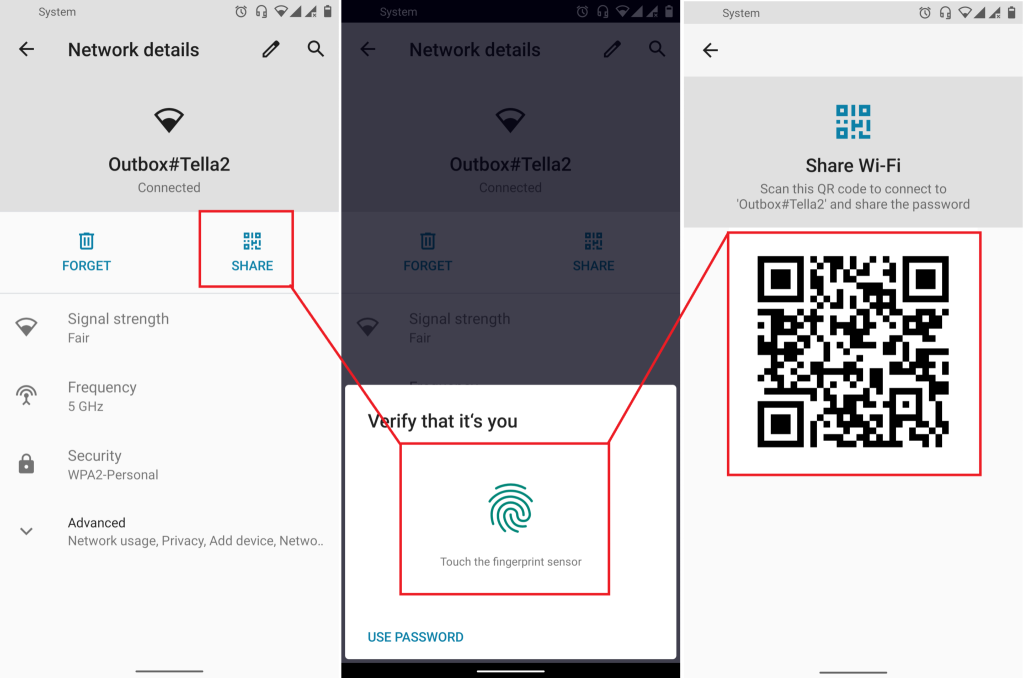
Go to Settings > Network & Internet > WiFi > tap the gear icon next to your connected network. Tap ‘Share’ (if available) — you may need to verify by fingerprint or PIN. A QR code will appear; the password is shown below it. Alternatively, take a screenshot of the QR code and use a QR scanner to extract the password string.
Step 4: Recover WiFi Password on iOS
iPhone and iPad users have it easy if they use iCloud Keychain or a Mac synced to the same Apple ID. You can also check your router.
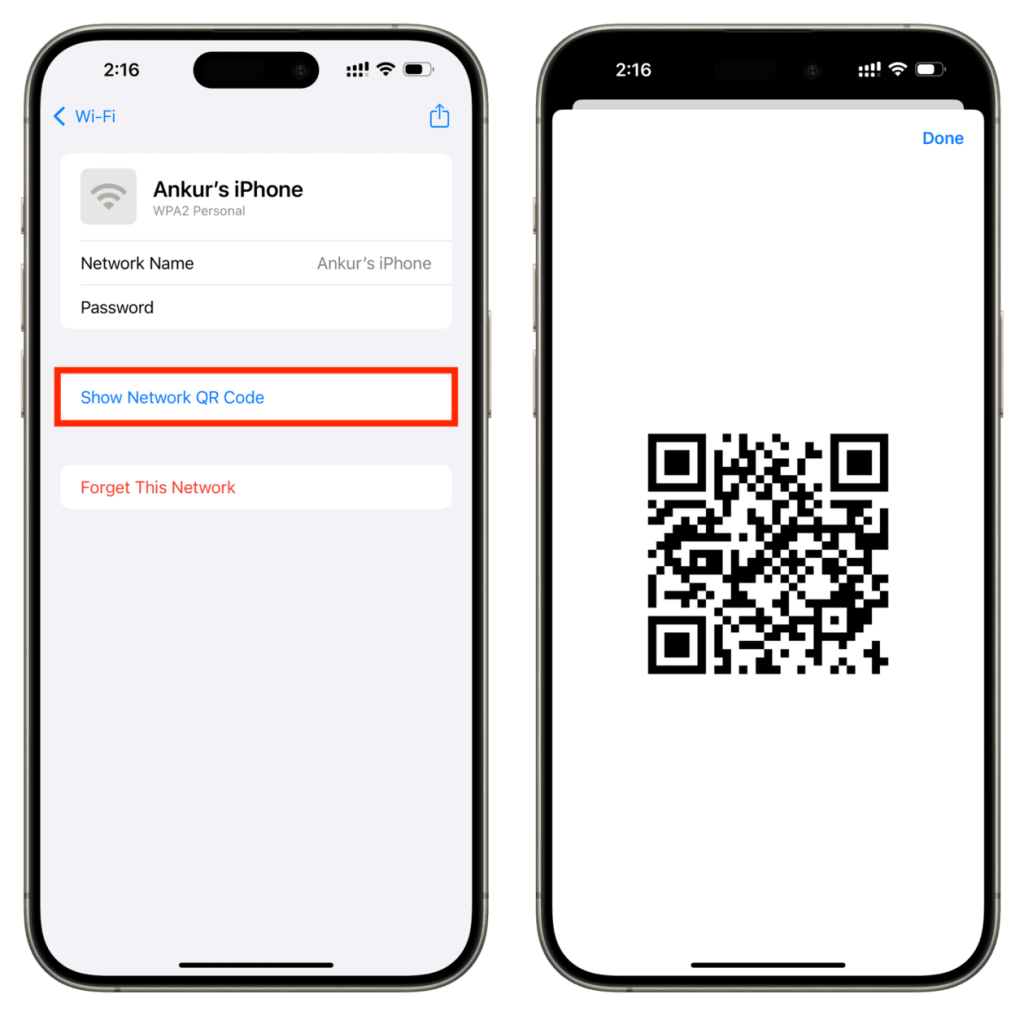
On iOS 16+, go to Settings > WiFi > tap the info (i) icon next to the network. Tap the password field and authenticate with Face ID/Touch ID. The password is revealed. If that option isn’t there, use a Mac to look it up via Keychain (as in Step 2) or access your router (Step 5). For a deeper dive, check out home network key recovery.
Step 5: Recover Password from Your Router (Last Resort)
If you can’t access the password from any device, you can always log into your router’s admin panel. This works even if you’ve never connected a device before.
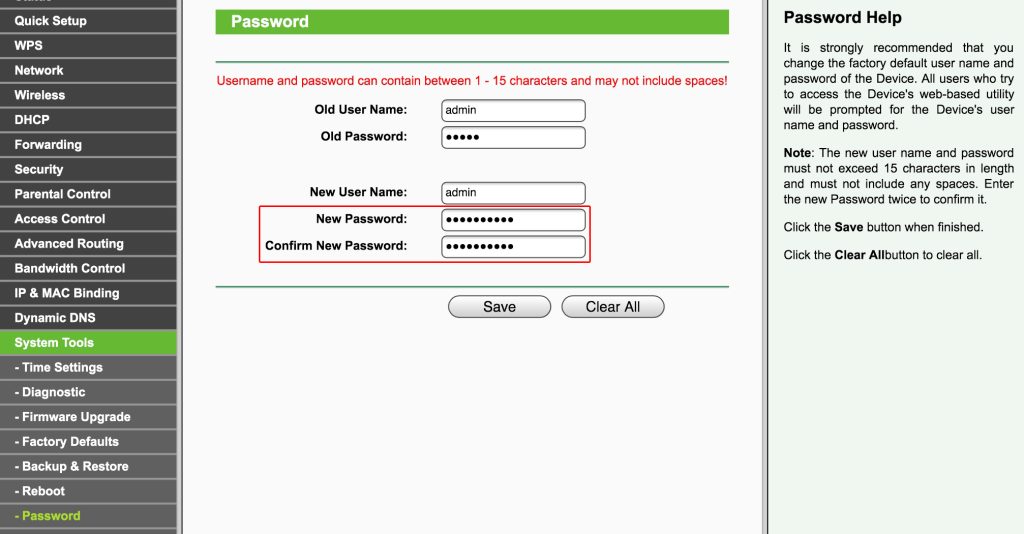
Open a web browser and enter your router’s IP address (common ones: 192.168.1.1, 192.168.0.1, or 10.0.0.1). Log in with the admin username and password (often printed on the router sticker or set by you). Navigate to Wireless or WiFi settings, and the password (or passphrase) will be displayed. If you need help finding the default credentials, refer to our router password recovery article.
Common Pitfalls
- Not connected to the network: Most methods require you to be currently connected to the WiFi. If you’re not, try using a device that is still connected, or skip to the router method.
- Wrong router admin credentials: If you changed the router password and forgot it, you may need to factory reset the router (hold the reset button for 10 seconds). This will erase all settings, so use as last resort.
- Encrypted Keychain entries on Mac: Sometimes Keychain Access shows a lock but no password. Make sure you’re using the correct admin password, and try restarting your Mac.
Where to Next
Now that you’ve recovered your password, you might want to save it somewhere safe. Check out our PowerShell WiFi recovery commands for exporting all saved profiles on Windows, or if you’re a Mac user, revisit recovering WiFi passwords on a Mac for more advanced methods. Happy surfing!



