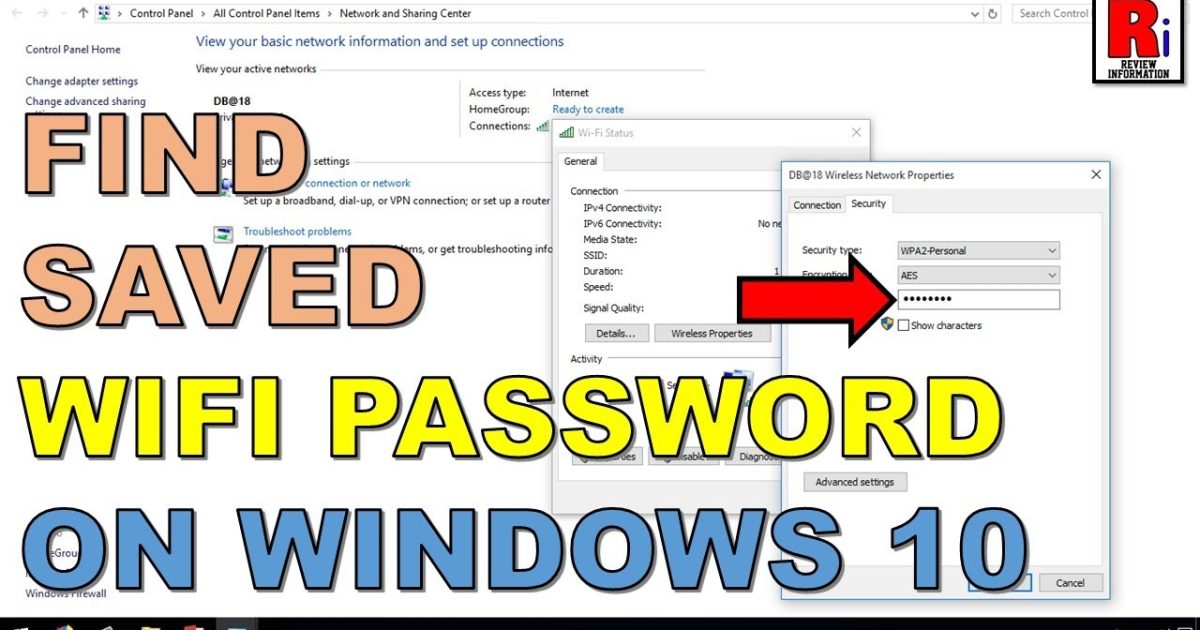
Ever had that moment when a friend asks, “Hey, what’s your WiFi password?” and your mind goes blank? You know it’s saved on your Windows PC somewhere, but digging it out seems impossible. Good news: you don’t need third-party software. In this guide, I’ll show you how to find your saved WiFi password by poking around the Windows Registry. No tech degree required.
By the end, you’ll be able to quickly retrieve any WiFi password your PC has ever connected to. We’ll use two methods: first, locate the profile in the Registry, then use a built-in command to reveal the plaintext key. Let’s get started.
What You’ll Need
- A Windows PC (7, 8, 10, or 11)
- Administrator account access
- Basic comfort clicking around the Registry Editor (don’t worry, I’ll guide you)
- Optionally, a cup of coffee (not required but recommended)
Step 1: Open Registry Editor
Press Win + R, type regedit, hit Enter. Click Yes if UAC asks. That’s it.

Step 2: Navigate to the WiFi Profiles Key
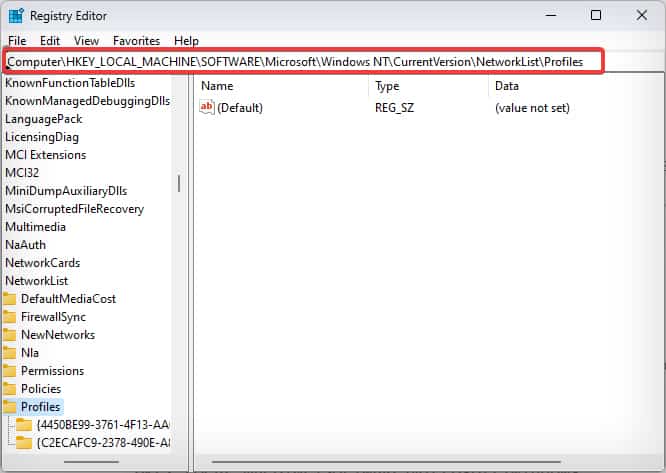
In the left pane, expand HKEY_LOCAL_MACHINE, then SOFTWARE, then Microsoft, then Windows NT, then CurrentVersion, then NetworkList, then Profiles. Click on Profiles. Below it you’ll see a bunch of long alphanumeric folder names. Each corresponds to a network you’ve connected to.
Step 3: Identify Your Network
Click on each subkey one by one. On the right, look for a value named ProfileName. Double-click it to see your network’s SSID (the name you recognize). Note down the profile name (the SSID) exactly as it appears. You’ll need it later. Also note the folder name (GUID) in case you want to bookmark.

Step 4: Open Command Prompt as Administrator
Press Win + X, select “Command Prompt (Admin)” or “Windows Terminal (Admin)”. If you see PowerShell, that’s fine too. Accept the UAC prompt.
Step 5: Run the netsh Command
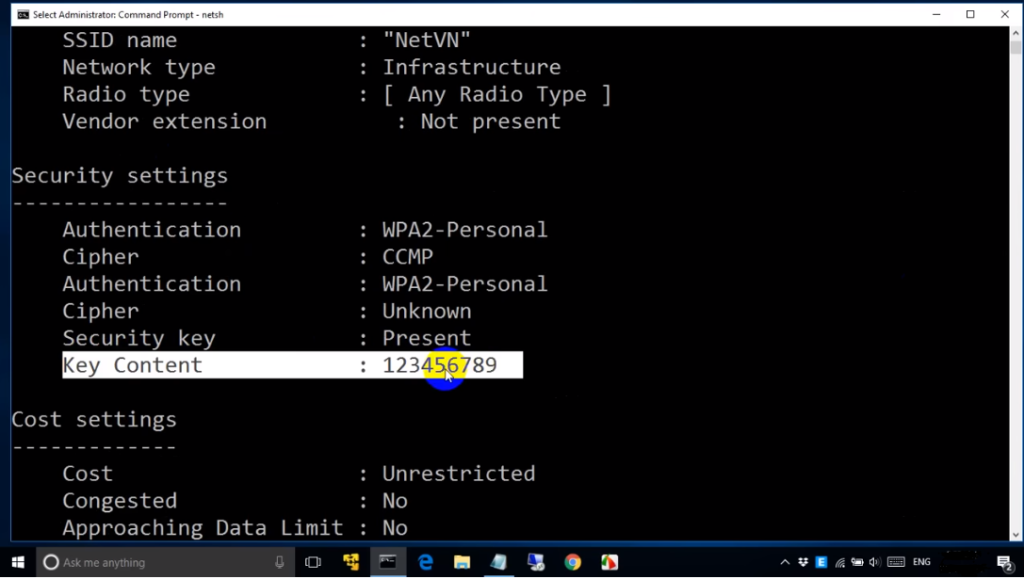
Type the following command, replacing YOURNETWORKNAME with the SSID you noted: netsh wlan show profile name=YOURNETWORKNAME key=clear. Press Enter. Scroll through the output. Look for the line that says “Key Content” under “Security settings”. That’s your WiFi password.

Step 6: Write It Down (Save It!)
Copy or write down the password. You can now use it to connect other devices. Consider storing it securely (like a password manager) to avoid this hunt next time. If you have multiple networks, repeat steps 3–5 for each.
Common Pitfalls
- Registry key not found: If you don’t see the Profiles key, ensure you’re looking in HKEY_LOCAL_MACHINE, not HKEY_CURRENT_USER. Also, your network might be a guest profile that wasn’t saved. Connect once and try again.
- Permission denied: Running regedit or command prompt without admin rights. Always right-click and select ‘Run as administrator’.
- Wrong profile name: The SSID is case-sensitive in the netsh command. Copy exactly from registry. Also, if the name has spaces, enclose it in quotes.
Where to Next
If you want to automate this, check out the batch file method or a PowerShell script to batch export. For a one-click solution, consider a dedicated WiFi password recovery utility. If you’re on multiple devices, learn how to recover WiFi passwords from your laptop or export all your WiFi passwords at once. And if you’re at home, home WiFi password recovery can also be done via your router.



