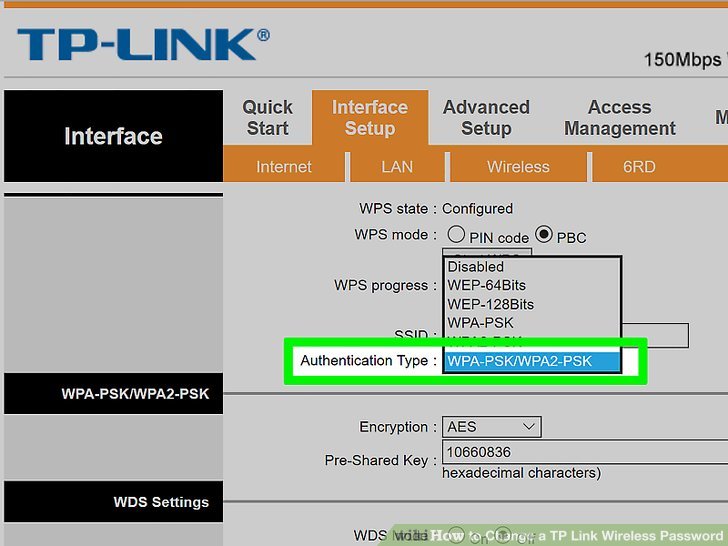
You’re not alone—everyone forgets a WiFi password now and then. Maybe you just bought a new device and need to connect, or you’re setting up a friend’s gadget and can’t find that sticky note with the password. If you have a TP-Link router (and you’re connected to its network, even via ethernet), you’re in luck: recovering or resetting that password is actually pretty simple. By the end of this guide, you’ll have your WiFi password in hand, whether you dig it out of the router’s admin panel or reset the whole thing and start fresh.
This tutorial is for anyone who owns a TP-Link router and needs to find the current WiFi password or reset it to something new. You don’t need to be a tech wizard—just follow the steps that match your situation. We’ll cover logging into the router, looking up the wireless key, and what to do if you’ve also forgotten the admin login. Plus, we’ll toss in some quick methods using your computer’s saved networks and even QR codes. Ready? Let’s get you connected.
What You’ll Need
- A TP-Link router (any model, most have similar interfaces)
- A computer or phone connected to the router (WiFi or ethernet)
- Your router’s admin username and password (the one to log into settings, not the WiFi password)
- If you forgot the admin login: a paperclip or pin to press the reset button
- Optional: a Windows or Mac laptop to retrieve saved passwords
Step 1: Log Into Your TP-Link Router’s Admin Panel
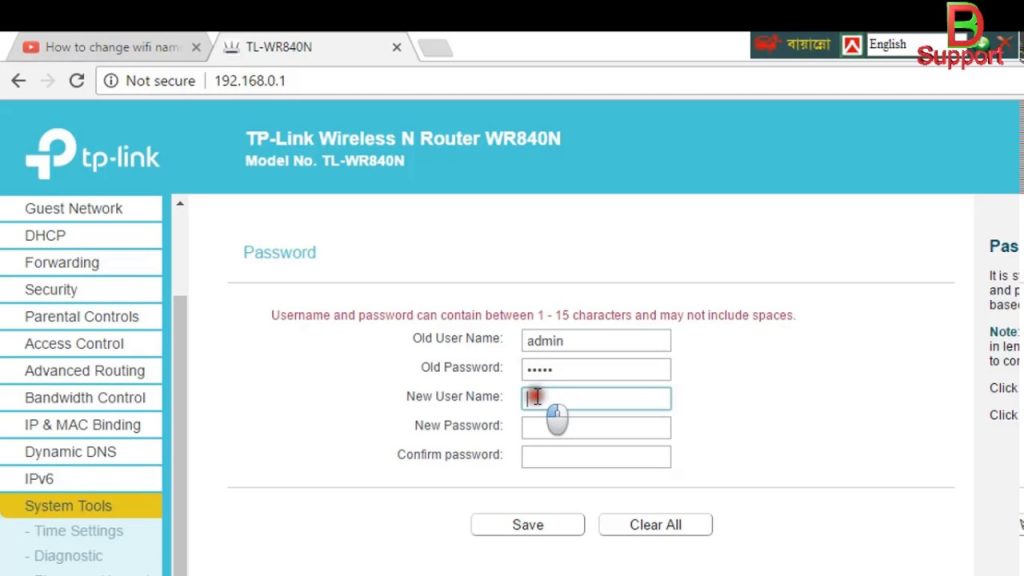
First, make sure your device is connected to the TP-Link network (either via WiFi or an ethernet cable). Open a web browser and type in the router’s IP address—most TP-Link routers use 192.168.0.1 or 192.168.1.1. You can find the exact IP on a sticker on the bottom of the router, or by checking your computer’s network settings. Press Enter and you should see a login page. Enter your admin username and password. The default is usually ‘admin’ for both, but if you changed it and forgot, skip ahead to Step 4 for the reset method.
Step 2: Find Your WiFi Password in the Wireless Settings
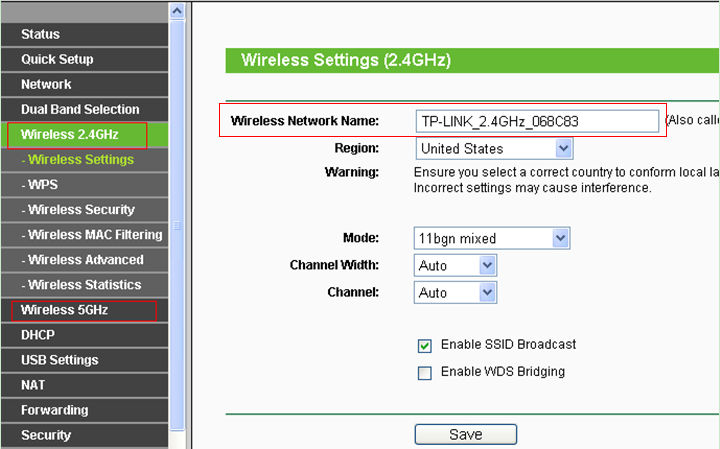
Once logged in, look for a menu item called ‘Wireless’ or ‘WiFi’. Depending on your router model, it might be under ‘Advanced’ or ‘Basic’. Click on it, then find a sub-section like ‘Wireless Security’ or ‘Security’. Here you’ll see the encryption type (WPA2-PSK is typical) and a field labeled ‘Password’, ‘Passphrase’, ‘PSK Password’, or ‘Wireless Key’. The current password is shown there—usually in plain text, but sometimes as dots. If it’s obscured, there’s often a show/hide icon next to the field. Click it to reveal the password. Write it down or take a photo, but remember to keep it secure.
Step 3: Can’t Log Into the Admin Panel? Use a Wired Connection
If you typed the router’s IP but got no response, or you’re locked out because you changed the admin password, try connecting your computer directly to the router with an ethernet cable. This bypasses any WiFi issues and ensures you’re on the same network. Sometimes wireless connections cause routing hiccups. After plugging in, refresh the browser and try the login again. If you still can’t get in, the admin credentials might have been changed to something you don’t remember—in that case, you’ll need to reset the router to factory defaults.

Step 4: Reset Your TP-Link Router (Last Resort)
Resetting your router will wipe all custom settings, including the WiFi password, and revert to the defaults printed on the sticker. But it’s a surefire way to get back online. Locate the reset button on your TP-Link router—it’s usually a small pinhole on the back or bottom. With the router powered on, use a paperclip or pin to press and hold the button for about 10 seconds until the LEDs flash. Release it, wait a minute for the router to reboot, and you’re back to factory defaults. Now you can log in with the default admin credentials (admin/admin) and set up a new WiFi password.

Step 5: Recover from a Connected Computer (Alternative)
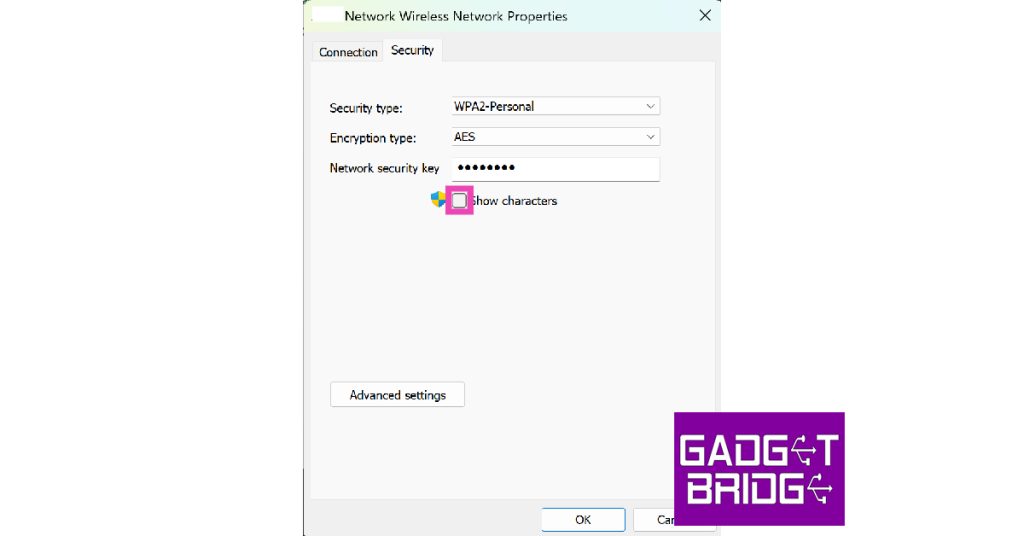
If you don’t want to mess with router settings, you can often retrieve the WiFi password from a device that’s already connected. On Windows, go to Settings > Network & Internet > WiFi > Manage known networks, click your network, then Properties, and under ‘View WiFi security key’ you’ll see the password. On Mac, open Keychain Access, search for your network name, and double-click to reveal the password. These methods work great if you’re just trying to reconnect another device. For more detailed instructions, check out our guides on how to recover WiFi passwords from your laptop and using PowerShell to recover WiFi passwords.
Common Pitfalls
- Forgot both WiFi and admin passwords: If you don’t know either, the only way is a factory reset (Step 4). Make sure you have your internet login info from your ISP handy if your router uses PPPoE or other settings.
- Wrong router IP: Some TP-Link routers use 192.168.0.254 or 192.168.1.254. Check the sticker on the bottom, or use command prompt (ipconfig on Windows, ifconfig on Mac) to find your default gateway.
- Admin password changed but router reset isn’t working: Ensure you hold the reset button long enough—at least 10 seconds, until lights blink. If it still doesn’t reset, try pressing with the router unplugged, then plug it in while holding the button.
Where to Next
Now that you have your WiFi password back, you might want to save it somewhere safe for future use. Consider exporting saved WiFi passwords on your Windows laptop or storing a QR code for easy sharing—you can even recover a WiFi password from a QR code later. If you’re managing multiple networks, our home WiFi password recovery guide covers more scenarios. And if you ever need to help a friend with a different brand, you can check out our dedicated guides for recovering a forgotten WiFi password from your router or using PowerShell methods. Stay connected!



