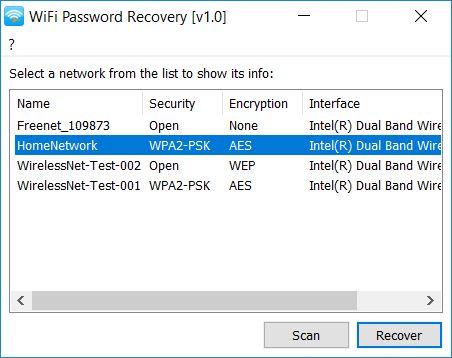
Ever been locked out of your own WiFi? You’re not alone. Whether you’ve got a new device or a friend over who wants to hop on, losing that network key is a pain. That’s where portable WiFi password recovery software comes in. This guide is for anyone who needs to grab a saved password from a Windows PC without installing anything — perfect for tech support, travelers, or just forgetful folks. By the end, you’ll have a USB stick that can recover passwords on any computer you plug it into.
We’ll use a lightweight tool that runs straight from a thumb drive. No installation, no messing with system files. You’ll learn how to download it, run it, and save your password. If you’ve ever needed a quick home WiFi password recovery fix, this is your solution.
What You’ll Need
- A Windows PC (Windows 7, 8, 10, or 11) that has connected to the WiFi network before
- A USB flash drive (2GB or more) – optional if you’re just running it locally
- An internet connection to download the portable tool
- Administrator privileges on the PC (you’ll need to right-click > Run as Administrator)
For this tutorial, we’ll use WirelessKeyView, a free portable app. You can grab it from the official NirSoft site. It’s the go-to for portable USB drive recovery. Alternatively, check out our guide on export WiFi passwords Windows for more options.
Step 1: Download a Portable WiFi Password Recovery Tool
Head to the NirSoft website and download WirelessKeyView (or your preferred tool). Make sure you grab the portable ZIP file, not the installer. Extract the ZIP contents directly to your USB flash drive so you can carry it everywhere. If you don’t have a USB drive handy, you can extract to a folder on your desktop and run it from there – but the whole point is portability.

Step 2: Run the Portable Tool from USB
Plug your USB drive into the target computer. Open the drive in File Explorer, locate WirelessKeyView.exe, right-click it, and select “Run as administrator.” A security prompt may pop up – click Yes. This is crucial: without admin rights, the tool can’t access the stored network profiles. For more on recovering passwords from different devices, see our laptop WiFi password recovery guide.

Step 3: Recover Your WiFi Passwords
The tool will instantly scan and display all saved WiFi networks on that PC. Look for your network’s SSID in the list. The password (network key) is shown in the “Key (Ascii)” column. You can also see encryption type and other details. If you have many networks, use the search or sort by SSID. If you prefer a non-graphical approach, check out the command batch file method.

Step 4: Save or Export the Password
Once you’ve found your password, you can copy it to the clipboard by selecting the entry and pressing Ctrl+C. For documentation, go to File > Save All Items to create a text or HTML file. Save it to your USB drive so you can access it later. This is essentially an export WiFi passwords Windows operation. You can also use the built-in export feature to generate a report for all networks.

Step 5: Use on Other Computers (Optional)
The beauty of portable software is that you can repeat steps 2–4 on any Windows PC. Just plug in your USB, run the tool as admin, and you’re good to go. This is perfect for IT admins or anyone helping friends recover their forgotten network key. For more advanced recovery scenarios, see our home WiFi password recovery article.
Common Pitfalls
- Antivirus false positives: Some security software flags portable recovery tools as malware. Temporarily disable your antivirus or add an exception if you’re confident the tool is safe (from NirSoft, for instance).
- No admin rights: If you can’t run as administrator, the tool will show an empty list. You must have admin credentials or use a different approach like the PowerShell method.
- Tool doesn’t find networks: Make sure you’re on the correct PC (one that has connected to the WiFi in the past). Also, some corporate or enterprise networks store passwords in a different location; you may need a more specialized tool.
Where to Next
You’ve now got a portable USB drive that can recover WiFi passwords on any Windows machine. Keep it in your bag for emergencies. If you prefer built-in tools, the PowerShell method is a no-download alternative, or learn how to export WiFi passwords Windows for backup. Happy recovering!



