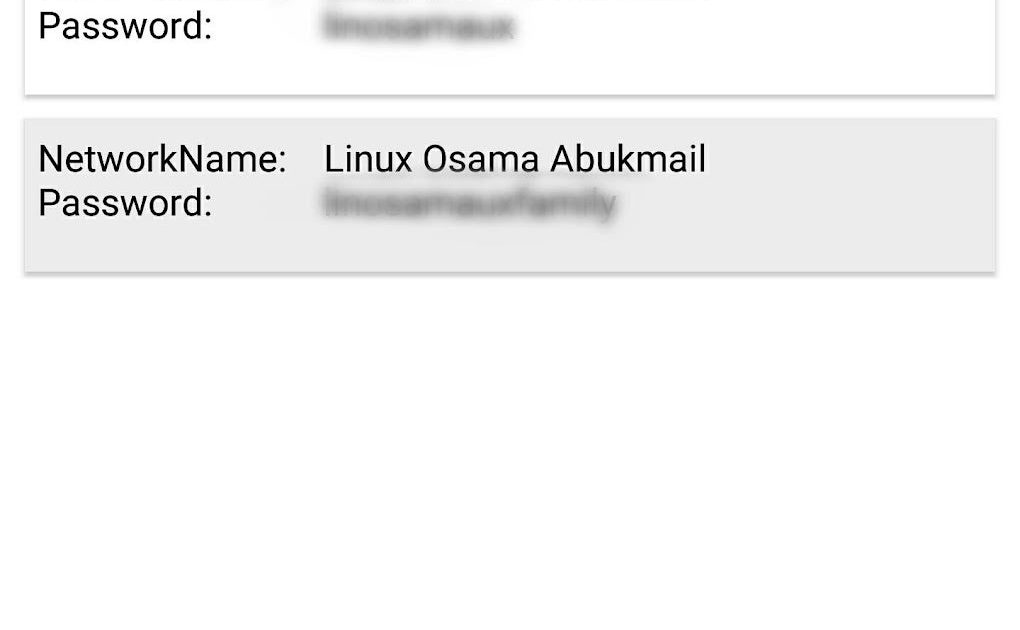
Ever been at a friend’s house and realized you don’t know the WiFi password, or need to dig up an old network key on a borrowed laptop? If you’re tired of hunting through settings or installing sketchy software, this guide is for you. By the end, you’ll have a portable USB drive packed with simple scripts that can recover saved WiFi passwords from any Windows or macOS computer in seconds — no internet required and completely free.
This method relies on built-in system commands (netsh on Windows, security on macOS) that are already on every machine. You’ll prepare the drive once on your own computer, and then plug it into any laptop or desktop to instantly retrieve passwords. It’s perfect for tech support, IT pros, or anyone who manages multiple networks. Let’s build your portable password recovery tool.
What You’ll Need
- A USB flash drive (at least 512 MB, FAT32 formatted)
- A computer where you have administrator access (to create the drive)
- A text editor (Notepad on Windows, TextEdit on Mac)
- Optional: a second USB drive for testing on a different machine
Step 1: Prepare Your USB Drive
Insert your USB drive into your computer. Make sure it’s formatted as FAT32 for maximum compatibility. If it’s not, right-click the drive in File Explorer (Windows) or Disk Utility (Mac) and reformat it. Note the drive letter (e.g., E:) or volume name — you’ll need it later.

Step 2: Create a Windows Recovery Script
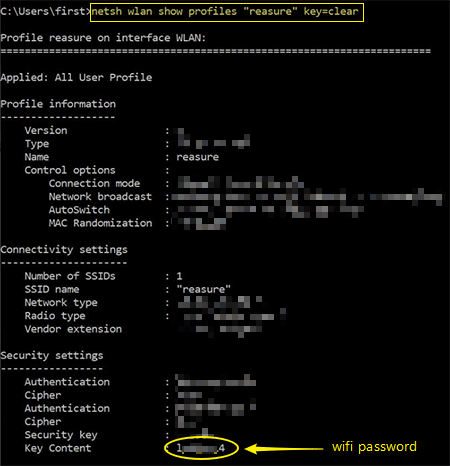
On your Windows machine, open Notepad. Copy and paste the following code. This script uses the netsh command to list every saved WiFi profile and show its password (the key content). Save the file as “wifi-recovery.bat” on your USB drive.
This is essentially a portable version of the standard wifi password recovery from laptop method. You can also use recover wifi passwords via PowerShell for a more flexible approach, but the batch file runs on any Windows PC without extra steps.
Step 3: Create a macOS Recovery Script
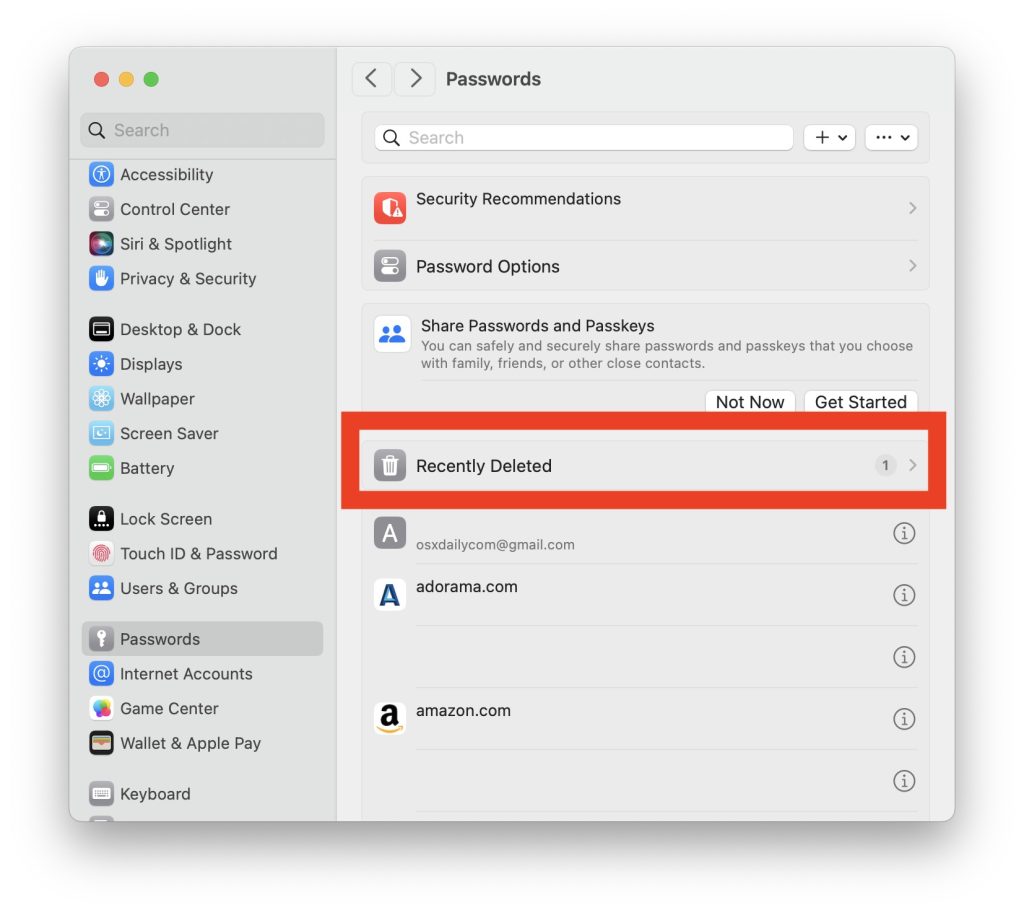
On a Mac, open TextEdit and switch to Plain Text mode (Format > Make Plain Text). Paste the code below. This script uses the security command to read passwords from the system keychain. Save it as “wifi-recovery.command” on the same USB drive. On macOS, you may need to make it executable later.
After saving, open Terminal and run chmod +x /Volumes/YOUR_USB_NAME/wifi-recovery.command to make it executable. This script complements methods like recover Wi-Fi password on a MacBook by not requiring you to open System Preferences.
Step 4: Add a Simple Readme (Optional)
Create a text file called “README.txt” on the USB drive with instructions: plug in the drive, double-click the appropriate script for the operating system, and wait for passwords to appear. This makes the tool shareable with less techy friends.
Step 5: Test Your Portable Drive
Safely eject the USB drive and insert it into another computer (or the same one for testing). Navigate to the drive in File Explorer or Finder. On Windows, double-click “wifi-recovery.bat”. A command prompt will open and list all saved WiFi profiles with passwords. On macOS, double-click “wifi-recovery.command” and click “Run” in the dialog (if prompted, allow Terminal access to your keychain). If you see passwords, congratulations — you’ve built a portable recovery tool!

Common Pitfalls
- Script blocked by antivirus: Some antivirus programs flag netsh scripts as potential threats. Temporarily disable real-time protection or add an exception for the USB drive folder. This is safe — the script only reads stored passwords, it doesn’t send them anywhere.
- No admin rights on target computer: The netsh command on Windows requires administrator privileges to show passwords (though listing profiles works without admin). If you’re on a locked-down machine, try the export saved WiFi passwords on Windows method first from an admin account to pre-populate the keychain. On macOS, keychain access may prompt for a password — enter the Mac’s login password.
- USB drive not recognized: Ensure the drive is formatted as FAT32 or exFAT. NTFS drives won’t mount on macOS without extra software. Also, some old USB ports may not supply enough power — try a different port.
Where to Next
You’ve got a portable recovery tool — now make it even more useful. Pair it with home network key recovery techniques for routers, or dive into router password recovery if you need to access the admin panel. For a deeper dive into command-line tools, check out our full guide on wifi password recovery from laptop methods. Happy password hunting!



