You’re sitting on the couch, new device in hand, ready to connect to your WiFi… and then it hits you: you have no idea what the password is. If you own an Asus router, you’re in luck. Every Asus router stores your WiFi password in its settings dashboard, and you can retrieve it in just a few minutes—no tech degree required.
By the end of this guide, you’ll have your WiFi password recovered straight from your Asus router’s admin panel. We’ll walk through every click, so even if you’ve never touched a router setting before, you’ll be fine. Whether you’re on Windows, Mac, or even your phone, this method works. And if you prefer using the Asus Router app, we’ll cover that too.
What You’ll Need
- An Asus router (most models work, including RT-AC and AX series)
- A computer or phone connected to the same WiFi network (wired connection is also fine)
- Your router’s admin username and password (defaults are often ‘admin’ / ‘admin’)
- A web browser (Chrome, Safari, Edge, etc.)
- Optional: the Asus Router app from your app store
Step 1: Access Your Asus Router’s Admin Page
First, you need to open the router’s settings page. This is done through a web browser using your router’s IP address. Most Asus routers use 192.168.1.1 or 192.168.0.1. To find yours, open Command Prompt (Windows) or Terminal (Mac) and type ipconfig (Windows) or ifconfig (Mac) and look for ‘Default Gateway.’ That number is your router’s IP.
Type that IP address into your browser’s address bar and press Enter. You’ll see the Asus login page.

Step 2: Log In to Your Router
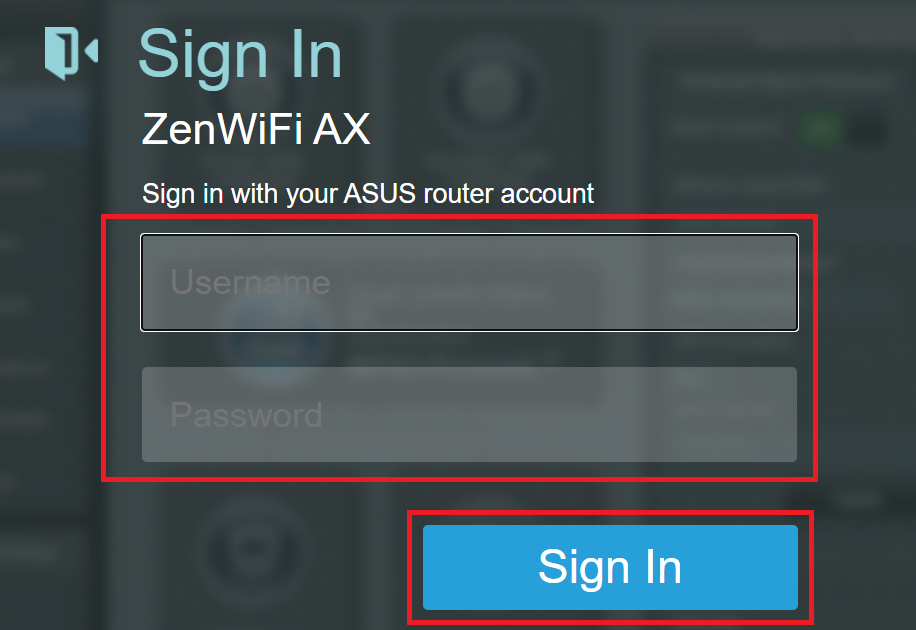
Enter your router’s admin username and password. If you never changed them, try ‘admin’ for both. If that doesn’t work, check the sticker on the back or bottom of your router. Once logged in, you’ll land on the main dashboard.
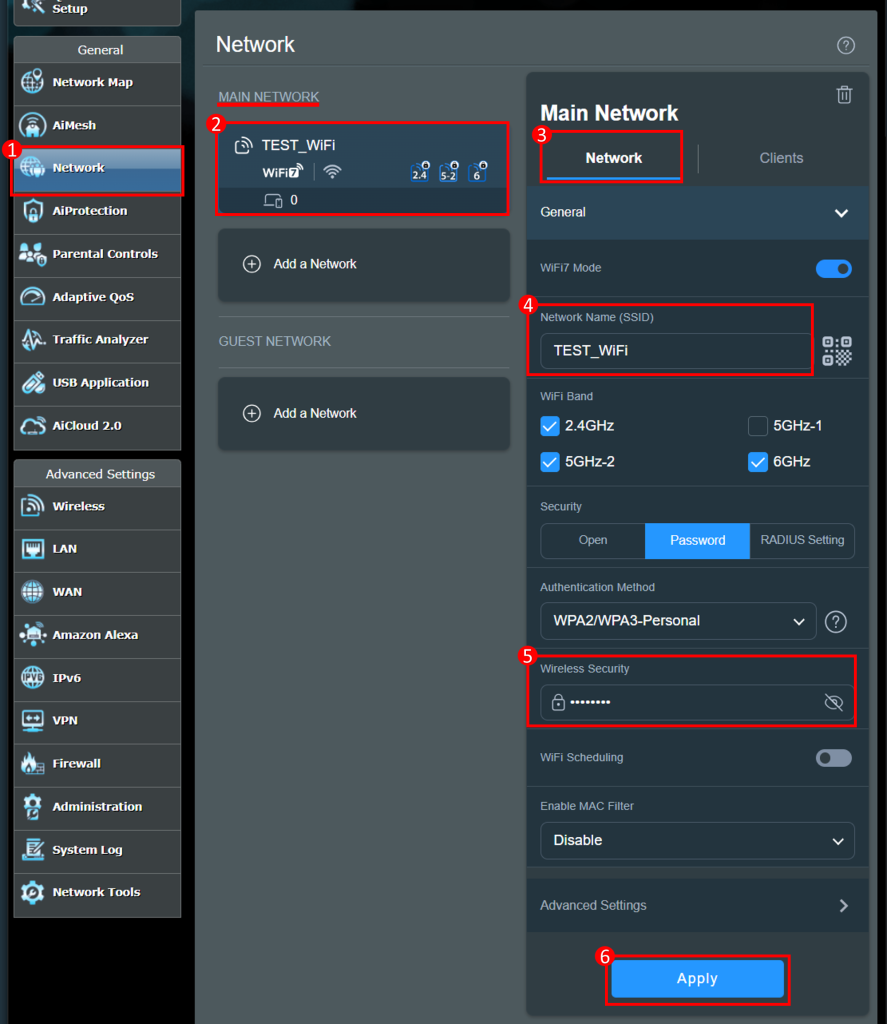
Step 3: Find the Wireless Settings
In the left sidebar, look for ‘Wireless’ or ‘Advanced Settings’ > ‘Wireless.’ Click on it. You’ll see your WiFi network name (SSID) and security settings. If you have a dual-band router, you’ll see separate sections for 2.4GHz and 5GHz.
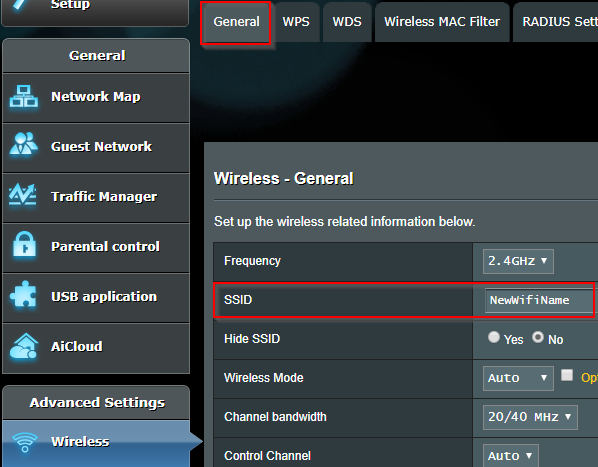
Step 4: Reveal the WiFi Password
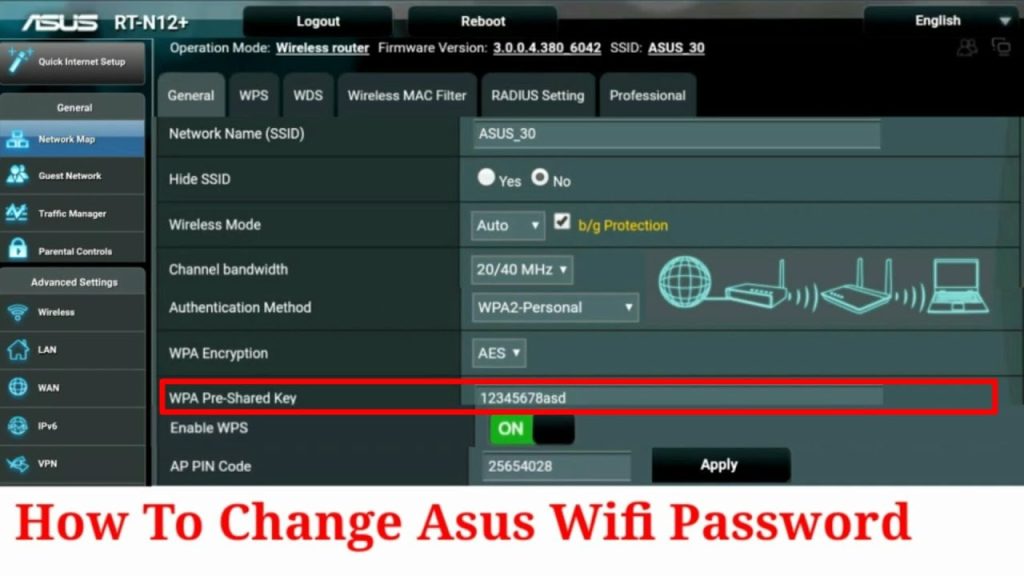
Under each band, look for a field labeled ‘Pre-Shared Key’ or ‘WPA-PSK Key.’ Your password is hidden behind asterisks. Click the eye icon or check the box that says ‘Show Password’ to reveal it. The password will appear in plain text. Write it down or take a photo.
Step 5: Using the Asus Router App (Alternative Method)
If you’re more comfortable on your phone, download the Asus Router app from the App Store or Google Play. Connect to your WiFi, open the app, and log in with your router admin credentials. Tap ‘WiFi’ or ‘Wireless,’ then select the band. The password will be listed under ‘Security’—tap the eye icon to reveal it. This is a faster way if you already have the app installed.

Common Pitfalls
- Forgotten router username/password: If you changed the admin credentials and forgot them, you’ll need to reset the router to factory defaults. Look for a small reset button on the back (hold for 10 seconds with a paperclip). This will erase all custom settings, so use it as a last resort.
- Can’t find the IP address: If the default gateways 192.168.1.1 or 192.168.0.1 don’t work, try ‘router.asus.com’ in your browser. That should redirect you to the login page regardless of your local IP.
- Password field shows dots but no reveal button: Some older Asus firmware hides the password by default. In that case, you can change the password to a new one (make sure to note it) or update the router firmware to get the show-password feature.
Where to Next?
Now that you’ve got your password back, consider securing your network. Check out our home wifi password recovery guide for more tips, or if you ever lose access again, our WiFi password recovery guide has other methods. And if you’re helping a friend with a different router brand, our recover forgotten wifi password from router article covers generic steps. Stay connected!



