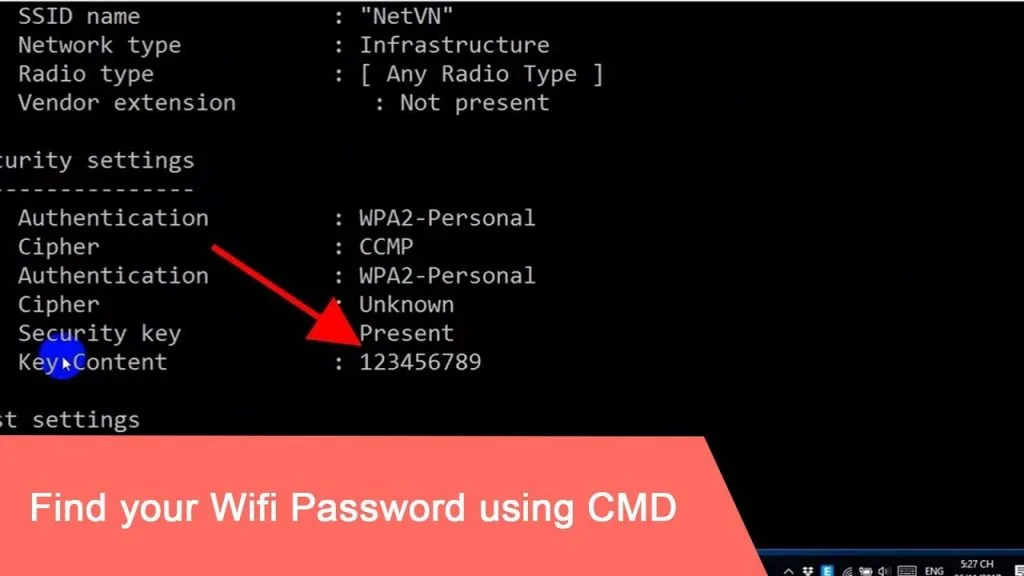
We’ve all been there – you need to connect a new device to your home WiFi, but you’ve long forgotten the password scribbled on the back of the router. Maybe you’re setting up a guest network or just want to share the key with a friend. Whatever the reason, if you have a Windows PC that’s already connected to that network, you can recover the password in seconds using Command Prompt. No extra software, no router login – just a few built-in commands. By the end of this guide, you’ll have your WiFi password at your fingertips, and you’ll know exactly how to find it again whenever you need it.
This method works on Windows 7, 8, 10, and 11, and it’s totally safe. You’re just reading stored network credentials from your own machine – no hacking involved. If you’re on a work or school computer, you might need admin rights, which we’ll cover. Ready? Let’s dive in.
What You’ll Need
- A Windows PC that has connected to the WiFi network before (and is still connected or has the profile saved).
- Administrator access on that computer (you’ll need to run Command Prompt as admin).
- Basic comfort with typing commands – no coding skills required.
That’s it. No downloads, no extra tools. If you’ve got those three things, you’re good to go.
Step 1: Open Command Prompt as Administrator
First, you need to launch Command Prompt with elevated privileges. Click the Start button, type cmd, then right-click on Command Prompt in the search results and select Run as administrator. If you see a User Account Control prompt, click Yes.
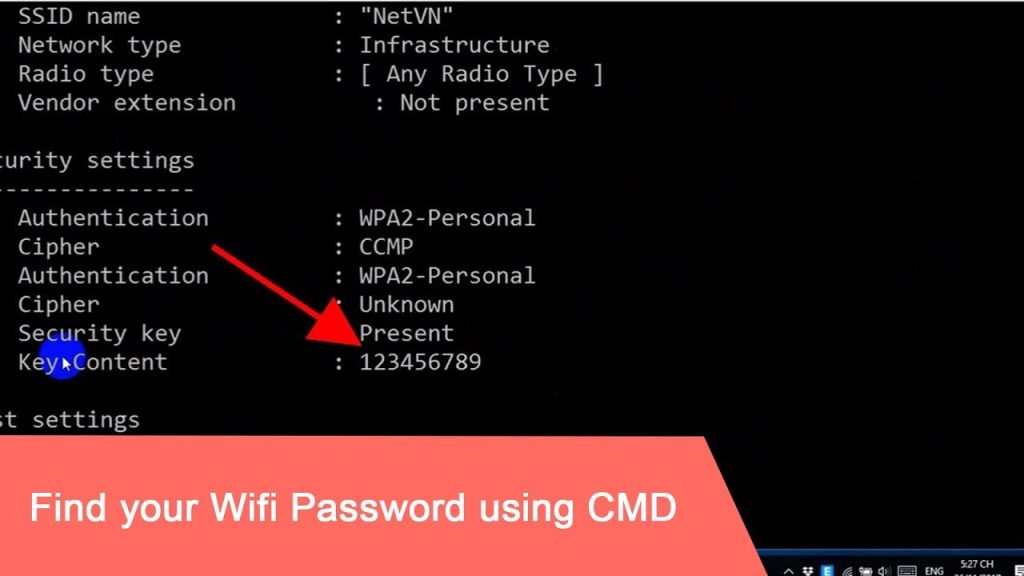
A black window with white text will appear. That’s your command line. Now you’re ready to start digging up passwords.
Step 2: List All Saved WiFi Profiles
In the Command Prompt window, type the following command and press Enter:
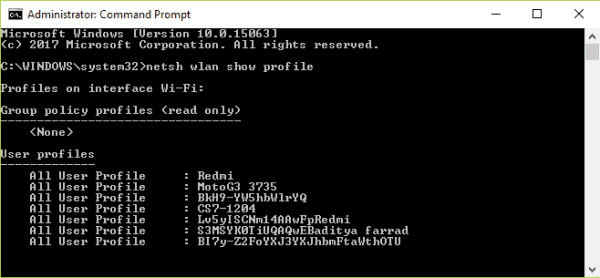
netsh wlan show profiles
Command
This will display a list of every WiFi network your computer has ever connected to and saved. Each entry under User Profiles is a network name (SSID). You might see several – your home network, a coffee shop, a friend’s place, etc. Make a note of the exact name of the WiFi whose password you want to recover. Pay attention to spaces and capitalization; the command is case-insensitive, but spaces matter in the profile name.
Step 3: Retrieve the Password for a Specific Profile
Now that you have the profile name (say it’s HomeWiFi), run this command, replacing HomeWiFi with your actual network name:
netsh wlan show profile name=”HomeWiFi” key=clear
Command
Scroll down the output until you see a section called Security settings. Look for the line that says Key Content – that’s your WiFi password in plain text. It will appear right after the colon. For example:
Key Content : MySecretPassword123
Example output
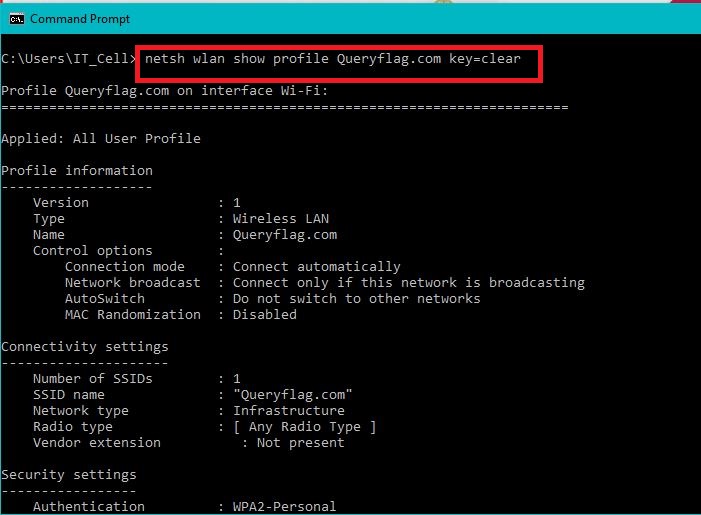
If the profile name contains spaces, make sure to enclose it in double quotes. For instance, if your SSID is Guest Network, you’d type netsh wlan show profile name=”Guest Network” key=clear.
If you get an error that the profile was not found, double-check the spelling or try listing profiles again. Perhaps the network isn’t saved – but that’s rare if you’ve connected before. For more extensive guidance, check out our WiFi Password Recovery Support Guide.
Step 4: (Optional) Save the Password for Later
Once you have the password, you can write it down or copy it safely. But if you want to script this whole process for future use, you can create a batch file. See our post on WiFi password recovery command batch file for a ready-made script. Alternatively, you can backup WiFi passwords automatically using a scheduled task – it’s a great time-saver.
If you’re on a different device, don’t worry. You can also recover your WiFi password from your laptop using similar methods on macOS or even via PowerShell – our WiFi password recovery via PowerShell guide covers that alternative on Windows.
Common Pitfalls
- Not running as Administrator: If you skip the ‘Run as administrator’ step, you’ll likely see an error like “The wireless interface is not running” or “Access is denied.” Always right-click and run as admin.
- Typo in the profile name: Even if the network name is visible in the list, an extra space or wrong case can cause “Profile not found.” Use copy-paste if possible, or type very carefully.
- The profile doesn’t exist: This happens if you never saved the network (e.g., using a guest login that doesn’t store credentials) or if someone manually deleted the profile. In that case, you’ll need to look elsewhere – maybe check your router or use home WiFi password recovery methods via the router’s admin page.
Where to Next
Now that you’ve got your password, consider writing it down in a safe place – or better yet, use a password manager. If you’re curious about other ways to recover WiFi passwords, we’ve got guides for everything from Android phones to Macs. And if you ever need to recover multiple passwords quickly, our WiFi password recovery via PowerShell method can display all saved profiles and passwords with a single script. Happy surfing!



