
So you’re sitting with your Xiaomi Redmi, trying to connect a friend’s laptop or a new tablet, and you realize you have absolutely no clue what your WiFi password is. It happens to the best of us. Maybe the password was auto-filled by your phone ages ago, or you relied on that terrible sticker on the router that’s long since faded. The good news? You don’t need to reset your router or call your ISP. Your Redmi phone has a few clever tricks up its sleeve to recover that forgotten network key, and in this guide, I’ll walk you through every single one of them.
By the end of this post, you’ll be able to view the saved WiFi password directly on your Redmi, share it via a QR code, or if all else fails, pull it from your router’s admin panel. No shady third-party apps required – we’re using only built-in MIUI features and standard methods. Let’s dive in.
What You’ll Need
- Your Xiaomi Redmi phone (any model running MIUI 12 or later – works on most Redmi devices)
- Access to the WiFi network you want to recover the password for (because your phone is already connected to it)
- Optional: A computer or another phone to scan a QR code (if you choose the sharing method)
- Optional: Router admin credentials (usually printed on the router itself) – only needed if you decide to log into the router
Step 1: Find the Saved WiFi Password Using MIUI’s Built-In QR Code
This is the easiest method and works on every Redmi with MIUI. Your phone stores the password, and MIUI lets you generate a QR code that can be scanned to connect other devices. You can also view the password behind that QR code.

Open the Settings app on your Redmi. Scroll down and tap WiFi. You’ll see a list of saved networks. Tap the gear icon next to the network you’re currently connected to (or any saved network). On the next screen, tap Share (or QR Code depending on your MIUI version). Your phone will display a QR code, and just below it, you’ll see a line of text that is the actual WiFi password. You can copy it directly from there. If your friend’s device doesn’t have a QR scanner, just read the password aloud.
Pro tip: If the password isn’t visible as plain text below the QR code, try tapping the QR code – some MIUI versions reveal the password when you tap it.
Reddit user /u/MIUIHelp
Step 2: Use a File Explorer to View the System’s WiFi Configuration
If the QR method doesn’t work (unlikely on newer MIUI, but just in case), you can dig into the system files. This requires a file explorer that can access root-like folders – but you don’t need root! MIUI’s own file manager with Show hidden files enabled is enough.

Open the File Manager app. Tap the hamburger menu (three lines) and enable Show hidden files. Then navigate to Internal storage > data > misc > wifi. You may see a file named wpa_supplicant.conf. Tap it and choose to open with a text editor (like Note or any text viewer). Inside, you’ll see entries for every saved network. Look for a line starting with ssid= and the next line psk= – that’s your password. Note: Some newer MIUI versions restrict access to this folder, so this method might not work – don’t worry, Step 1 is your best bet.
Step 3: Check Your Router’s Admin Panel
If you still can’t get the password from your Redmi, the router itself is a sure source. You’ll need the router’s IP address and admin password (usually on a sticker on the router).
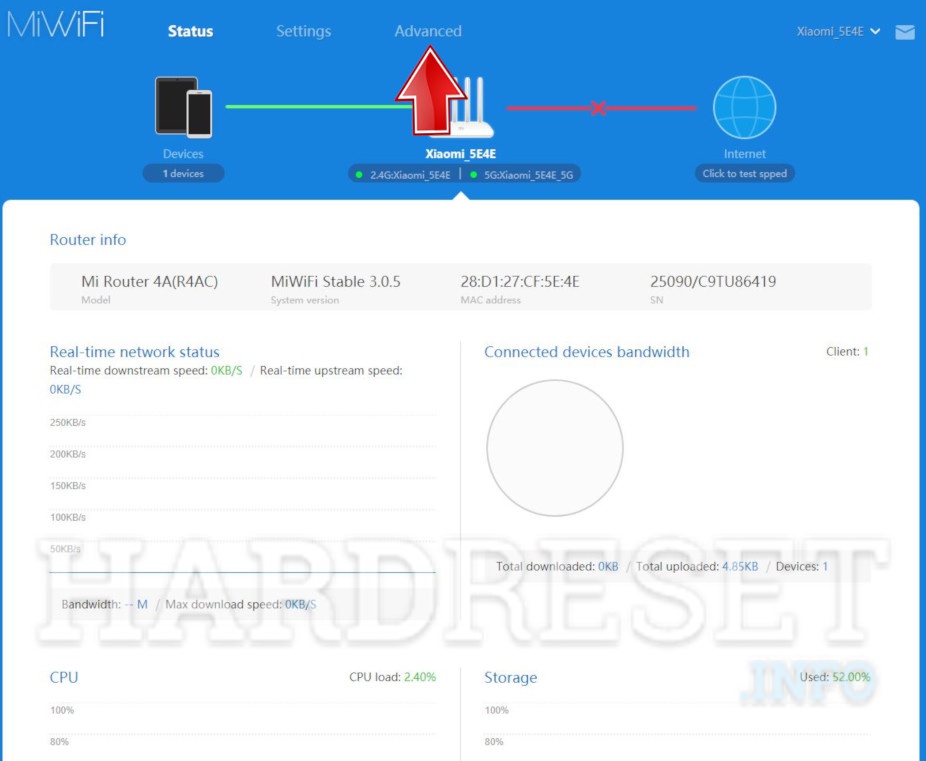
On your Redmi, open Settings > WiFi. Tap the gear icon next to your network. Note the Gateway IP address (something like 192.168.1.1). Open a browser on any device connected to the network (your Redmi will do) and enter that IP in the address bar. Log in with the admin credentials. Look for Wireless Settings or WiFi Settings. There you’ll find the current password, often hidden behind asterisks but with a show option. If you need a more detailed walkthrough for router access, check out our home wifi password recovery guide.
Common Pitfalls
- The QR code doesn’t show the password – Some MIUI versions hide the plaintext password; try updating MIUI or using the file explorer method.
- Can’t find the wpa_supplicant.conf file – Newer Android security restrictions may block access. In that case, rely on the QR code method or router login.
- Router admin password forgotten – If you never changed it, check the sticker on the router. If you did, you may need to reset the router (but that will temporarily knock all devices offline – a last resort).
Where to Next
Congratulations – you now have your WiFi password back! To avoid this hassle in the future, consider backing up your saved WiFi passwords. We have a guide on secure wifi password recovery process that shows you how to export them safely. Also, if you’re a student living in a dorm, our wifi password recovery for students article covers shared networks. And for any other device (Windows, Mac, other Androids), the wifi password recovery support guide has you covered. Happy surfing!



