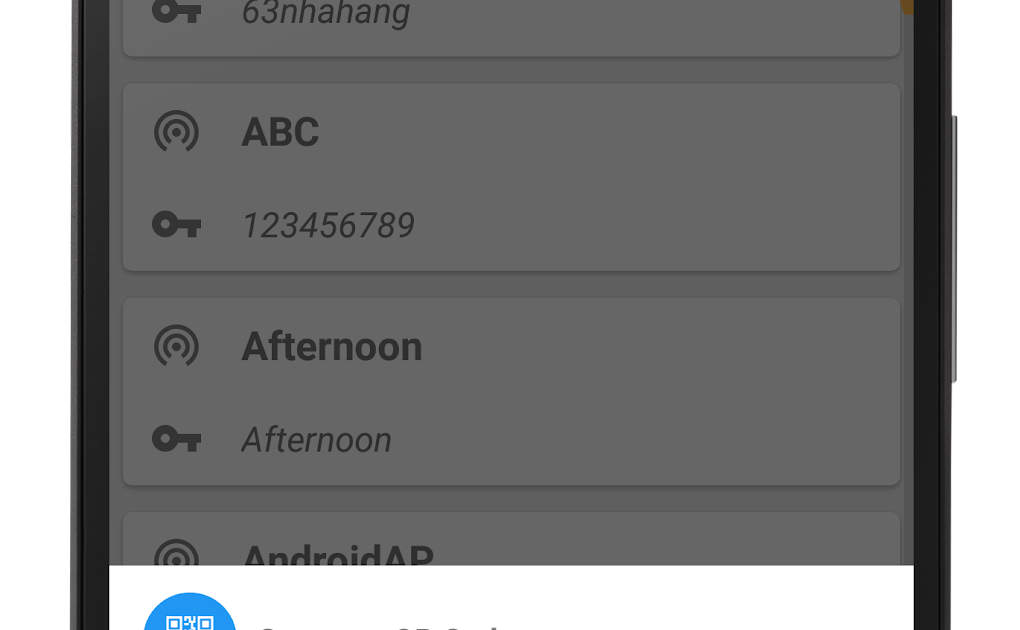
Let’s face it: you’ve probably typed your dorm or campus WiFi password once, checked the “Remember this network” box, and then totally forgot it. Now a friend needs the password, or you’re setting up a new laptop, and you’re stuck. Don’t worry — this guide is for students who need to recover that forgotten WiFi password without calling IT or resetting the router. By the end, you’ll have the network key in hand, whether you use Windows, Mac, or need to dig into the router settings.
We’ll cover the most common student scenarios: recovering from a laptop that’s already connected, using the router’s admin panel, and even using command-line tools. No sketchy third-party software required. Let’s get that password back.
What You’ll Need
- A laptop or desktop that was previously connected to the WiFi network (Windows or Mac).
- Administrator access on that computer (you probably have it if it’s your personal machine).
- Access to the router’s admin panel (you’ll need the router’s IP address and login credentials — often printed on the router sticker).
- Optional: a USB drive with a portable WiFi recovery tool if you can’t log in to the computer (see our free wifi password recovery portable guide).
Step 1: Recover WiFi Password on Windows (Using Network Settings)
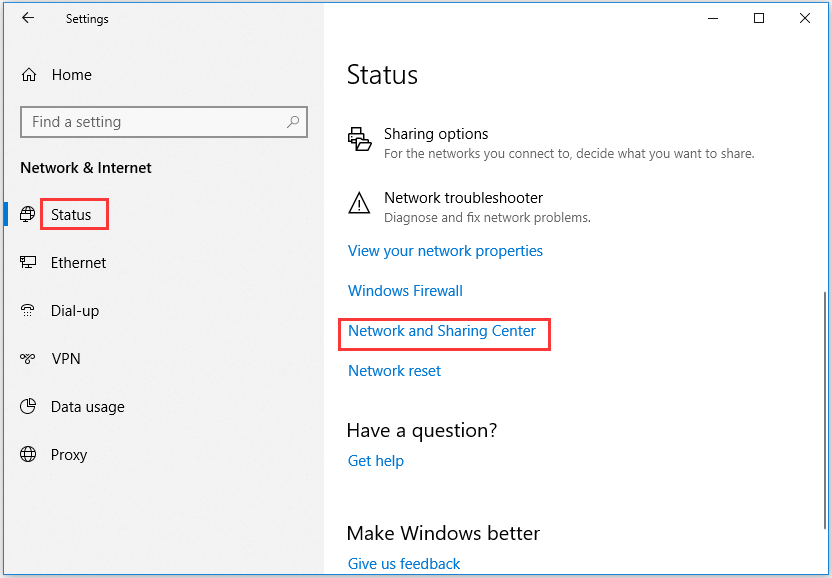
If you’re on a Windows laptop that still connects to the network, this is the easiest method. Click the WiFi icon in the system tray, then click “Network & Internet settings.” Under “Status,” click “Network and Sharing Center.” Next to your active WiFi network, click the blue “WiFi” link. In the new window, click “Wireless Properties,” then go to the “Security” tab. Check the box “Show characters” — your password will appear in the “Network security key” field. That’s it! For a more detailed walkthrough, check out our wifi password recovery from laptop guide.
Step 2: Recover WiFi Password on Mac (Using Keychain Access)
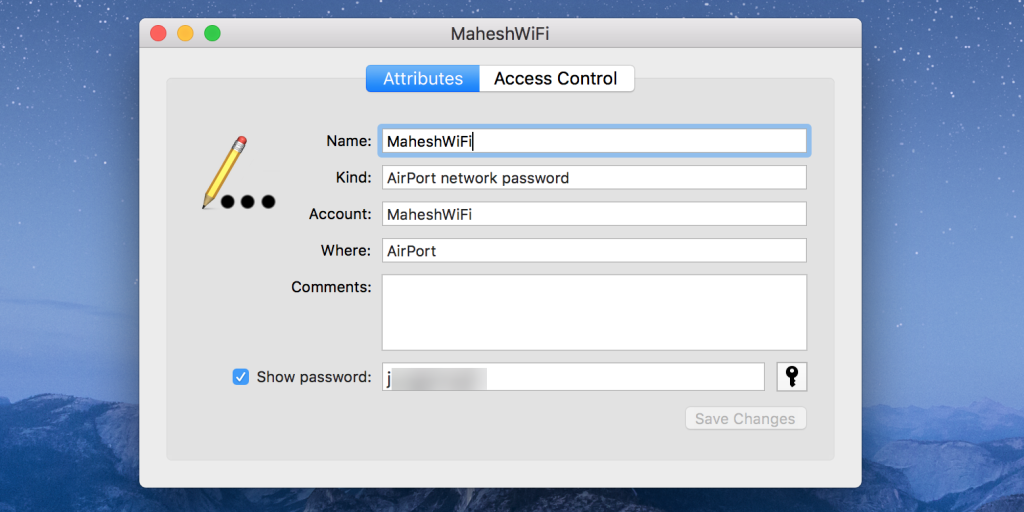
On a Mac, open “Keychain Access” (you can find it via Spotlight or in Utilities). In the search bar, type the name of your WiFi network. Double-click the entry that appears. In the pop-up, check the box “Show password.” You’ll need to enter your Mac’s administrator username and password. Once authenticated, the WiFi password will be revealed. This method works for any saved network. For more tips, see our wifi password recovery via keychain guide.
Step 3: Use Command Line (Windows netsh / Mac terminal)
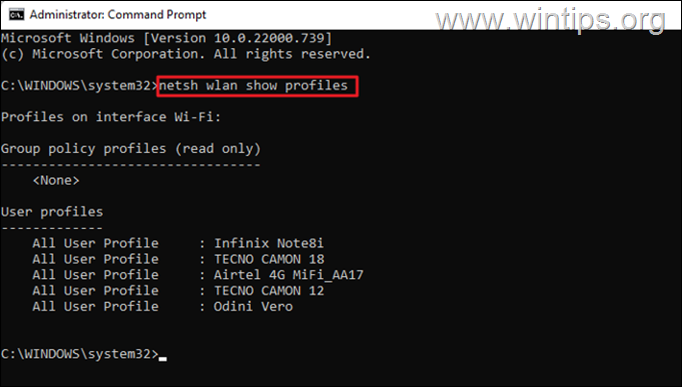
If you prefer the command line or the GUI method fails, try this. On Windows, open Command Prompt as Administrator. Type netsh wlan show profiles to see all saved networks. Then type netsh wlan show profile name="YourNetworkName" key=clear (replace “YourNetworkName”). Look for “Key Content” under “Security settings.” That’s your password. On Mac, open Terminal and type security find-generic-password -wa "YourNetworkName". Enter your Mac password if prompted. The password will appear in the terminal. For a PowerShell alternative, read our wifi password recovery via powershell guide.
Step 4: Access the Router’s Admin Panel

If you can’t access the computer but have physical access to the router, this is your go-to. Open a browser and enter your router’s IP address (common ones: 192.168.1.1, 192.168.0.1, or 10.0.0.1). Log in with the admin credentials — often printed on the router sticker (default username: admin, password: admin or password). Once logged in, look for a “Wireless” or “WiFi” section. The password is usually under “Security” or “WPA Pre-Shared Key.” If you have a TP-Link router, check our wifi password recovery for tp link guide. For Asus, see recover wifi password from asus router. For Netgear, see wifi password recovery for netgear.
Step 5: Recover from a Backup or Portable Tool

If you’ve previously backed up your WiFi passwords (smart!), you can restore them easily. Our guide on backup wifi passwords automatically shows you how to set that up. Alternatively, if you’re on a friend’s computer and need to recover your own network, you can use a portable WiFi recovery tool on a USB drive. Check out our free wifi password recovery portable guide for step-by-step instructions.
Common Pitfalls
- Not running as Administrator — On Windows, you must open Command Prompt or network settings as an administrator. Otherwise, the “Show characters” checkbox will be grayed out or netsh will error.
- Wrong router IP address — If you can’t access the router, check your default gateway (on Windows: ipconfig; on Mac: netstat -nr | grep default). Or look at the sticker on the router.
- Expired or changed password — Many university networks use enterprise authentication (PEAP, etc.) where the password is tied to your student account. If the network uses a captive portal or your password expires, these methods won’t work — contact your campus IT. For university-specific help, see university wifi password recovery.
Where to Next
Now that you’ve recovered your WiFi password, consider backing it up so you never lose it again. Our secure wifi password recovery process guide covers best practices. Also, if you’re managing multiple networks, learn how to automate the backup. Happy surfing!



