Ever been stuck when a friend asks, “What’s the WiFi password?” and you have absolutely no clue? Maybe it’s written on the router, but it’s buried behind a dusty bookshelf. Or maybe you set it years ago and it’s long gone from memory. If you’ve ever connected a device to that network, the password is still saved somewhere — you just need the right tool to dig it out. This guide is for anyone who needs a quick, no-nonsense way to recover a forgotten WiFi password using a free recovery tool. By the end, you’ll have your password back, whether you’re on Windows, Mac, or Android.
We’ll walk through using a dedicated, lightweight utility that scans your system’s saved network profiles and displays the passwords in plain text. No command-line wizardry required (though if you’re into that, check out our guide on wifi password recovery using cmd). Best of all, it’s completely free and works on most versions of Windows and even Mac. Let’s get that password back.
What You’ll Need
- A computer or device that has previously connected to the WiFi network.
- Admin access (permission to install software and access system settings).
- A free WiFi password recovery tool (I recommend WirelessKeyView for Windows or WiFi Password Recovery for Mac — we’ll link to them below).
- A USB drive or cloud storage if you plan to transfer the password to another device.
- Patience — you’re just a few clicks away.
Step 1: Download a Free WiFi Password Recovery Tool
The quickest method is to use a dedicated tool. For Windows, I like WirelessKeyView — it’s tiny, portable, and shows every saved WiFi password instantly. For Mac, the built-in Keychain Access works, but there’s also a third-party free wifi password recovery tool that’s even easier. Head to the official site and grab the latest version. Make sure to download from a trusted source to avoid malware.

Step 2: Launch the Tool as Administrator
Once downloaded, run the executable. On Windows, right-click and select “Run as administrator” — this is crucial because saved network profiles are protected. On Mac, the tool will ask for your system password. Grant permission so it can access the Keychain. The tool will scan your system’s stored networks and display them in a list.
Step 3: Locate Your Forgotten Password in the List
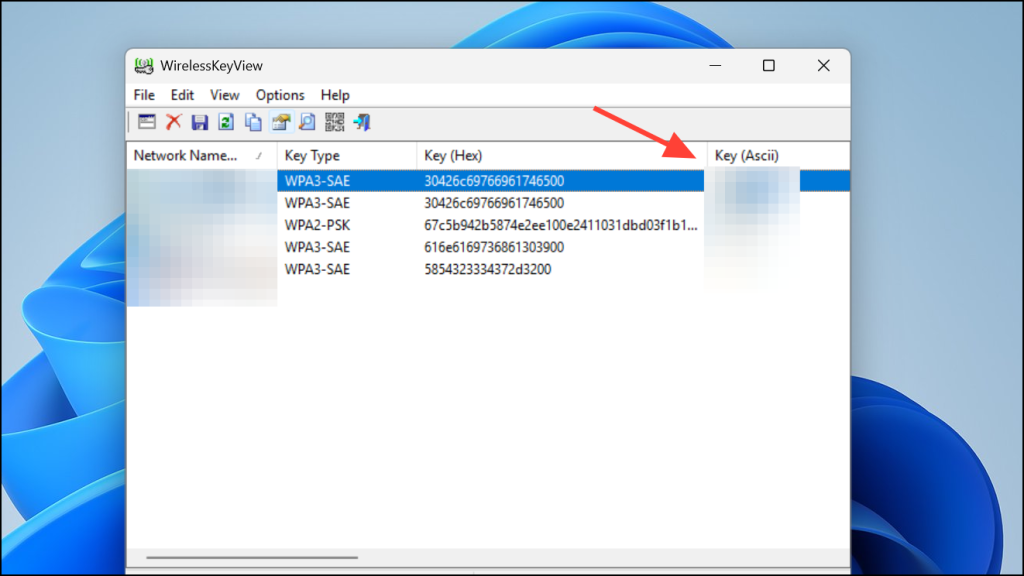
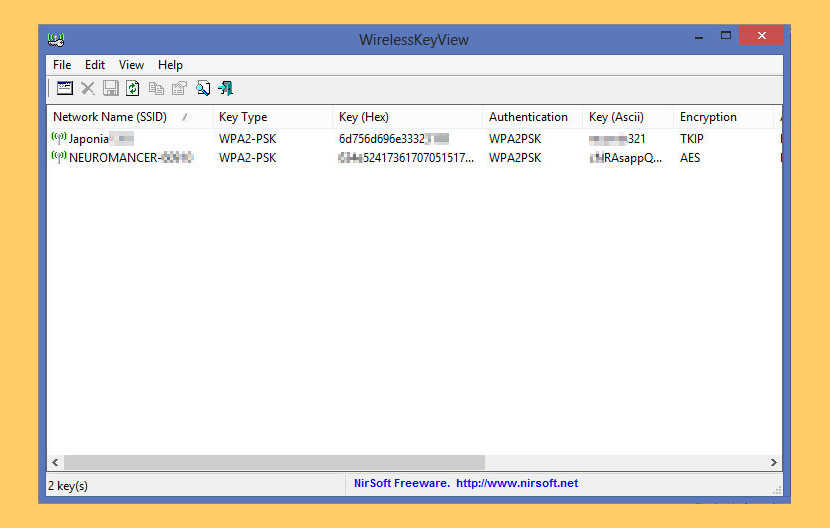
After scanning, you’ll see a table with columns like Network Name (SSID), Key (Hex), and Key (Ascii). Look for the SSID of your forgotten WiFi. The “Key (Ascii)” column shows the plain-text password — that’s what you need. If you have many networks, use the search feature or sort by name. If you’re on a Mac using the Keychain method, see our guide on wifi password recovery via keychain for specifics.
Step 4: Copy or Export the Password
Select the row for your network, then right-click and choose “Copy Selected Items” or press Ctrl+C. You can also export the entire list to a text file (File > Save Selected Items). This is handy if you want to view saved wifi password on laptop and also share it with your phone. The tool even lets you export passwords to a CSV for backup.

Step 5: Use the Recovered Password
Now you have the password! You can type it in on a new device, share it with guests, or write it down somewhere safe. If you want a more permanent solution, consider backing up your WiFi passwords automatically with our step-by-step guide. And if you need to recover passwords on a desktop that never connected, you’ll have to reset the router or use a different method (check out how to recover wifi password on desktop for alternatives).
Common Pitfalls
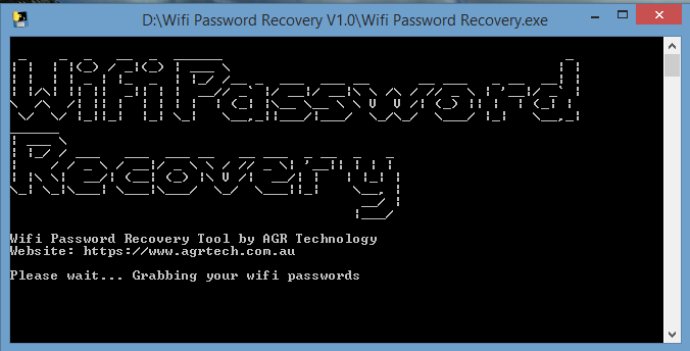
- Not running as administrator — the tool will scan but show blank passwords. Always right-click and run as admin.
- Antivirus blocking the tool — some security software flags password recovery tools as potentially unwanted. Temporarily disable it or add an exception if you trust the source.
- Forgetting that the network name (SSID) is case-sensitive. Double-check that you’re looking at the exact SSID. Also, the tool may show passwords for networks you’ve connected to in the past, not just the current one.
Where to Next
You’ve successfully recovered your forgotten WiFi password! Now that you have it, why not secure your network with a strong passphrase? Or explore more advanced techniques like wifi password recovery mac for Apple users. If you’re on Linux, we’ve got a guide for that too. Stay connected and never be locked out again.



