Ever been in that awkward spot where someone asks, “Hey, what’s the WiFi password?” and you totally blank on that 16-character mess you set up two years ago? No worries — your laptop remembers every network you’ve ever connected to. In this guide, I’ll show you how to dig up those saved WiFi passwords on both Windows and Mac laptops. No third-party tools, no command-line wizardry required (though we’ll peek at the command line for the brave). By the end, you’ll have the password in plain text.
This tutorial is for absolute beginners, but even if you’re a tech pro, the step-by-step walkthrough will save you a click or two. I’ll cover Windows 10/11 and macOS Ventura and later. Let’s dive in.
What You’ll Need
- A laptop running Windows 10 / 11 or macOS Ventura / Sonoma / Sequoia
- At least one saved WiFi network (you’ve connected to it before)
- Admin access on the laptop (you’re the primary user or have the admin password)
That’s it. No downloads, no USB drives, no gimmicks.
Step 1: View WiFi Password on Windows via Network Settings
This is the easiest method for Windows users. It uses the built-in Control Panel and works on both Windows 10 and 11.
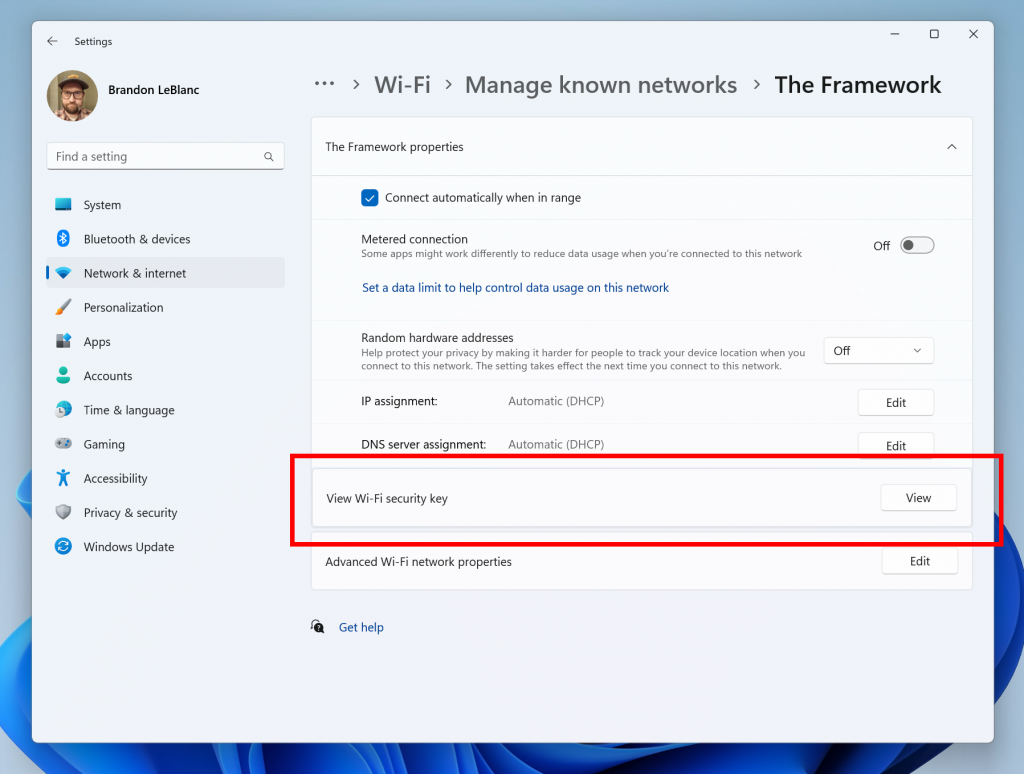
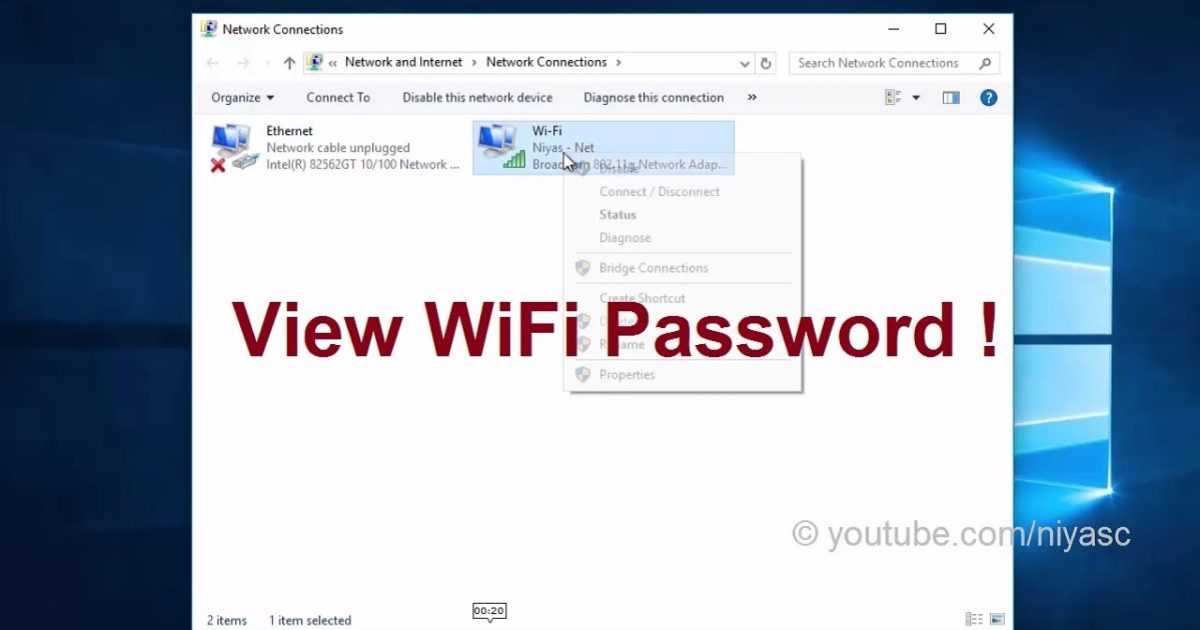
- Click the Start button and type “Control Panel”, then open it.
- Navigate to “Network and Internet” > “Network and Sharing Center”.
- Click your WiFi network name (next to “Connections”).
- In the pop-up, click “Wireless Properties”.
- Switch to the “Security” tab and check the box “Show characters”.
- The password appears in the “Network security key” field.
That’s all. Write it down or take a picture. Easy.
Step 2: View WiFi Password on Windows via Command Prompt (Alternative)
If you prefer the command line or the Control Panel method didn’t work for some reason, you can use Command Prompt. Also check out our dedicated PowerShell method for a scripted approach.
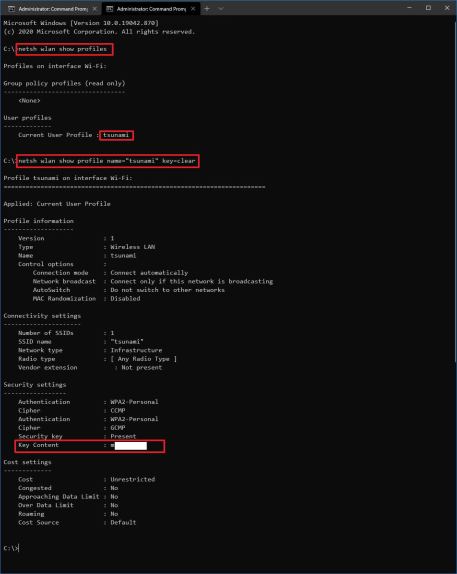
- Press the Windows key, type “cmd”, right-click “Command Prompt”, and select “Run as administrator”.
- Type:
netsh wlan show profilesand press Enter. This lists all saved networks. - Find the network you need, then type:
netsh wlan show profile name="YOUR_NETWORK_NAME" key=clear. - Look for the line “Key Content” under “Security settings”. That’s your password.
Pro tip: You can copy the profile name from the list to avoid typos. And yes, this works for any saved network.
Step 3: View WiFi Password on Mac via Keychain Access
Mac users, you’re in luck — the Keychain Access app stores all your passwords securely. Here’s how to pop the lid.
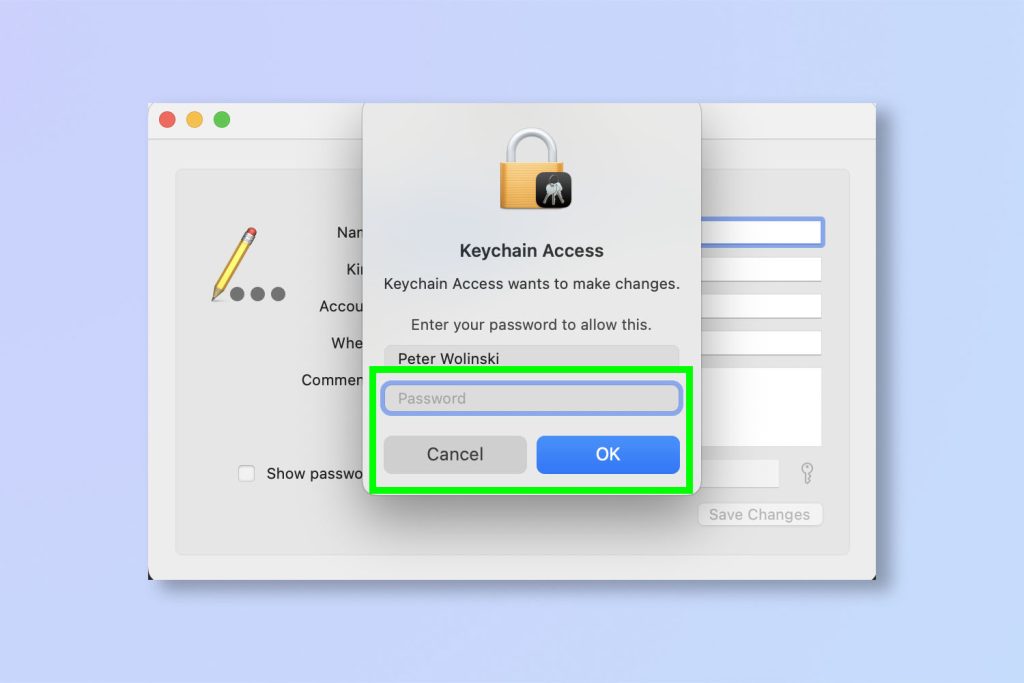
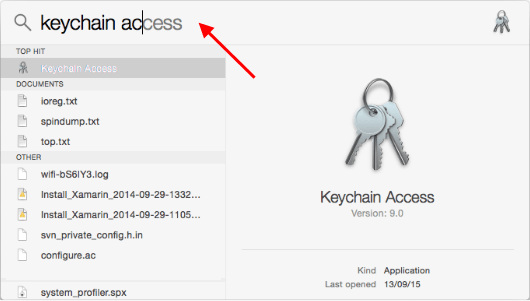
- Open “Keychain Access” (found in Utilities folder or via Spotlight search).
- In the search bar, type the name of your WiFi network.
- Double-click the entry for your network (it should have a Wi-Fi icon).
- Check the box “Show password”.
- Enter your Mac’s admin username and password when prompted.
- The WiFi password is now displayed in plain text.
That’s the classic Mac Keychain Access route. For more details, see our full guide on desktop recovery guide for both platforms.
Common Pitfalls
- **Not running as admin on Windows:** If you skip the “Run as administrator” step, the command prompt method won’t show the password. Make sure you see “Administrator” in the window title.
- **WiFi profile doesn’t appear:** The network you’re trying to recover must have been saved. If you only connected once and didn’t save, your laptop won’t have the password. You’ll need to reset the router or ask the admin.
- **Forgotten Mac admin password:** On macOS, even if you know the WiFi password, Keychain Access asks for your admin credentials. If you can’t remember those, you’re locked out. Try resetting your Mac password first.
Where to Next
Now that you’ve got your WiFi password, you might want to backup WiFi passwords so you never lose them again. Or check out our secure recovery process to keep your passwords safe. Happy surfing!