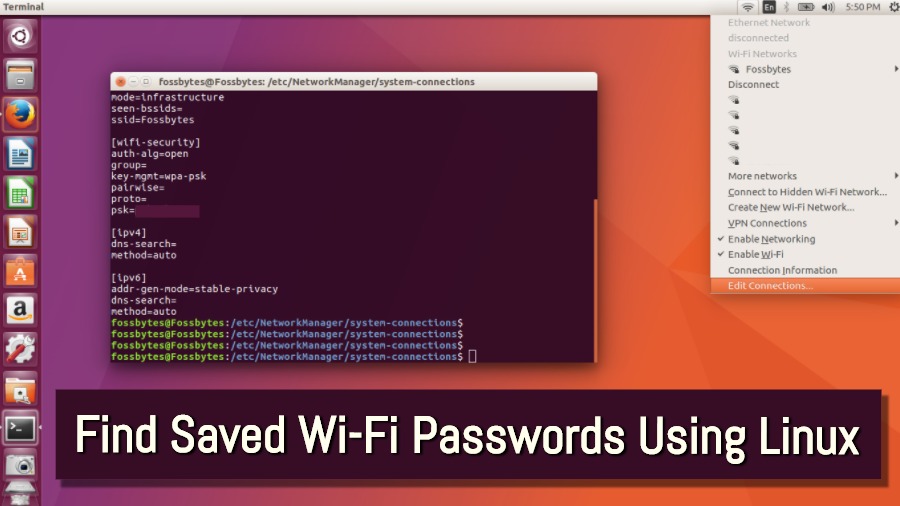
You’re sitting in your favorite coffee shop, your phone’s WiFi is connected, but your laptop is asking for the password and you have no clue what it is. Or maybe you just built a new Linux machine and need to grab the password from your old one. We’ve all been there. If you’re on Linux, you’re in luck — the saved WiFi passwords are just a few commands away. By the end of this guide, you’ll have your WiFi password in plain text, no matter which Linux distribution you’re using.
This tutorial assumes you have basic terminal familiarity (opening the terminal and typing commands). We’ll cover two methods: using the NetworkManager command-line tool `nmcli` (simplest and recommended) and digging into config files for when `nmcli` isn’t available. We’ll also touch on security concerns so you can keep your passwords safe.
What You’ll Need
- A Linux computer (any distribution — Ubuntu, Debian, Fedora, Arch, etc.)
- A saved WiFi network you’ve connected to before
- Terminal access (Ctrl+Alt+T usually works)
- Sudo privileges (you’ll need to be an admin user)
That’s pretty much it. If you’re running a minimal install without NetworkManager (rare on desktops), skip to the config-file method in Step 3.
Step 1: Open the Terminal
First things first: open your terminal. You can usually do this with a keyboard shortcut (Ctrl+Alt+T) or by searching for ‘Terminal’ in your applications menu. Once it’s open, you’ll see a command prompt — that’s your gateway to the WiFi password.
Step 2: List All Saved WiFi Profiles with nmcli
The easiest way to recover a WiFi password on Linux is via `nmcli`, the command-line client for NetworkManager. Most desktop Linux distributions have NetworkManager running by default. Run this command:
nmcli connection show
Terminal command
You’ll see a list of all network connections your system remembers. Look for the WiFi network you want the password for. Note the exact name (the ‘NAME’ column) — it’s case-sensitive. If your WiFi name has spaces, you’ll need to quote it in the next command.
Step 3: Display the Password for a Specific Network
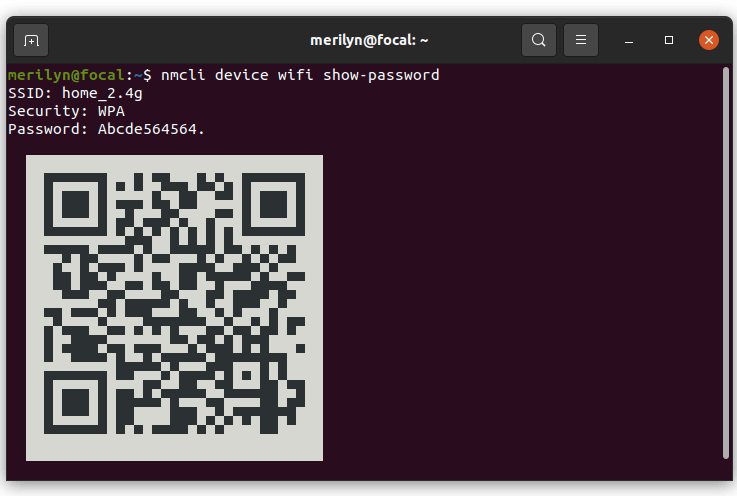
Now that you have the profile name, use the following command to reveal the password. Replace ‘YourWiFiName’ with the actual network name:
nmcli connection show ‘YourWiFiName’ -s | grep -i ‘^psk=’
Terminal command
The `-s` flag shows all settings including secrets (passwords). The `grep` part filters for the line starting with ‘psk=’ — that’s your pre-shared key (the password). If your WiFi uses WPA2-Enterprise (like a school or work network), look for ‘802-1x.psk’ or other fields. You’ll likely need to enter your sudo password to see the secrets.
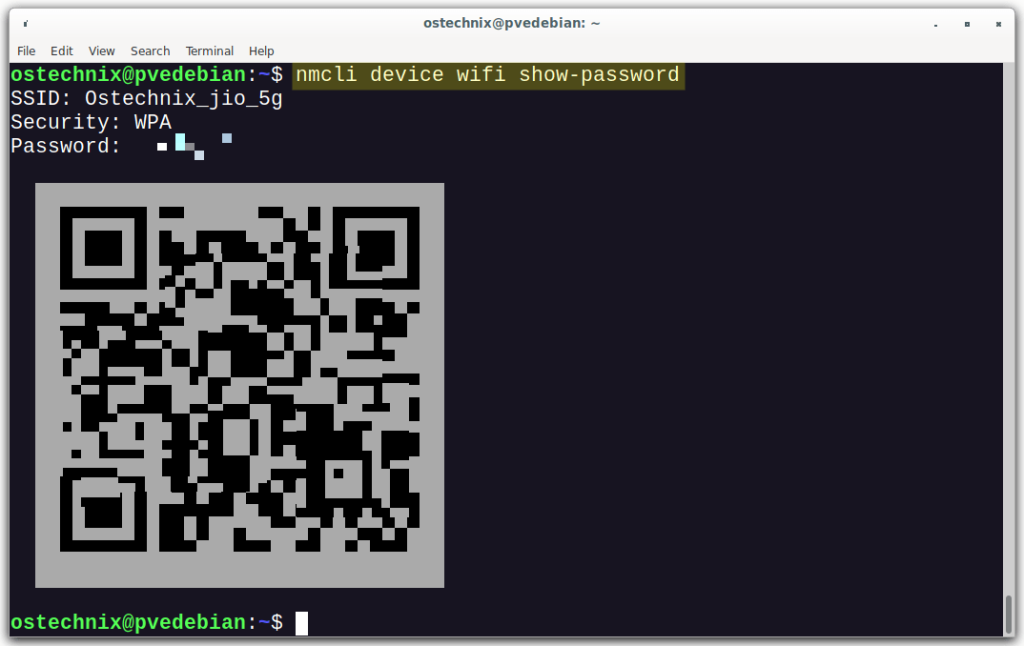
If the password contains special characters, it might be shown in quotes or escaped. Just copy the whole thing between the quotes. That’s your WiFi password!
Step 4: Alternate Method – Check Connection Files Directly
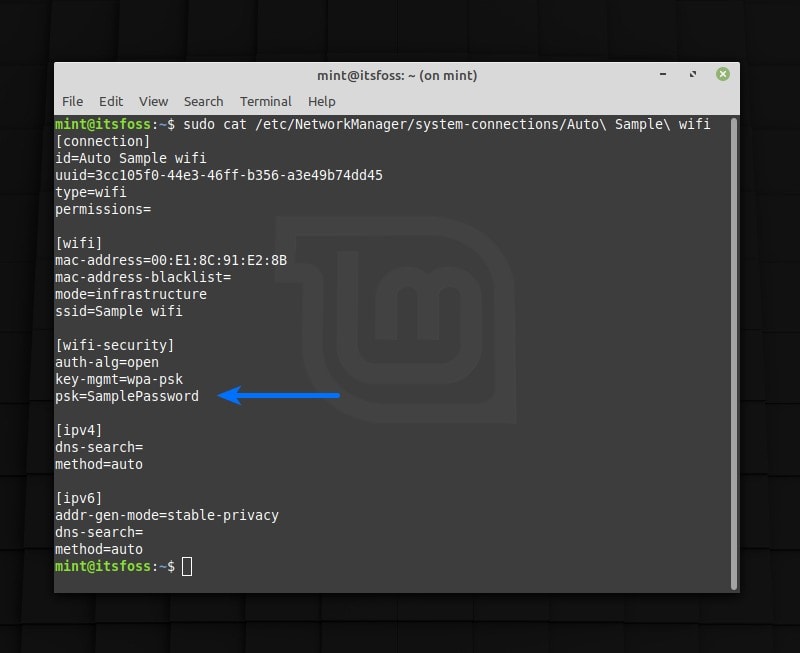
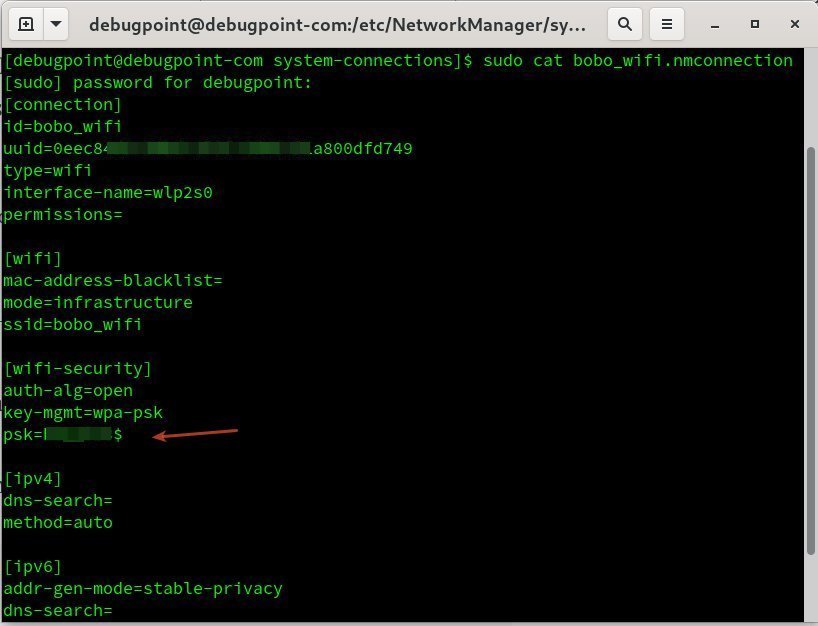
If `nmcli` isn’t working (maybe you’re using a network manager other than NetworkManager, like systemd-networkd or wpa_supplicant), you can read the config files directly. NetworkManager stores connection files in `/etc/NetworkManager/system-connections/`. These files contain the password in plain text if you have root access.
sudo cat /etc/NetworkManager/system-connections/YourWiFiName.nmconnection
Terminal command
Look for a line that says `psk=` (for WPA/WPA2) or `password=` (for WEP). The password will be right there. If the file doesn’t exist, your connection might be stored elsewhere — try `/etc/wpa_supplicant/` or run `find / -name “*.conf” -type f 2>/dev/null` to hunt for config files.
For non-NetworkManager setups, like on Arch with netctl, check `/etc/netctl/` profiles. The password is often in the `Key=` field. For more exotic setups, consult your distribution’s wiki or our wifi password recovery support guide.
Common Pitfalls
- **Forgot sudo?** You’ll get ‘Error: Secrets not found’ or ‘Permission denied’. Always use `sudo` when reading connection files or using `-s` with nmcli.
- **Special characters in the SSID.** If your WiFi name has spaces or quotes, you must wrap it in single or double quotes in the command. For example: `nmcli connection show ‘My Home Network’ -s`.
- **NetworkManager not running.** If `nmcli` isn’t found or says ‘NetworkManager is not running’, your system may use a different network manager. Fall back to the config file method or check if you can install NetworkManager.
One more thing: if you’re on a company or school network with 802.1X authentication, the password field might be under a different key like `802-1x.password`. Run `nmcli connection show YourWiFiName -s` and scroll through. If you’re stuck, check out our secure wifi password recovery process for additional tips.
Where to Next?
Now that you’ve got your WiFi password back, consider writing it down somewhere safe — or use a password manager so you never lose it again. If you want to automate this process, learn how to backup wifi passwords automatically. For deeper dives, our advanced wifi password recovery methods cover everything from WPA handshake capture to router backdoors. And if you’re on Debian specifically, we have a dedicated guide to recover wifi password on debian. Enjoy your regained connectivity!



