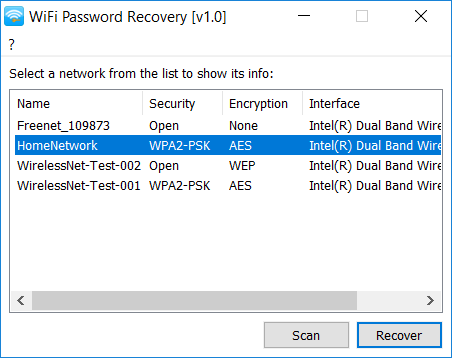
Let’s face it — we’ve all been there. You’re setting up a new device, or a friend asks for your WiFi password, and your brain just goes blank. The good news? If you’re already connected on a Windows or Mac computer, that password is hiding somewhere in your settings, and it’s surprisingly easy to retrieve. This guide is for anyone who’s currently logged into their own WiFi network and wants to recover the password without downloading sketchy software or messing with command lines.
By the end of this tutorial, you’ll have the plain‑text WiFi password copied to your clipboard or written down. We’ll cover both Windows 10/11 and macOS. No rooting, no jailbreaking, no admin tricks — just the standard settings that every computer has. If you need to recover a password for a network you’re not currently connected to, check out our separate guide on how to view saved wifi password on laptop with other methods.
What You’ll Need
- A Windows (10 or 11) or Mac (macOS Sierra or later) computer
- Admin access to your computer (you probably already have it)
- The WiFi network you’re currently connected to
- About 2 minutes of time
That’s it. If you don’t have admin rights on your work computer, you might be stuck — but for your personal machines, you’re good to go.
Step 1: Open Network Settings (Windows)

Click the WiFi icon in the system tray (bottom‑right corner). From the pop‑up, select “Network & Internet settings.” If you’re on Windows 11, right‑click the WiFi icon and choose “Network and Internet settings.” Alternatively, you can go to Start > Settings > Network & Internet.
Once inside, click on “Status” (if not already there), then click “Network and Sharing Center.” This opens the old‑school Control Panel view. If you’re on Windows 11, you might need to scroll down and click “Advanced network settings” > “More network adapter options” > right‑click your WiFi adapter > “Status” > “Wireless Properties.” But the quickest path is through the Control Panel.
Step 2: Open Wireless Properties (Windows)

In the Network and Sharing Center, you’ll see your active networks. Click on your WiFi network name (it’s a blue link next to “Connections”). A small status window pops up — click the “Wireless Properties” button. This opens the properties for that specific network.
You’ll see two tabs: Connection and Security. We want the Security tab.
Step 3: Reveal the Password (Windows)

Click on the “Security” tab. Under “Network security key,” you’ll see a bunch of dots. Check the box that says “Show characters.” And bam — your WiFi password appears in plain text. Write it down or take a photo. Just be careful not to accidentally change it.
That’s all there is to it on Windows. For a more detailed walkthrough with screenshots, you can also refer to our wifi password recovery tutorial windows 10 article.
Step 1: Open Keychain Access (Mac)

On your Mac, open Finder and go to Applications > Utilities > Keychain Access. You can also hit Cmd+Space, type “Keychain Access,” and press Enter. Keychain is where macOS stores all your saved passwords securely.
Once the app opens, you’ll see a list of keychains on the left. Make sure “login” or “iCloud” is selected (login is usually enough). In the search bar at the top‑right, type the name of your WiFi network (SSID). You should see it appear in the list.
Step 2: Find Your WiFi Network (Mac)

Double‑click on your WiFi network entry. A new window opens with details about that network. Check the box “Show password” at the bottom. You’ll be prompted for your Mac’s admin username and password (the one you use to log in). Enter it.
Now the password field will show your WiFi password in clear text. You can right‑click and copy it, or just write it down. If you use iCloud Keychain, this same password can also sync to your other Apple devices — but that’s a story for another day.
Common Pitfalls
- **Wrong Wi-Fi network selected** — Make sure you’re looking at the properties of the network you’re currently connected to. If you’re looking at a different saved network, the password won’t be the one you need.
- **No admin rights** — On some work or school computers, the “Show characters” checkbox or Keychain Access might be greyed out or blocked by IT policy. In that case, contact your system administrator.
- **macOS asks for a password you don’t know** — The admin password prompt in Keychain requires the password for the user account you’re logged into. If it’s not accepting it, you might have a different admin account. Try logging in as another admin user.
Where to Next
Now that you’ve got your WiFi password back, you might want to check out our comprehensive wifi password recovery mac guide for more Mac‑specific tips, or learn how to recover a lost network’s password without an internet connection. If you need to get the password out of a router’s admin panel, see our guide on wifi password recovery for lost password. Happy surfing!



