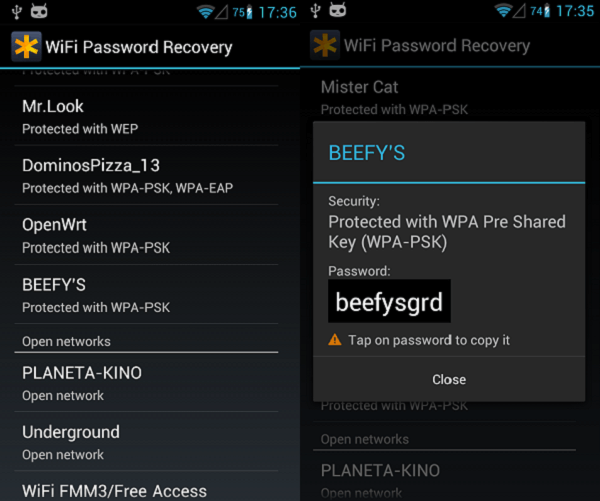
We’ve all been there: a friend asks for the WiFi password, and you draw a blank. The sticker on the router is long gone, and the only thing you remember is that you clicked “Connect” once and it worked. The good news is your laptop, phone, or tablet already saved that password. With just a few clicks, you can dig it out and share it.
This guide is for anyone who has ever connected to a WiFi network and now needs the password again. Maybe you want to connect a new device, share with a guest, or just have a backup. By the end, you’ll know how to view saved WiFi passwords on Windows, Mac, and Android. For iPhones, check out our dedicated post on how to recover WiFi password on iPhone.
What You’ll Need

- A computer or phone that has connected to the WiFi network before.
- Administrator access (Windows) or your Mac login password.
- Patience — the password is there, just hidden.
Step 1: Recover WiFi Password on Windows
Windows keeps a list of all networks you’ve ever connected to, along with their passwords. You can dig into either the Settings app or the classic Control Panel. Both methods work on Windows 10 and 11. For a deep dive, see our Windows 10 WiFi password recovery guide.
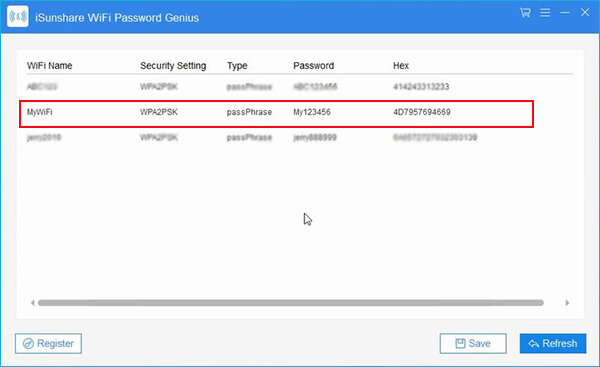
Here’s the quickest way via Settings: Open the Start menu and go to Settings > Network & Internet > Status. Click “Network and Sharing Center” (under Advanced network settings). In the window that pops up, click your WiFi network name next to “Connections”. Then click “Wireless Properties”, go to the “Security” tab, and check “Show characters”. Bob’s your uncle — the password appears in the Network security key field.
Alternatively, if you prefer the old-school way: Open Control Panel > Network and Sharing Center > Manage wireless networks. Right-click your network and select Properties, then Security tab and check “Show characters”. This method also works for wifi password recovery via settings.
Step 2: Recover WiFi Password on Mac
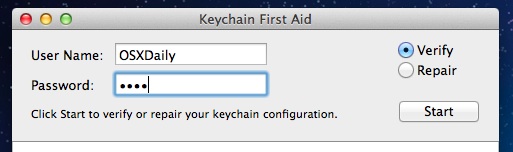
Macs store WiFi passwords in the Keychain Access app. This is a built-in password manager that keeps everything from website logins to network keys. To find your WiFi password, open Keychain Access (from Applications > Utilities or via Spotlight). In the search box, type the name of your WiFi network. Double-click the entry, then check “Show password”. You’ll need to enter your Mac’s admin username and password to reveal it.
If you have multiple Macs, you can also use iCloud Keychain to sync passwords. That makes it easy to view saved wifi password on laptop across devices. For a complete walkthrough, refer to our beginner wifi password recovery tutorial.
Step 3: Recover WiFi Password on Android
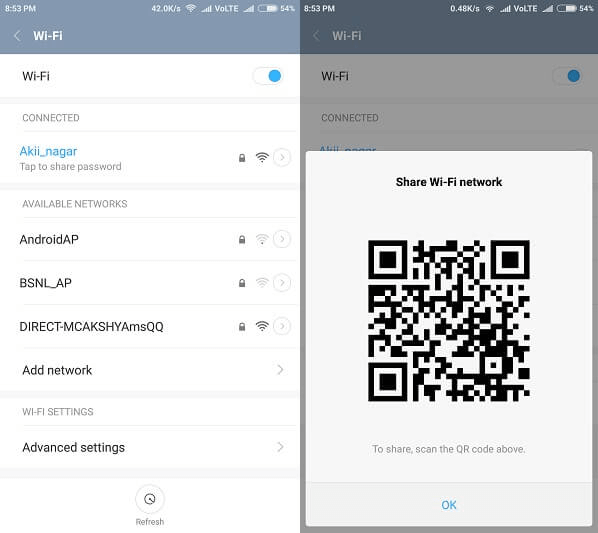
Android phones and tablets have had a built-in way to share WiFi passwords since Android 10. The password is hidden behind a QR code, but you can also see the text. Go to Settings > Network & Internet > Internet (or “WiFi” on older versions). Tap the gear icon next to your connected network. Then tap the Share button (or the QR code icon). You’ll be asked to verify your phone’s PIN, pattern, or password. After that, a QR code appears. Below the QR code, you’ll see the WiFi password in plain text — just copy it.
This method works on Samsung, Google Pixel, OnePlus, and most other Android phones. If your device is older than Android 10, you may need to root it or use a third-party app. Check our guide on how to find saved wifi password on Android for alternate methods.
Common Pitfalls
- You don’t have admin rights on a work or school computer. In that case, you can’t view the password through Settings. Ask your IT department or use the router’s admin page instead.
- The network you’re looking for isn’t saved anymore. Windows sometimes forgets networks after a certain period or if you’ve used a network reset. Reconnect at least once before trying.
- You’re looking at the wrong network. Make sure you’re checking the exact SSID (network name) — a friend’s hotspot might have a similar name.
If none of these work, you can always log into your router’s admin panel to see or reset the WiFi password. That’s beyond this guide, but it’s a reliable fallback.
Where to Next
Now that you’ve recovered your password, you might want to keep a backup. Learn how to export WiFi passwords to CSV so you can store all your network credentials in one safe file. If you’re managing multiple networks for an office, check out our wifi password recovery for network admins guide. And if you ever need to recover a password from a router’s web interface, we’ve got you covered too.



