
Ever needed to connect a new device to your home WiFi but completely blanked on the password? If you’ve got a rooted Android phone lying around, you’re in luck. Android stores all saved WiFi credentials in a plain text file (kind of), and with a root explorer app you can crack it open and grab that password in under two minutes. This guide is for anyone who has root access on their Android device and wants to recover a forgotten WiFi password without resetting the router. By the end, you’ll have the exact password in hand.
I’ll walk you through installing a root explorer, navigating to the right system folder, and pulling the password out of the wpa_supplicant.conf file. No command line, no fluff. Just a few taps and you’re done. Note: this method requires root, but if you’ve already rooted your phone, you’re golden. If you don’t have root, check out our guide to recover a WiFi password on iPhone without jailbreak or view saved WiFi password using PowerShell for other options.
What You’ll Need
- An Android phone or tablet with root access (if you’re not rooted, this won’t work)
- A root explorer app – I recommend Root Browser or Solid Explorer with root add-on (both free)
- Basic familiarity with navigating file managers
- Optional: a text editor app (most root explorers have one built-in)
Step 1: Install a Root Explorer App
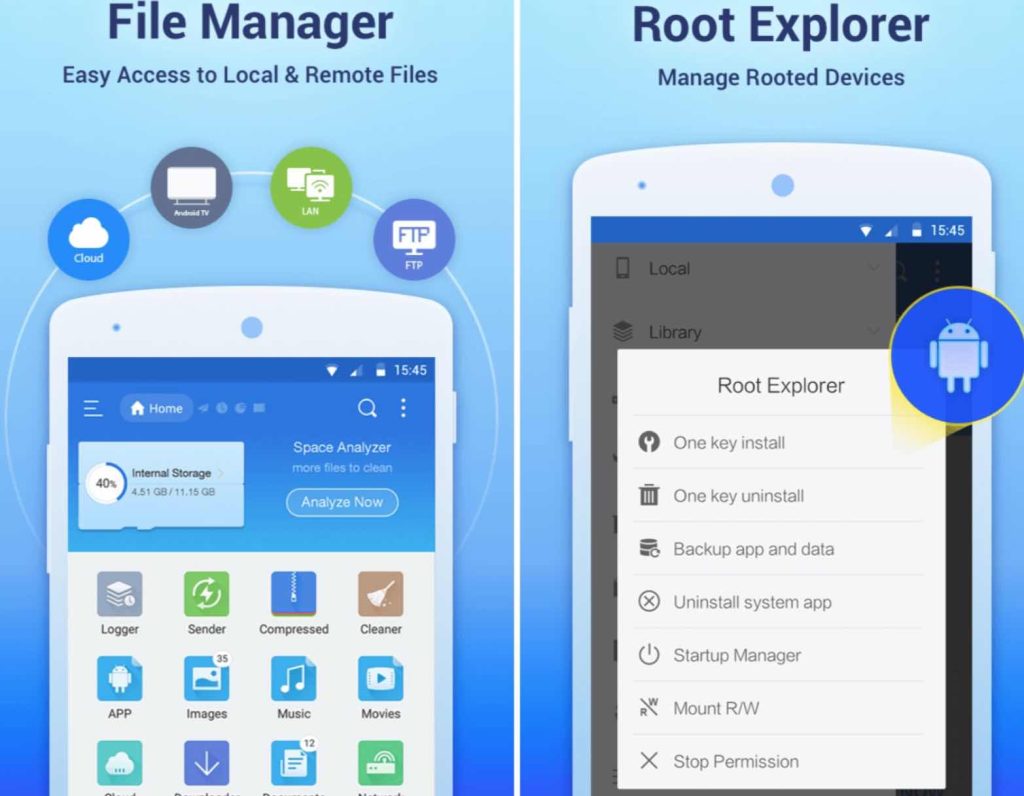
First things first, you need an app that can access system files. Head to the Play Store and grab Root Browser (by Jrummy) or Solid Explorer (plus the root add-on). I personally use Root Browser because it’s lightweight and straightforward. Once installed, open it and grant superuser permissions when prompted. Your phone will ask you to confirm with a tap on “Grant”. That’s what root access looks like in action.
Step 2: Navigate to the WiFi Configuration Folder
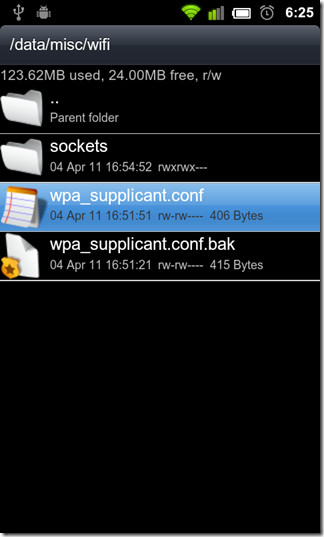
In the root explorer, tap on the root directory (usually labeled as “Device” or “/”) and then follow this path: /data/misc/wifi/. If you don’t see the data folder, make sure you’re in root mode (look for an option like “Root” or “System” in the sidebar). Inside the wifi folder, you’ll see a file called wpa_supplicant.conf. That’s the treasure chest. Don’t touch any other files unless you know what you’re doing.
Step 3: Open wpa_supplicant.conf in Text Mode
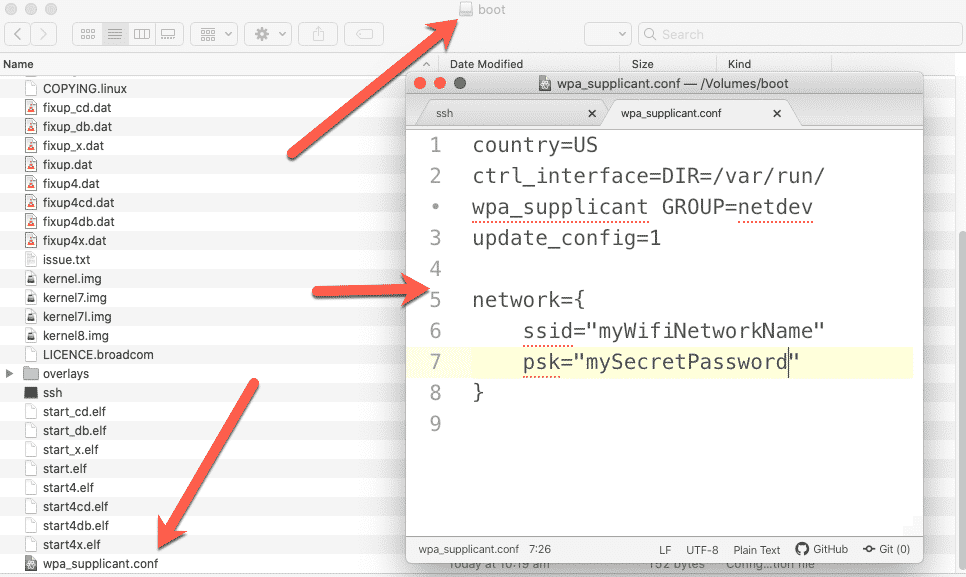
Tap on wpa_supplicant.conf. Your root explorer will ask how you want to open it. Choose “Text Editor” or “Open as TXT”. If you don’t see that option, long-press the file and select “Open with” then pick a text editor app. The file contains blocks of configuration for every network you’ve ever connected to. Each block starts with network={ and ends with }. You’ll see the SSID (network name) and the psk value – that’s your password.
Step 4: Find Your Network and Copy the Password
Scroll through the file until you spot your network’s SSID (e.g., “HomeWiFi”). Right after ssid="..." you’ll see psk="YourPassword". That’s the plain-text password. Some routers store it in a hash, but most modern ones with WPA2 show the actual password. Tap and hold on the password text to select it, then copy it to your clipboard. You can now exit the app.
Step 5: Use or Share the Password
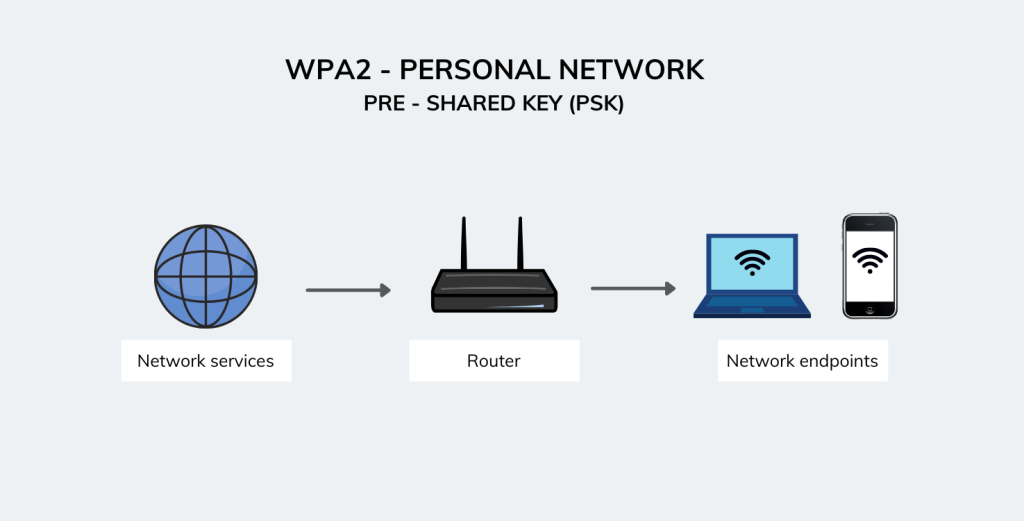
Now you have the password. You can paste it into a note, share it via messaging, or type it into another device. If you want to be extra careful, delete the clipboard after using it. That’s it – you’ve recovered your WiFi password using root explorer. If you’re interested in digging deeper, check out advanced WiFi password recovery methods or consider a free wifi password recovery tool for non-rooted devices.
Common Pitfalls
- Device not rooted: If you see “Permission denied” or the /data folder is empty, your phone isn’t rooted. You’ll need to root first, or try another method like recover your WiFi password on a desktop.
- Blank or gibberish psk: Some routers (especially corporate or ISP-provided ones) store a hash instead of the plain password. In that case, you’ll need to reset the router or use a different recovery method.
- Accidentally editing other files: The wpa_supplicant.conf file is critical. If you change anything else, your WiFi might break. Stick to just viewing and copying – don’t save any modifications.
Where to Next
Now that you’ve got your password back, think about keeping it safe. You can set up a secure wifi password recovery process so you never lose it again. Or if you’re curious about other ways to extract passwords, our guide on how to view saved wifi password using PowerShell on Windows is a solid read. For a complete list of methods, browse our site for everything from iPhone tricks to router backdoors. Happy surfing!



