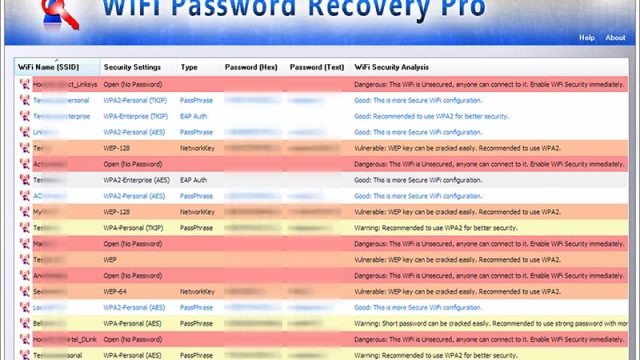
Ever needed the WiFi password for a network your PC already knows, but you can’t find it anywhere? Maybe you want to share it with a guest, connect a new device, or just write it down. If you’re on Windows, PowerShell can pull that password out in seconds—no third-party software required.
This guide is for anyone who’s comfortable opening a command line. By the end, you’ll be able to reveal the network security key for any saved WiFi network on your Windows PC. It’s a quick trick that saves you from digging through router settings or resetting passwords.
What You’ll Need
- A Windows PC (Windows 7 through Windows 11 all work).
- Administrator privileges on that PC (you’ll need to run PowerShell as admin).
- The exact name (SSID) of the WiFi network whose password you want to recover. If you don’t know it, don’t worry—we’ll cover that too.
Step 1: Open PowerShell as Administrator
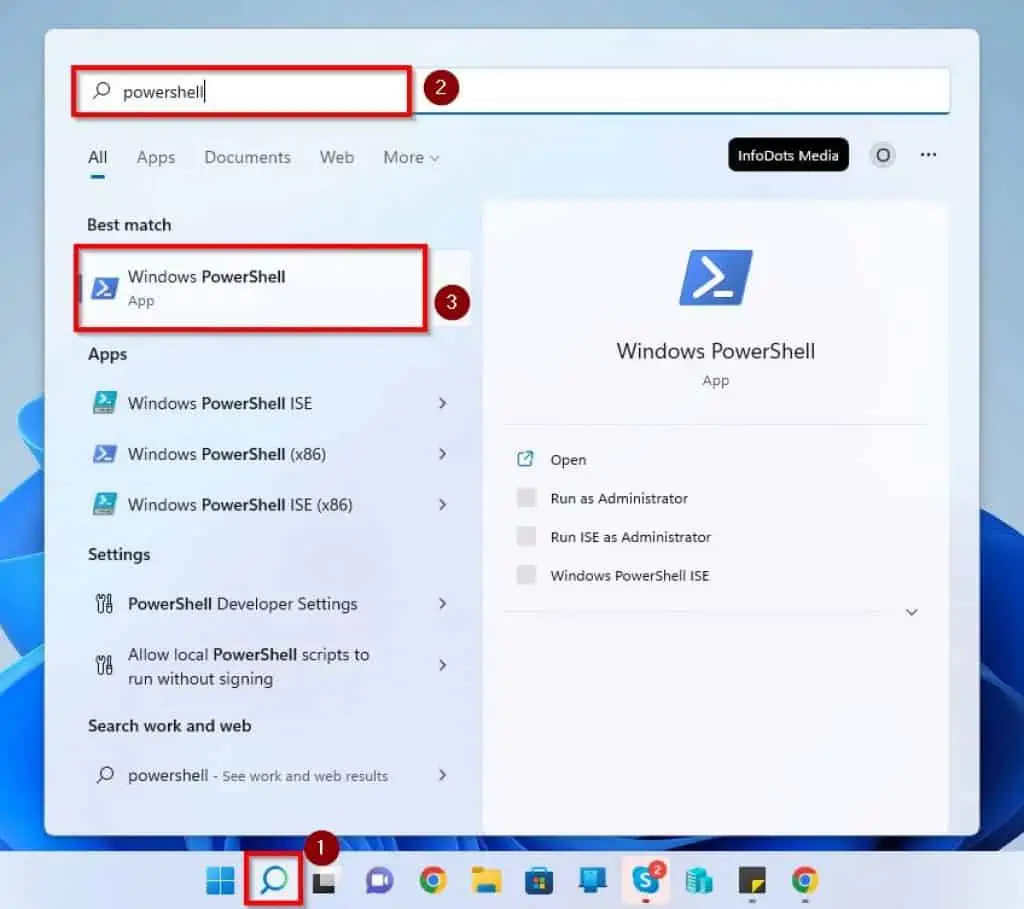
Click the Start button, type “PowerShell”, right-click “Windows PowerShell” in the search results, and select “Run as administrator”. If prompted by User Account Control, click “Yes”.
Step 2: View All Saved WiFi Profiles (Optional)
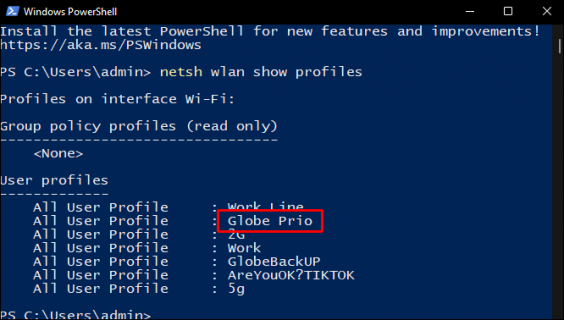
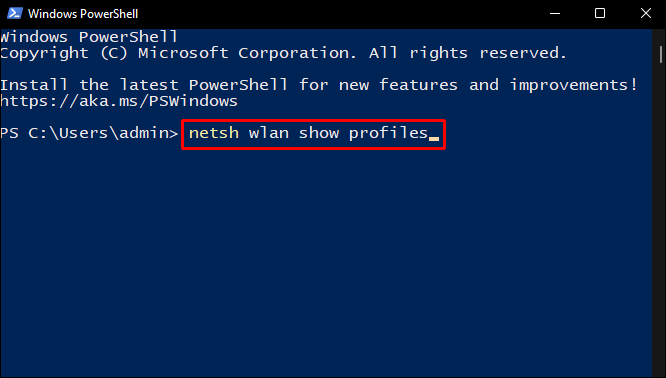
If you don’t remember the exact network name, first list every saved profile. In the PowerShell window, type the following command and press Enter:
You’ll see a list of all WiFi networks your PC has ever connected to. Note the exact SSID (case-sensitive) of the one you need.
Step 3: Retrieve the Password for a Specific Network
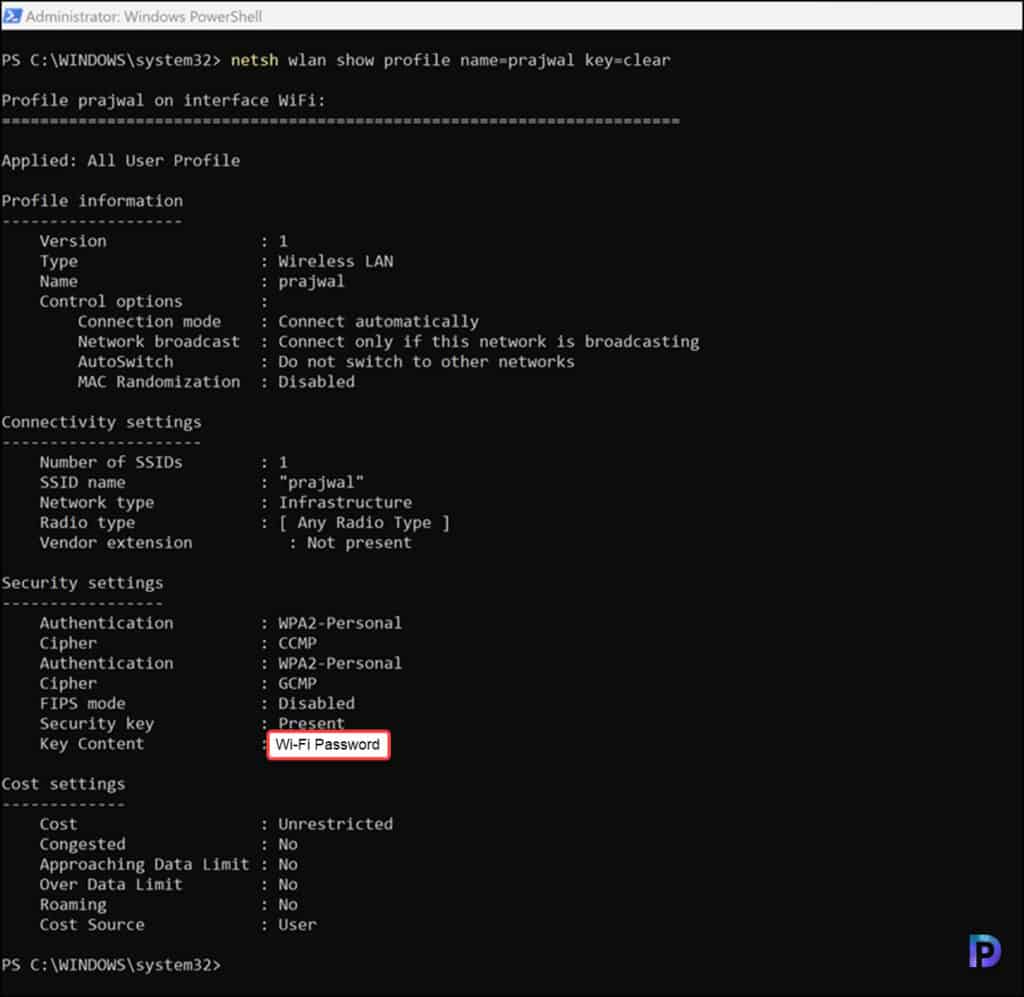
Now run the following command, replacing “YourNetworkName” with the exact SSID from the previous step:
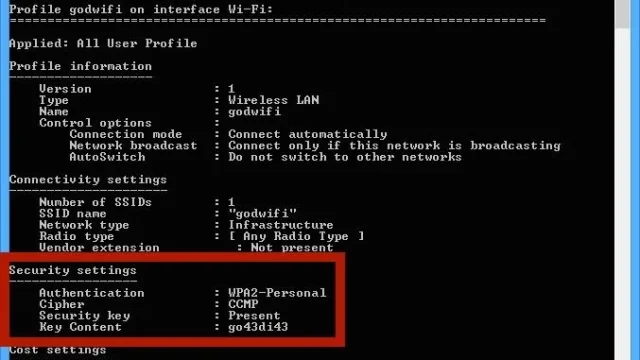
Look for the line that says “Key Content” under “Security settings”. That’s your WiFi password in plain text.
Step 4: Copy or Write Down the Password
Select the password text with your mouse, right-click to copy, or write it down. You can now share it or use it on another device. Close PowerShell when you’re done.
Common Pitfalls
- **Not running as administrator**: If you skip the “Run as administrator” step, you’ll get an error like “The request is not supported.” Close and reopen PowerShell as admin.
- **Profile name mismatch**: The SSID must be typed exactly as shown in the profile list, including spaces and special characters. Use quotation marks around the name.
- **No saved profile**: If the network isn’t listed in `show profiles`, your PC never saved its password. Try the complete WiFi password recovery guide for other methods.
Where to Next
Congrats—you’ve recovered your WiFi password with PowerShell! If you’re on macOS instead, you can recover WiFi password using terminal with a similar approach. For a deeper dive into all the ways to retrieve lost network keys, check out the complete WiFi password recovery guide. And if you prefer a GUI method, learn how to find saved WiFi password on PC through the Control Panel.