Ever needed to connect a new device to your WiFi but forgot the password? You’re not alone. This guide is for anyone who wants to recover their own saved WiFi passwords using trusted apps—no shady software or hacking required. By the end, you’ll know how to retrieve passwords from Windows, Mac, Android, and Linux devices that have previously connected to the network.
We’ll focus on legitimate, trusted tools—like WirelessKeyView, Keychain Access, and built-in OS features—so you can recover your passwords safely. Let’s dive in.
What You’ll Need
- A device that has already connected to the WiFi network (Windows, Mac, Android, or Linux).
- A trusted recovery app (WirelessKeyView for Windows, Keychain Access for Mac, WiFi settings for Android without root, or Network Manager for Linux).
- Admin access on the device (for Windows and Mac) or root access (for some Android methods).
- Optional: a USB drive to export passwords.
Step 1: Download a Trusted WiFi Password Recovery App
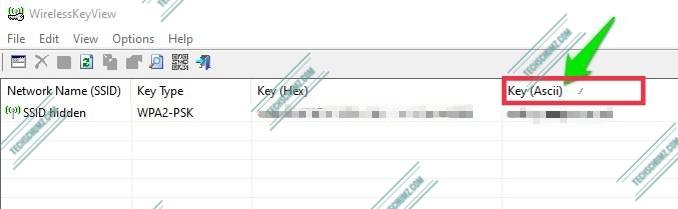
Start by choosing a trusted app for your OS. For Windows, WirelessKeyView from NirSoft is a safe choice. For Mac, you can use the built-in Keychain Access. On Android, you can use a non-root method via the WiFi settings (Android 10+) or a root app like WiFi Password Viewer. For Linux, the nmcli command-line tool works perfectly. Consider our guide on a free wifi password recovery app for more options.
Step 2: Recover WiFi Passwords on Windows
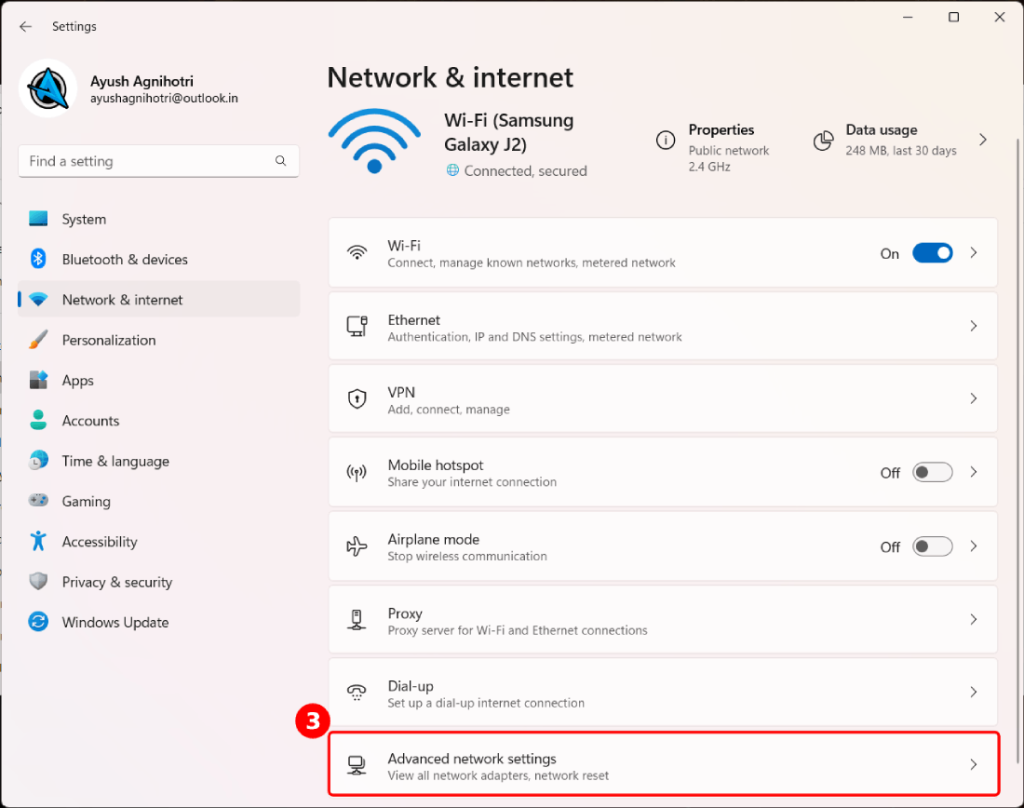
On Windows, you can use WirelessKeyView or the Command Prompt. Download WirelessKeyView (it’s portable, no install needed). Run it as administrator, and you’ll see a list of saved networks with passwords in plain text. Alternatively, open Command Prompt as admin and type: netsh wlan show profile name="YourNetworkName" key=clear. Look for “Key Content”. For more details, check our article on how to find saved wifi password on pc.
Step 3: Recover WiFi Passwords on Mac
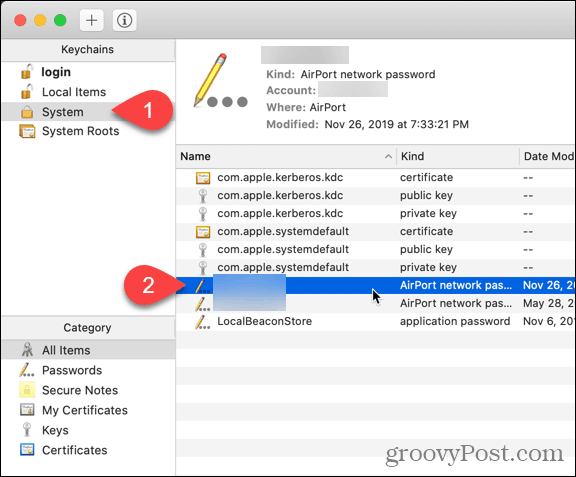
On a Mac, open Keychain Access (found in Utilities). Search for your WiFi network name. Double-click it, then check “Show password”. You’ll need your Mac admin credentials. The password appears in plain text. For batch export, see our guide on how to export wifi passwords mac.
Step 4: Recover WiFi Passwords on Android
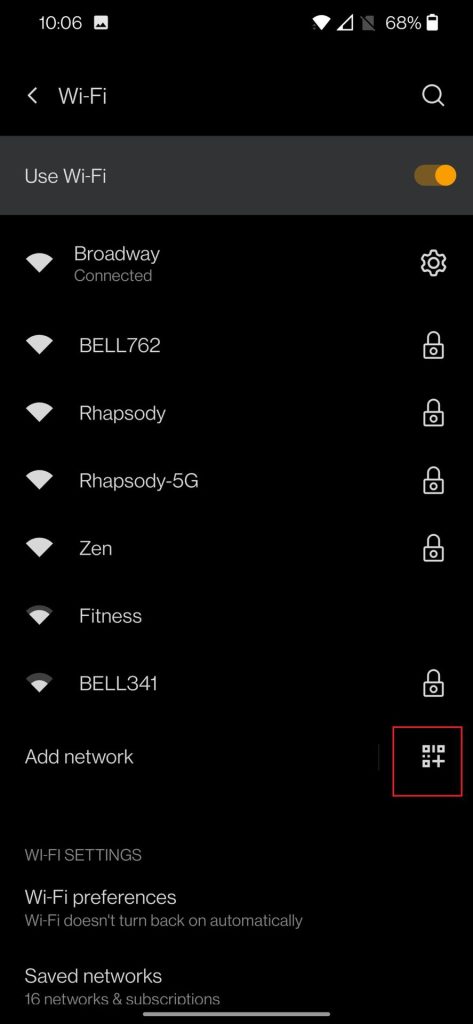
On Android 10+, go to Settings > Network & Internet > WiFi, tap the network name, then tap Share. You’ll see a QR code—the password is below it. For older Android or root users, apps like WiFi Password Viewer can extract saved passwords. For a detailed walkthrough, visit our saved wifi password recovery android guide.
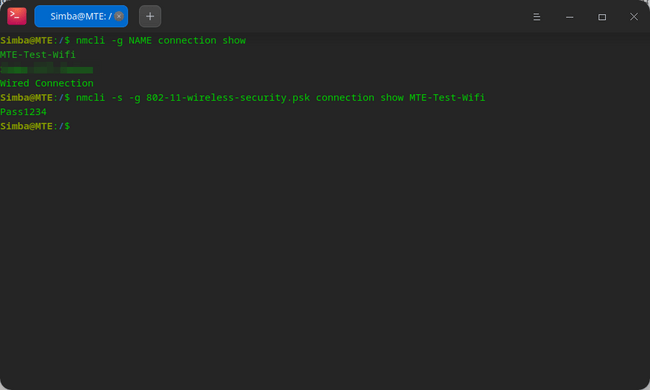
Step 5: Recover WiFi Passwords on Linux
On Linux with NetworkManager, use the terminal: sudo nmcli -s device wifi show-password. This lists the password for the currently connected network. Alternatively, check the configuration file at /etc/NetworkManager/system-connections/. For more, see our wifi password recovery methods article.
Common Pitfalls
- Apps flagged as malware: Only download from official sources like NirSoft or the App Store. Avoid third-party download sites.
- Forgot admin credentials on Mac: You need your Mac’s admin password to view the WiFi password in Keychain Access. Reset it if needed.
- Root requirements on Android: Many Android recovery apps require root. Check if your device is rooted before trying those methods.
For automated recovery on Windows, explore wifi password recovery powershell automation to script the process.
Where to Next
Now that you’ve recovered your WiFi password, consider securing your network: change the password regularly, enable WPA3, and disable WPS. For more advanced techniques, check our wifi password recovery methods guide or the fastest method in our free wifi password recovery app article. Happy connecting!



