
Ever needed to connect a new phone or laptop to your Wi-Fi but forgot the password? If you’ve ever connected that network to a Windows PC, the password is saved somewhere in the system. This guide is for anyone who needs to retrieve a forgotten Wi-Fi password from their own PC — no hacking, no extra software. By the end, you’ll have the password in plain text using built-in Windows tools.
We’ll cover four methods: the friendly Control Panel, the quick Command Prompt, the automation-friendly PowerShell, and the modern Settings app. All of them work on Windows 10 and 11. Let’s dig in.
What You’ll Need
- A Windows PC (10 or 11) that has previously connected to the Wi-Fi network.
- Administrator access (you’ll need to run some tools as admin).
- The name (SSID) of the network you want the password for.
Step 1: Find WiFi Password via Control Panel (Network and Sharing Center)
This is the GUI-friendly method. It works on both Windows 10 and 11. Open the Control Panel, go to Network and Internet > Network and Sharing Center. Next to your active Wi-Fi connection, click the blue ‘Wi-Fi’ link (the connection name). In the Wi-Fi Status window, click ‘Wireless Properties’. Then go to the ‘Security’ tab and check ‘Show characters’. Your password appears in the ‘Network security key’ field.

Step 2: Retrieve WiFi Password Using Command Prompt
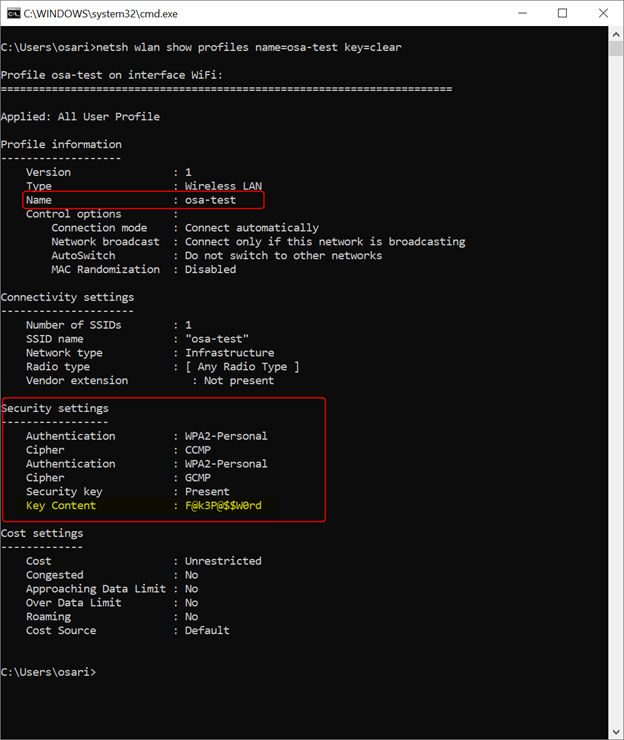
Open Command Prompt as Administrator (search ‘cmd’, right-click, ‘Run as administrator’). Type the following command and press Enter: netsh wlan show profile. This lists all saved Wi-Fi profiles. To see the password for a specific network, type: netsh wlan show profile name="YourNetworkName" key=clear. Look for ‘Key Content’ — that’s your password. For more command-line tricks, check out our wifi password recovery tricks guide.
Step 3: Use PowerShell to View WiFi Password
PowerShell gives you a similar result with a different syntax. Open PowerShell as Administrator. Run: (netsh wlan show profile name="YourNetworkName" key=clear) | Select-String "Key Content". Or use the newer Get-NetConnectionProfile cmdlet combined with a netsh call. If you prefer a pure PowerShell approach, see our dedicated wifi password recovery using powershell tutorial.

Step 4: Find Password via Windows Settings (Wi-Fi Properties)
On Windows 10 or 11, go to Settings > Network & Internet > Wi-Fi > Manage known networks (or ‘Advanced network settings’ on Win11). Click on your network, then ‘View content’. Under ‘Network security key’, click the eye icon to reveal the password. This is the quickest method if you’re already in Settings.

Common Pitfalls
- Not running as Administrator: Both CMD and PowerShell must be launched as admin, or you’ll get ‘access denied’ errors. Always right-click and select ‘Run as administrator’.
- Profile doesn’t exist: If you’ve never connected to that network from this PC, the profile won’t be saved. In that case, you’ll need to reset the router or use a saved wifi password recovery tool to extract from another device.
- Wrong profile name: Wi-Fi names are case-sensitive and often have spaces. Double-check the exact SSID. Use the ‘netsh wlan show profile’ list to copy the exact name. For persistent issues, the simplest wifi password recovery method might be resetting the router.
Where to Next
Now that you have your password back, consider backing it up. Check our guide on how to backup wifi passwords to usb for safekeeping. If you ever need to recover passwords from other devices like Mac or iPhone, we have guides for that too. And if you’re curious about the inner workings, explore wifi password recovery via registry for a low-level view. Happy surfing!



