Ever been in a situation where you need the WiFi password but can’t find it anywhere? Maybe a friend asked for it, or you set up a new device and don’t remember the long string of characters. If you’ve connected to that network before on your Windows, Mac, or Android device, you’re in luck. Your device already saved the password, and recovering it is easier than you think. In this guide, I’ll show you how to pull up saved WiFi passwords using only built-in tools—no extra software needed.
By the end, you’ll be able to recover WiFi passwords from any device you’ve previously connected to. Whether you’re on Windows, macOS, or Android, these methods are quick, free, and require no special skills. Let’s dive in.
What You’ll Need
- A Windows PC, Mac, or Android device that has previously connected to the WiFi network you want to recover.
- Administrator access on your computer (for Windows and Mac). On Android, you may need a USB cable for the ADB method.
- Basic familiarity with command line or system settings.
Step 1: Recover WiFi Password on Windows Using Command Prompt
Windows stores all saved WiFi profiles and their passwords. You can retrieve them using the built-in netsh command. This is the simplest method on Windows—no third-party tools required.

Open Command Prompt as Administrator (right-click Start > Command Prompt (Admin) or Windows PowerShell (Admin)). Then run the following command to list all saved networks:
netsh wlan show profiles
You’ll see a list of profile names. Find the one you need, then replace “ProfileName” with the actual name and run:
netsh wlan show profile name=”ProfileName” key=clear
Look for the line that says “Key Content” — that’s your WiFi password. It’s that easy. For a more automated approach, check out the PowerShell method for scripting this process.
Step 2: Recover WiFi Password on Mac Using Keychain Access
On macOS, your saved WiFi passwords are stored in the Keychain app. You can view them with a few clicks. This is perfect for Mac users who want to export your WiFi passwords on Mac or just need a quick retrieval.

Open Keychain Access (found in Applications > Utilities). In the search box, type the name of your WiFi network. Double-click the entry under “System” or “Login” keychain. In the pop-up window, check the box “Show password”. You’ll be prompted to enter your Mac admin username and password. After that, the password will be revealed. For detailed steps, see the Mac Keychain recovery guide.
Step 3: Recover WiFi Password on Android (No Root Needed)
Starting with Android 10, Google added a built-in QR code feature that lets you share and view WiFi passwords. If your phone is running Android 10 or newer, follow this method.
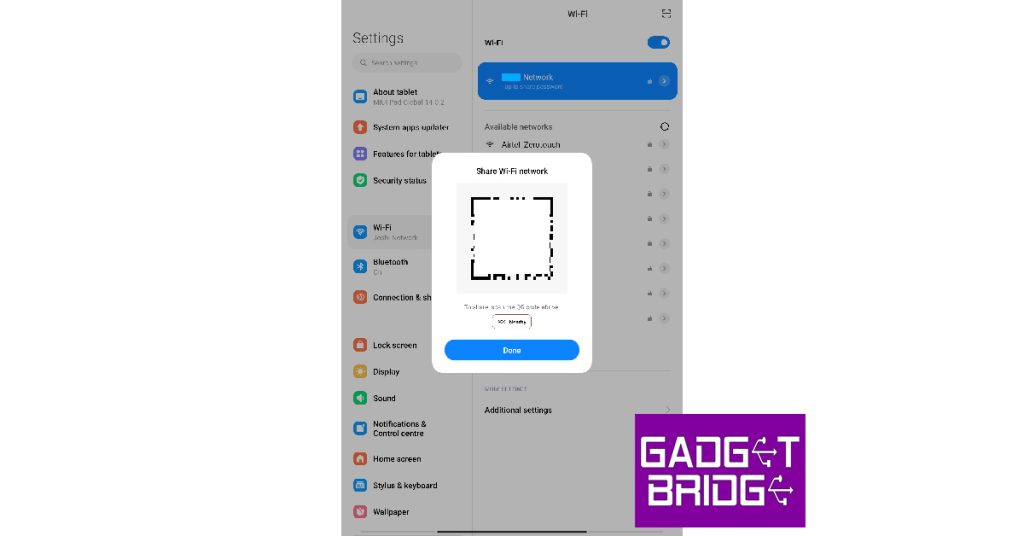
Go to Settings > Network & Internet > WiFi. Tap the name of the connected network. You’ll see an option like “Share” or a QR code icon. Tap it, and you’ll be asked to verify your lock screen pattern, PIN, or password. After verification, a QR code appears. The password is displayed below the QR code in plain text. You can also scan the QR code to connect another device. For older Android versions, you may need root or a backup your WiFi passwords on Android approach.
Step 4: Recover WiFi Password on Android via ADB (Alternative)
If your Android phone doesn’t have the QR code feature (Android 9 or earlier, or a custom skin), you can use Android Debug Bridge (ADB) to pull the saved password file. This requires USB debugging enabled and a computer.
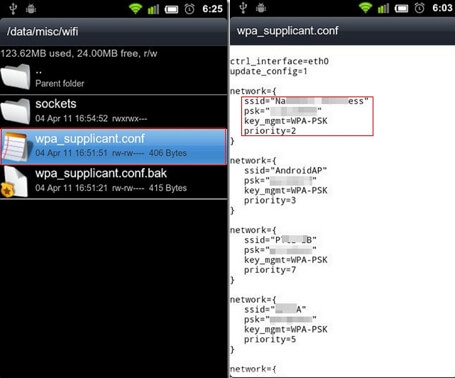
Connect your phone to your computer via USB. On your computer, open a terminal and run:
adb shell
Then navigate to the WiFi configuration file (location varies by Android version; typically under /data/misc/wifi/). Run:
cat /data/misc/wifi/wpa_supplicant.conf
This requires root access on many devices. If your device is rooted, you’ll see the SSID and password in plain text. For a non-root alternative, try a lightweight WiFi password recovery tool from the Play Store, but be cautious with permissions.
Common Pitfalls
- Forgetting to run Command Prompt as Administrator on Windows (you’ll get an error instead of the password). Always right-click and select “Run as administrator”.
- Keychain asking for a password you don’t remember on Mac. If you’ve forgotten your Mac admin password, you’ll need to reset it or use another method like the simplest method using a recovery tool.
- Android QR code not showing due to manufacturer customization. Some skins hide the share option; try checking under advanced settings or use ADB as a fallback.
Where to Next
Now that you’ve recovered your saved WiFi password, consider backing it up for future use. You can also explore more advanced techniques like using a lightweight WiFi password recovery tool for bulk exports, or check out our guide on how to backup your WiFi passwords on Android. If you frequently manage networks, the PowerShell method can automate recovery on Windows. For Mac users, don’t miss the full Mac Keychain recovery tutorial.



