Ever been that person staring at a blank password field, desperately trying to remember what you typed years ago? I’ve been there too. This guide is for anyone who’s locked out of their own WiFi — whether you just got a new device, reset your phone, or your roommate changed the password without telling you. By the end of this tutorial, you’ll have your WiFi password in plain text, using nothing but tools already built into your computer or router.
We’re keeping it dead simple: no sketchy third-party software, no command-line wizardry required (well, just one simple command on Windows). I’ll walk you through methods for Windows, macOS, and the easiest of all — your router’s admin panel. Pick the one that matches your device, and you’ll be back online in five minutes.
What You’ll Need
- A Windows PC or Mac that’s already connected to the WiFi network (or was in the past)
- Administrator access to that computer (you’re probably already an admin)
- Your router’s model number (printed on the sticker underneath) — only if you need to log into the router
- A web browser for the router method
- Patience — seriously, it’s quicker than you think
Step 1: Recover WiFi Password on Windows Using Command Prompt
Windows stores every WiFi network you’ve ever connected to, along with the password. To pull it up, you’ll use a single command. This works on Windows 10 and 11.
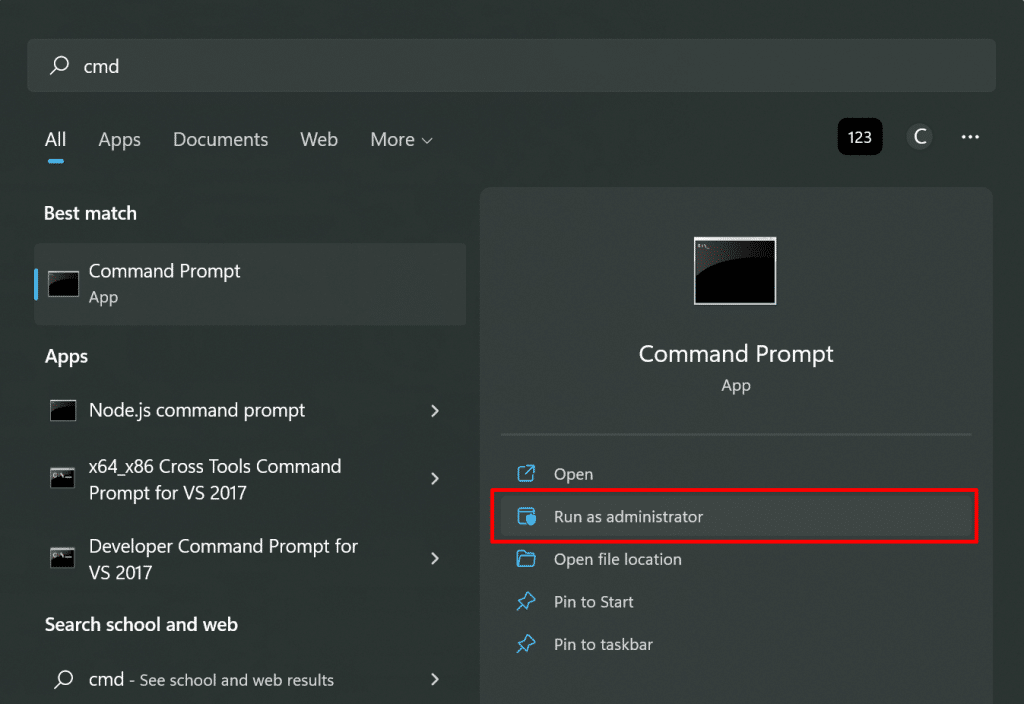
Open Command Prompt as administrator. Click the Start button, type “cmd”, then right-click “Command Prompt” and select “Run as administrator.” If prompted, click Yes.
Now type this command and hit Enter: netsh wlan show profiles. You’ll see a list of every WiFi network your PC has ever connected to. Look for the one you need — say it’s named “HomeNetwork”.

Next, type this command (replace “HomeNetwork” with your actual network name): netsh wlan show profile name="HomeNetwork" key=clear. Scroll down to the “Security settings” section and look for “Key Content”. That’s your password in plain text. Copy it down before you forget again!

Step 2: Find WiFi Password on macOS Using Keychain Access
Mac users, your turn. Apple’s Keychain stores all your saved passwords. Here’s how to grab that WiFi key. This method works with macOS Sierra and later.

Open Keychain Access. You can find it in Applications > Utilities, or just search for it with Spotlight (Cmd+Space). In the search bar at the top-right, type the name of your WiFi network (e.g., “HomeNetwork”). You’ll see an entry with a Wi-Fi symbol next to it. Double-click it.

A dialog box appears. Check the box that says “Show password”. You’ll need your Mac’s admin username and password (the one you log in with). Enter them and click Allow. The password field will now display your WiFi password. Copy it somewhere safe.
Step 3: The Easiest Method — Log Into Your Router
If you can’t use Windows or macOS (or you just want the password straight from the source), go directly to your router. This works even if your computer has never connected to the network. You just need physical access to the router and a device with a browser.
Flip your router over. There’s usually a sticker with the router’s IP address (often 192.168.0.1 or 192.168.1.1), plus a default admin username and password. If someone changed those, you’ll need to ask them or reset the router (hold the reset button for 10 seconds). Open a browser, type the IP address, and log in.
Once logged in, look for a section called “Wireless”, “WiFi”, or “Security”. The exact wording varies, but the password will be in a field labeled “Passphrase”, “Network Key”, or “Pre-Shared Key”. Write it down or take a photo. That’s your password.
Common Pitfalls
- You don’t see the network in Command Prompt or Keychain. That means your device never connected to it. Try a different device that has connected, or use the router method.
- The router admin password was changed and nobody remembers it. In that case, you’ll need to do a factory reset on the router (hold the reset button for 10-30 seconds). This wipes all settings, so you’ll have to set up your network from scratch. Keep that as a last resort.
- On macOS, the “Show password” option is grayed out. This usually means you’re not an admin on that Mac. Log in with an admin account or ask the admin to unlock it for you.
Where to Next?
Now that you’ve recovered your password, why not take a few minutes to back it up? Check out our guide on how to backup wifi passwords to usb so you never lose them again. If you’re on Windows and worried about losing passwords after a clean install, our wifi password recovery without reinstalling windows guide has you covered. And if you ever need to recover from a router that’s been reset, the wifi password recovery from router method works every time. Happy surfing!



