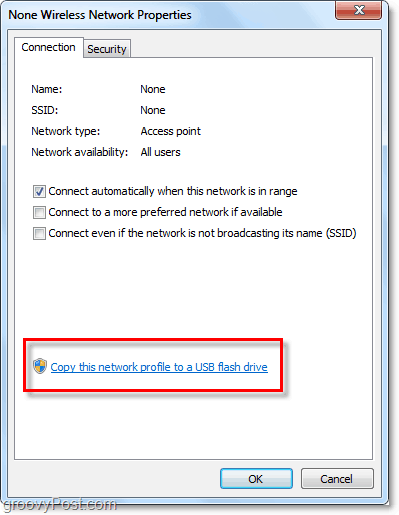
Ever had that moment when your computer crashes or you get a new laptop, and you realize you’ve forgotten all your WiFi passwords? Don’t stress. This guide is for anyone who wants to keep a physical backup of their saved networks on a USB drive. By the end, you’ll have a portable file with all your WiFi credentials that you can plug into any PC or Mac.
We’ll use built-in tools for both Windows and macOS—no extra software needed. Windows users will rely on Command Prompt and PowerShell, while Mac users will work with Keychain Access. The process takes about 10 minutes and works on Windows 10/11 and macOS Catalina or later.
What You’ll Need
- A USB flash drive (FAT32 or exFAT formatted for cross-platform use)
- A Windows PC or Mac with administrator access
- Your saved WiFi networks already connected at least once
If you haven’t yet, you might want to check out our guide to backup WiFi passwords on Android for mobile devices. The same logic applies—keep a copy on a physical drive.
Step 1: Open Command Prompt as Administrator (Windows)
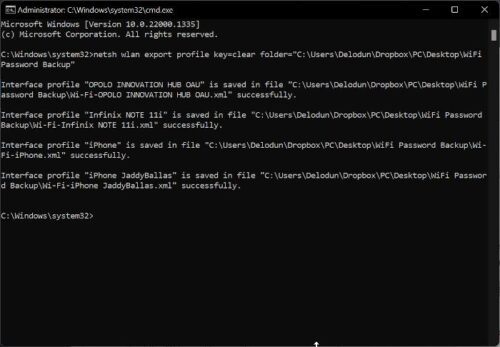
Press the Windows key, type ‘cmd’, right-click on Command Prompt, and select ‘Run as administrator’. You’ll see a User Account Control prompt—click Yes. This gives you the necessary permissions to export network profiles.
Step 2: Export All WiFi Profiles with netsh
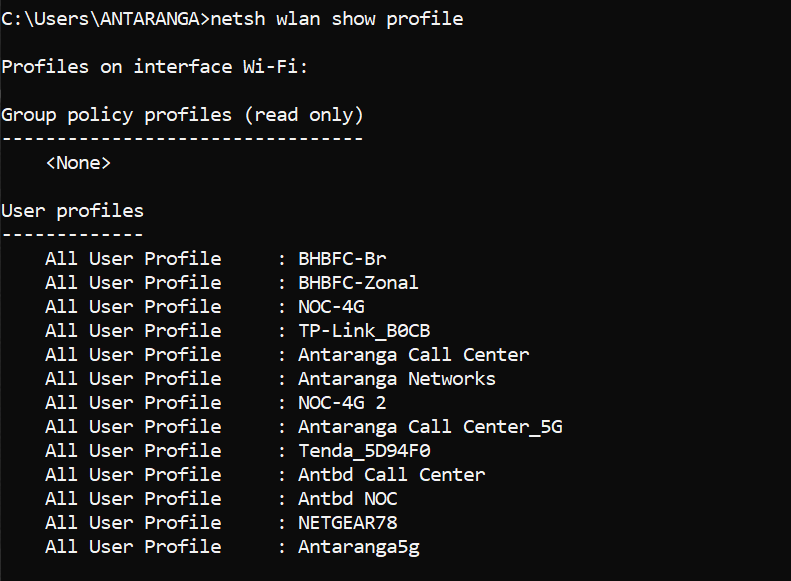
In the Command Prompt window, type the following command and press Enter:
netsh wlan export profile key=clear folder=C:WiFiBackup
This command exports all your wireless profiles to a folder called WiFiBackup on your C: drive. The ‘key=clear’ argument ensures the passwords are included as plain text. If you prefer a more secure method, you can use our WiFi password recovery script that encrypts the output.
Step 3: Copy the Backup to Your USB Drive
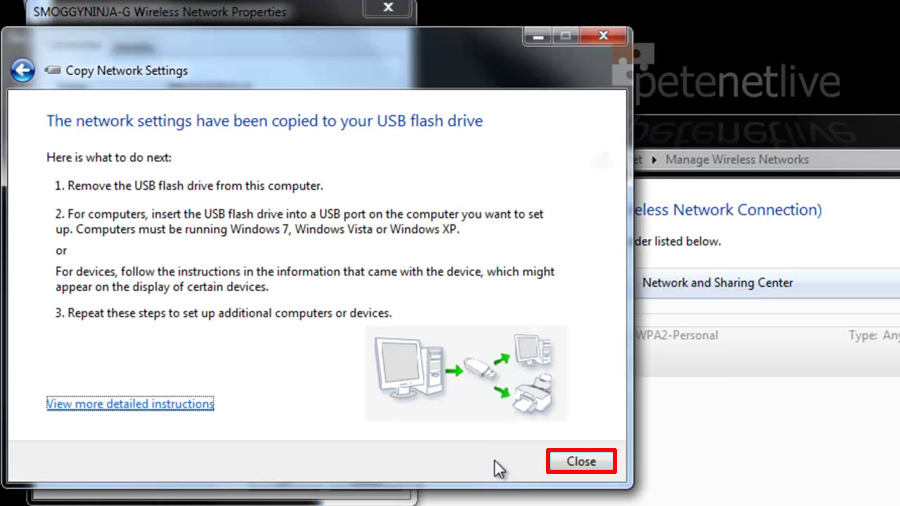
Plug in your USB drive. Open File Explorer, navigate to C:WiFiBackup, and copy all the XML files inside. Paste them into a folder on your USB drive. You can name the folder something like ‘WiFiBackup’. Now you have a portable backup that you can use later to restore WiFi passwords after a format or reinstall.
Step 4: On Mac, Open Keychain Access
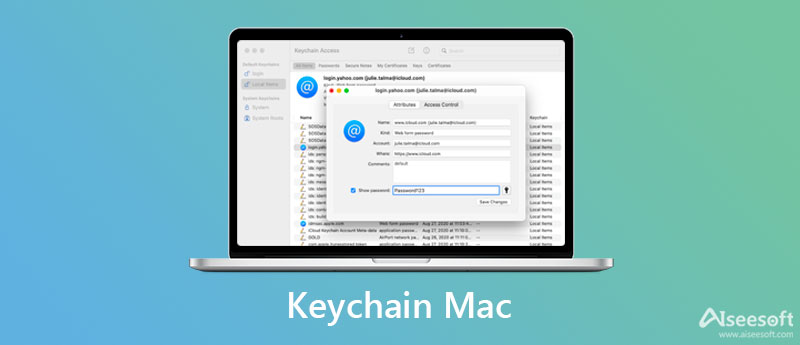
On your Mac, go to Applications > Utilities > Keychain Access. This app stores all your passwords, including WiFi keys. You can also find saved WiFi passwords on Mac directly from here, but for backup we’ll export the whole system keychain.
Step 5: Export WiFi Passwords from Keychain

In Keychain Access, click on ‘System’ in the left sidebar, then click on ‘Passwords’ at the top. Select all the WiFi entries (hold Cmd to select multiple). Go to File > Export Items… Choose a location (like your Desktop) and save as a .keychain file. You’ll be prompted to enter a password to protect the export—choose something memorable.
Step 6: Copy the Export to USB
Connect your USB drive to the Mac. Drag the exported .keychain file from your Desktop into a folder on the USB. Eject the USB safely. You now have a backup of all your Mac’s WiFi passwords. For restoration, you can either import it back into Keychain or use a third-party tool. If you’re also using an iPhone, we have a separate guide for saved WiFi password recovery on iPhone.
Common Pitfalls
- Forgetting to run Command Prompt as Administrator: If you skip this, the netsh export command will fail. Always right-click and run as admin.
- USB drive not formatted correctly: For cross-platform use, format your USB as FAT32 or exFAT. NTFS works on Windows but not on Mac without additional software.
- Permissions issues on Mac: When exporting from Keychain, you might need to enter your admin password. Also, the exported .keychain file is protected by a password—don’t lose it.
Where to Next
Now that you have your WiFi passwords on a USB, you can easily restore them after a system wipe or motherboard replacement. For more help, check out our guides on how to restore WiFi passwords after a format or restore WiFi passwords after a reinstall. And if you ever need to recover passwords from your router directly, we’ve got that covered too.



