Ever needed the WiFi password for a network your iPhone already knows? Maybe you want to share it with a friend or set up a new device. This guide is for anyone who has an iPhone with a saved WiFi network but can’t remember the password. By the end, you’ll have the password in plain text—no jailbreak or extra software required.
We’ll cover two methods: the built-in iOS 16+ password viewer (easiest) and using a Mac’s Keychain app for older iOS versions. If you don’t have a Mac, we’ll touch on a few alternatives. Let’s get that password back.
What You’ll Need
- An iPhone with the WiFi network saved (the network must be in range or remembered)
- For iOS 16+ users: just your iPhone and your passcode/Face ID/Touch ID
- For older iOS or Mac users: a Mac with the same iCloud account, and iCloud Keychain enabled
- Optional: a computer with iTunes/Finder backup if you want an extra route
Step 1: Check Your iOS Version
First, know which iOS version you’re running. Go to Settings > General > About and look at ‘iOS Version’. If it’s 16 or later, you can view the WiFi password directly. If it’s 15 or earlier, jump to Step 2 (Mac method).
Step 2: View WiFi Password on iOS 16+ (Directly on iPhone)
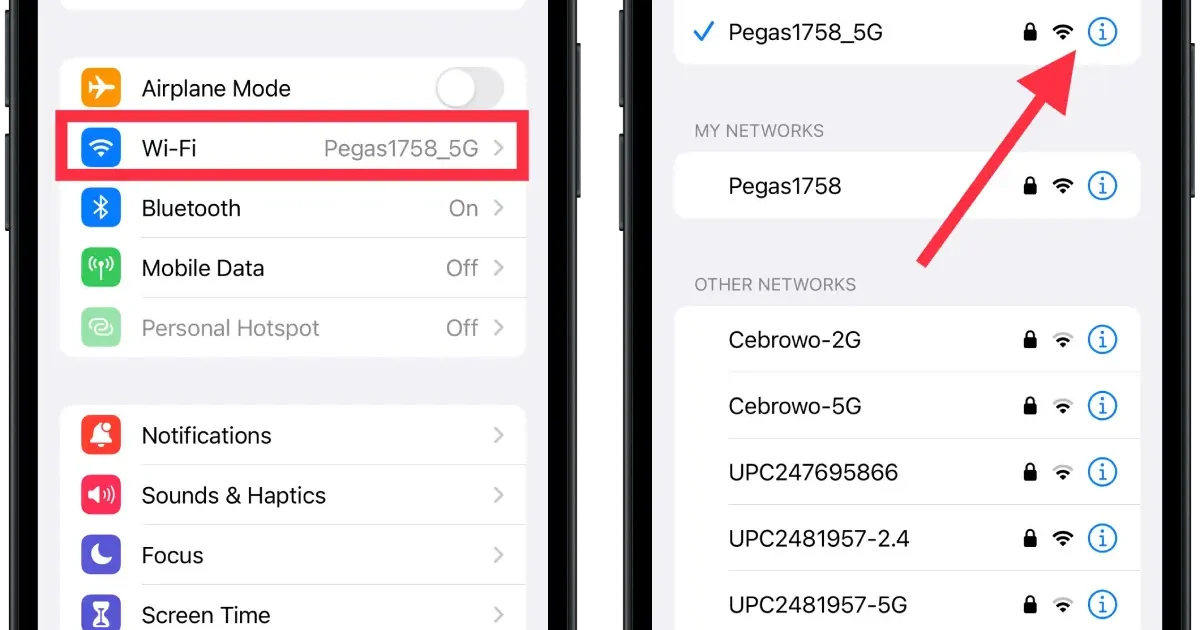
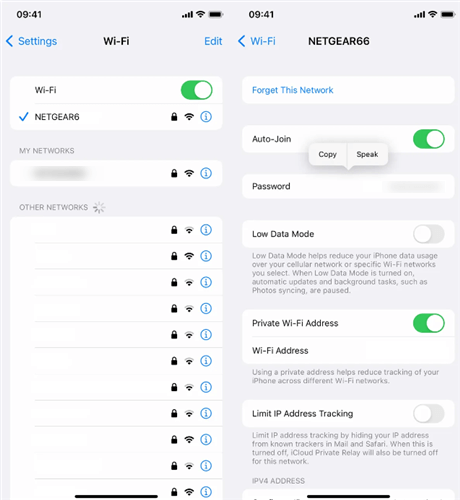
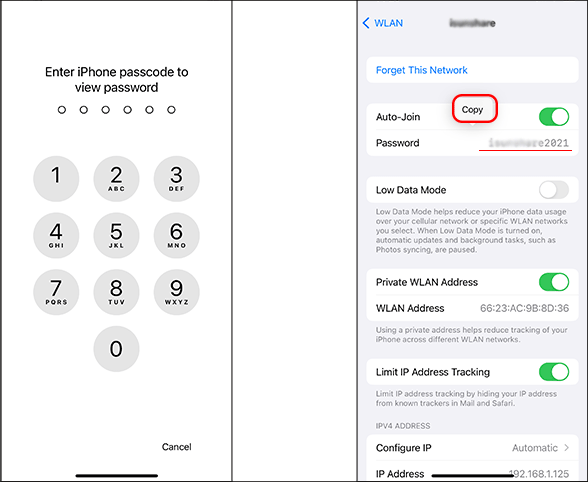
If you’re on iOS 16 or newer, Apple added a simple way to see your saved WiFi passwords. Open Settings, tap Wi-Fi, then tap the blue ‘i’ icon next to the network you want. Tap the Password field—it will ask you to authenticate with Face ID, Touch ID, or your passcode. Once you do, the password appears in plain text. You can even tap ‘Copy’ to paste it elsewhere. That’s it—no Mac needed.
Step 3: Recover WiFi Password Using Keychain Access on Mac (iOS 15 and Older)
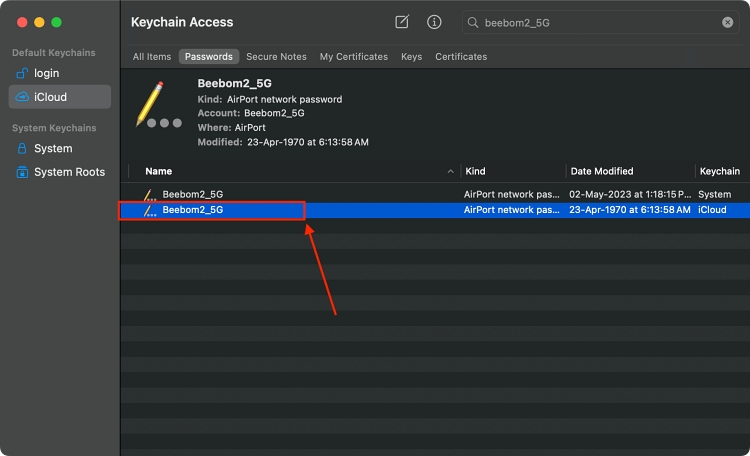
For older iOS versions, or if you prefer using a computer, you can use Keychain Access on a Mac that shares the same iCloud account. First, make sure iCloud Keychain is enabled on both your iPhone and Mac: on iPhone go to Settings > [your name] > iCloud > Keychain and toggle it on. On Mac, go to System Preferences > Apple ID > iCloud and check Keychain. Then, on your Mac, open the Keychain Access app (in Applications > Utilities). In the search box, type the name of your WiFi network. Double-click the entry for your network. Check the box ‘Show password’—you’ll be prompted for your Mac administrator password. After entering it, the WiFi password appears. For a complete walkthrough, check out this recover wifi password from keychain guide.
Step 4: Alternative Method – Use a WiFi Password Recovery App (No Mac)
If you don’t have a Mac and your iPhone is on iOS 15 or older, you can try a third-party wifi password recovery app from the App Store. Some apps can extract saved WiFi passwords from your iCloud backup or via an iTunes backup on a PC. Be careful with permissions—only use reputable apps. For a list of reliable tools, see our wifi password recovery app recommendations.
Common Pitfalls
- iCloud Keychain not enabled: If you’re using the Mac method, both devices must have Keychain turned on. Without it, the WiFi password won’t sync. Enable it in iCloud settings.
- Wrong iCloud account: Make sure your Mac is signed into the same Apple ID as your iPhone. Even a different email can break the sync. Double-check in System Preferences.
- Network not saved: If you tapped ‘Forget This Network’ on your iPhone, the password is gone from the device. You’ll need to reset your router or check the router’s sticker—see our wifi password recovery without software installation guide.
Where to Next
Now you’ve got your WiFi password back! Want to learn more? Check out our wifi password recovery tutorial for other methods, or find saved wifi password on mac if you use Apple computers. For Windows users, we have guides on saved wifi password recovery on mac and more. Happy surfing!



