Ever needed to connect a new device to your home WiFi but couldn’t remember the password? If you’re on a Mac, you’re in luck. Every WiFi network you’ve ever joined is stored in your Mac’s Keychain — and with a few clicks, you can peek inside and grab that password. This guide is for anyone who uses macOS and wants a quick, software-free way to recover their WiFi key. By the end, you’ll be able to pull up any saved WiFi password from your Mac’s Keychain Access.
No need to reset your router or call your ISP. Your Mac keeps a secure record of network passwords, and we’re going to access it. This method works on all recent versions of macOS, including Ventura, Monterey, Big Sur, and even older ones like Catalina. Let’s get started.
What You’ll Need
- A Mac (MacBook, iMac, Mac mini, etc.) running macOS.
- An active user account with administrator privileges (you’ll need to authenticate).
- The name (SSID) of the WiFi network you want the password for — if you’re not sure, it’s usually the network you’re currently connected to.
- Optional: a device ready to receive the password (like a phone or tablet).
Step 1: Open Keychain Access
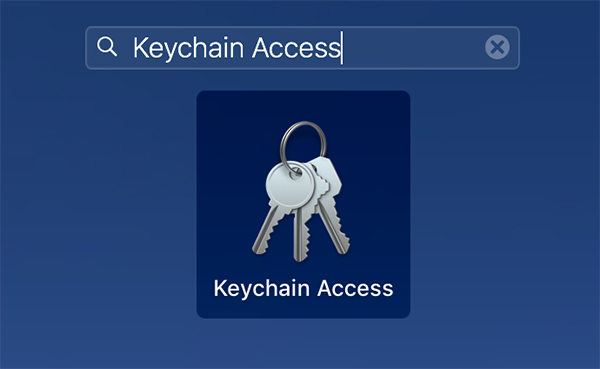
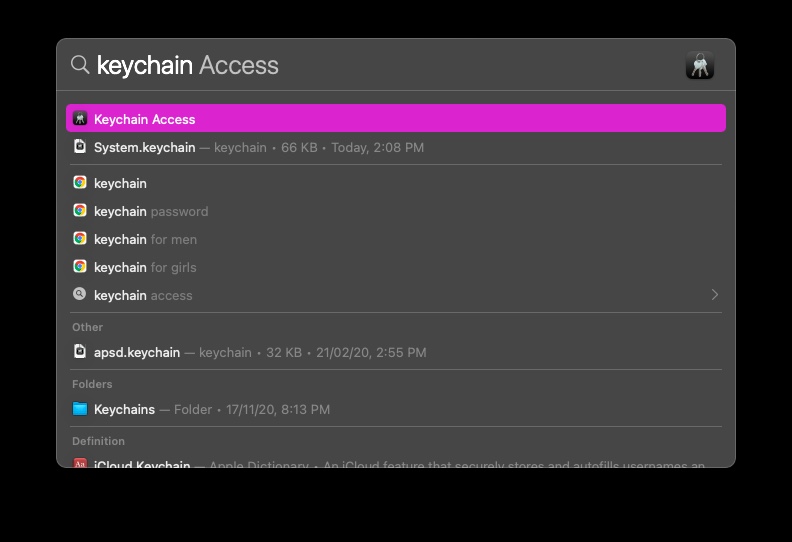
Keychain Access is the built-in password manager on your Mac. You can find it in the Utilities folder inside Applications, or just search for it using Spotlight (Cmd+Spacebar, type “Keychain Access”).
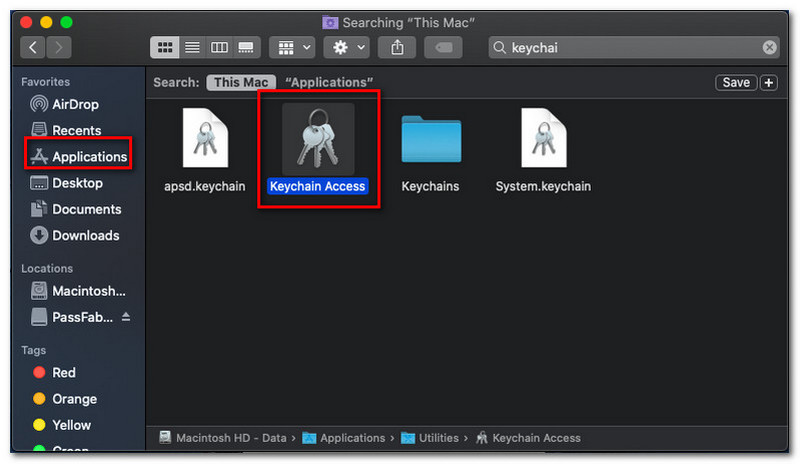
Once you open it, you’ll see a window with a list of all your saved passwords, certificates, and notes. Don’t worry — it’s safe and stored locally on your machine.
Step 2: Find Your WiFi Network
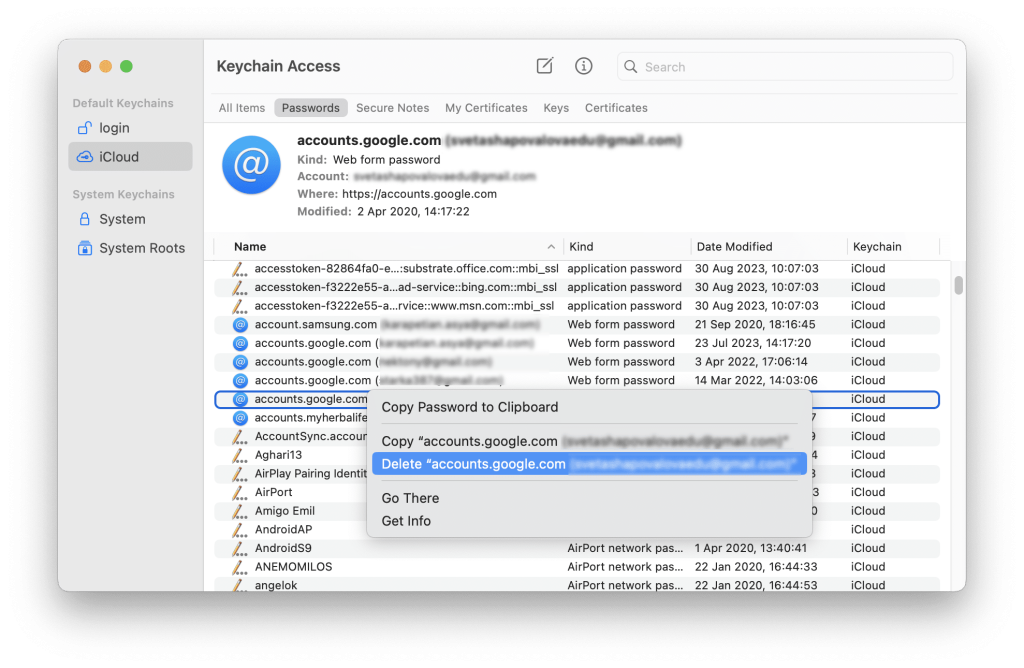
In the search bar (top right corner of the Keychain Access window), type the name of your WiFi network (the SSID). As you type, the list below will filter to show matching entries. Look for an entry that exactly matches your network name — it usually appears as a item with a “AirPort” icon or a key icon. If you’re currently connected, you can also just search for “AirPort” and look for the active network.
If you have multiple networks saved, they’ll all show up. Double-click on the correct one to open its details.
Step 3: Show the Password
A new window will pop up with details about that network entry. At the bottom, you’ll see a checkbox labeled “Show password:”. Check that box.
Your Mac will then ask for your administrator password (the same one you use to log in) or use Touch ID if available. Enter your credentials to authenticate.
Step 4: Authenticate and Copy
After entering your admin password, the password field will become visible — it will no longer be obscured by dots. You can now read it, or you can click the “Copy password to clipboard” button (or right-click and select Copy). Paste it wherever you need it (e.g., a text message to yourself, or directly into the device’s WiFi settings).
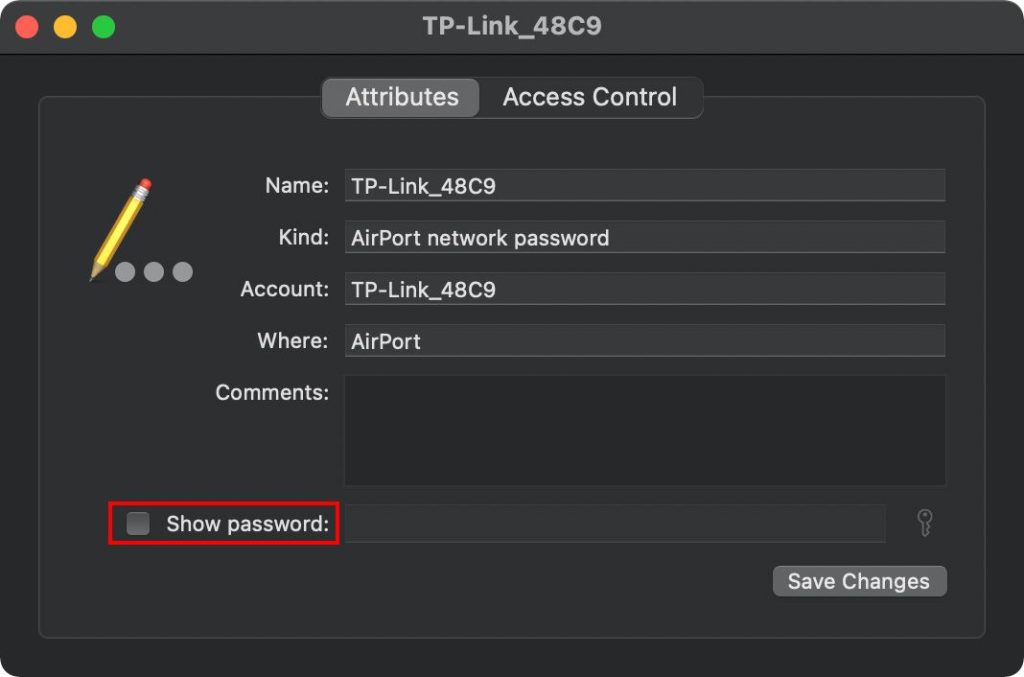
That’s it! You’ve successfully recovered your WiFi password. Note that the password remains visible until you close that window, so be careful not to leave it open if you’re in a public place.
Common Pitfalls
- **Wrong network name**: If you can’t find the password, make sure you’re searching for the exact SSID (case-sensitive). Network names like “Home” and “home” are different entries.
- **Authentication fails**: If Keychain Access rejects your admin password, you may not have administrator privileges. Try logging in with an admin account or ask the computer’s owner for help.
- **Network not saved**: If you’ve never connected to that WiFi from this Mac (or you’ve reset your network settings), the password won’t be in Keychain. In that case, you’ll need to ask someone who knows the password or use a different recovery method, like the ones below.
Where to Next
Now that you know how to extract passwords from Keychain, you might want to explore other ways to manage your network credentials. Check out our guides on how to find saved WiFi passwords on Mac for an alternative approach, or if you ever need to migrate your stored networks after a reformat, our restore WiFi passwords after format article has you covered. For those comfortable with the command line, you can also try WiFi password recovery via terminal. And if you ever want to show WiFi password settings on other devices, we’ve got that too. Happy connecting!



