If you’re a Mac user who’s ever needed to connect a new device to your home WiFi but can’t remember the password, you’re in the right place. Maybe you wrote it down somewhere, but that sticky note is long gone. Or perhaps you want to share the password with a friend without resetting the router. Whatever the case, macOS keeps a record of every WiFi network you’ve connected to, and the password is stored in your Keychain. By the end of this guide, you’ll have that password in hand—no router reset required.
We’ll cover two straightforward methods: the graphical Keychain Access app and the command line using Terminal. Both are built into macOS, so you don’t need to install anything. Whether you’re a visual person or a command-line enthusiast, you’ll find a method that works. Let’s dive in.
What You’ll Need
- A Mac running macOS (any recent version, from Sierra to Ventura and beyond).
- Administrator account credentials (you’ll need them to reveal the password).
- The exact name (SSID) of the WiFi network you want the password for.
- Basic familiarity with Finder and Spotlight Search.
Step 1: Find the WiFi Password Using Keychain Access
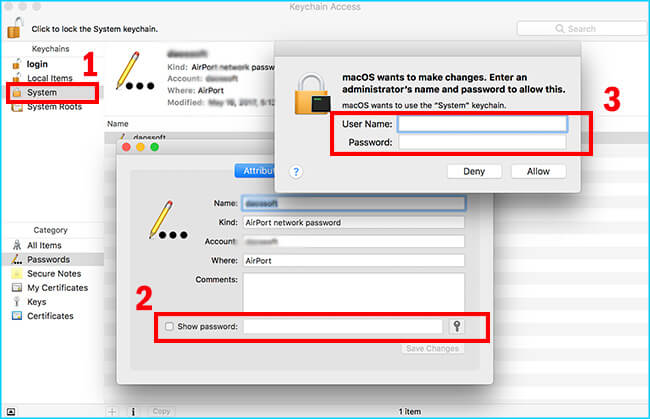
Keychain Access is macOS’s built-in password manager. It stores all your saved logins, including WiFi passwords. Follow these steps:
- Open Keychain Access. You can find it in Applications > Utilities, or press Cmd+Space and type “Keychain Access”.
- In the top-right search bar, type the name (SSID) of your WiFi network. For example, “HomeWiFi”.
- Double-click the network entry that appears. It’s usually under the “System” keychain (left sidebar).
- In the pop-up window, check the box that says “Show password”.
- You’ll be prompted for your Mac’s administrator username and password. Enter them and click Allow.
- The password field will now display the WiFi password. Write it down or copy it.
If you’ve previously recovered saved WiFi passwords on Mac using this method, you’ll notice it’s the same reliable process. No third-party tools needed.
Step 2: Use Terminal for a Quick Command-Line Method
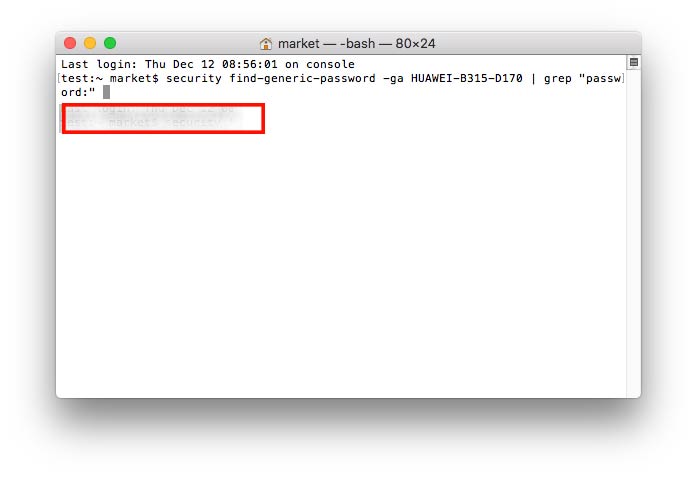
If you prefer working from the command line or want a faster way, Terminal’s got your back. The security command can fetch the password directly. Here’s how:
- Open Terminal (Applications > Utilities > Terminal).
- Type the following command, replacing “NetworkName” with your actual WiFi SSID:
- security find-generic-password -wa “NetworkName”
- Press Return. A dialog will ask for your admin username and password—enter them.
- The password will appear in plain text on the next line.
This terminal-based recovery is super handy if you need to script something or just look up multiple passwords. For more examples, check out other command line methods for WiFi password recovery.
Common Pitfalls
- **Wrong network name**: The SSID is case-sensitive. If you type “HomeWiFi” but it’s saved as “homewifi”, Keychain won’t find it. Double-check the exact name in your WiFi menu.
- **No admin privileges**: If you’re not an admin user, you won’t be able to see the password. Ask the admin to authenticate or give you temporary access.
- **Network not in Keychain**: If you selected “Forget This Network” after connecting, the password is gone. In that case, you’ll need to reconnect or use recovery without extra software like resetting the router.
Where to Next
Now that you’ve got your WiFi password back, you might want to store it safely. Our guide on show WiFi password settings can help you view passwords on other devices too. If you ever need to recover laptop WiFi passwords after a system reinstall, check out the recovery guide. And if you prefer automation, look into writing a script to backup your passwords.



