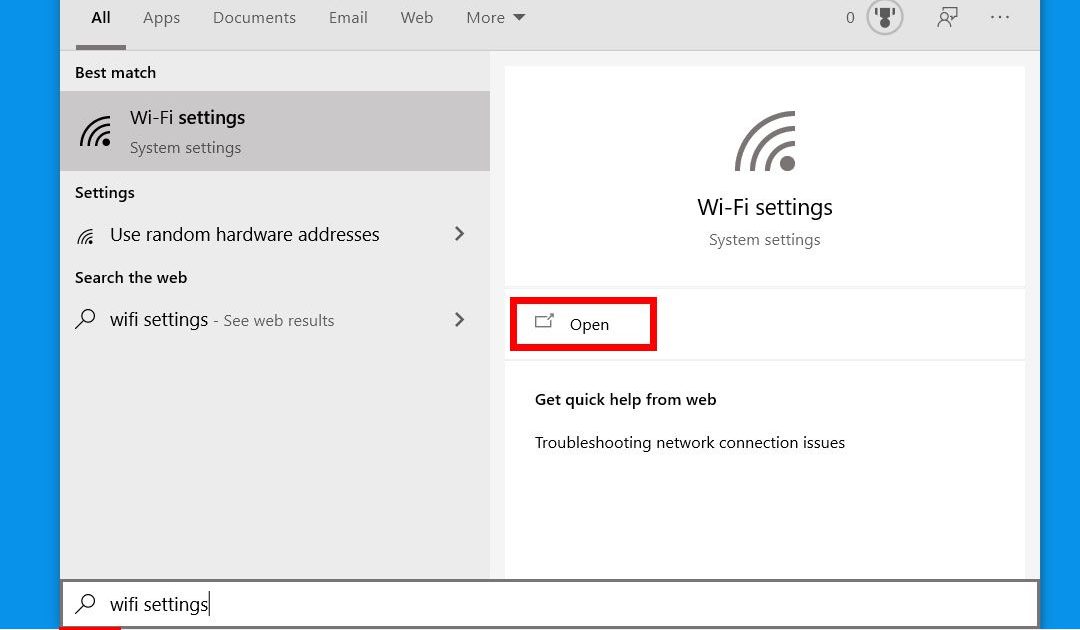
Ever needed to share your WiFi with a friend but couldn’t remember the password? Or maybe you just got a new device and need to connect? This guide is for anyone who wants to quickly find the WiFi password saved on their computer or router. By the end, you’ll know how to show the password on Windows, macOS, Linux, and even from your router’s settings page. No extra software required, just a few clicks or commands.
What You’ll Need
- A computer running Windows, macOS, or Linux (admin access recommended)
- Your router’s admin login credentials if you plan to access its config page
- No third-party tools or apps required
Step 1: Show WiFi Password on Windows
On Windows, the password is stored in the network settings. Here’s how to find it for any saved network. For a more detailed guide, check out our Windows 11 wifi password recovery post.
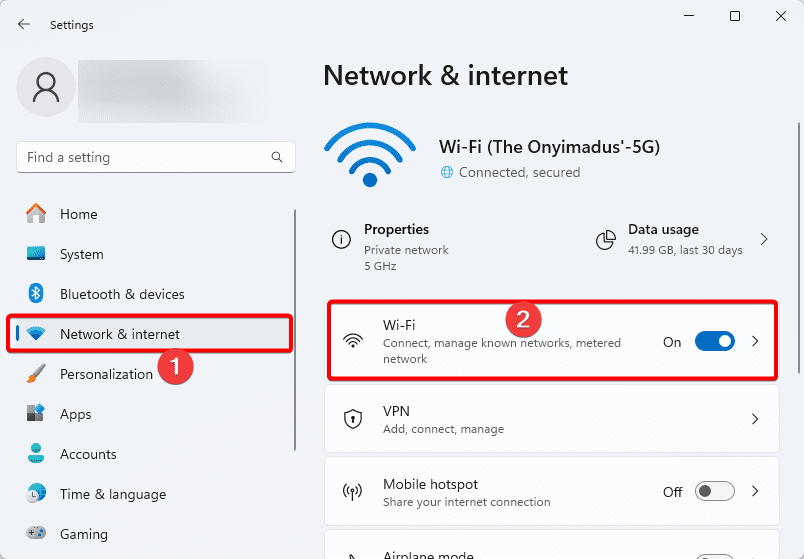
- Press Windows + I to open Settings, then go to Network & Internet > Wi-Fi.
- Click Manage known networks and select your WiFi network from the list.
- Click View network properties (or Properties on older Windows).
- Under the Network security key section, check the box Show password.
The password will appear next to ‘Network security key’. You can copy it or share it directly.
Step 2: Show WiFi Password on macOS
On a Mac, passwords are stored in the Keychain app. If you need iPhone or mobile recovery, see our iPhone wifi password recovery guide.
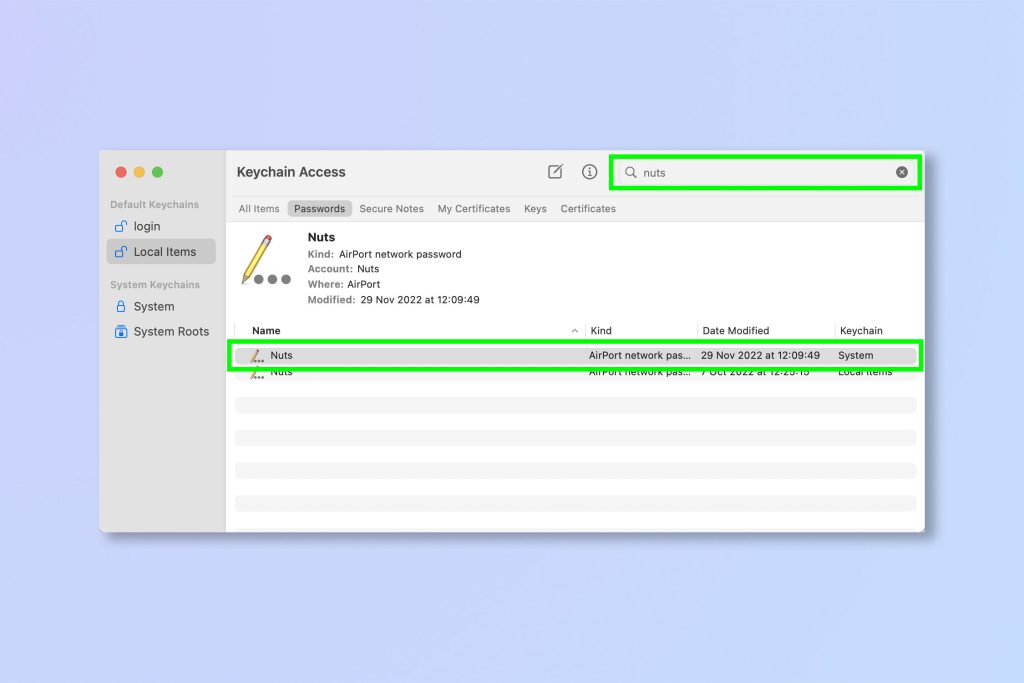
- Open Keychain Access from Applications > Utilities.
- In the search bar, type the name of your WiFi network (SSID).
- Double-click the network entry to open its properties.
- Check the box Show password.
- Enter your Mac’s admin username and password when prompted.
Your WiFi password will now be displayed in the password field.
Step 3: Show WiFi Password on Linux
On Linux, you can retrieve the password via the terminal or by reading the connection files. For a deeper dive, see our Linux wifi password recovery article.
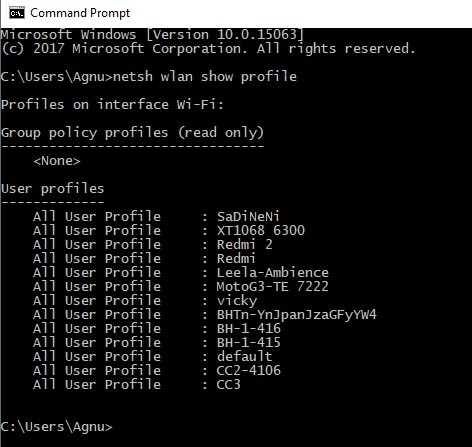
- Open a terminal window.
- If you use NetworkManager, run:
nmcli device wifi show-password - If that doesn’t work, view the connection file:
sudo cat /etc/NetworkManager/system-connections/[SSID](look for the psk= line). - Alternatively, use:
sudo grep psk= /etc/NetworkManager/system-connections/*
The password will be displayed as plaintext after psk=.
Step 4: Show WiFi Password from Your Router / Modem
If you can’t find the password on your computer, you can always look it up on the router’s admin page. This works on any device that can open a browser. For a full walkthrough, check out our modem config page recovery guide.
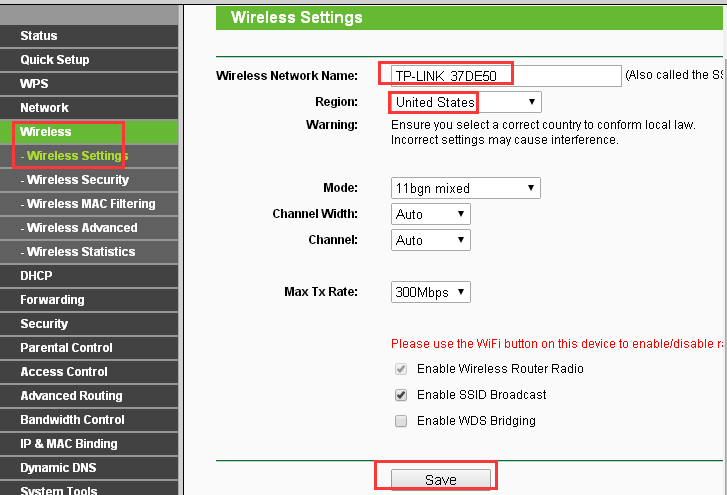
- Find your router’s IP address (usually 192.168.1.1 or 192.168.0.1). You can find it in your network settings.
- Open a web browser and enter that IP address in the address bar.
- Log in with the router’s admin username and password (check the sticker on the router if you haven’t changed it).
- Navigate to the Wireless or Wi-Fi settings section.
- Look for a field labeled Pre-shared Key, Passphrase, or Password – it’s usually shown in plain text.
If the password is hidden, there may be a ‘Show’ or ‘Unmask’ option to reveal it.
Common Pitfalls
- No admin rights: On Windows, you need an admin account to view the password. On macOS, you need your admin password for Keychain. Without these, you won’t be able to see the password.
- Wrong keychain on Mac: If you don’t see your WiFi network in Keychain, make sure you have the correct keychain selected (usually ‘System’ or ‘Login’). Also, your Mac must have connected to that network before.
- Forgotten router admin password: If you changed the router login and forgot it, you can’t access the config page without performing a factory reset. That will erase all settings, so use it as a last resort.
Where to Next?
Now that you’ve retrieved your WiFi password, you might want to explore other recovery methods. Check out our detailed guides: Windows 11 wifi password recovery, command line recovery, and Linux wifi password recovery. If you need to recover on mobile devices, see Android wifi password recovery without root and iPhone wifi password recovery. Happy connecting!



