
Got a new phone or laptop? You don’t want to type in every WiFi password from scratch. This guide shows you how to migrate your saved WiFi networks from your old device (Windows, macOS, Linux, or Android) to a new one. By the end, you’ll have all your WiFi passwords in a neat file ready to import, so you can connect instantly without hunting down the key.
We’ll cover exporting passwords using built-in tools and third-party apps where needed. No technical wizardry required—just follow the steps for your current device. Let’s get started.
What You’ll Need
- Your old device (Windows, macOS, Linux, or Android)
- Your new device (same or different OS)
- A USB drive or cloud storage (e.g., Google Drive, Dropbox) to transfer the exported file
- Admin/root access on your old device (for some methods)
- Optional: A text editor to view the exported file
Step 1: Export WiFi Passwords from Windows
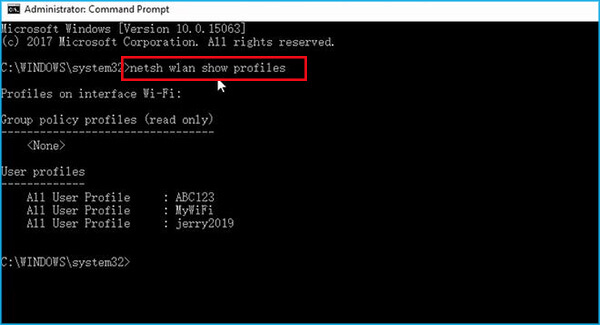
Windows stores WiFi profiles in the system. The easiest way to export them is via the command line using netsh. If you need a refresher on the command, check out our guide on how to recover your WiFi password using netsh. Open Command Prompt as Administrator and run:
netsh wlan show profiles — this lists all saved networks. For each profile you want to export, run: netsh wlan export profile name="YourNetName" key=clear folder="C:WiFiBackup". The key=clear option includes the password in plain text. Repeat for all profiles, or use a script. Once done, copy the XML files from the C:WiFiBackup folder to your USB or cloud storage. For a more detailed walkthrough, see our article on how to back up your WiFi passwords on Windows.
Step 2: Export WiFi Passwords from macOS
Mac passwords are stored in the Keychain. Open the Keychain Access app (in Applications > Utilities), search for your WiFi network name, double-click it, and check the Show password box (you’ll need your Mac admin password). Write down the password, or use a third-party tool to export all passwords at once. Alternatively, you can use the security command in Terminal: security find-generic-password -wa "YourNetName". Note this only outputs one password at a time. Save your passwords in a text file and transfer it to your new device. For a terminal-friendly approach, check out our guide on wifi password recovery via terminal.

Step 3: Export WiFi Passwords from Linux
On most Linux distros, WiFi passwords are stored in plain text in /etc/NetworkManager/system-connections/ (for NetworkManager) or in /etc/wpa_supplicant/wpa_supplicant.conf. Open a terminal and list files: ls /etc/NetworkManager/system-connections/. Each file corresponds to a network. Copy the files to a safe location: sudo cp /etc/NetworkManager/system-connections/* ~/wifi-backup/. Then transfer them to your new device. For a thorough tutorial, see our guide on how to back up your WiFi passwords on Linux.
Step 4: Export WiFi Passwords from Android
Android’s approach depends on version. On Android 10+, you can generate a QR code for each saved network: go to Settings > Network & internet > WiFi, tap the gear icon next to a network, then select Share or QR code. Scan this QR code with your new device to connect. For bulk export without root, you’ll need a third-party app like WiFi Password Recovery (non-root). It reads the system database and shows passwords. Our article on saved wifi password recovery via command line covers alternative methods. Copy the passwords manually or use an export feature if available. For rooted devices, you can copy the /data/misc/wifi/wpa_supplicant.conf file.

Step 5: Import WiFi Passwords to Your New Device
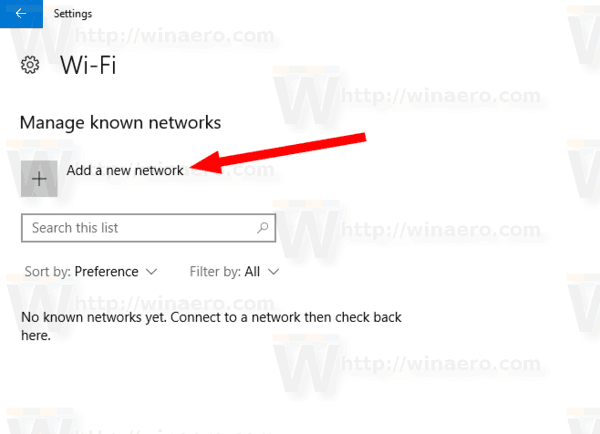
Now that you have your passwords in a file, move it to your new device. If you’re moving to the same OS, use the reverse of the export method: on Windows, run netsh wlan add profile filename="path.xml" (reimport the XML files). On macOS, manually enter the passwords via System Settings > Network > WiFi. On Linux, copy the configuration files back to /etc/NetworkManager/system-connections/ (with proper permissions). On Android, either scan the QR codes or manually type the passwords. If you’re switching OS, you’ll need to manually enter each password—but at least you have them saved. For a full walkthrough on importing to Windows, see our article on how to recover a forgotten WiFi password on your laptop.
Common Pitfalls
- Forgetting to run Command Prompt as Administrator on Windows — the export will fail without admin rights.
- Mismatched security types: some newer routers use WPA3 which older devices may not support, causing import to fail. Check compatibility.
- On Android, non-root apps may only show passwords one by one, not bulk export. Plan accordingly.
Where to Next
Now you can breeze through setting up WiFi on any new device. If you ever lose your password file, you know how to recover it again. For more tips, explore our guides on recovering passwords from specific devices or creating secure backups. Happy connecting!



