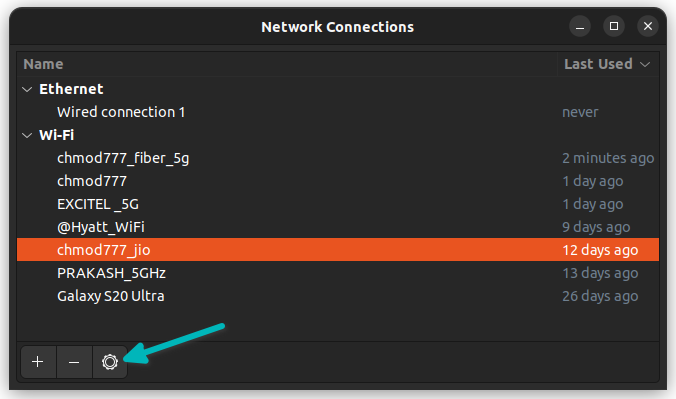
If you’re like me, you’ve connected to dozens of WiFi networks over the years—home, office, coffee shops, friends’ places. Memorizing all those passwords is impossible. That’s why backing them up on Linux is a smart move. Whether you’re planning to reinstall your OS, switch to a new laptop, or just want a secure copy, this guide will show you exactly how to extract and save every WiFi password stored on your system.
By the end of this tutorial, you’ll have a plain-text file (or an encrypted one if you prefer) containing all your network SSIDs and their passwords. You’ll also learn how to restore them later. No third-party software required—just your terminal and a few commands. Let’s dive in.
What You’ll Need
- A Linux computer with NetworkManager (most distros like Ubuntu, Fedora, Debian have it)
- Terminal access (Ctrl+Alt+T)
- Sudo privileges (you’ll need your admin password)
- Optional: a USB drive or cloud service for backup storage
Step 1: Open Your Terminal
Fire up your terminal by pressing Ctrl+Alt+T or searching for ‘Terminal’ in your app menu. We’ll use NetworkManager’s command-line tool called nmcli. First, verify it’s installed: Type ‘nmcli –version’ and press Enter. You should see a version number. If not, install NetworkManager using your package manager (e.g., ‘sudo apt install network-manager’ on Debian/Ubuntu).
Step 2: List All Saved WiFi Connections
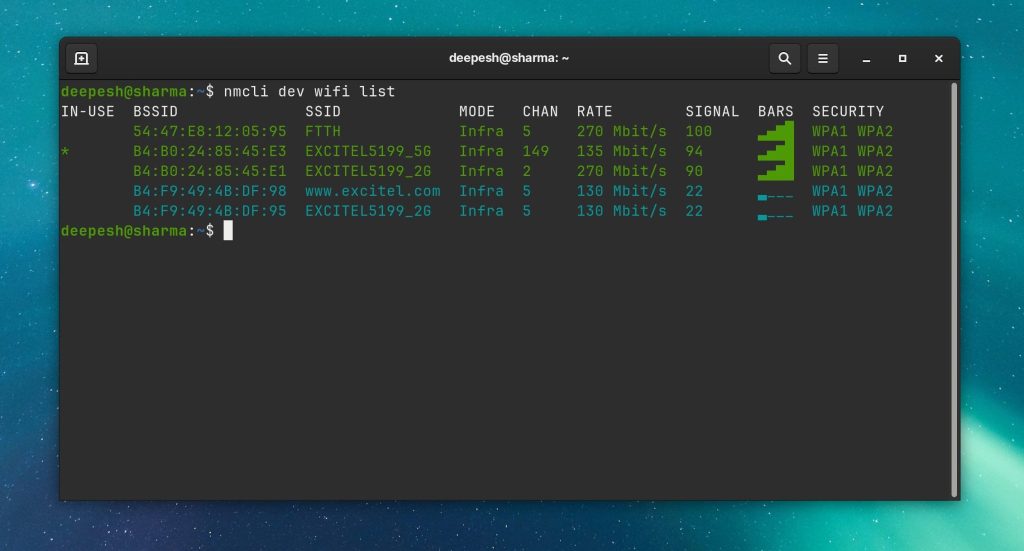
Now list all saved WiFi connections with ‘nmcli connection show’. This shows all network profiles, including Ethernet and VPN. Look for connections with type ‘wifi’. Note the NAME column—those are your SSIDs.
Step 3: Extract Passwords for Each Network
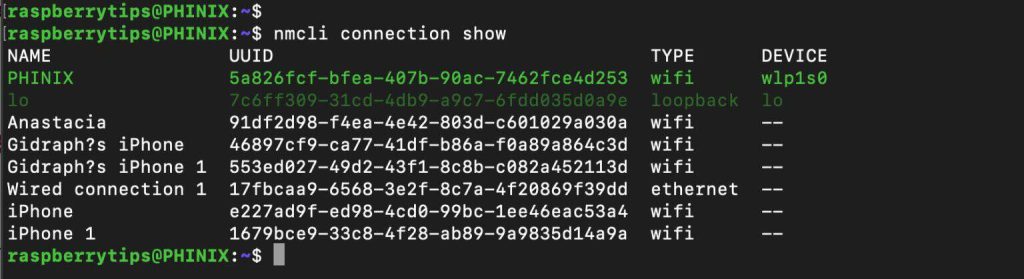
You can view a connection’s details with ‘nmcli -s connection show ‘ where is the SSID. The -s flag shows secrets (passwords). But we’ll do it more efficiently: use a loop to extract all WiFi passwords at once. Run the following command in your terminal:
for file in /etc/NetworkManager/system-connections/*.nmconnection; do echo “=== $(basename “$file” .nmconnection) ===”; sudo grep -r ‘psk=’ “$file” 2>/dev/null || echo “No password found”; done
This loops through each connection file, prints the SSID, and grabs the ‘psk=’ line which contains your password. You’ll need sudo because these files are protected.
Step 4: Save the Output to a File
Instead of just printing to screen, save it to a file. Run: ‘sudo bash -c “for file in /etc/NetworkManager/system-connections/*.nmconnection; do echo “=== $(basename “$file” .nmconnection) ===”; grep -r ‘psk=’ “$file” 2>/dev/null || echo “No password found”; done” > ~/wifi-backup.txt’. This creates a file called wifi-backup.txt in your home directory. Open it with a text editor to verify all your passwords are there.
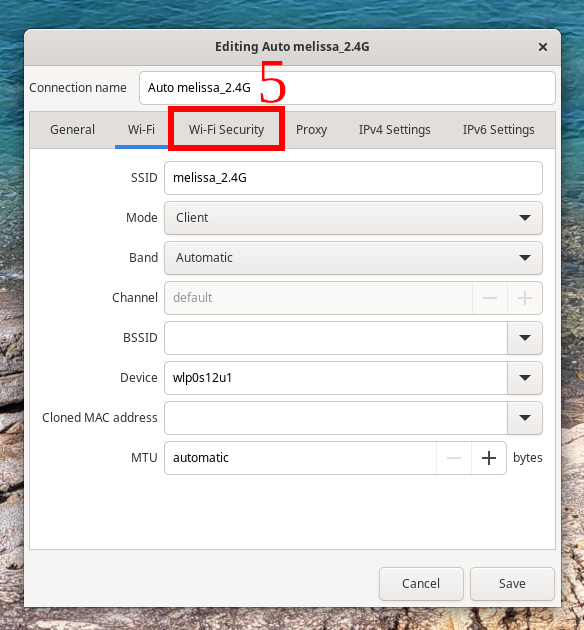
Step 5: Secure Your Backup (Optional)
Since this file contains plain-text passwords, you should encrypt it. Use GPG to encrypt: ‘gpg -c ~/wifi-backup.txt’. You’ll be prompted for a passphrase. This creates a .gpg file. Delete the original text file: ‘rm ~/wifi-backup.txt’. Now only the encrypted version exists.
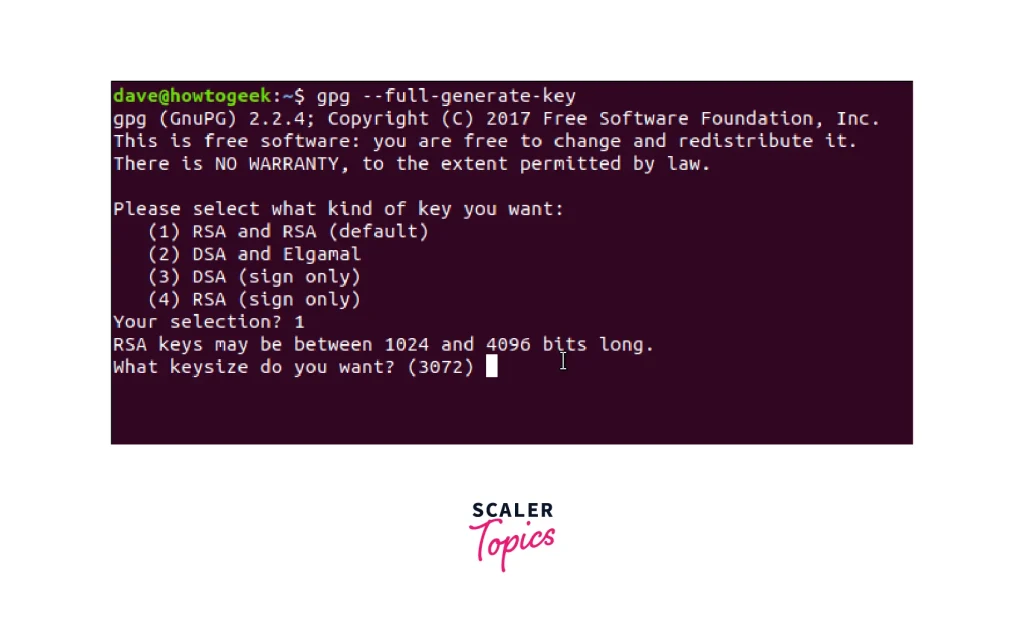
Step 6: Restore Passwords on a New System (Bonus)
If you’re moving to a new Linux machine, copy the encrypted backup and decrypt it: ‘gpg -d wifi-backup.txt.gpg > wifi-backup.txt’. Then import each connection using nmcli: ‘nmcli connection import type wifi file <(echo -e "[wifi]nssid=YourSSIDnpsk=YourPassword")' (simplified). Alternatively, manually copy the .nmconnection files to /etc/NetworkManager/system-connections/ and restart NetworkManager. But the easiest is to use a script. We'll cover that in a future post.
Common Pitfalls
- Permission denied: If you get ‘Permission denied’, you forgot sudo. The connection files are owned by root. Always prefix commands with sudo.
- No output for some networks: Some older connections might not have ‘psk=’ because they use other authentication methods (like enterprise EAP). Those passwords aren’t stored in plain text. You’ll need to retrieve them from your network admin.
- Accidentally exposing passwords: If you share your screen or upload the file to a public repo, your WiFi passwords are visible. Always encrypt the backup before storing it off your machine.
Where to Next
Now you’ve got a backup of all your WiFi passwords. Next time you reinstall Linux, you’ll be back online in minutes. Want to learn more? Check out our guides on how to recover a forgotten WiFi password on Linux if you ever lose access, or backup WiFi passwords to the cloud for offsite storage. Also, see the best WiFi password recovery programs for other platforms. Happy networking!



