Ever needed to connect a new device to your WiFi but couldn’t remember the password? Don’t worry — if you’ve ever connected that network on your Windows, macOS, or Linux machine, the password is almost certainly still saved somewhere in your system. With a few command line tricks, you can pull it out in seconds. This guide is for anyone who’s comfortable opening a terminal and running a few commands. By the end, you’ll know exactly how to recover your saved WiFi passwords on all three major operating systems using nothing but the built-in command line tools.
We’ll cover Windows (using netsh and PowerShell), macOS (using security and keychain), and Linux (using cat on wpa_supplicant or NetworkManager config). Whether you’re on a laptop at home or managing a server, these methods work. Let’s dive in.
What You’ll Need
- A Windows, macOS, or Linux computer that has previously connected to the WiFi network you want to recover.
- Administrator or sudo access (required on Windows and Linux; on macOS you’ll need your account password).
- Basic knowledge of opening a terminal: Command Prompt/PowerShell on Windows, Terminal on macOS/Linux.
- The exact name (SSID) of the network – if you don’t remember it, you can list saved networks first.
Step 1: Recover WiFi Password on Windows (netsh)
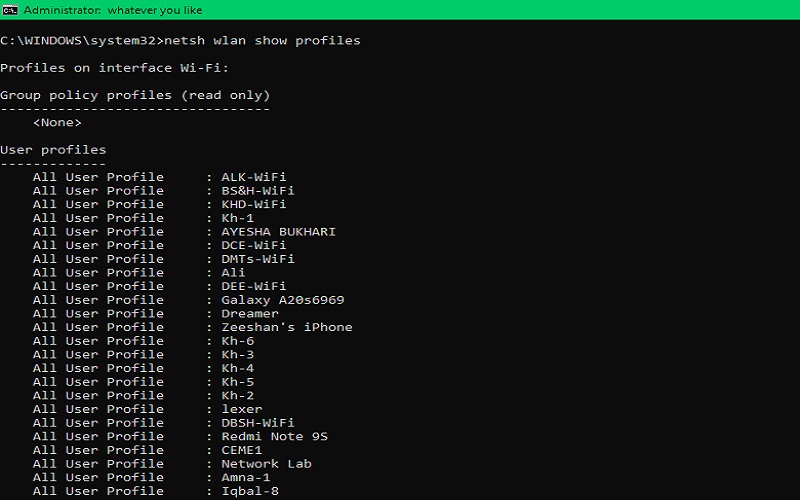
Open Command Prompt as Administrator (right-click Start menu, select ‘Command Prompt (Admin)’ or ‘Windows PowerShell (Admin)’). First, list all saved WiFi profiles with:
netsh wlan show profiles
You’ll see a list of all networks you’ve ever connected to. Find the one you need, then run:
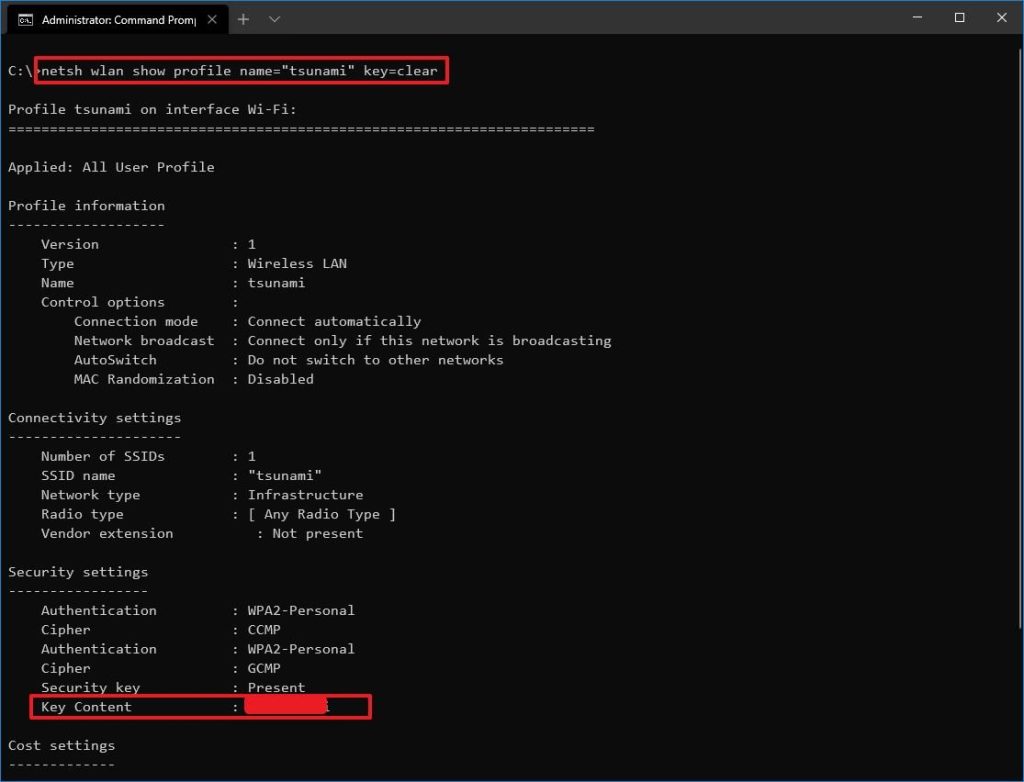
netsh wlan show profile name=”YourNetworkName” key=clear
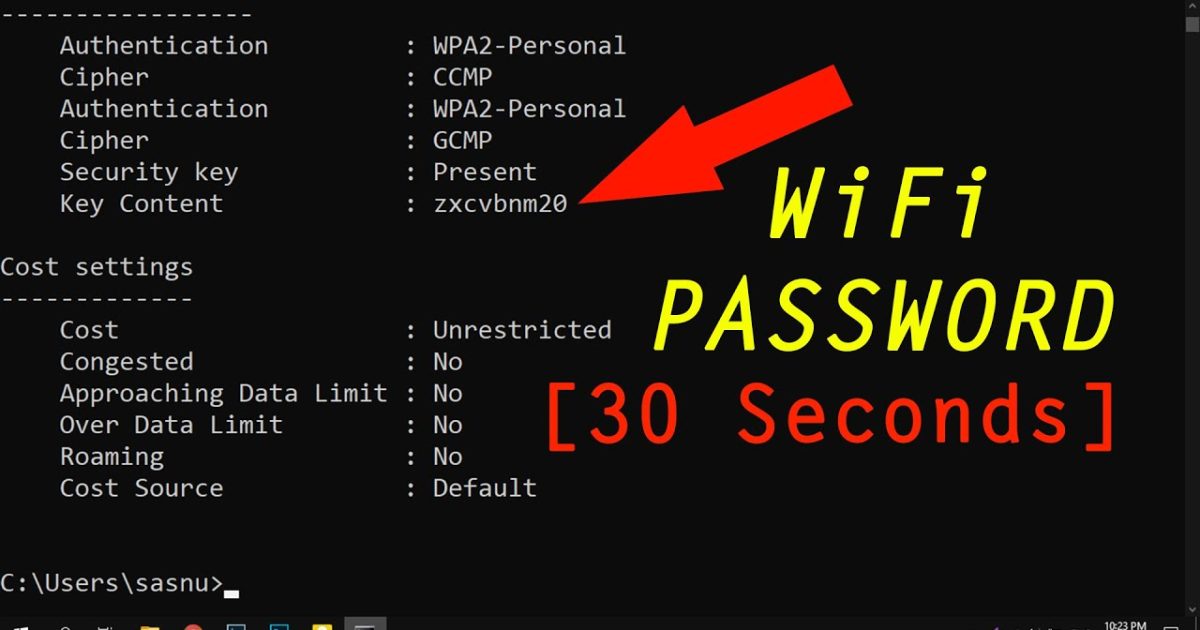
Look for the ‘Key Content’ field — that’s your WiFi password in plain text. For more details, check out our dedicated wifi password recovery with netsh guide.
Step 2: Recover WiFi Password on macOS (security & keychain)
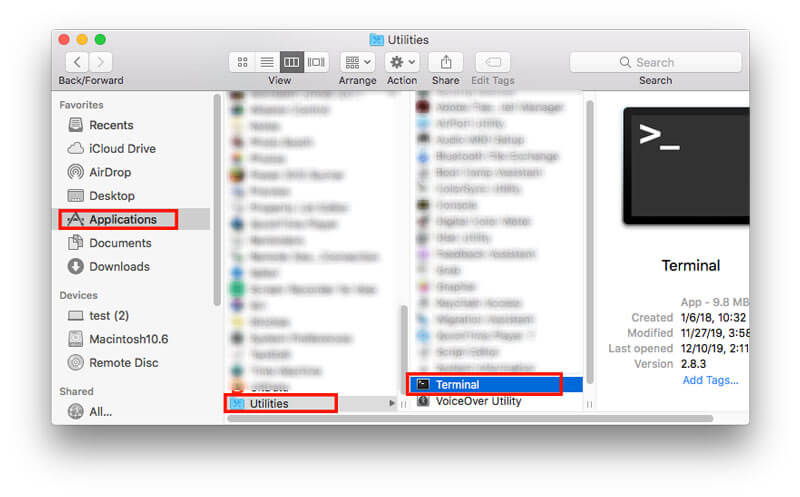
Open Terminal from Applications > Utilities. To list saved WiFi networks, use:
security find-generic-password -D ‘AirPort network’ -l ‘YourNetworkName’ -w
Replace ‘YourNetworkName’ with your SSID. You’ll be prompted for your macOS account password (the one you use to log in). After entering it, the WiFi password will be printed on the next line. You can also use the Keychain Access app (in Utilities) to search for ‘AirPort network password’, but the command line is faster. For a full walkthrough, see our recover forgotten wifi password from saved profile article.
Step 3: Recover WiFi Password on Linux (NetworkManager or wpa_supplicant)
On most modern Linux distros, WiFi credentials are stored in /etc/NetworkManager/system-connections/. Open a terminal and navigate there:
cd /etc/NetworkManager/system-connections
List files with ‘ls’ to see saved network configs. Each file is named after the SSID. View one with:
sudo cat ‘YourNetworkName.nmconnection’
Look for the line starting with ‘psk=’ — that’s your password. If your system uses wpa_supplicant (older or minimal setups), check /etc/wpa_supplicant/wpa_supplicant.conf. For a full guide, check our forgotten wifi password recovery linux article.
Common Pitfalls
- Not running as administrator or using sudo – Without elevated privileges, you won’t see the password (Windows lists profiles but not keys; macOS will prompt for keychain access; Linux won’t allow reading config files). Always run the terminal with admin rights.
- Wrong SSID – Case matters and special characters can trip you up. On Windows, use quotes around the SSID if it contains spaces. On macOS, the exact name must match. If unsure, first list all profiles.
- The network was forgotten or never saved – If you selected ‘Forget This Network’ or used a device that doesn’t store the key (like some guest networks), the command line methods won’t work. In that case, you’d need to reset your router or use other recovery methods like backup wifi passwords windows or wifi password recovery powershell windows server.
Where to Next
Now you know how to recover any saved WiFi password using command line on Windows, macOS, and Linux. Consider exporting your passwords to a password manager or backing them up for future use. For more advanced scenarios, check our wifi password recovery command prompt tutorial or learn how to recover WiFi password from your ISP router. Stay secure and keep your network keys handy!



