Ever been in that situation where you need to connect a new device to your WiFi, but you can’t find the password anywhere? Maybe it’s written on the router but faded, or you just plain forgot it. If you’re using Windows, there’s a super easy way to recover any WiFi password you’ve ever connected to — using a built-in tool called netsh. No downloads, no third-party software, just a few commands in the command prompt. By the end of this guide, you’ll be able to pull up the password for any saved WiFi network in under a minute. This method works on Windows 7, 8, 10, and 11.
This tutorial is perfect for anyone who has ever connected to a WiFi network on their Windows PC and now needs the password for another device (like a phone, tablet, or a friend’s laptop). It’s also great if you want to backup wifi passwords windows before a reformat. All you need is a computer that has previously connected to the network. Let’s dive in.
What You’ll Need
- A Windows PC or laptop (any version from Windows 7 onwards)
- Administrator access to that computer (you’ll need to run Command Prompt as admin)
- At least one saved WiFi network (one that you’ve connected to in the past)
- Basic familiarity with typing commands — nothing scary, I promise!
Step 1: Open Command Prompt as Administrator
First, we need to launch the Command Prompt with administrative privileges. Click the Start button (or press the Windows key), type cmd or Command Prompt in the search bar. You’ll see the app appear in the results. Right-click on it and select Run as administrator. If a User Account Control window pops up, click Yes to allow. This gives netsh permission to read the saved passwords.
Step 2: List All Saved WiFi Profiles
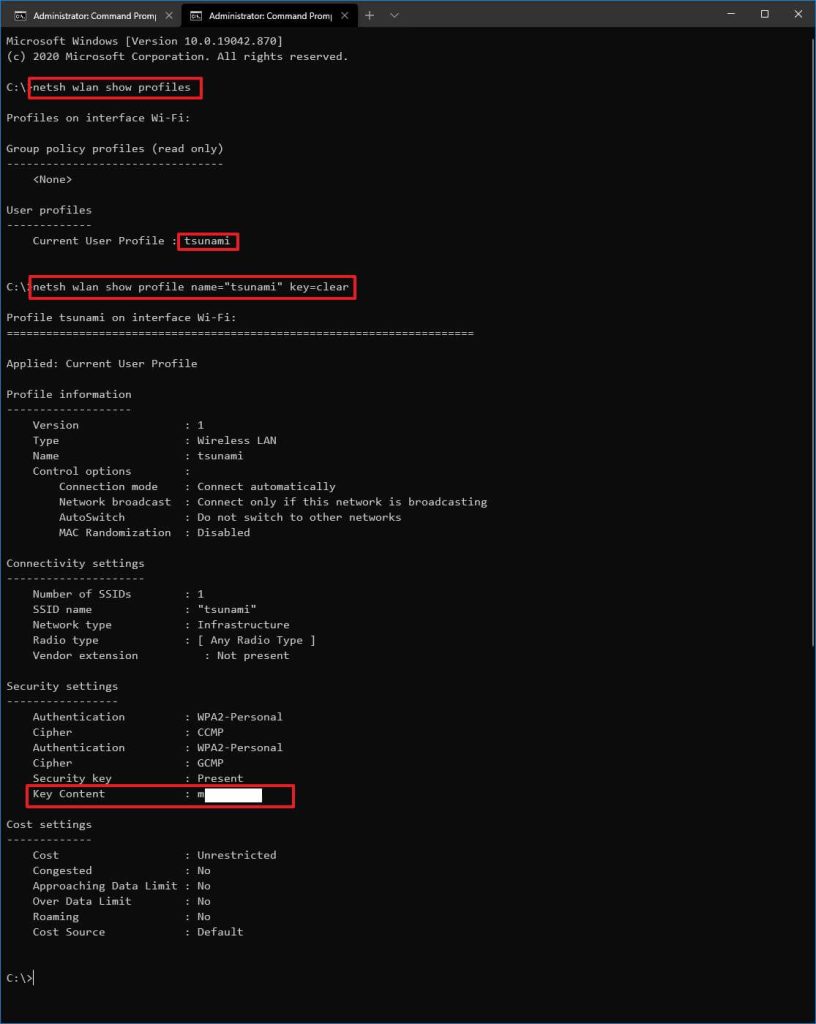
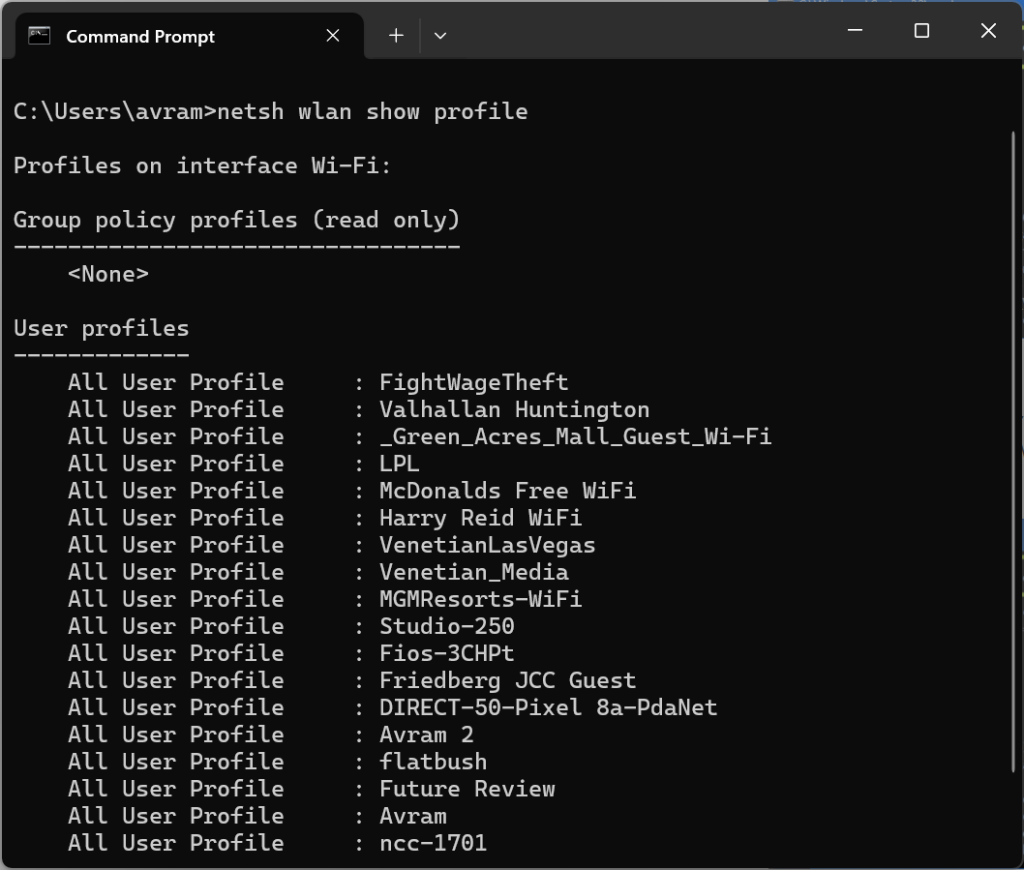
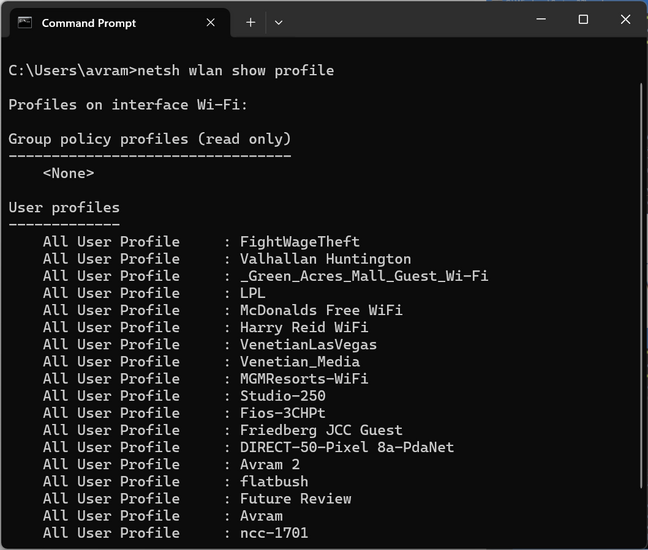
Now that the command prompt window is open, type the following command and press Enter: netsh wlan show profiles. This will display a list of every WiFi network your computer has ever connected to and saved. Each network is listed under User profiles. If you’ve connected to a lot of networks, the list might be long — just look for the one whose password you need.
Step 3: Display the Password for a Specific Network
Once you have the exact name (SSID) of the network, run this command: netsh wlan show profile name="NETWORK-NAME" key=clear. Replace NETWORK-NAME with the actual SSID (keep the quotes if the name has spaces). For example: netsh wlan show profile name="Home WiFi" key=clear. Press Enter. The output includes a section called Security settings. Look for Key Content — that’s your WiFi password!
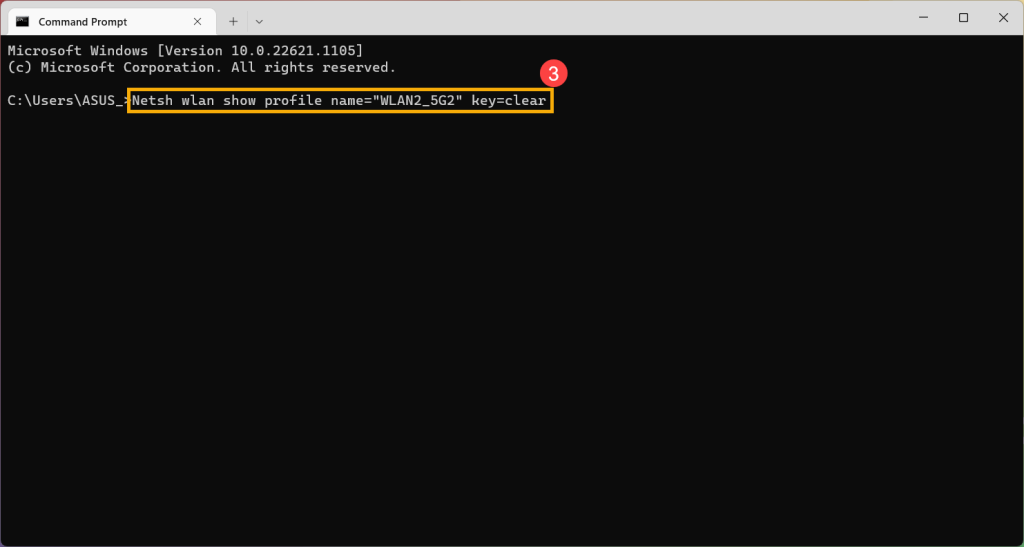
Yes, it’s that simple. The key=clear parameter tells netsh to display the password in plain text. If you run it without key=clear, you’ll just see Key Content: Present but not the actual characters. Always include key=clear to see the password.
Step 4: (Optional) Export All Profiles to XML for Backup
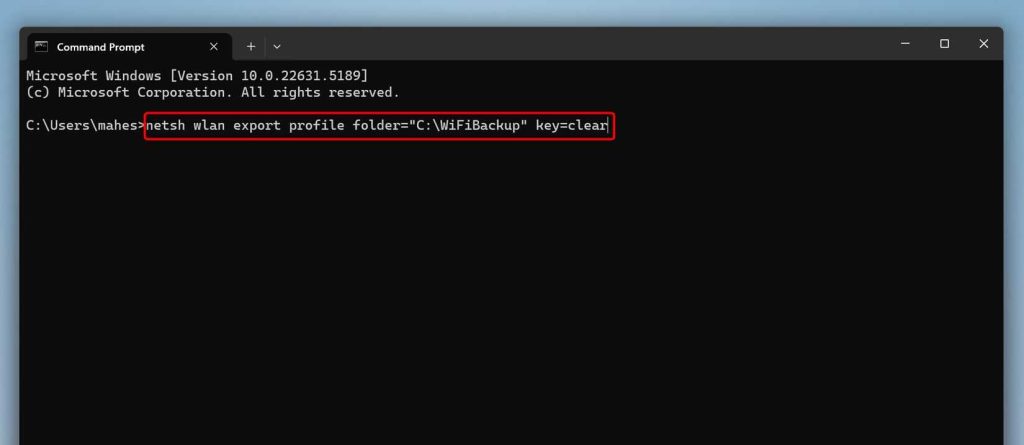
If you want to save all your WiFi passwords at once — say, to transfer them to another PC or just keep a backup — you can export every profile to XML files. First, create a folder to store them, e.g., C:WiFiBackup. Then run: netsh wlan export profile folder="C:WiFiBackup" key=clear. Each profile will be saved as an XML file named after the SSID. You can open them in Notepad and find the password inside the tag. This is an excellent way to backup wifi passwords windows before a format or upgrade.
Step 5: (Alternative) Use a Script for Quick Viewing
If you frequently need to view passwords, you can use a simple one-liner in PowerShell (also run as admin) that lists all profiles and passwords in one go: (netsh wlan show profiles) | Select-String ":(.*)$" | %{$name=$_.Matches.Groups[1].Value.Trim(); $_} | %{(netsh wlan show profile name=$name key=clear)} | Select-String "Key Content". This is a bit advanced but saves time. For more scripting approaches, check out our guide on wifi password recovery powershell windows server.
Common Pitfalls
- Not running as administrator: If you don’t run Command Prompt as admin, netsh will either refuse to show the password or give an error. Always right-click and select “Run as administrator”.
- Typo in the network name: The SSID must exactly match what’s shown in the profiles list. If it has spaces, enclose the name in quotes. If you’re unsure, copy-paste the name from the profile list.
- Special characters in SSID: Some networks have unusual characters (like emojis or symbols). In that case, the command might fail. You can try escaping the characters or exporting all profiles to XML and reading the password from the file.
For more troubleshooting and tips, see our wifi password recovery tips article.
Where to Next?
Now that you’ve recovered your WiFi password, you might want to check out how to recover forgotten wifi password from saved profile on other devices, or learn the safest wifi password recovery method for sensitive networks. If you ever need to recover a password from a router directly, our guide on recover wifi password from modem has you covered. And if you’re using a different operating system, we’ve got tutorials for macOS, Android, and Kali Linux as well. Keep exploring and never get locked out of your own network again!



