You’re sitting there, trying to connect a new gadget to your home WiFi, and your mind goes blank. The password? No clue. We’ve all been there. The good news: your computer or phone already knows it. Every time you connect to a network, the password is stored somewhere for later use. This guide is for anyone who’s ever typed a WiFi password once and then promptly forgot it. By the end, you’ll have that password back in hand — no router login required.
Whether you’re on Windows, Mac, or Android, I’ll walk you through the exact steps to uncover that saved password. No third-party downloads needed (unless you want extra options). This works for any WiFi network you’ve connected to in the past, as long as the device still has the profile saved. Let’s dig in.
What You’ll Need
- A Windows PC, Mac, or Android device that has previously connected to the WiFi network
- Administrator access on Windows (to run Command Prompt as admin)
- Your Mac login password (to view Keychain items)
- Optional: a QR code scanner app on Android (older versions)
- Optional: a free WiFi password recovery utility if you want a GUI tool
Step 1: Recover WiFi Password on Windows Using Command Prompt
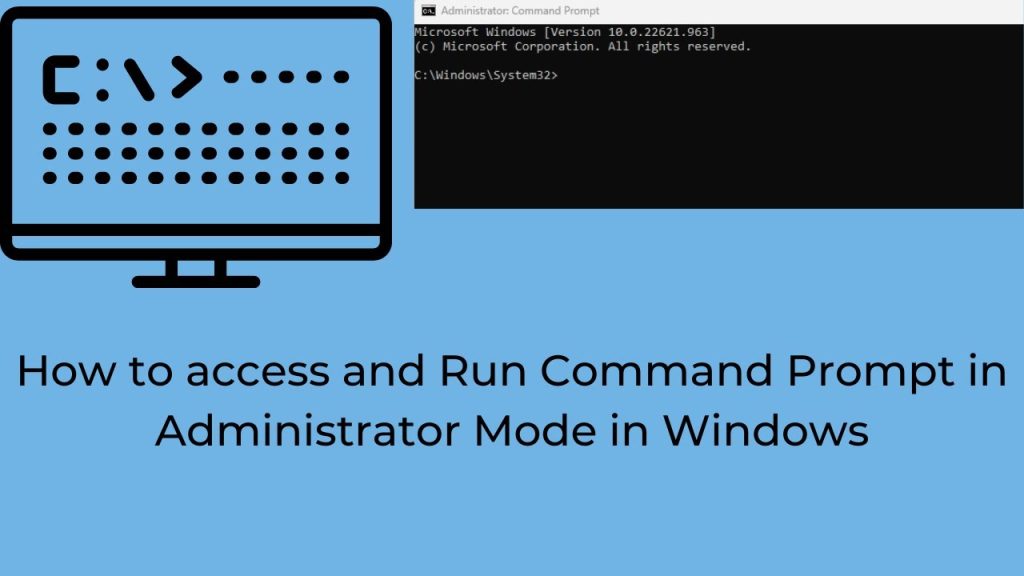
The fastest way on Windows is through the command prompt method. It’s built-in, doesn’t need extra software, and works on Windows 10 and 11. First, press the Windows key, type “cmd”, right-click on Command Prompt, and select “Run as administrator”. If you’re not an admin, ask the owner of the computer to help.
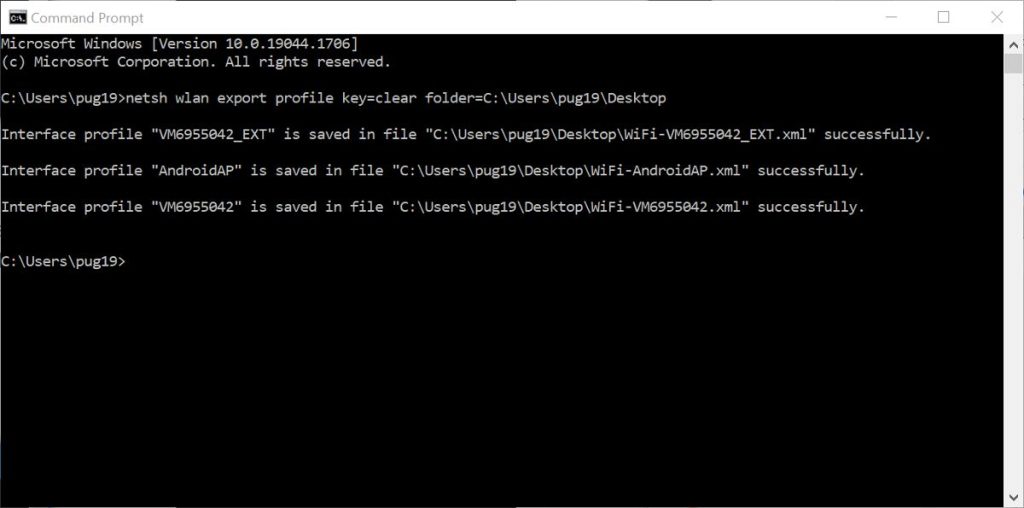
Now type the following command and hit Enter: netsh wlan show profiles. This lists all the WiFi networks your PC has ever saved. Find the name (SSID) of the network you need the password for. For example, “HomeNetwork”.
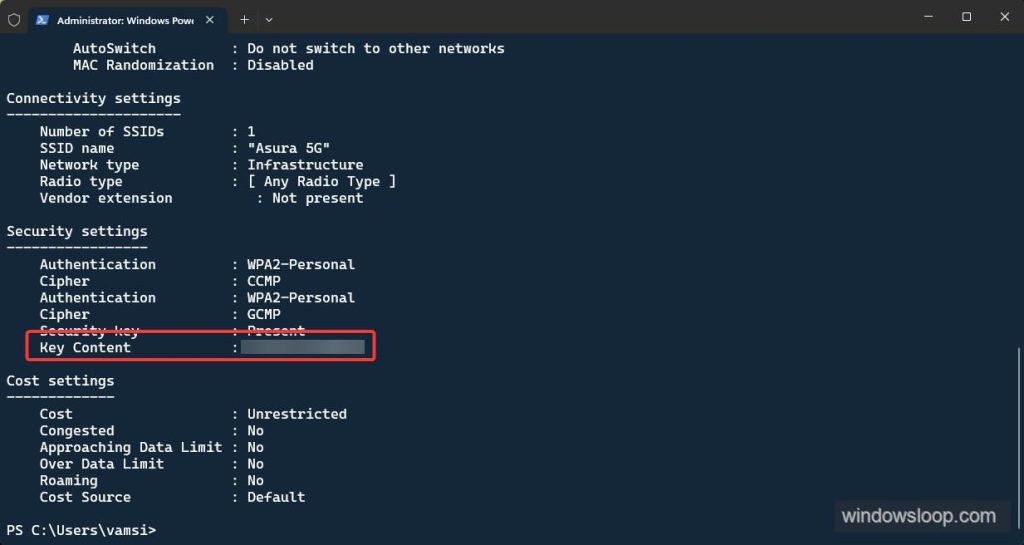
Next, type: netsh wlan show profile name="HomeNetwork" key=clear — replace “HomeNetwork” with your actual SSID. Look for the line that says “Key Content” under Security settings. That’s your WiFi password. Write it down or take a photo. This is the same wireless password recovery on Windows that tech support uses.
Step 2: Recover WiFi Password on Mac Using Keychain
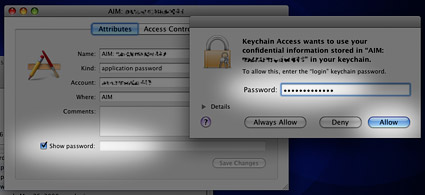
Macs store every password in a tool called Keychain. To find a saved WiFi password, open Spotlight (Cmd+Space), type “Keychain Access”, and hit Enter. In the Keychain Access window, search for your WiFi network name in the top-right corner.
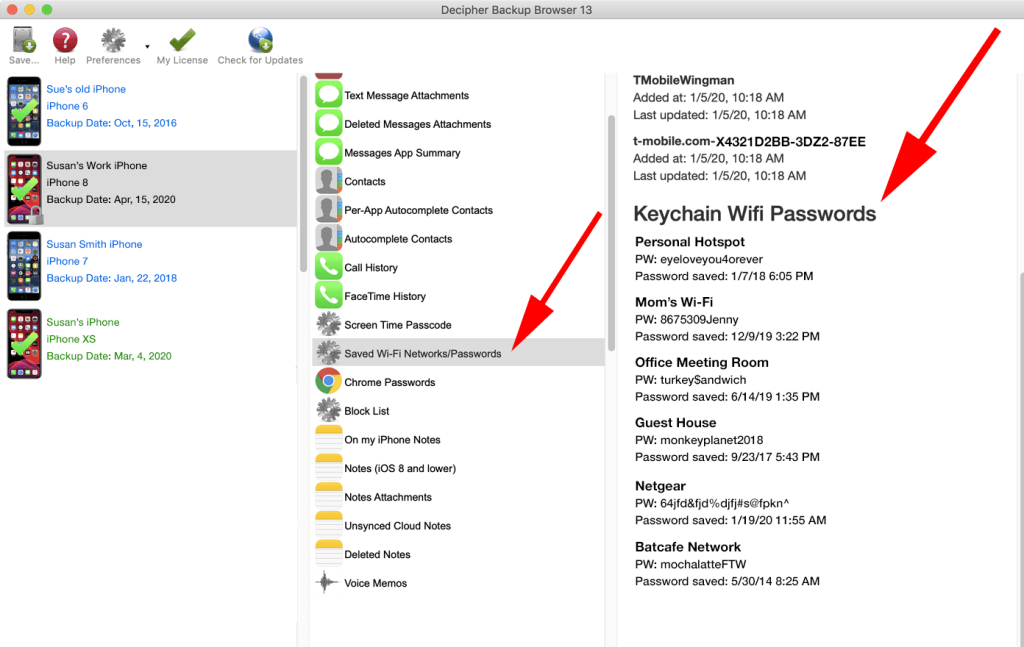
Double-click the network entry. A dialog box appears. Check the box “Show password”. You’ll be asked for your Mac’s login password. Enter it, and the WiFi password is revealed. You can now copy it. If you prefer a more detailed walkthrough, check out our guide on finding saved WiFi passwords from Keychain on Mac.
Step 3: Recover WiFi Password on Android (Settings or QR Code)
Android 10 and later have a built-in way to view saved WiFi passwords. Go to Settings > Network & Internet > Internet (or Wi-Fi). Find your connected network, tap the gear icon or the network name. On newer phones (Android 11+), tap “Share” — a QR code appears that contains the password. You can scan it with another phone, or tap the QR code to reveal the password text below it.
On older Android versions or if you don’t see a Share option, you may need a free WiFi password recovery utility app from the Play Store. Use caution and choose a well-rated app. Alternatively, if your phone is rooted, you can look in the wpa_supplicant.conf file. But for most users, the Android settings method works fine. For a full breakdown, see our article on how to show your WiFi password on Android.
Common Pitfalls
- Running Command Prompt without admin rights: If you don’t run as administrator, the key=clear command won’t show the password. Always right-click and run as admin.
- Wrong network name in command: If you mistype the SSID or it has spaces, the command fails. Use exact spelling; enclose the name in quotes if it contains spaces.
- Android version differences: The QR code trick works on Android 10+ but not on older versions. If you’re stuck, consider using a third-party app or finding an older device that’s still connected.
Another common issue is that the network profile might have been removed or the device was reset. In that case, you may need to connect to the router directly or restore WiFi passwords from backup if you previously backed them up.
Where to Next?
Now that you’ve recovered your password, consider saving it somewhere safe — a password manager or a physical notebook. If you’re about to format your computer or switch phones, take a few minutes to backup WiFi passwords before formatting so you don’t need to recover them again. And if you ever need to recover a password from a network you’ve never connected to, you’ll need to access the router or the admin panel. But for now, you’re set. Go get connected!



