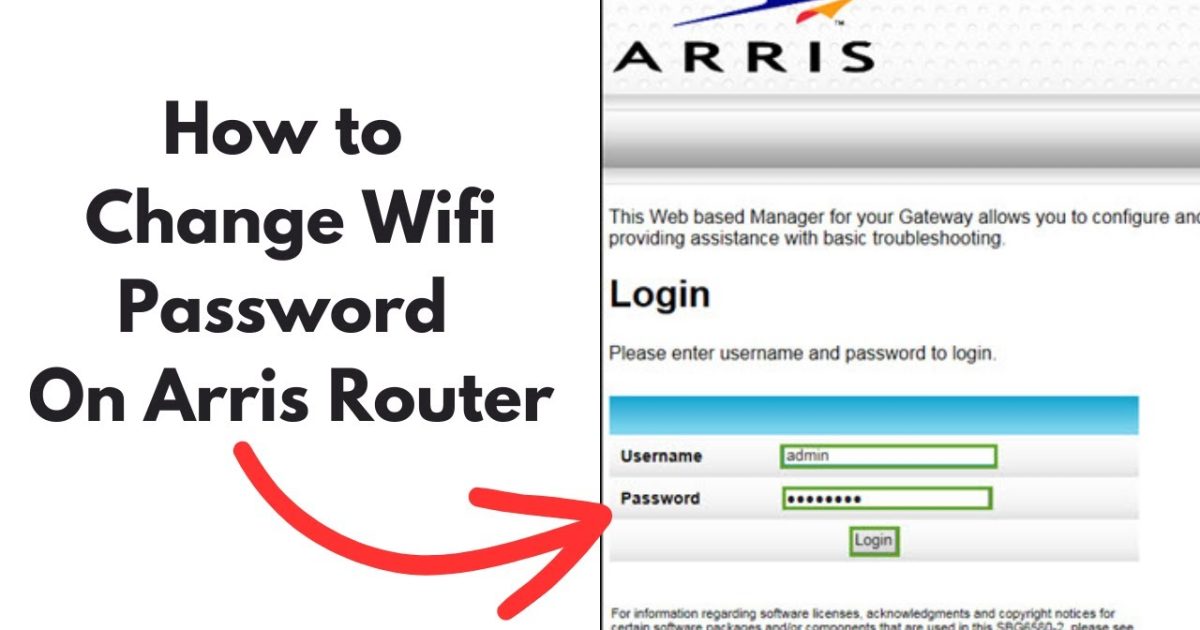
Ever had that sinking feeling when a friend asks for your WiFi password and you realize you have no idea what it is? You wrote it on a sticky note that’s long gone, or maybe the tech who set up the modem just handed you a random sheet of paper. Don’t worry – you’re not alone. This guide is for anyone who has physical access to their modem or router and wants to dig out the WiFi password from the device itself. By the end of these steps, you’ll have the password ready to share or save. No extra software needed, just a browser and a few minutes.
This method works on almost any modem or router combo (often called a gateway) provided by your internet service provider or bought off the shelf. We’ll walk you through logging into the modem’s admin panel and finding the wireless security settings. If you’ve ever tried to recover forgotten wifi password from saved profile on a computer, this is the hardware-level version – and it’s the most reliable way to get the real password straight from the source.
What You’ll Need
- A computer, phone, or tablet connected to the modem’s network (WiFi or Ethernet).
- The modem’s IP address (usually 192.168.0.1 or 192.168.1.1 – check the sticker on the modem).
- The admin username and password (often printed on a sticker, or try ‘admin’/’password’ or ‘admin’/’admin’).
- A web browser like Chrome, Firefox, or Safari.
- Patience – the first login might take a couple of tries if you’ve never changed the credentials.
If you don’t have the admin password, you may need to reset the modem to factory defaults (there’s usually a pinhole button). That will wipe all custom settings, so proceed only if you’re comfortable setting up the network again. For a less intrusive approach, check if you can use wifi password recovery using command prompt on a Windows PC that’s already connected – that pulls the password from the OS without touching the modem.
Step 1: Find Your Modem’s IP Address
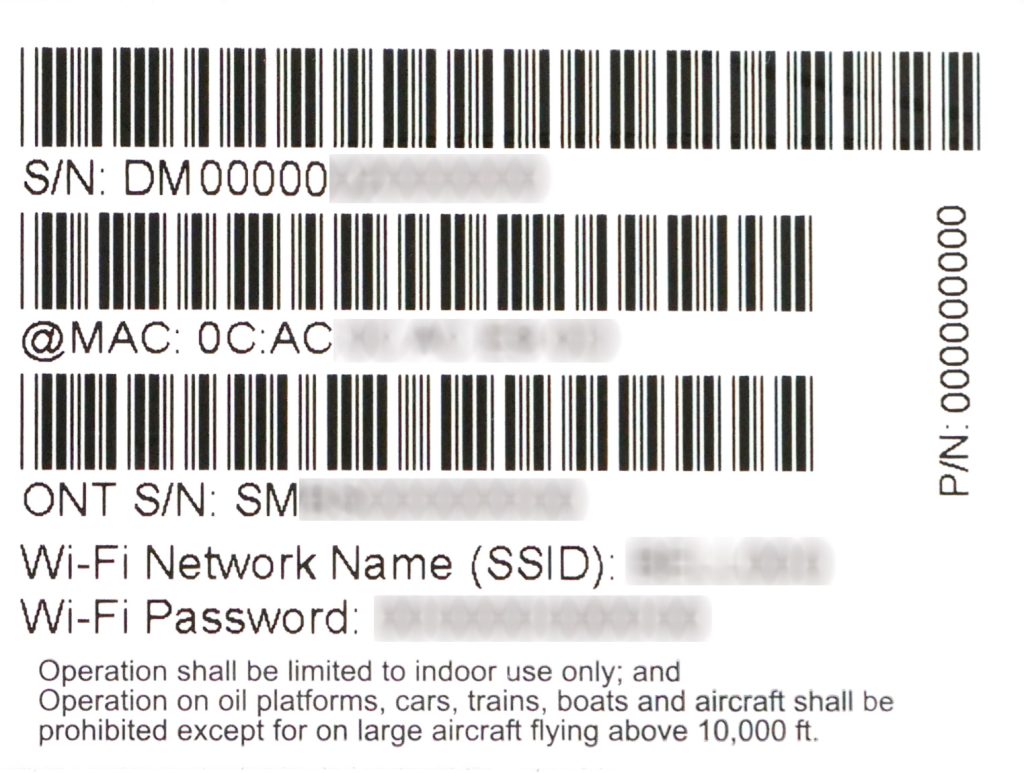
The first step is to find the gateway address (the IP of your modem). The easiest way: flip your modem over or look at the back panel – there’s often a sticker that says something like ‘Default Gateway’ or ‘Admin Access’ followed by an IP like 192.168.1.1. Write that down. If there’s no sticker, on Windows open Command Prompt and type ‘ipconfig’ – look for ‘Default Gateway’ under your active network adapter. On Mac go to System Preferences > Network > Advanced > TCP/IP and find the Router address. That IP is your modem’s address.
Step 2: Log In to the Modem Admin Panel
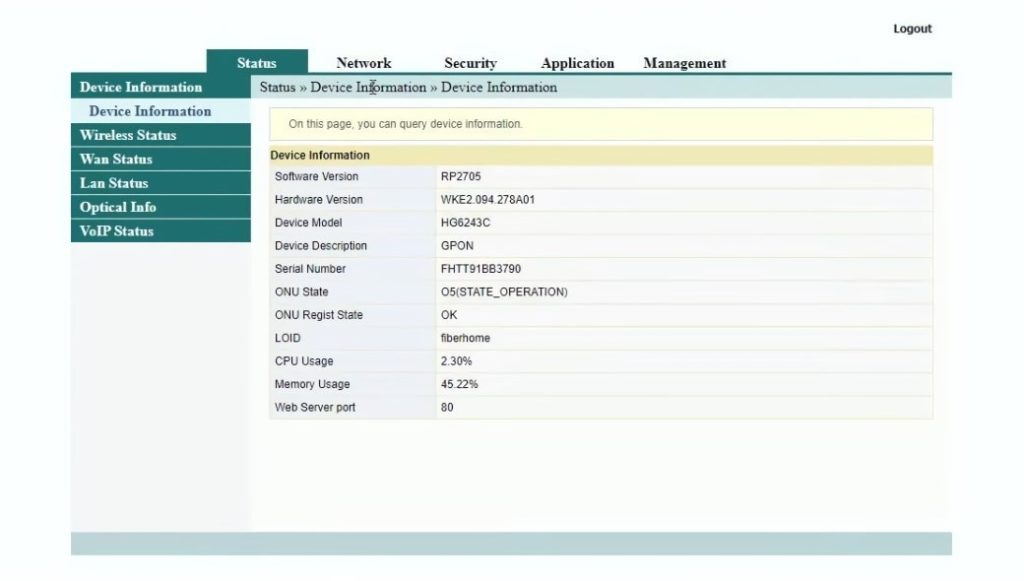
Open your web browser and type the IP address into the address bar (like http://192.168.1.1). Hit Enter. You should see a login page asking for a username and password. Check the sticker on the modem again – many ISPs print the default admin credentials there. Common combos are ‘admin’/’password’ or ‘admin’/’admin’ or ‘admin’/’1234’. If you’ve changed them before and forgotten, you’ll need to reset the modem (hold the reset button for 10 seconds with a paperclip). Once logged in, you’ll see the modem’s dashboard.
Step 3: Navigate to Wireless Settings
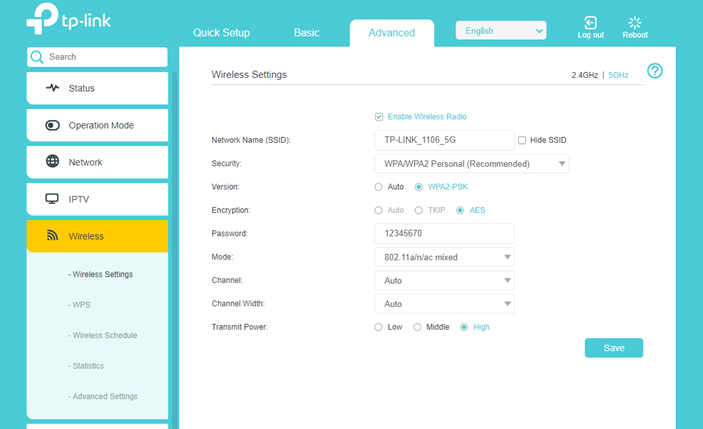
Look for a section labeled ‘Wireless’, ‘WiFi’, ‘Network’, or ‘Setup’. The exact name varies by brand (Netgear, TP-Link, Arris, etc.). Click on it. Then find a submenu like ‘Wireless Security’, ‘Security’, or ‘WPA/WPA2’. Once there, you’ll see the current WiFi network name (SSID) and a field labeled ‘Passphrase’, ‘Network Key’, ‘Password’, or ‘Pre-Shared Key’. The characters in that field – usually dots or asterisks – are your actual WiFi password. If it’s hidden, there’s often a ‘Show Password’ checkbox. Check it or select the field to reveal the text.
If you’re on a Mac and prefer a software method, you can also find saved wifi passwords from keychain using the Keychain Access app – but that only works if you’ve connected before. The modem method is universal.
Step 4: Recover or Change the Password
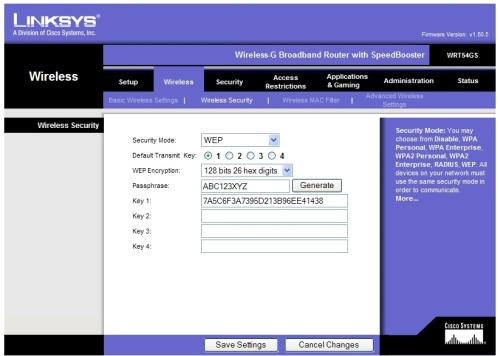
Now that you see the password, write it down somewhere safe or save it in a password manager. If you want to change it to something easier to remember, simply replace the text in the field with a new password (at least 8 characters, mix of letters and numbers) and click ‘Save’ or ‘Apply’. The modem will reboot or apply the settings – all connected devices will be disconnected until you reconnect with the new password. That’s normal. For a completely offline approach, check our guide on wifi password recovery without internet – it covers scenarios where you can’t get to the admin page because the modem is down.
Common Pitfalls
- You can’t log in because the admin password was changed and you don’t remember it. Solution: press and hold the reset button on the modem for 10-30 seconds using a paperclip. This resets everything, including the WiFi password, so you’ll have to set up the network again from scratch.
- The IP address doesn’t open the admin page. Make sure you’re connected to the modem’s network (either via WiFi or Ethernet). Also try http:// instead of https://, and double-check the IP – it could be 192.168.0.1, 192.168.2.1, or 10.0.0.1. Use your phone’s network details to find the gateway.
- You see the password field but it’s blank or greyed out. Some ISP-locked modems hide the WiFi password even from the admin. In that case, you may need to call your internet provider or use a saved profile on a computer. Refer to our guide on wireless password recovery on Windows for a workaround via the OS.
If you’re dealing with a business router or a more advanced setup, check out our article on business wifi password recovery for specific instructions.
Where to Next
Now that you’ve got the password, consider writing it down (physically or in a password manager) so you don’t have to go through this again. If you want to dive deeper, explore how to recover wifi password from cloud backup if you’ve ever backed up your device settings, or use wifi password recovery using command prompt for a quick Windows method. If you ever need to recover wifi password from cloud backup, we’ve got you covered too. Happy surfing!



