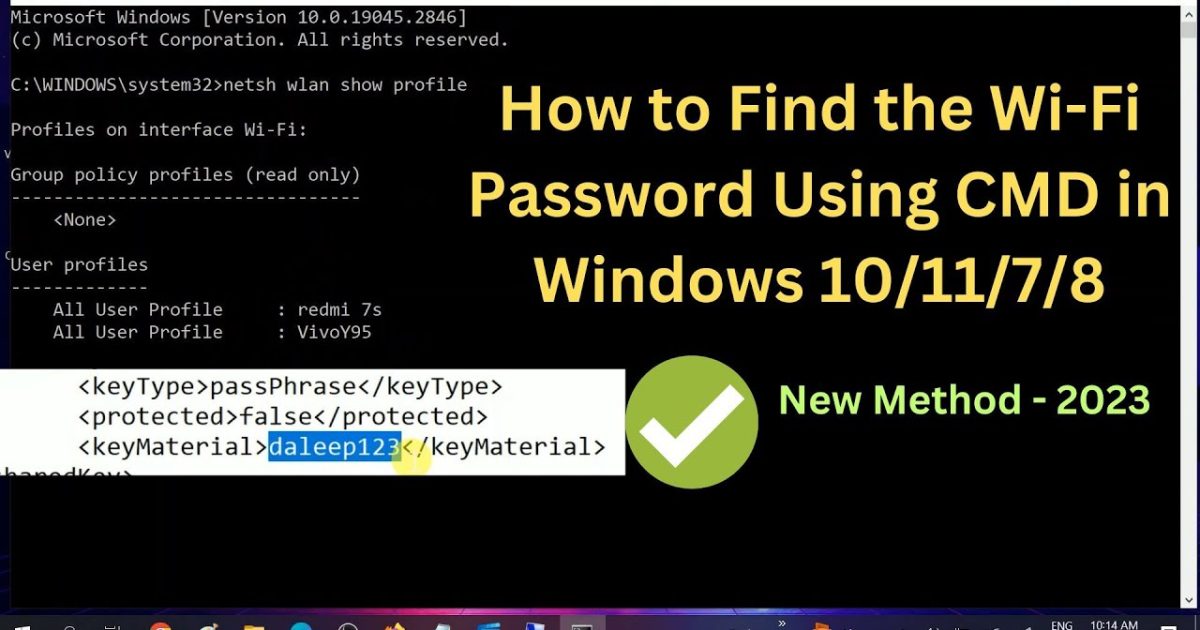
Ever needed to connect a new device to your office WiFi but forgot the password? If you’re managing a Windows Server and have a saved profile, you can recover that password in seconds with PowerShell. This guide is for IT admins, sysadmins, or anyone who has access to a Windows Server that’s already connected to a WiFi network. By the end, you’ll know exactly how to extract any saved WiFi password using built-in commands – no extra software required.
We’ll walk through the entire process step by step, from opening PowerShell as an administrator to piping commands that output passwords for all your saved networks. If you prefer a more visual approach, you can also check out our wireless password recovery guide for other methods. But PowerShell gives you the most control, especially on Server editions where the GUI might be limited.
What You’ll Need
- A Windows Server machine (2012 R2 or later) with an active WiFi profile saved.
- Administrator access to that server.
- PowerShell (comes pre-installed – we’ll use the console).
- No third-party tools – everything is built-in.
Step 1: Open PowerShell as Administrator
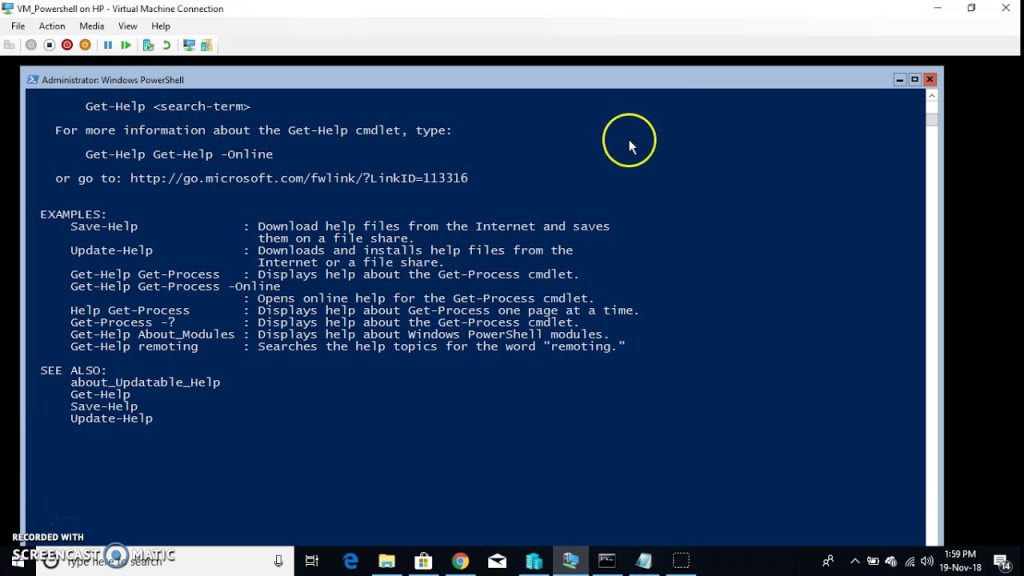
Right-click the Start button (or press Windows key + X) and select “Windows PowerShell (Admin)”. If you see a User Account Control prompt, click Yes. This is critical – most WiFi-related commands require elevated privileges. A blue console window will appear. If you’re in Server Core, you can type powershell from the command prompt after running it as admin.
Step 2: List All Saved WiFi Profiles
Type the following command and press Enter: netsh wlan show profiles. This lists every WiFi network the server has connected to and saved. You’ll see a list of “User profiles” – those are the network names (SSIDs). Make note of the exact name of the network whose password you want to recover (case-sensitive). For example, “OfficeWiFi”.
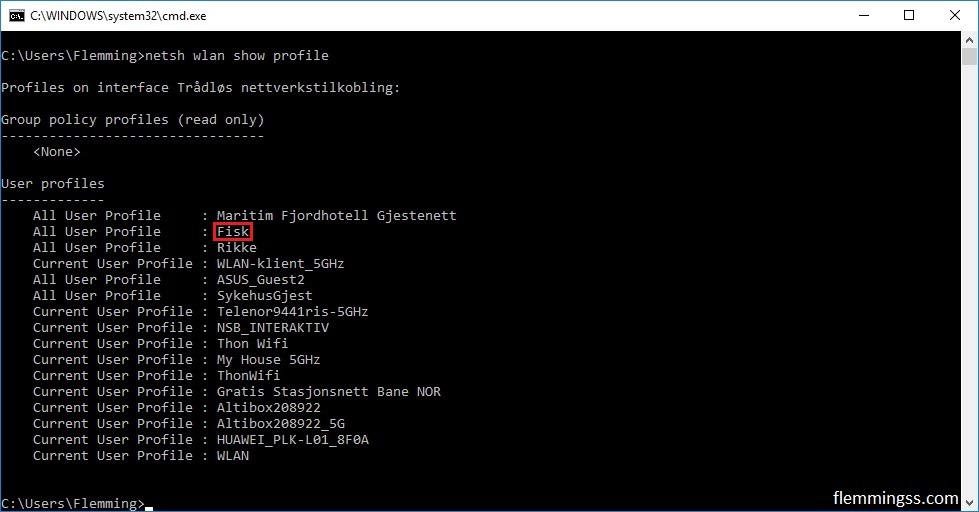
This command works exactly like the command prompt method, but in PowerShell you can later pipe the results into a script for bulk export.
Step 3: Show Password for a Specific Profile
Now run: netsh wlan show profile name="OfficeWiFi" key=clear (replace “OfficeWiFi” with your actual SSID). The key=clear parameter tells Windows to display the password in plaintext. Look for the line that says “Key Content” – that’s your WiFi password. Write it down or copy it immediately.
Step 4: Export All Passwords with a PowerShell One-Liner
If you have many profiles, repeating the above for each is tedious. Use this PowerShell command to dump all passwords at once: (netsh wlan show profiles) | Select-String "All User Profile" | ForEach-Object { $_.ToString().Split(':')[1].Trim() } | ForEach-Object { netsh wlan show profile name="$_" key=clear }. This loops through every profile and outputs the details, including the Key Content. You can also pipe the output to a text file by adding | Out-File -FilePath C:wifi-passwords.txt at the end.
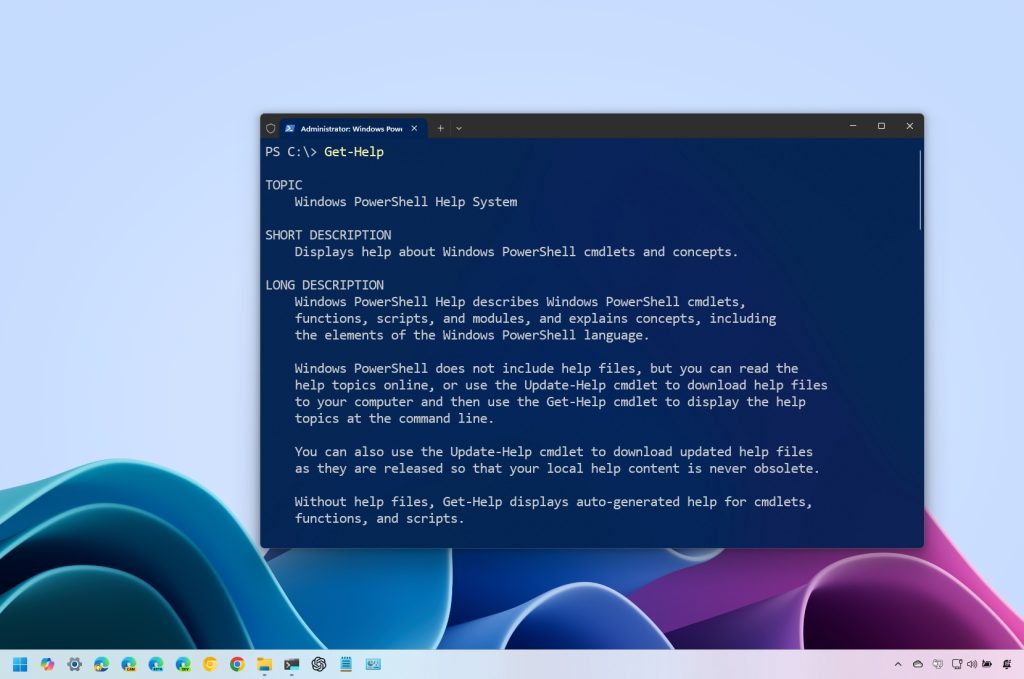
For a cleaner result, you can filter only the SSID and password. Try: (netsh wlan show profiles) | Select-String "All User Profile" | ForEach-Object { $profile = $_.ToString().Split(':')[1].Trim(); $pass = (netsh wlan show profile name="$profile" key=clear | Select-String "Key Content").ToString().Split(':')[1].Trim(); [PSCustomObject]@{SSID=$profile; Password=$pass} }. This outputs an object you can export to CSV.
Common Pitfalls
- **Not running as Administrator**: Without elevated rights,
key=clearwon’t show the password – you’ll get “Key Content : Absent”. Always start PowerShell with “Run as Administrator”. - **Server Core without GUI**: If your Windows Server is in Core mode (no desktop), you can still run PowerShell from the command line. Type
powershellafter logging in, then proceed. - **Profile name with spaces or special characters**: Enclose the SSID in double quotes. For names with quotes, escape them or use the exact string from the profile list. If you get an error, run
netsh wlan show profileto verify the exact spelling.
If you’ve formatted your server and lost access to saved profiles, you might need to recover wifi password after format using backup methods. And if you’re offline, check out offline wifi password recovery solutions. For general best practices, our wifi password recovery tips cover scenarios beyond the server.
Where to Next?
You’ve just mastered the quickest built-in method for WiFi password recovery on Windows Server. Next, consider scripting a backup of all passwords regularly using a scheduled task – that way you’ll never get locked out. If you need the safest wifi password recovery method for production environments, our dedicated guide has more advanced tips. Happy networking!



