
We’ve all been there: you need to connect a new device to your WiFi, but you can’t remember the password. Maybe it’s written on the router, but that sticker has faded, or you changed it long ago. Don’t worry—recovering your WiFi password is easier than you think. This guide is for anyone who has at least one device already connected to the network, or physical access to the router. By the end, you’ll have your password in hand.
I’ll walk you through five practical methods: using your Windows PC, your Mac, an Android device, the router’s admin page, and dedicated recovery software. Each method is tested and works for most home networks. For the most common scenarios, I’ll also point you to detailed resources like our guide on wireless password recovery windows and how to find saved wifi password from keychain. Let’s get started.
What You’ll Need
- A computer or phone that is currently connected to the WiFi network (or was connected in the past).
- Access to your router’s admin panel (the default gateway IP and admin credentials).
- Optional: A USB drive or cloud storage to back up passwords before making changes.
- For Android, root access or a previous backup may be required for some methods.
Step 1: Recover WiFi Password on Windows
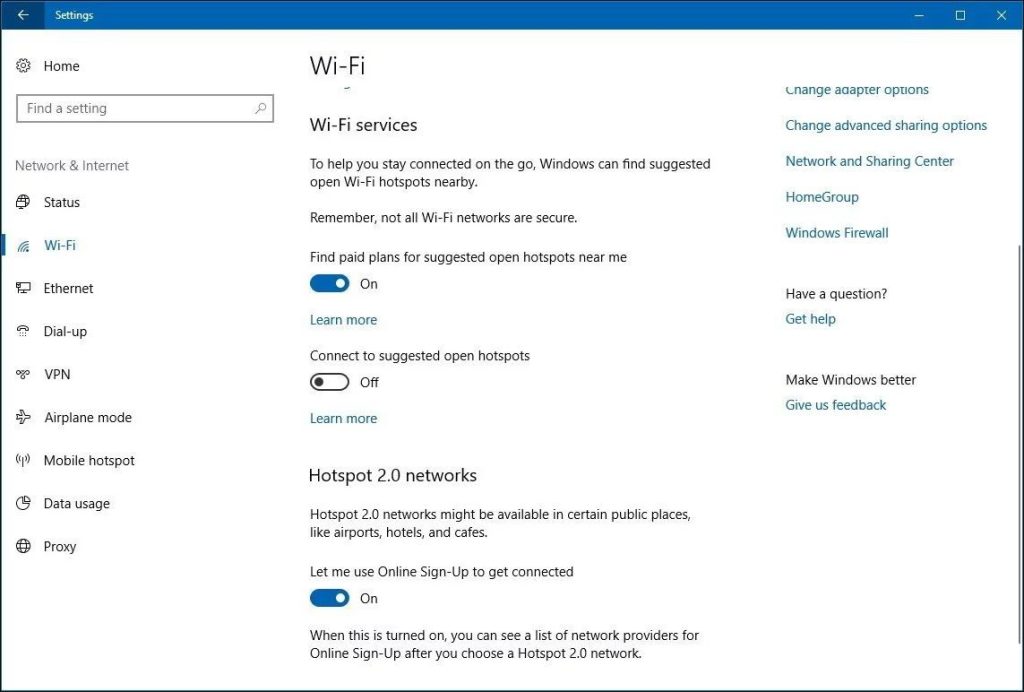
If you’re using a Windows PC that’s already connected to the WiFi, this is the quickest method. Go to Settings > Network & Internet > Status > Network and Sharing Center. Click on your WiFi network name (next to Connections), then click Wireless Properties. Go to the Security tab and check ‘Show characters’. Your password will appear in the Network security key field. This is exactly the wireless password recovery windows process we cover in detail, and it works on Windows 10 and 11.
Step 2: Recover WiFi Password on Mac
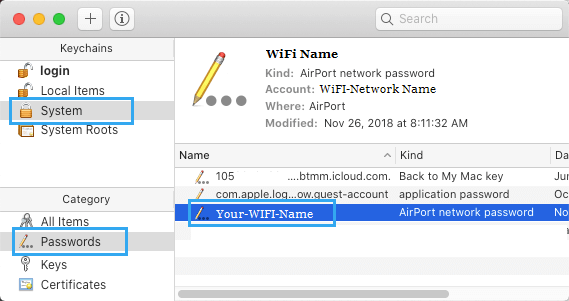
On a Mac, open Keychain Access from Applications > Utilities. Search for your WiFi network name (SSID) in the search bar. Double-click the entry, then check the box ‘Show password’. You’ll need to enter your Mac admin username and password. The password will be revealed. This method is a perfect example of how to find saved wifi password from keychain. It’s safe and built into macOS.
Step 3: Recover WiFi Password on Android
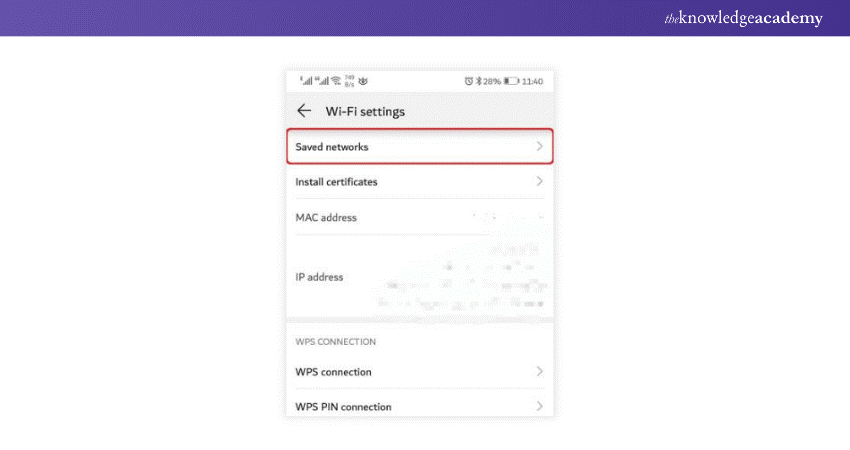
Android makes it a little trickier unless you have root access. On stock Android 10+ (without root), you can’t directly view saved passwords. However, you can generate a QR code that reveals the password. Go to Settings > Network & Internet > WiFi, tap the gear icon next to your network, then tap ‘Share’. Authenticate with your PIN or fingerprint, and a QR code appears—the password is written below it. For older or rooted devices, you can use a file explorer to view wpa_supplicant.conf. If you have a backup, consider using restore wifi passwords from backup for a more comprehensive solution.
Step 4: Find WiFi Password from Router Admin Page
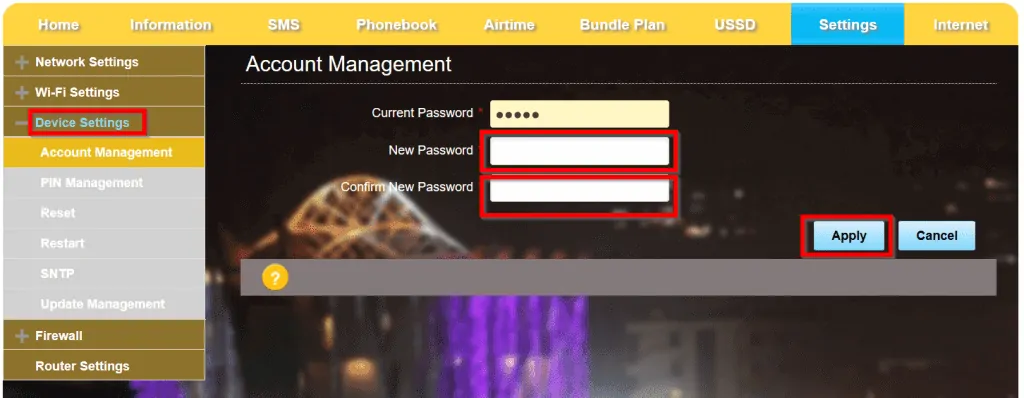
If you have access to the router, this method works even without a connected device. Open a web browser and enter your router’s IP address (usually 192.168.1.1 or 192.168.0.1). Log in with the admin username and password (often printed on the router). Look for a Wireless or WiFi section. There you’ll see the current password, and you can change it if needed. This method is also useful for using a free wifi password recovery utility if you want a backup. For security, always change the default admin credentials.
Step 5: Use Dedicated WiFi Password Recovery Software
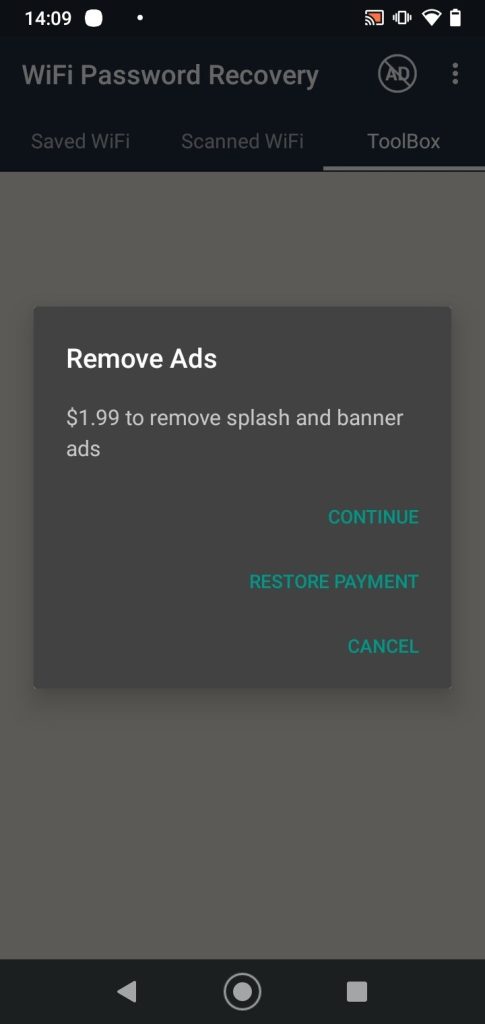
When the above methods don’t work, dedicated software can scan your system for saved WiFi credentials. Tools like WirelessKeyView (Windows) or WiFi Password Revealer (Windows) can extract passwords from your computer’s stored profiles. On Mac, Keychain Access is usually enough, but third-party apps exist. Always download from trusted sources. For a complete list of safe tools, check out our article on free wifi password recovery utility. These utilities are especially helpful if you’ve lost access to the router or want to recover multiple passwords at once.
Common Pitfalls
- Not having admin access to the router: Many routers come with default credentials that you might have changed and forgotten. Try common defaults (admin/admin, admin/password) or look for a reset button to restore factory settings (this will erase all settings).
- Forgetting to check all devices: Sometimes the password is saved on a device you don’t think of, like a smart TV or game console. Check those too before giving up.
- Overwriting backups: If you use a backup tool to save WiFi passwords, make sure you don’t accidentally overwrite the backup with a blank file. Always store backups in a safe location. For secure recovery, follow the safest wifi password recovery method outlined in our dedicated guide.
Where to Next
Now that you have your WiFi password back, consider backing it up so you never lose it again. Learn how to recover wifi password from cloud backup to keep a copy safe online. If you have multiple networks, restoring from a backup file can save time. And for future-proofing, always use a password manager to store sensitive info. Happy surfing!



