So you’ve forgotten the WiFi password for your home network, and you’re on Linux. Don’t panic – Linux keeps your saved WiFi passwords in configuration files that you can easily read. This guide is for anyone using a modern Linux distribution (Ubuntu, Fedora, Debian, Mint, etc.) who wants to recover a forgotten WiFi password without resetting the router. By the end, you’ll be able to retrieve that password using either the command line or the graphical interface, all in a few minutes.
We’ll cover three reliable methods: using the nmcli command, reading the wpa_supplicant config file directly, and using the network manager GUI. Each method works on most Linux distros. If you need a graphical way, skip to Step 3. Let’s get started and never let a forgotten password lock you out again.
What You’ll Need
- A Linux computer with a saved WiFi network (the one you want the password for)
- Terminal access (Ctrl+Alt+T on most distros)
- Sudo privileges (administrator access)
- Optional: Network Manager GUI (usually pre-installed on desktop environments like GNOME, KDE, etc.)
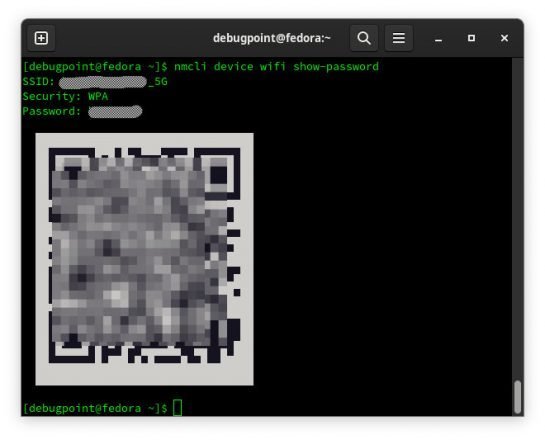
Step 1: Recover Password with nmcli (Command Line)
nmcli is the command-line tool for NetworkManager. First, list your saved connections:
`nmcli connection show`
This shows all network profiles. Find your WiFi network’s name (SSID) in the list. Then run the following command, replacing “YourNetworkName” with your actual SSID:
`nmcli -g 802-11-wireless-security.psk connection show “YourNetworkName”`
If it returns a hash instead of a plain text password, your system may use a different version of nmcli. Try `nmcli -s connection show “YourNetworkName” | grep psk` to see the password field. On many distros (Ubuntu 18.04+), the password appears in plaintext. If you’re on Kali Linux, the `recover wifi password on kali linux` method is slightly different but similar.
Step 2: Read the wpa_supplicant.conf File
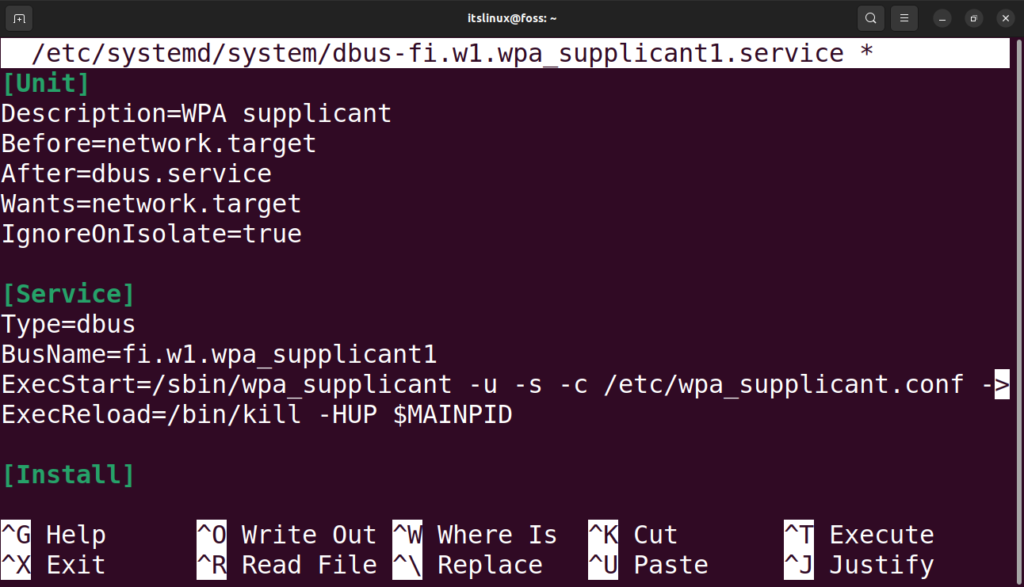
Another way is to directly read the configuration file where NetworkManager stores passwords. The file is usually at `/etc/NetworkManager/system-connections/` or `/etc/wpa_supplicant/wpa_supplicant.conf`. List the files with:
`sudo ls /etc/NetworkManager/system-connections/`
You’ll see a file named after your WiFi network. Display its contents:
`sudo cat /etc/NetworkManager/system-connections/YourNetworkName.nmconnection`
Look for the line starting with `psk=`. That’s your password. In older systems using wpa_supplicant.conf, run: `sudo cat /etc/wpa_supplicant/wpa_supplicant.conf` and find the network block with `psk=”yourpassword”`. For more tips, check out our general `wifi password recovery tips` article.
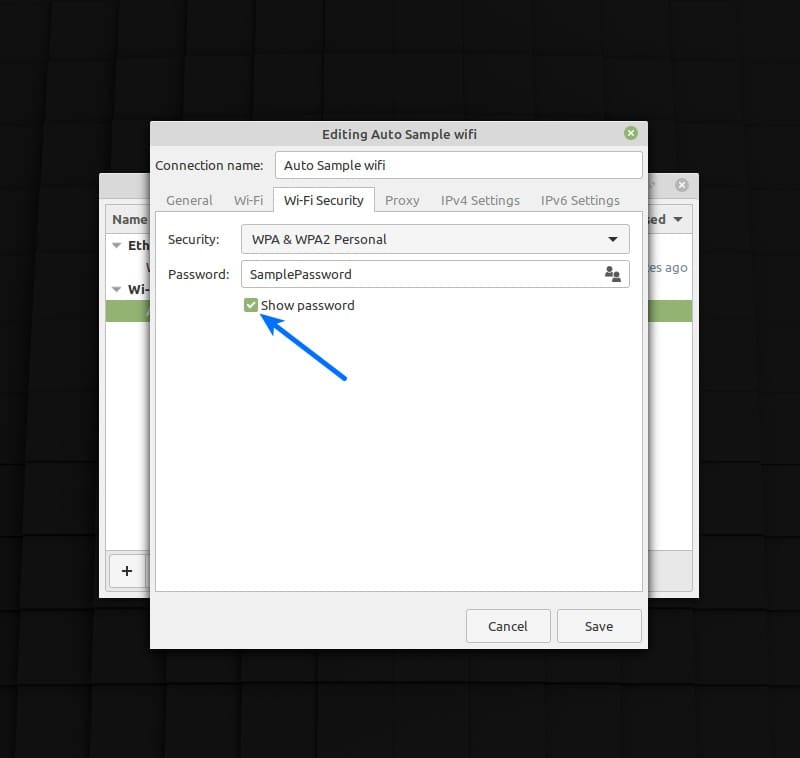
Step 3: Recover Password Using the Network Manager GUI
If you prefer a graphical interface, most desktop environments (GNOME, KDE, Cinnamon) have a built-in way to view your WiFi password. Go to Settings > Wi-Fi, find your network, and click the gear icon (or right-click and select “Connection Information”). Look for a “Security” tab or a “Show password” checkbox. In GNOME, click the eye icon next to the password field. This is often the `safest wifi password recovery method` because you’re not typing any commands.
Common Pitfalls
- **Permission denied**: Always use `sudo` when reading system files. If you forget, you’ll get “Permission denied” errors.
- **Password stored as hash**: Some network configurations (e.g., WPA2-Enterprise) store the password in a non-readable format. For standard home WPA2-PSK, it’s plaintext. If you see a hash, try the GUI method instead.
- **Network managed by a different service**: If you use systemd-networkd or wicd instead of NetworkManager, these steps won’t work. Check your network manager with `systemctl status NetworkManager`.
Where to Next?
Now that you’ve recovered your forgotten WiFi password, consider backing it up for the future. On Windows, you can use `wifi password recovery with netsh` to export profiles, or on iOS, check out `forgotten wifi password recovery iphone` guide. Android users have similar options – see the `wifi password recovery tutorial android` for that. And if you want to avoid this hassle altogether, try the `safest wifi password recovery method` by storing passwords in a password manager. Happy surfing!