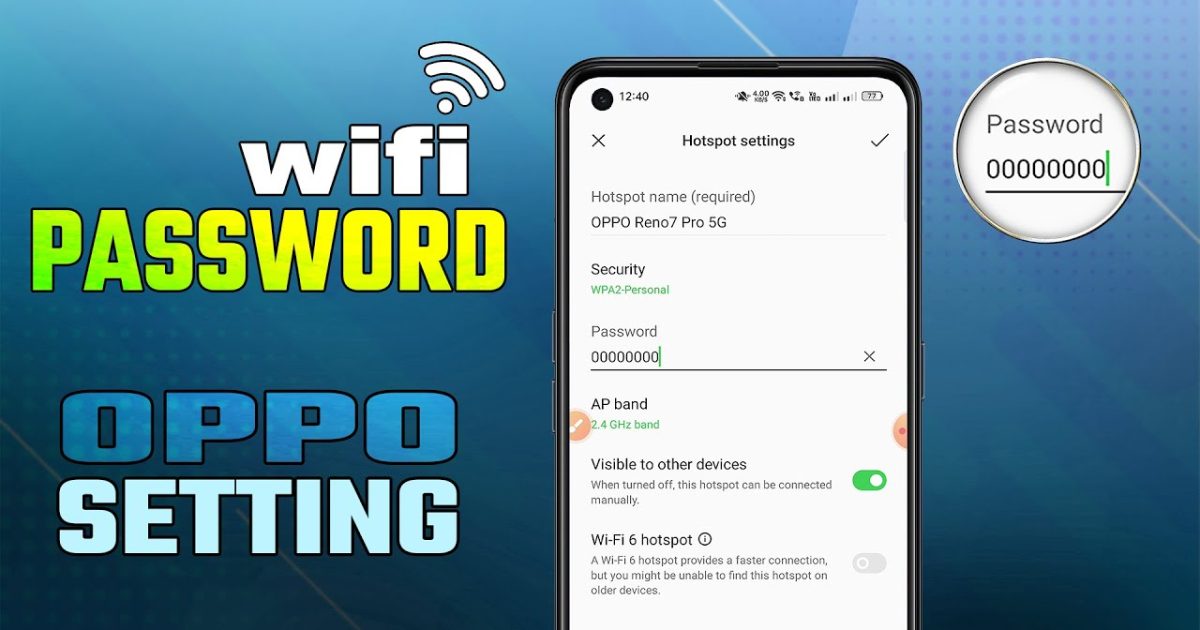
If you’re reading this, you probably just realized you forgot your WiFi password – and your Oppo phone is the only device that’s still connected. No worries. In this guide, I’ll show you how to recover the saved WiFi password directly from your Oppo phone’s settings, no root required. By the end, you’ll have the password copied or displayed, ready to share with friends or enter on another device.
This method works on most Oppo phones running ColorOS 6 or higher (Android 9+). It uses the built-in QR code sharing feature that Android introduced. If you’re on an older version, there’s a workaround, but for 99% of modern Oppo devices, these steps will get you the password in under a minute.
What You’ll Need
- Your Oppo phone (connected to the WiFi network you want to recover)
- Access to Settings (no root required)
- Optional: Another phone or camera to scan a QR code
Step 1: Open WiFi Settings
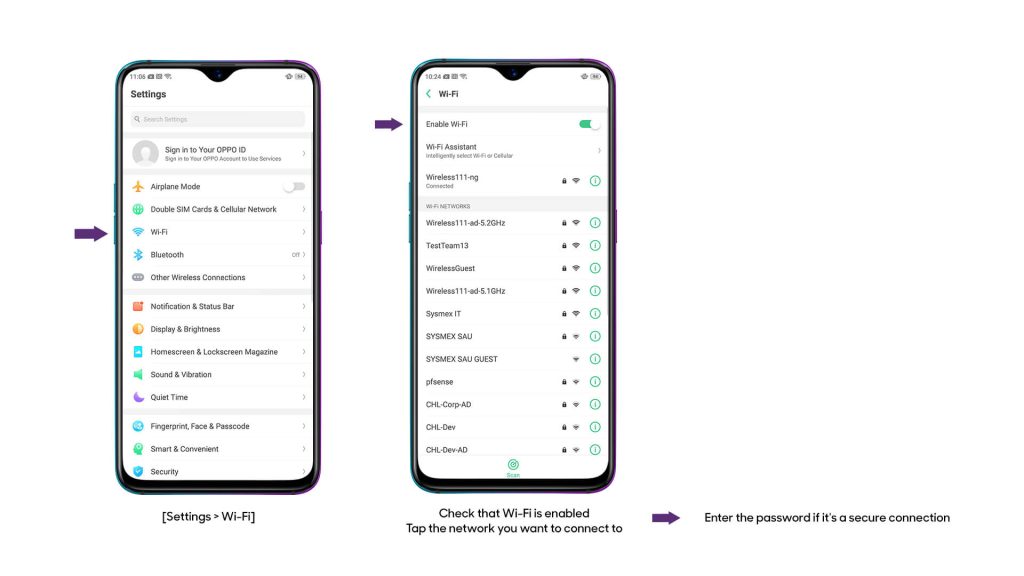
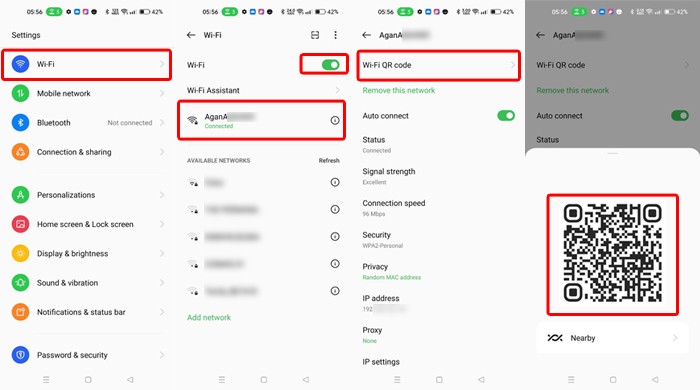
Swipe down from the top of your screen to open the notification shade, then tap and hold the WiFi icon. This will take you directly to the WiFi settings page. Alternatively, you can go to Settings > Wi-Fi.
Step 2: Tap on the Current Network
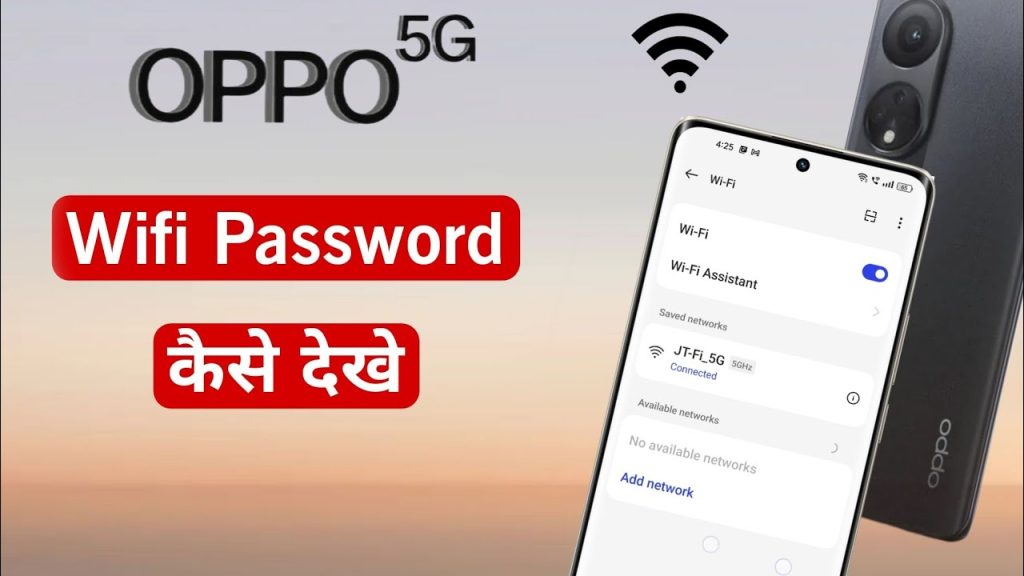
You’ll see a list of available networks. Your currently connected network will have a checkmark or ‘Connected’ indicator. Tap on it to view details. On some Oppo models, you may need to tap the gear icon or the network name itself.
Step 3: Tap ‘Share’ or Show QR Code
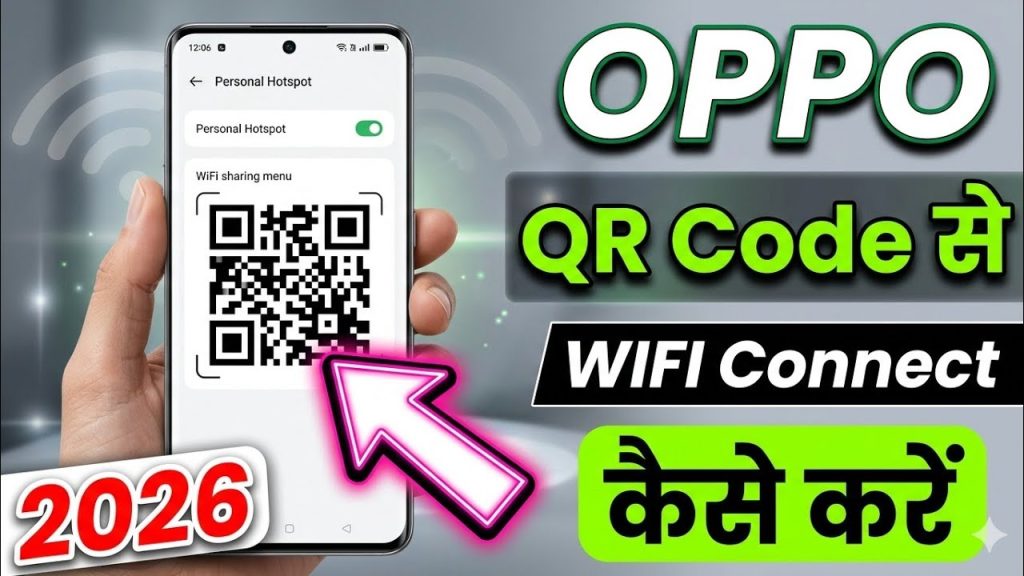
In the network details screen, look for a ‘Share’ button (often with a QR code icon) or a ‘QR Code’ option. Tap it. Your phone will display a QR code that contains the WiFi password – but you don’t necessarily need to scan it.
Step 4: View or Copy the Password
Below the QR code, you’ll often see the password in plain text (masked by default). Tap the eye icon to reveal it. On some versions of ColorOS, you can also tap ‘Copy password’ to paste it elsewhere. If your phone doesn’t show the text, you can scan the QR code with another device – it will decode to a string like ‘WIFI:S:NetworkName;T:WPA;P:YourPassword;;’ and you can read the password from there.
Common Pitfalls
- Password not visible: If you’re on Android 9 or earlier, you may not see the plain text password. In that case, use the QR code method or try a third-party app (like those mentioned in our saved wifi password recovery android guide).
- QR code won’t scan: Make sure your scanner app is updated. You can also use Google Lens or the default camera app to scan.
- You’re not connected to the network: This method only works for networks your phone is currently connected to. If you’ve forgotten the password and aren’t connected, you’ll need to reset your router or use other methods like the wifi password recovery complete guide.
Where to Next
Now that you’ve recovered your WiFi password, why not explore other quick recovery methods? Check out our fastest wifi password recovery method for a universal approach, or if you prefer not to use software, try the wifi password recovery process without software. And if you ever need to recover passwords on other devices, our guide on saved wifi password recovery android covers the basics.



