Ever tried to connect a new device to your WiFi only to realize you’ve forgotten the password? Or maybe a friend asks for the password and you can’t find it anywhere. You don’t need to reset the router or install sketchy software. In fact, the fastest way to recover any saved WiFi password takes less than 30 seconds—no matter what device you’re using. By the end of this guide, you’ll have a copy of your WiFi password ready to share or save.
We’ll cover the quickest native methods for Windows, Mac, Android, and Linux. No third-party tools, no command-line wizardry (well, maybe a tiny bit on Windows and Linux—but it’s a single line). If you just want the simplest WiFi password recovery method, jump to your device’s section below. Otherwise, let’s get started.
What You’ll Need
- A device that is already connected to the WiFi network (Windows PC, Mac, Android phone/tablet, or Linux computer)
- Administrator or root access on your computer (or the ability to scan a QR code on Android)
- Optional: a text file or note app to paste the password once recovered
Step 1: Windows – PowerShell One-Liner (Fastest)
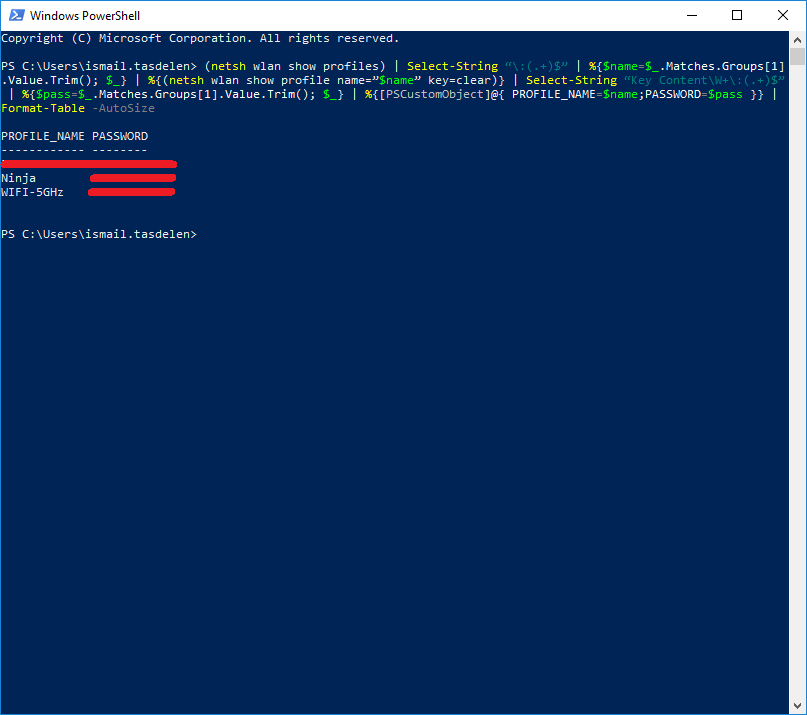
If you’re on Windows 10 or 11, this is the absolute fastest method. Press Win + X and select Windows Terminal (Admin) or PowerShell (Admin). Then paste this single line and hit Enter: netsh wlan show profile name="YOUR_WIFI_NAME" key=clear. Replace YOUR_WIFI_NAME with your actual network name (SSID). Look for the line labeled Key Content—that’s your password. That’s it. If you want to find saved WiFi passwords on PC without retyping the SSID each time, run netsh wlan show profiles first to list all saved networks. For even faster automation, check out our guide on WiFi password recovery using PowerShell—it shows how to export all passwords at once.
Step 2: Mac – Keychain Access (Takes 10 Seconds)
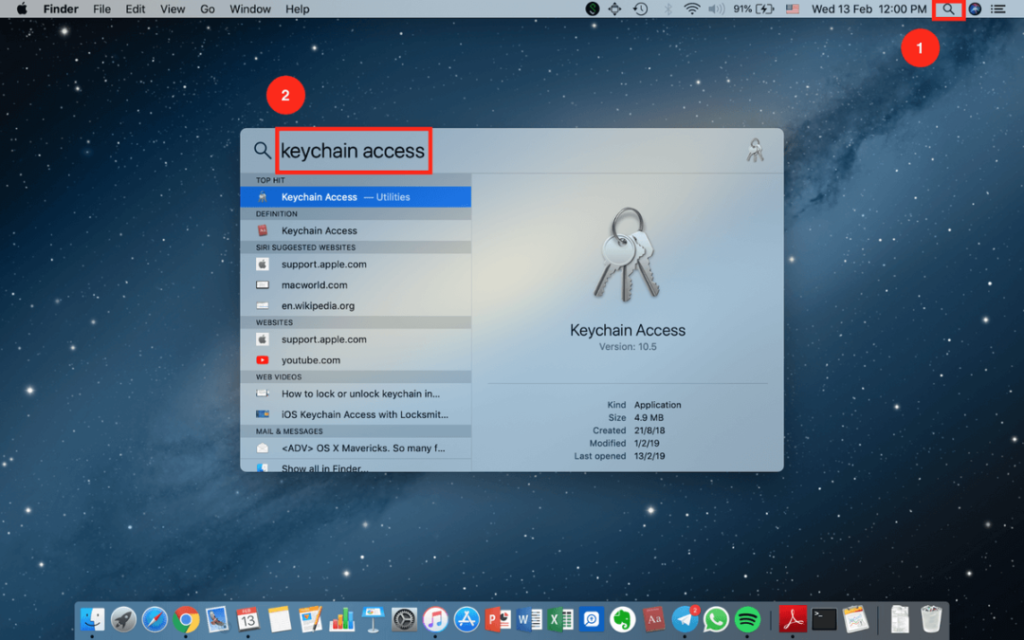
On macOS, open Keychain Access (you can find it via Spotlight with Cmd + Space). In the search bar, type the name of your WiFi network. Double-click the entry, then check the Show password box. You’ll be prompted for your Mac’s admin username and password. Enter them, and the WiFi password will be revealed. This is the same method to recover your WiFi password from Mac Keychain, and it works on all recent macOS versions. If you need to share multiple passwords, you can also export WiFi passwords on Mac to a file.
Step 3: Android – QR Code Scan (Zero Typing)
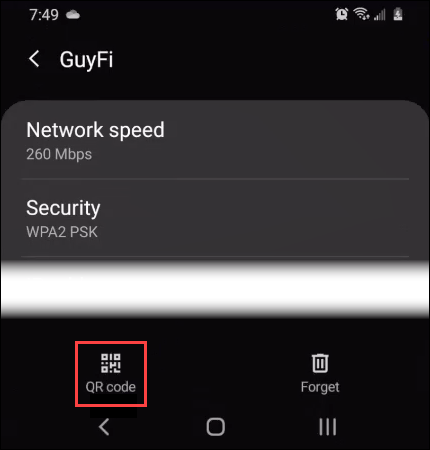
Android (version 10 and later) has a built-in QR code feature. Go to Settings > Network & Internet > Internet (or Wi-Fi, depending on your skin). Tap the gear icon next to the connected network, then tap Share or the QR code icon. Your phone will display a QR code that contains the password. You can either scan it with another device instantly or screenshot it. If you need the plain text, look for the line below the QR code—many Android versions show the password there. This is especially handy for WiFi password recovery for Android users—no cables, no commands. For iPhones, unfortunately, Apple doesn’t expose saved passwords this easily; check our guide on saved WiFi password recovery iPhone for workarounds.
Step 4: Linux – NMCLI (Single Command)
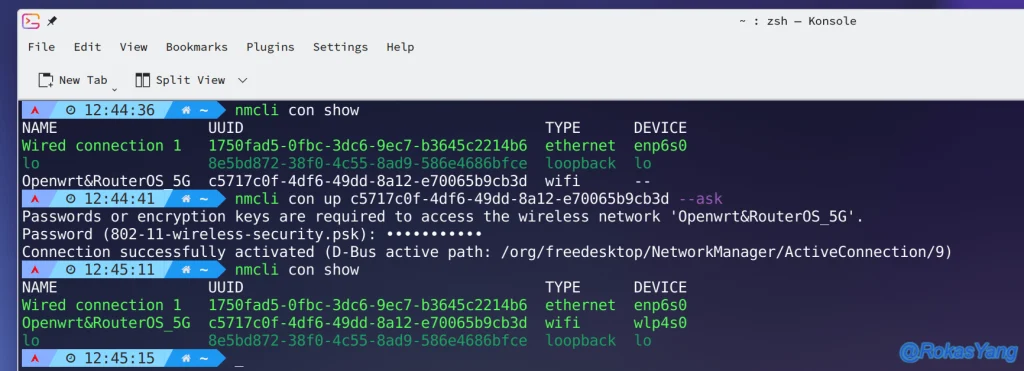
Most Linux distros use NetworkManager. Open a terminal and run: sudo cat /etc/NetworkManager/system-connections/YOUR_SSID.nmconnection (replace YOUR_SSID). Look for the line starting with psk=. Alternatively, use nmcli -s connection show YOUR_SSID to see the password in the ‘802-11-wireless-security.psk’ field. This method works on Ubuntu, Fedora, Pop!_OS, and others. If you prefer a GUI, you can show your WiFi password using Network Manager‘s connection editor. This is by far the fastest terminal method on Linux.
Common Pitfalls
- Wrong SSID name: If you get an error like “Profile not found,” you likely mistyped the network name. On Windows, use
netsh wlan show profilesto confirm the exact name (including spaces and capitalization). On Linux, check the files in/etc/NetworkManager/system-connections/. - Admin password prompt on Mac: You need to enter your Mac’s admin credentials (the same you use to install software). If you don’t have admin rights, this method won’t work. In that case, ask an admin or use one of the alternative methods in our WiFi password recovery methods guide.
- Android version too old: The QR code feature is only available on Android 10 and up. Older versions require root or third-party apps. Check our WiFi password recovery tricks for options.
Where to Next
Now that you’ve got your password back, consider backing it up so you never lose it again. You can backup WiFi passwords to a USB drive for both Windows and Mac. If you need to recover passwords on an enterprise network, check our enterprise-specific guide. And if you’re curious about other built-in tools, our simplest WiFi password recovery method article rounds up all the quickest techniques. Happy surfing!



