Ever had that moment when a friend comes over and asks for your WiFi password, and you draw a blank? Or maybe you just got a new device and can’t remember the password you set years ago. Don’t worry—it happens to all of us. This guide is for anyone who’s locked out of their own network. By the end, you’ll know how to recover that forgotten password from just about any device: Windows PC, Mac, Android phone, iPhone, or even your router itself. No fancy tools required.
We’ll walk through the simplest wifi password recovery method first (checking the router sticker), then dive into device-specific tricks. Whether you’re a tech newbie or a seasoned pro, you’ll find something useful here. Let’s get your network back in your hands.
What You’ll Need
- A device already connected to the WiFi network (or physical access to the router)
- Administrator access on your computer (for Windows/Mac steps)
- Optional: a smartphone (for QR code or iCloud methods)
- Optional: router admin credentials (usually on a sticker or in the manual)
Step 1: Check the Router Sticker (The Easiest Way)
Before diving into software, take a look at your router itself. Most routers have a sticker on the bottom or back that shows the default SSID and password. If you’ve never changed it, that’s your password right there. If you have changed it and forgot, don’t worry—we’ve got more steps.

Step 2: Recover WiFi Password on Windows
Windows makes it easy to find saved WiFi passwords. If you’re already connected, you can grab it from the Network Settings. Go to Settings > Network & Internet > Status > Network and Sharing Center. Click on your WiFi network name, then select Wireless Properties > Security tab. Check ‘Show characters’ and voilà—your password appears.
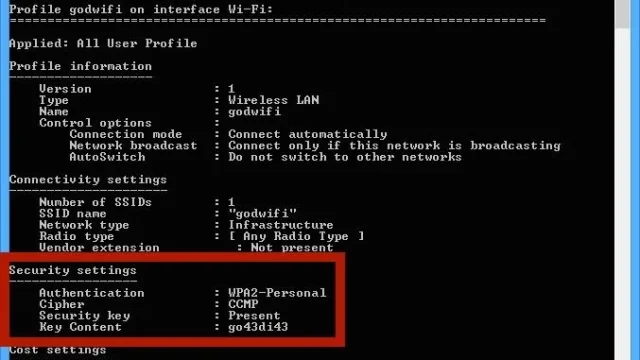
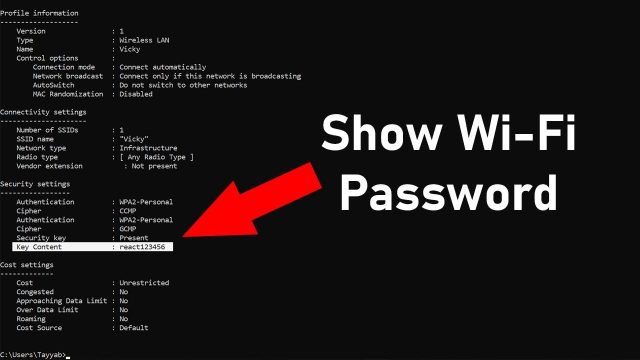
For a quicker method, you can also use the command line. Open Command Prompt as admin, type netsh wlan show profiles, then netsh wlan show profile name=”YourNetwork” key=clear. Look for Key Content. This is a great saved wifi password recovery tool that doesn’t require extra software.

Step 3: Recover WiFi Password on Mac
On a Mac, your saved passwords live in Keychain Access. Open Keychain Access (search in Spotlight), find your network name under System or login, double-click it, and check ‘Show password’. You’ll need your Mac admin password to reveal it. This is a classic wifi password recovery with mac keychain technique.
Step 4: Recover WiFi Password on Android
Android phones that are connected to a network can show the password via QR code. Go to Settings > Network & Internet > WiFi, tap the gear icon next to your network, and select Share. You’ll see a QR code—the password is below it. If you have a rooted device, you can navigate to /data/misc/wifi/wpa_supplicant.conf and find it in plain text. For non-rooted phones, the QR method works on Android 10+.

Step 5: Recover WiFi Password on iPhone
iPhones don’t show passwords directly, but if you use iCloud Keychain, you can find it on a Mac or Windows with iCloud. On the iPhone itself, go to Settings > WiFi, tap the info icon (i) next to your network, but you won’t see the password. Instead, use the Mac Keychain method if you have a Mac. Alternatively, go to Settings > Passwords > System & Websites, authenticate, and find your network. That’s a handy saved wifi password recovery iphone trick.

Step 6: Log Into Your Router’s Web Interface
If all else fails, you can log into your router’s admin panel. Open a browser and enter the router’s IP address (often 192.168.1.1 or 192.168.0.1). Enter the admin username and password (again, check the sticker). Once in, look for WiFi or Wireless settings—your password will be displayed there. If you changed the admin login and forgot it, you may need to reset the router to factory defaults (be careful—that erases all settings). For detailed steps for specific brands, check out our guide on how to recover wifi password from tp link router.

Common Pitfalls
- The router sticker password doesn’t work: If you’ve changed the password and forgot it, the sticker won’t help. Use one of the device recovery methods instead.
- You can’t log into the router admin: The default admin credentials may have been changed and forgotten. A factory reset might be needed, but that will wipe all custom settings.
- The password field is grayed out on Windows: You need admin privileges. If you’re on a work or school computer, IT policies may block this. Try the command line method or ask your admin.
Where to Next
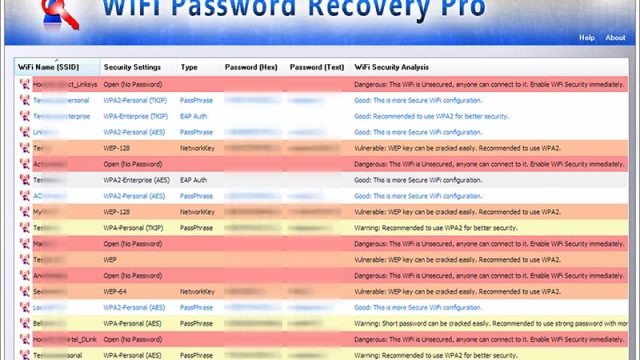
Now that you’ve recovered your WiFi password, consider backing it up. You can use tools like a saved wifi password recovery tool to export your passwords to a secure file. We also have guides on wifi password recovery methods for other scenarios, like the fastest wifi password recovery method for Windows and how to find saved wifi password on pc. For advanced users, try wifi password recovery using powershell for automation. And if you’re still stuck, check out our simplest wifi password recovery method. You’ve got this!