Ever been locked out of your own WiFi because you forgot the password? It happens to the best of us. But if you’re on Windows and have ever connected to that network before, there’s a quick way to retrieve it using nothing more than PowerShell — no third-party tools required. This guide is for anyone with a Windows PC who needs to recover a saved WiFi password. By the end, you’ll have your password in plain text, ready to share or save.
PowerShell might sound intimidating, but I promise it’s dead simple. We’ll run a few commands, copy the password, and you’re done. This method works on Windows 10 and 11, and it’s especially handy if you’ve got a bunch of networks saved and need to recover one without digging through router settings. Plus, it’s a great party trick for tech-savvy friends. For a more visual approach, check out the simplest wifi password recovery method which uses the GUI.
What You’ll Need
- A Windows PC (Windows 10 or 11 recommended)
- Administrator access (you’ll need to run PowerShell as admin)
- A WiFi network you’ve previously connected to (it’s saved on your PC)
- PowerShell (already built into Windows, no installation needed)
That’s it. No downloads, no router crawling. If you want to keep multiple passwords safe, consider using the backup wifi passwords to usb method after you’re done.
Step 1: Open PowerShell as Administrator
Click the Start button, type “PowerShell”, then right-click on “Windows PowerShell” and select “Run as administrator”. If you’re prompted by User Account Control, click “Yes”. This gives PowerShell the permissions it needs to access your stored network profiles.
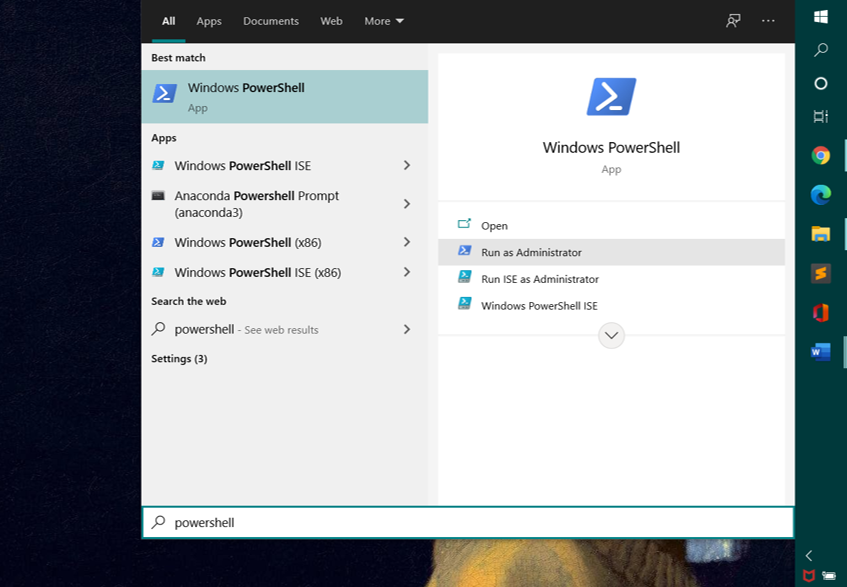
Alternatively, you can press Windows+X and choose “Windows PowerShell (Admin)” or “Terminal (Admin)” on newer builds. The important thing is that the window title says “Administrator: Windows PowerShell”.
Step 2: List All Saved WiFi Profiles
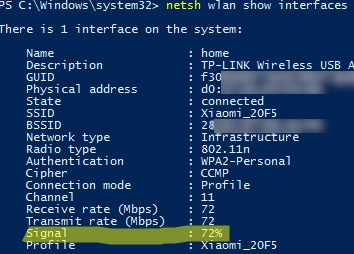
In the PowerShell window, type the following command and press Enter:
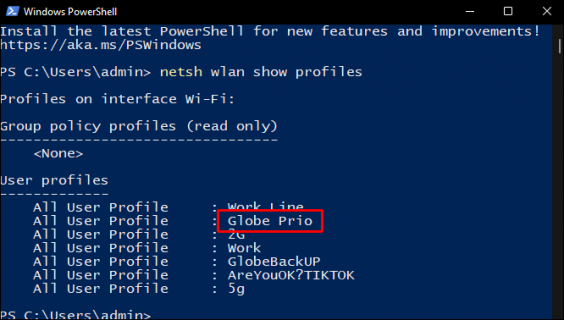
You’ll see a list of all WiFi networks your PC has ever connected to, labeled as “User profiles”. Find the network name (SSID) you need the password for. If you don’t see it, that network was never saved on this PC — try the wifi password recovery restore guide for other options.
Step 3: Show the Password for a Specific Profile
Now run this command, replacing “YourNetworkName” with the exact SSID from the list. Keep the quotes if the name has spaces:
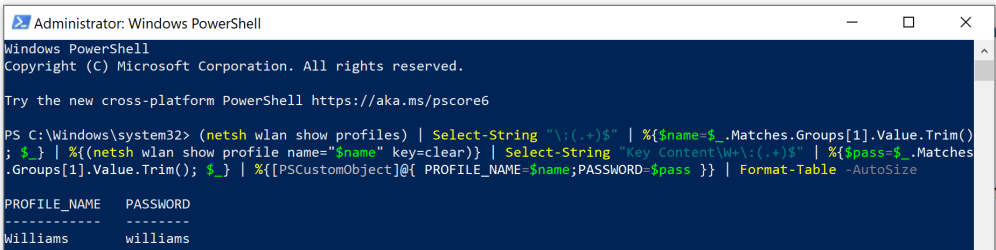
Look for the line that says “Key Content”. That’s your WiFi password in plain text! If you see “Key Content : Absent”, it means the password isn’t stored — likely because you connected using a different method (like a QR code or WPS). In that case, you might need to reset the router or try a wifi password recovery tutorial specific to your setup.
Write it down or copy it. You can also use this method to recover old passwords you’ve forgotten. For more advanced scenarios, like after a motherboard replacement, our wifi password recovery after motherboard replacement guide covers restoring profiles.
Step 4: Export All Passwords to a Text File (Optional)
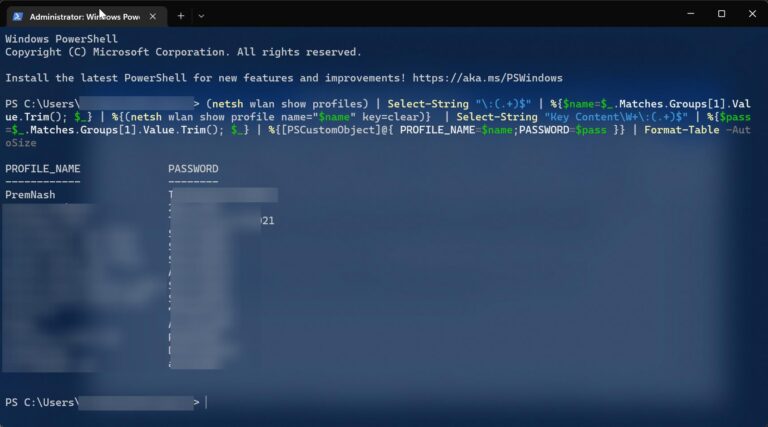
If you have many profiles and want to save them all at once, you can export everything to a file. First, run this to list profiles:
Then loop through each profile and export passwords:
A text file named “WiFiPasswords.txt” will appear on your desktop. Keep it safe — it contains all your plain-text passwords. For a cleaner approach, check out the restore wifi passwords after format guide to back them up properly.
Common Pitfalls
- **Not running as Administrator.** If you skip the admin prompt, you’ll get an error like “The wireless interface is not running”. Always right-click and run as admin.
- **Profile doesn’t exist.** The network must have been saved on that PC. If you’ve never connected before, PowerShell can’t help. Try using the wifi password recovery restore guide or check your router’s sticker.
- **Special characters in password.** The Key Content line may show garbled characters if the password contains quotes or non-ASCII symbols. Copy exactly as shown; it’s still the correct password.
Where to Next?
Now that you’ve recovered your password, consider backing it up for future. You can export passwords to a USB drive using our backup wifi passwords to usb guide. Also, if you need the password on another device, like a phone, our wifi password recovery for iphone users tutorial might come in handy. Stay connected and never get locked out again!