We’ve all been there — a friend comes over, you want to hop on the WiFi, and suddenly you realize you have no clue what the password is. Maybe it’s written on a sticky note that fell behind the desk, or you just haven’t typed it in years. The good news: you almost certainly don’t need to reset your router or call your ISP. This guide walks you through every practical way to recover a lost WiFi password on Windows, macOS, Android, and directly from your router. By the end, you’ll have that password back and connected — no special skills required.
Who is this for? Everyone from the casual home user to the tech-savvy tinkerer. If you have physical access to a device that’s already connected to the WiFi, or to the router itself, you can recover the password in minutes. We’ll cover the built-in tools on each platform first (they’re free and safe), then mention third-party options for tricky situations. Let’s get your network back.
What You’ll Need
- A computer or phone that is currently connected to the WiFi network (or has connected before)
- Administrator access on Windows or the ability to run commands
- Your router’s admin credentials (often printed on the router sticker — default username/password)
- Patience and a few minutes of your time
Step 1: Check the Router Sticker (The Easiest Way)
Before diving into software tricks, look at your router. Most routers have a sticker on the bottom or back that prints the default SSID (network name) and password. If you’ve never changed the password, this is all you need. Even if you did change it, sometimes the sticker also has a QR code or a guest password. It’s worth a glance.
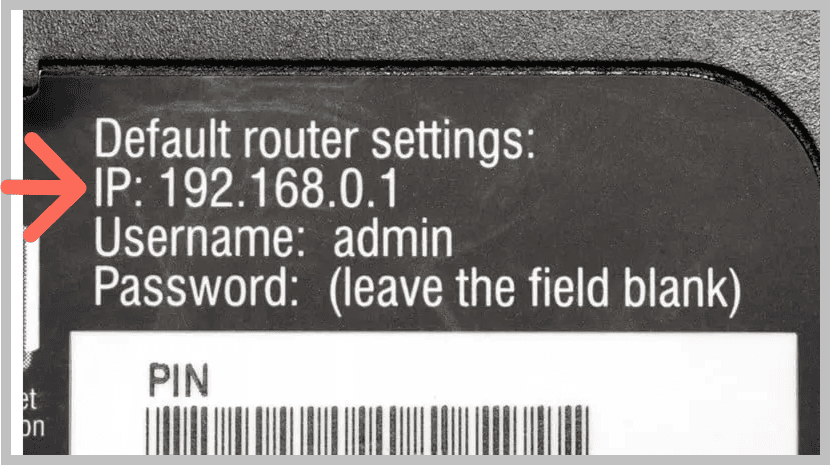
If the password has been changed and you don’t know the new one, don’t worry — proceed to the next steps.
Step 2: Recover on Windows via Command Prompt
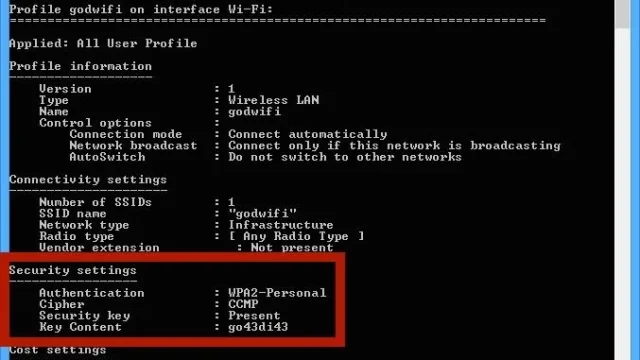
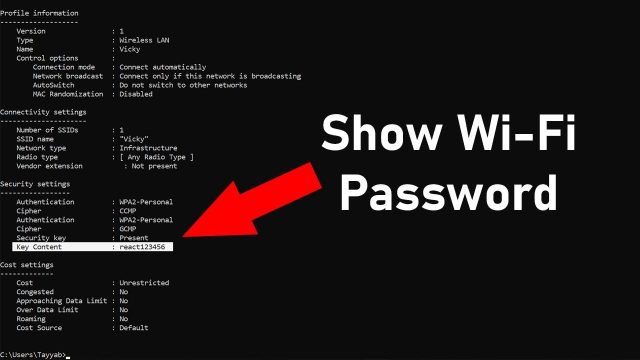
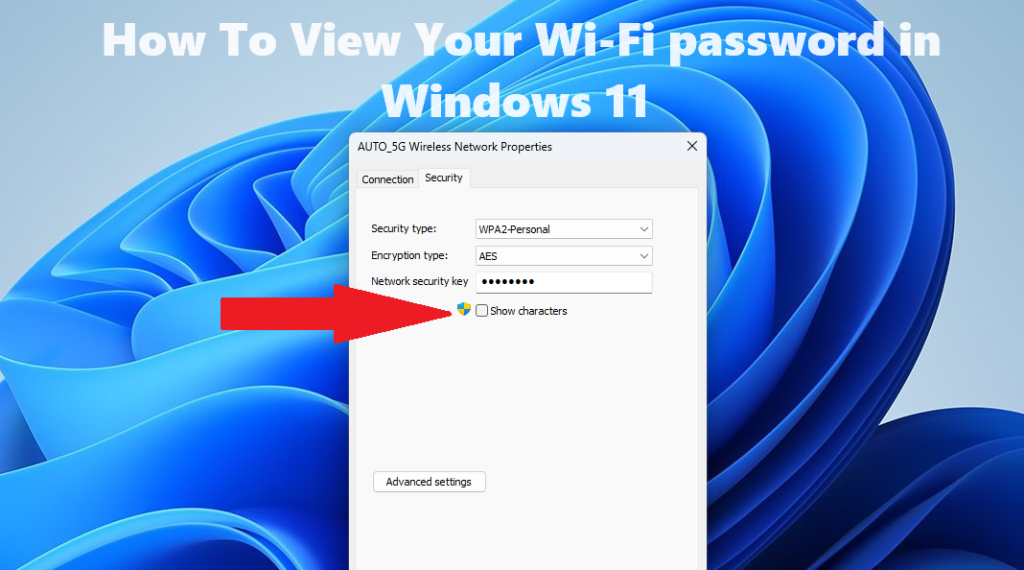
Windows stores all saved WiFi passwords in plaintext (encrypted but accessible with admin rights). Open Command Prompt as Administrator — press Windows key, type “cmd”, right-click and select “Run as administrator”. Then type the following commands one by one, hitting Enter after each:
This lists every network your PC remembers. Find the network name (SSID) you need, then run:
Look for the line labeled “Key Content” — that’s your WiFi password. Write it down or take a photo. This method works on Windows 7 through 11. For a deeper walkthrough, check out our guide on how to find saved wifi password on pc.
Step 3: Recover on macOS with Keychain Access
On a Mac, open Keychain Access (Finder > Applications > Utilities > Keychain Access, or just search with Cmd+Space). In the search bar, type the name of your WiFi network. Double-click the entry for your network. A window pops up — check the box “Show password”. You’ll need your Mac’s admin username and password to reveal it. Once entered, the WiFi password is displayed. That’s the entire mac method. It’s simple and works on all recent versions of macOS.
If you prefer the terminal, you can also run a command — our guide on recover forgotten wifi password using terminal covers both approaches.
Step 4: Recover on Android (QR Code or Root)
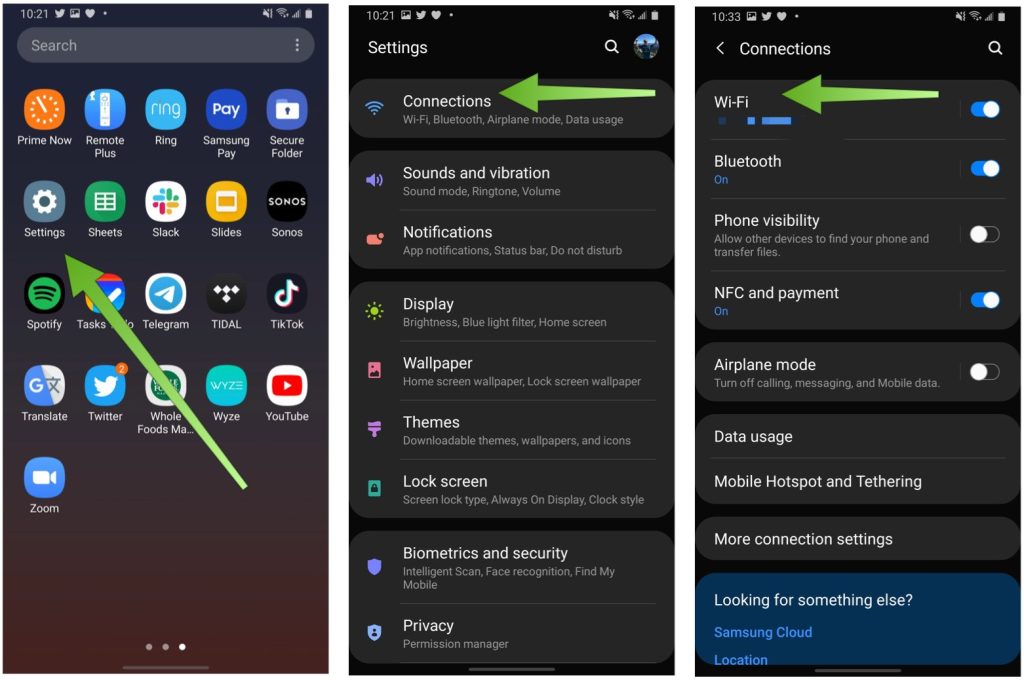
On Android 10 and later, saved WiFi passwords can be shared via QR code — which actually reveals the password in plaintext. Go to Settings > Network & Internet > Wi-Fi. Tap the gear icon next to your connected network. Tap “Share” or the QR code icon. You may need to authenticate with your fingerprint or PIN. On the screen that shows the QR code, look just below it — the password is displayed in plain text. If your Android version is older, you might need to view the QR code from a screenshot and use a QR scanner app. And if you really want full access to all saved passwords, root access is required, but that’s beyond this guide’s scope. For more details, see our saved wifi password recovery android guide.
Step 5: Recover from the Router’s Admin Panel
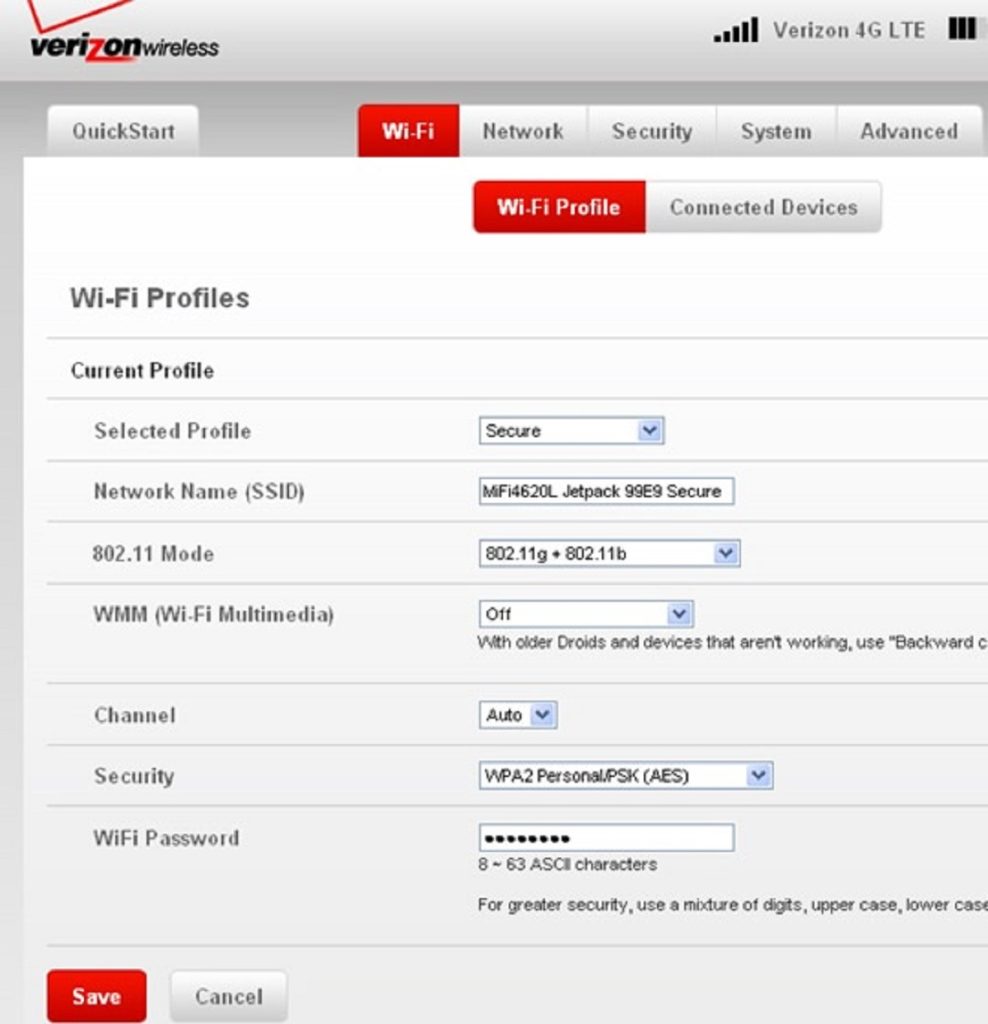
If you have physical access to the router and know its admin password (or can use the default on the sticker), you can log into the router’s web interface. Open a browser and enter the router’s IP address (commonly 192.168.0.1 or 192.168.1.1). Log in — the default credentials are often “admin” / “password” or printed on the sticker. Navigate to the wireless settings page. The WiFi password (sometimes called pre-shared key) will be displayed. You can change it if needed. This method works on any router brand — TP-Link, Netgear, Linksys, etc. For a specific walkthrough on TP-Link routers, check our guide on recover wifi password from tp link router.
Step 6: Use a Trusted Third-Party App (Last Resort)
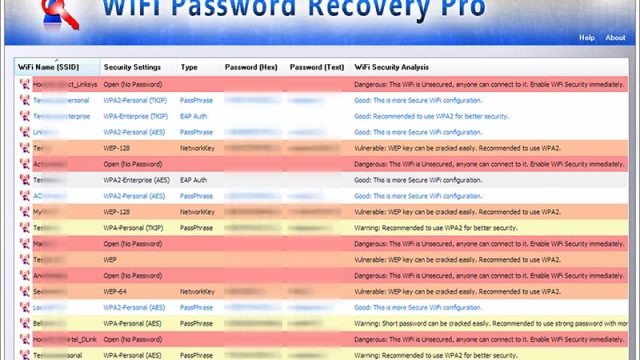
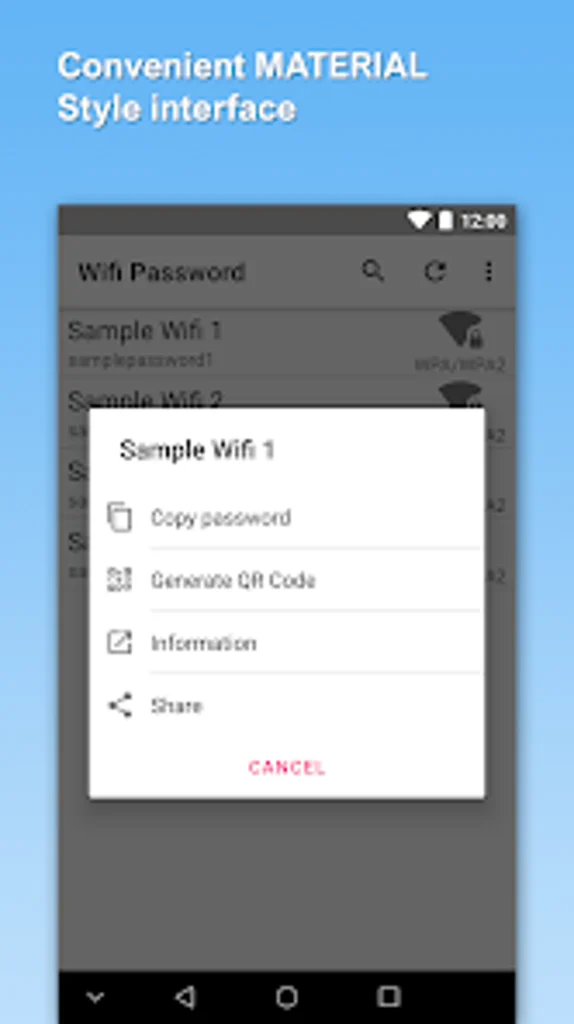
If none of the above work — maybe you’re on a locked-down corporate network or can’t access any connected device — you can try a dedicated password recovery tool. On Windows, tools like WirelessKeyView or Magical Jelly Bean can extract saved passwords. On macOS, similar utilities exist. Always download from official sources and scan with antivirus. We recommend reading up on trusted wifi password recovery apps before you commit to anything. And for offline use, see our wifi password recovery software offline guide.
Common Pitfalls
- Router sticker password doesn’t work — many people change their password but forget. Use one of the other methods to find the actual current password.
- Command Prompt needs admin rights — if you get “Access denied”, run Command Prompt as Administrator (right-click > Run as administrator).
- Android QR code doesn’t show password — on some older Android versions, you need to scan the QR code with another device and read it; the password isn’t shown directly. Use a QR scanner app that decodes the content.
Where to Next
Now that you’ve recovered your WiFi password, consider writing it down in a safe place (or use a password manager). If you frequently troubleshoot networks, our wireless password recovery guide has more advanced tips. For Linux users, the recover wifi password on ubuntu guide is a lifesaver. Happy surfing!