
So you’ve forgotten your WiFi password. Maybe you have a new device to connect, or a friend is over asking for the network key. Whatever the reason, you’re in luck: Windows stores every WiFi password you’ve ever connected to, and with a few simple commands in the Command Prompt, you can pull them up in seconds. No third-party tools, no hacking — just built-in Windows power.
By the end of this tutorial, you’ll be able to recover any saved WiFi password on your Windows PC using CMD. You’ll also learn how to export all your passwords to a text file for safekeeping. This method works on Windows 7, 8, 10, and 11. Let’s dive in.
What You’ll Need
- A Windows computer that has previously connected to the WiFi network you want to recover
- Administrator access (you’ll need to run Command Prompt as admin)
- The exact name (SSID) of the WiFi network (or you can list all saved networks)
- Basic comfort typing commands
Step 1: Open Command Prompt as Administrator
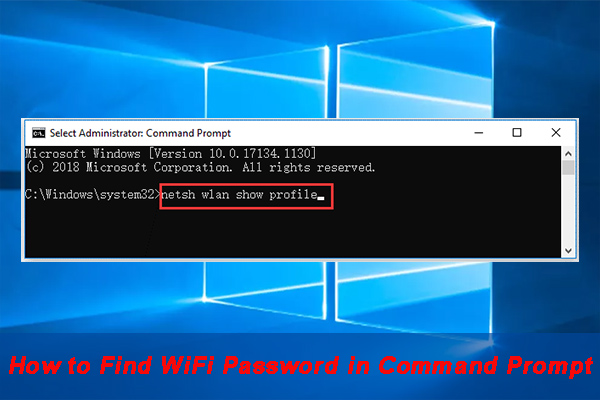
First, you need to launch Command Prompt with admin rights. Click the Start button, type cmd or Command Prompt, then right-click the result and select Run as administrator. If a User Account Control prompt appears, click Yes.
Step 2: List All Saved WiFi Profiles
Now that you have the command prompt open, type the following command and press Enter:
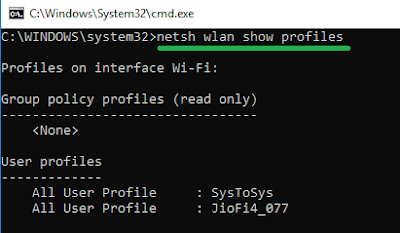
netsh wlan show profiles
This will display a list of every WiFi network your PC has ever connected to. Look for the network name (SSID) you want the password for. If you have many profiles, you can scroll through them. Write down the exact name — you’ll need it in the next step.
Step 3: Recover the Password for a Specific Network
With the network name in hand, run this command, replacing WiFiName with the actual SSID (including spaces if any):
netsh wlan show profile name=”WiFiName” key=clear
Look for the line that says Key Content. That’s your WiFi password. If you see Absent, the profile might be missing the password — but that’s rare for networks you’ve actually connected to.

Step 4: (Optional) Export All WiFi Passwords to a Text File
If you want to save all your WiFi passwords at once, you can use a simple loop. Run this command to create a text file on your desktop called wifi-passwords.txt:
for /f “tokens=2 delims=:” %i in (‘netsh wlan show profiles ^| findstr /i “All User Profile”‘) do @(netsh wlan show profile name=”%i” key=clear | findstr /i “Key Content”) >> %USERPROFILE%Desktopwifi-passwords.txt
Open the file from your desktop, and you’ll see every network and its password. Handy for backup.

Common Pitfalls
- Not running as administrator: If you don’t run CMD as admin, you’ll get an error. Always right-click and select Run as administrator.
- Typos in the network name: The profile name must exactly match what’s shown in the list. If the name has spaces, you must wrap it in quotes inside the command.
- Using the wrong command syntax: Some older versions of Windows may use slightly different command names. If you get an error, double-check your spelling — it’s wlan not wlan.
Where to Next
Now that you’ve mastered recovering WiFi passwords via CMD, you might also want to check out other recovery methods. For example, you can find saved wifi password on pc using the GUI, or explore wifi password recovery powershell automation for a more scriptable approach. If you’re on a Mac, wifi password recovery via registry won’t work — but Keychain might. For a complete overview, see the forgotten wifi password recovery guide or the fastest wifi password recovery method. Happy surfing!



