We’ve all been there — a friend asks for your WiFi password, and you blank. Or you get a new device and need to connect, but that old password is nowhere to be found. Instead of resetting your router or digging through old sticky notes, you can use a saved WiFi password recovery app to instantly pull up every password your device has ever remembered. This guide is for anyone who has a computer or phone that’s currently connected (or was once connected) to a WiFi network and wants to retrieve that password. By the end, you’ll know exactly which apps work, how to use them safely, and how to avoid common mistakes.
Whether you’re on Windows, Android, or even Mac, there’s a recovery app that can display your saved WiFi passwords in plain text. I’ll walk you through the best options for each platform, step by step. No technical expertise required — just a willingness to follow along. Let’s get those passwords back!
What You’ll Need
- A computer running Windows, Mac, or a device with Android (iPhone users: check out our guide on saving WiFi passwords from iCloud Keychain instead).
- Administrator access on Windows or root access on Android (for some apps).
- A stable internet connection to download the recovery app (first time only).
- Patience — the process takes under 5 minutes.

Step 1: Choose the Right Recovery App for Your Device
Not all recovery apps are created equal, and some are outright dangerous. Stick with trusted tools. For Windows, I recommend WirelessKeyView (free, no install needed). For Android, try WiFi Password Viewer or WiFi Key Recovery (requires root on most devices). On Mac, the built-in Keychain Access is the safest bet — no third-party app required. If you want a cross-platform solution, check out the saved wifi password recovery tool options we’ve reviewed. For a no-software approach, the simplest wifi password recovery method might be all you need.

Step 2: Download and Run the App
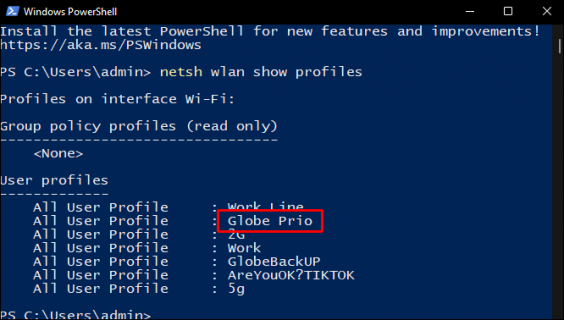
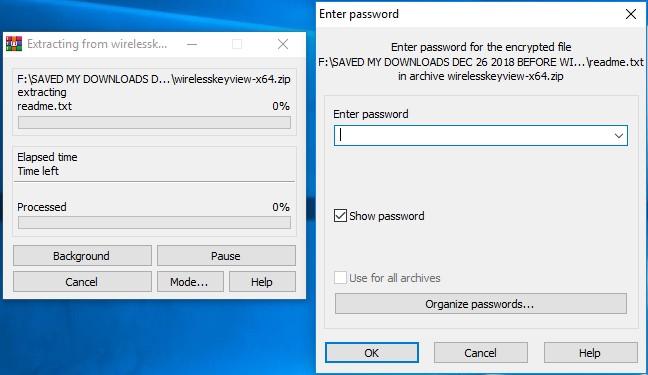
Once you’ve picked your app, download it from the official source. Avoid sketchy download sites. For WirelessKeyView, just unzip the file and run the executable — no installation needed. For Android, enable ‘Install from unknown sources’ in Settings if you’re sideloading. On Mac, open Keychain Access from Applications > Utilities. If you prefer command-line tools, wifi password recovery using powershell is a great alternative for Windows users.
Step 3: View Your Saved WiFi Passwords
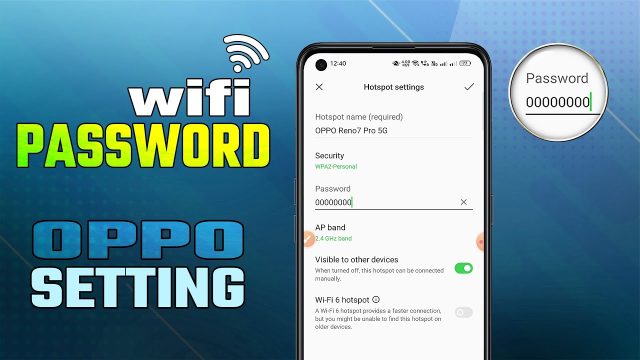
When you open the app, it will scan your system for stored WiFi profiles. Within seconds, you’ll see a list of network names (SSIDs) and their passwords. On Windows with WirelessKeyView, press Ctrl+S to save the list as a text file. On Android, tap the network to reveal the password. On Mac, double-click the network name and check ‘Show password’ (you’ll need your Mac admin password). This is essentially how to find saved wifi password on pc or any device. For Android-specific steps, see our wifi password recovery for android users guide.

Step 4: Export or Copy the Passwords
Once you have the passwords visible, copy them to a secure place. I recommend a password manager like Bitwarden or KeePass. Never store them in plain text on your desktop. Some apps (like WirelessKeyView) let you export all passwords to an HTML or text file. On Mac, you can copy from Keychain. This is one of many wifi password recovery methods you can use. Remember: only recover passwords for networks you own or have permission to access.

Common Pitfalls
- Forgetting to run as administrator on Windows: Many recovery apps need elevated privileges. If you see only network names but no passwords, right-click the app and select ‘Run as administrator’.
- Not having root on Android: Most Android WiFi password apps require root access. Without root, you can only view the current network’s password (if the phone is Android 10+). For non-root options, try our guide on Simple WiFi password recovery with ADB.
- Downloading malware: Some ‘recovery apps’ are fake. Always download from reputable sources like the official developer website or trusted software repositories. Avoid random download links from forums.
Where to Next
You’ve successfully recovered your saved WiFi passwords! Now that you have them, consider backing them up or using a password manager. If you need to recover passwords from your router directly, check out our guide on how to recover wifi password from tp link router. For enterprise networks, we have a dedicated article on wifi password recovery on enterprise network. Stay secure and happy surfing!