
Ever had a friend ask for your WiFi password, only to realize you have no idea what it is? Or maybe you just got a new device and need to reconnect to a network you saved months ago. Don’t worry—Android has your back. Whether you’re using stock Android, Samsung, OnePlus, or any other skin, there are several ways to dig up those saved passwords. By the end of this guide, you’ll know exactly how to view or share any WiFi password stored on your phone, without needing any technical wizardry.
This tutorial covers everything from the built-in QR code method (works on Android 10 and up) to digging through system files if you’re feeling adventurous. We’ll also look at third-party apps for when the simple stuff doesn’t cut it. No matter which route you pick, you’ll walk away with that elusive password in hand.
What You’ll Need
- An Android phone (any brand) that’s already connected to the WiFi network you want to recover
- A second device with a camera (optional, for QR code scanning)
- A file manager app (if you plan to root around in system files; Solid Explorer or FX File Explorer work great)
- A WiFi password recovery app from the Play Store (if the built-in methods don’t work for you)
- ADB and USB debugging (for advanced users who want to pull the wpa_supplicant.conf file without root)
Step 1: Check Your WiFi Settings (The Easiest Way)
Most modern Android versions—especially Android 10 and later—let you view the QR code for any saved network. This QR code contains the password. Just open Settings > Network & Internet > WiFi, then tap the gear icon next to your connected network. Look for a “Share” or “QR Code” option.
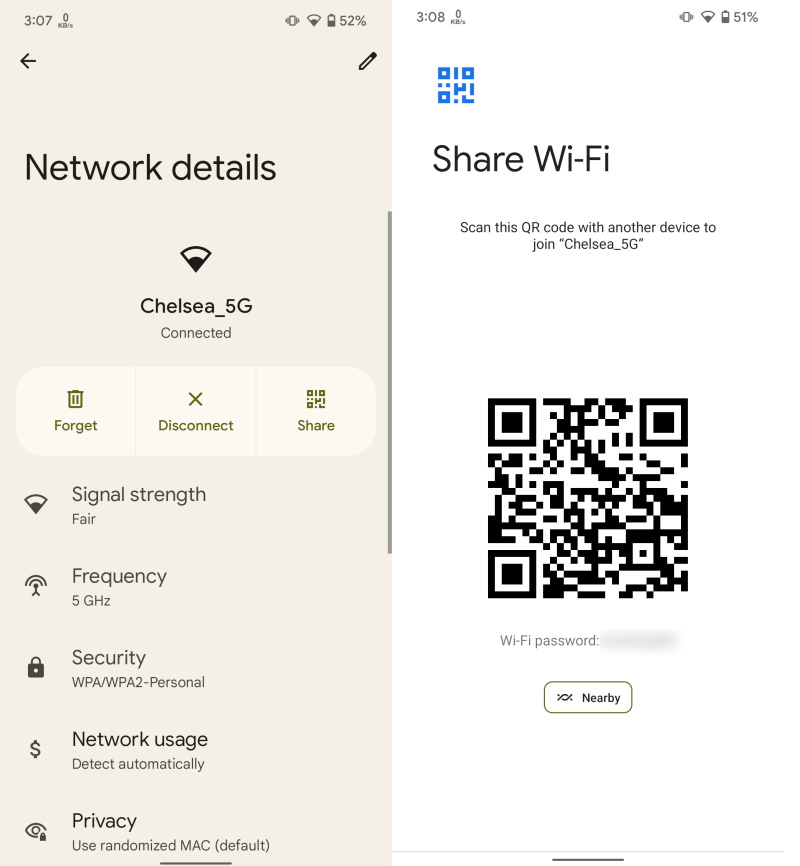
Tap it, and you’ll see a QR code on screen. If you scan that with another phone’s camera, it’ll automatically show the password in plain text (look for “S:password” in the scan result). You can also screenshot the QR code for later use.
Step 2: Use a QR Code Scanner to Extract the Password
If you have a second phone, open the camera app or a QR scanner and point it at the QR code. Once scanned, you’ll see a notification or pop-up that includes the password. On many Samsung phones, you can even tap the QR code to copy the password directly. This is arguably the simplest wifi password recovery method if both devices are handy.

Step 3: Use a WiFi Password Recovery App (No Root Needed)
For older Android versions (before 10) or if you just prefer an app, the Play Store has several that show saved passwords. One popular one is “WiFi Password Recovery” by TroyDroid. It reads the wpa_supplicant.conf file (more on that in a sec) and displays all saved networks with their passwords. Just install, open, and grant the location permission—it will list every network you’ve ever connected to. Check out this saved wifi password recovery app if you want a dedicated tool.

Step 4: Dig Into System Files (Root or ADB)
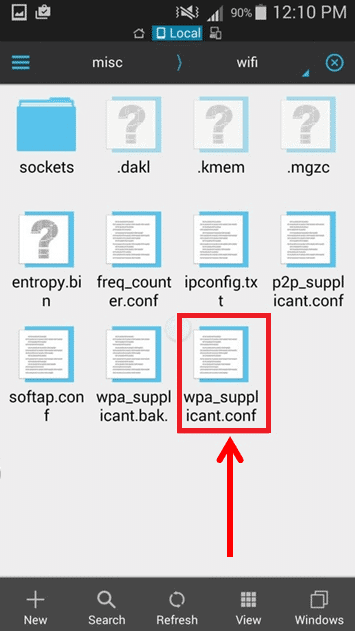
If you have a rooted device or are comfortable with ADB, you can pull the wpa_supplicant.conf file. This file stores all WiFi credentials. Use a file manager that can access root (like Root Explorer) and navigate to /data/misc/wifi/wpa_supplicant.conf. Open it with a text editor, and you’ll see network blocks with “psk=” lines—those are your passwords. Alternatively, if you have ADB set up, run:
adb shell su -c ‘cat /data/misc/wifi/wpa_supplicant.conf’
ADB command to display WiFi config
This will dump the file contents to your terminal. Look for network blocks. Note that without root, the file is inaccessible from the phone itself but can sometimes be read via ADB if you have a custom recovery or backup. For a deeper dive, read our wireless password recovery guide.
Step 5: For Samsung Users – Use the Built-in Smart View
Samsung phones have a neat trick: open Settings > Connections > WiFi, tap the gear icon next to the network, then tap the QR code icon. Scan that with another Samsung phone using Quick Share or a QR scanner. Samsung also lets you view the password directly on the QR screen if you tap the “Show password” checkbox before sharing. This is a forgotten wifi password recovery guide favorite for Samsung owners.

Common Pitfalls
- QR code won’t appear: Some older Android versions (below 10) or custom skins may hide the QR option. In that case, use a third-party app from Step 3.
- App requests root but phone isn’t rooted: Most WiFi recovery apps on the Play Store that claim to work without root actually use a workaround by reading the clipboard or accessibility services. They may fail on Android 11+ due to scoped storage. Try a different app or go the ADB route.
- wpa_supplicant.conf returns empty or permission denied: Without root, you cannot read that file directly. ADB may also fail on non-rooted phones. Stick with the QR method or an app that uses the system API (like the official WiFi preferences in Android 10+).
Where to Next
Now that you’ve recovered your passwords, you might want to learn how to back them up or share them securely. Check out our guides on wifi password recovery for android users for device-specific tricks, or the fastest wifi password recovery method if you need to do this a lot. And if you ever get locked out of a router, our guide on how to recover your router’s admin password is a lifesaver. Happy surfing!



