I’ve been there: you’re setting up a new device or a friend asks for the WiFi password, and you have no idea what it is. The sticker on the router is faded, the password was changed years ago, and you’re stuck. This guide is for anyone who needs to recover a wireless password quickly without installing sketchy software. By the end, you’ll know how to dig up that forgotten password on Windows, macOS, Android, iPhone, and even straight from your router’s admin panel.
No matter which device you’re using, the steps are built-in and safe. I’ll walk you through each method with clear, click-by-click instructions. Whether you’re a beginner or just need a refresher, you’ll be back online in minutes.
What You’ll Need
- A computer or phone that is already connected to the WiFi network (or has been connected before)
- Administrator access on Windows or the ability to use Terminal on Mac
- Physical access to your router (if the other methods don’t work)
- A few minutes of patience
Step 1: Recover Your WiFi Password on Windows
Windows makes it easy to view saved wireless passwords. This method works for all versions from Windows 7 to Windows 11. Go to Control Panel > Network and Internet > Network and Sharing Center. Click on your WiFi network name (next to ‘Connections’), then click ‘Wireless Properties’. Switch to the ‘Security’ tab and check the box ‘Show characters’. The password appears in the ‘Network security key’ field.
If you prefer a faster way, open Command Prompt or PowerShell as administrator and type netsh wlan show profile name="YourWiFiName" key=clear. Look for ‘Key Content’ — that’s your password. This is especially helpful if you want to recover multiple networks quickly. For more options, check out our guide on find saved wifi password on pc.

Step 2: Recover Your WiFi Password on macOS
Mac stores WiFi passwords in the Keychain app. Open ‘Keychain Access‘ from Utilities (or search with Spotlight). In the search bar, type the name of your WiFi network. Double-click the result, then check ‘Show password’. You’ll need to enter your Mac’s admin username and password. The password will appear instantly. This method is clean and doesn’t require third-party tools.
If you’re comfortable with the terminal, you can also use security find-generic-password -wa "YourWiFiName". That’s a one-liner that outputs the password directly. For a deeper dive, read our article on wifi password recovery with mac keychain.
Step 3: Recover Your WiFi Password on Android
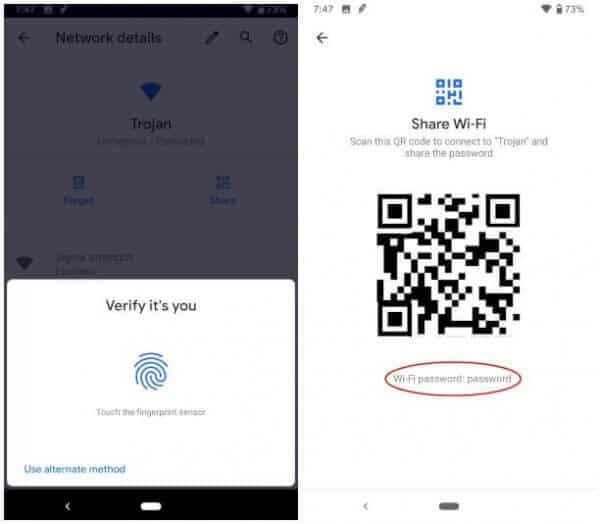
On Android, the method depends on your version. For Android 10 and later, go to Settings > Network & Internet > WiFi. Tap the gear icon next to your connected network, then tap ‘Share’ (or a QR code icon). You may need to verify with your fingerprint or PIN. The password appears below the QR code. If your phone has an older version, you might need root access or a different path — check out our dedicated guide for wifi password recovery for android users.
Step 4: Recover Your WiFi Password on iPhone
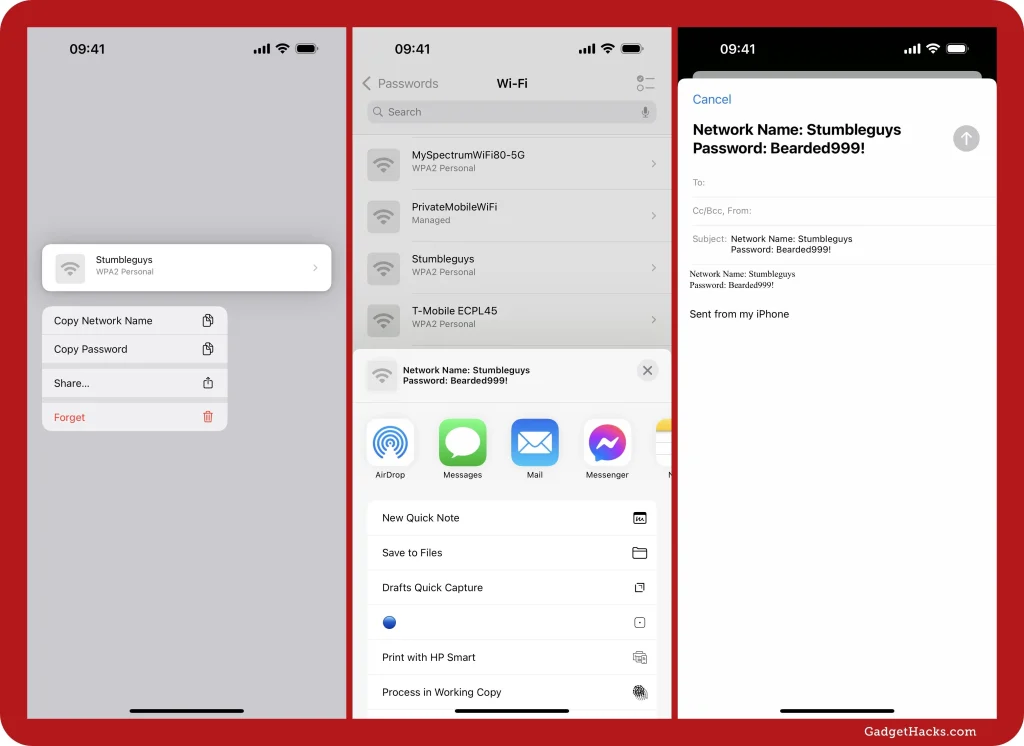
Apple doesn’t expose saved WiFi passwords directly in Settings, but you can use iCloud Keychain or a Mac. If you sync passwords via iCloud, open iPhone Settings > Passwords (or Password & Accounts on older iOS). Authenticate with Face ID or Touch ID, then search for your network name. Tap it and you’ll see the password. Note: the network must have been saved to iCloud. If not, use the Mac method or router approach.
Alternatively, connect your iPhone to a Mac running macOS Catalina or later, open the Keychain app, and search for the WiFi name. It’s a bit roundabout but works. For more iPhone-specific tips, see our simplest wifi password recovery method post.
Step 5: Find the Password on Your Router
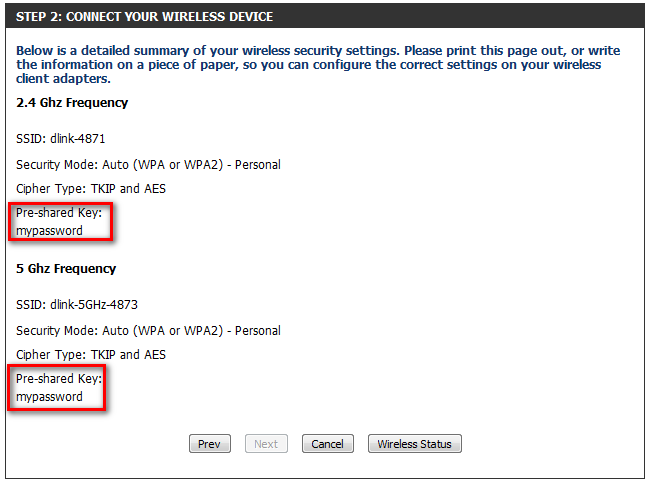
If you can’t access any connected device, go straight to the source: your router. Open a browser and enter your router’s IP address (often 192.168.1.1 or 192.168.0.1). Log in with the admin credentials (check the sticker on the router if you never changed them). Look for a section called ‘Wireless’ or ‘WiFi Settings’. The password is usually labeled ‘Pre-Shared Key’, ‘Passphrase’, or ‘Security Key’. Write it down immediately.
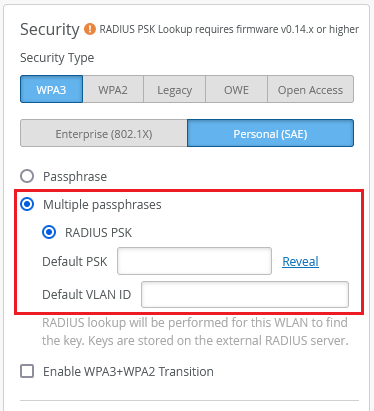
If you’ve never changed the router password, the default credentials are often ‘admin/admin’ or ‘admin/password’. Many routers also have a WPS button that can help you connect without the password — but that’s for a different guide. For specific router models, like TP‑Link, we have a guide on recover wifi password from tp link router.
Common Pitfalls
- **Wrong network name**: Make sure you’re looking at the correct SSID. Many routers broadcast multiple bands (2.4GHz and 5GHz) or guest networks. Double-check the network you’re connected to.
- **Outdated iPhone/iOS**: Older versions don’t have the Passwords section. In that case, use the Keychain sync method or check on a Mac. For enterprise networks, resistance is higher – our wifi password recovery on enterprise network article covers those.
- **Router admin password unknown**: If you never changed it, the default is often on the sticker. If you did change it and forgot, you may need to factory reset the router (hold the reset button for 10 seconds). Be warned: that wipes all custom settings.
Where to Next?
Now that you’ve recovered your password, write it down and store it somewhere safe — but not in plain text. Consider using a password manager. If you want to automate future recoveries, check out wifi password recovery using powershell for Windows. Linux users can see how to show wifi password network manager. And if you ever lose the password again, you already know where to come.



