Ever been locked out of your own WiFi because you can’t remember the password, and the only device that knows it has no internet? That’s the perfect time for offline WiFi password recovery. This guide is for anyone who has a Windows, macOS, or Linux computer that’s already connected to your network (or was in the past) but can’t get online to search for a solution. By the end, you’ll have the tools and steps to dig that password out of your system’s memory—no internet required.
We’ll focus on free, built-in tools and portable software that run entirely offline. You won’t need to download anything on the target machine (you can transfer a tiny utility via USB), and you won’t have to worry about sketchy ‘crack’ programs. Whether you’re on Windows, Mac, or Linux, I’ll show you exactly how to recover your own saved network credentials.
What You’ll Need
- A computer that has successfully connected to the WiFi network at least once (Windows, Mac, or Linux).
- Administrator / root access on that computer.
- Optional: A USB flash drive if you need to transfer a portable utility from another device.
Step 1: Recover WiFi Password on Windows Using Command Prompt
Windows stores every WiFi profile you’ve ever connected to. Even offline, you can extract the password with a few commands. First, open Command Prompt as Administrator: hit Start, type ‘cmd’, right-click ‘Command Prompt’, and select ‘Run as administrator’.
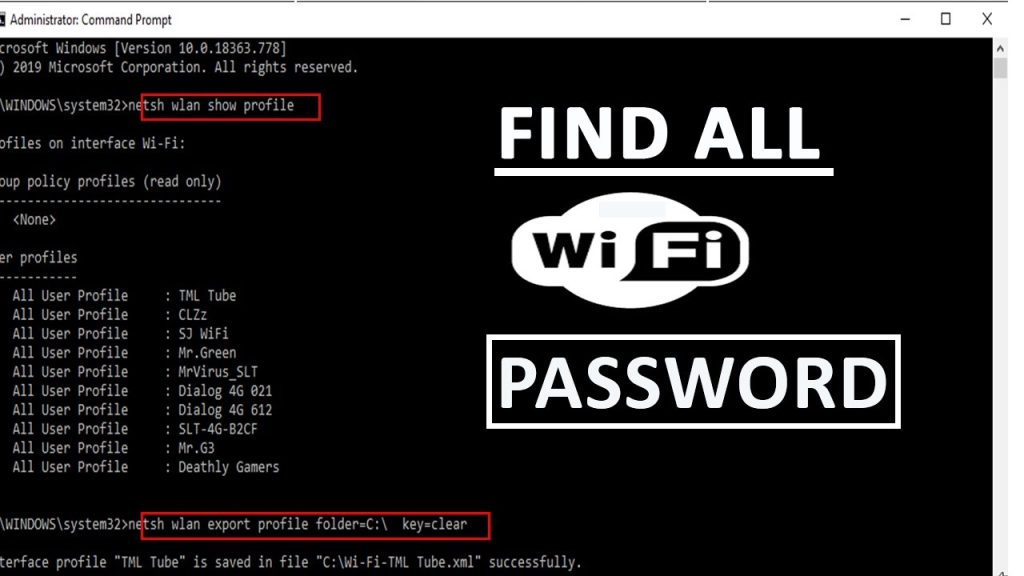
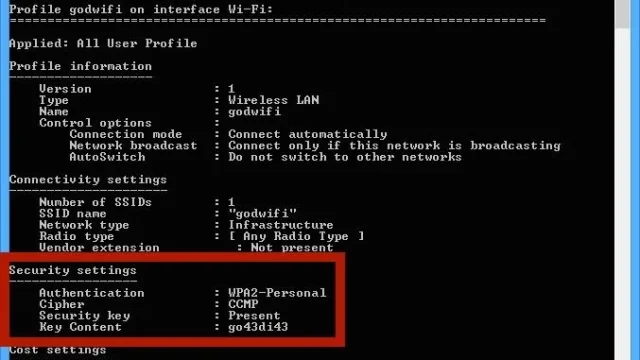
Now type netsh wlan show profiles and press Enter. You’ll see a list of all saved networks. Find the one you need—let’s call it ‘MyWiFi’. Then run: netsh wlan show profile name="MyWiFi" key=clear. Scroll down to the ‘Security settings’ section, and look for ‘Key Content’. That’s your WiFi password. This method is essentially the same as our detailed guide on how to find saved wifi password on pc, but it works 100% offline.

Step 2: Recover WiFi Password on macOS Using Keychain Access
On a Mac, all saved passwords live in the Keychain. Open ‘Keychain Access’ (from Applications > Utilities or Spotlight). In the search bar at the top-right, type the name of your WiFi network. Double-click the entry that appears (it’ll be under ‘System’ or ‘Login’). Check the box ‘Show password’ and enter your Mac’s admin username and password when prompted. The password will appear in plaintext. This is the same principle as our guide to export wifi passwords mac, but you’re viewing one manually.

Step 3: Recover WiFi Password on Linux Using Terminal
Linux users have several offline options. The easiest is via NetworkManager. Open a terminal and type: nmcli -t -f NAME connection show to list saved connections. Then run: sudo nmcli -s connection show "YourNetwork" | grep 802-11-wireless-security.psk — the password appears after the colon. Alternatively, you can read the configuration file directly: sudo cat /etc/NetworkManager/system-connections/"YourNetwork" and look for ‘psk=’. For more details, check our post on how to show wifi password network manager.

Step 4: Use Portable Third-Party Tools (Windows Only, Offline)
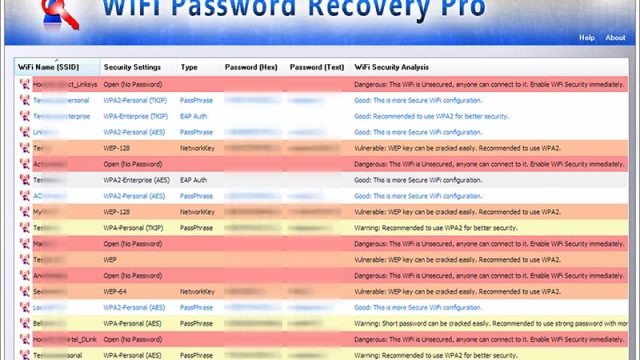
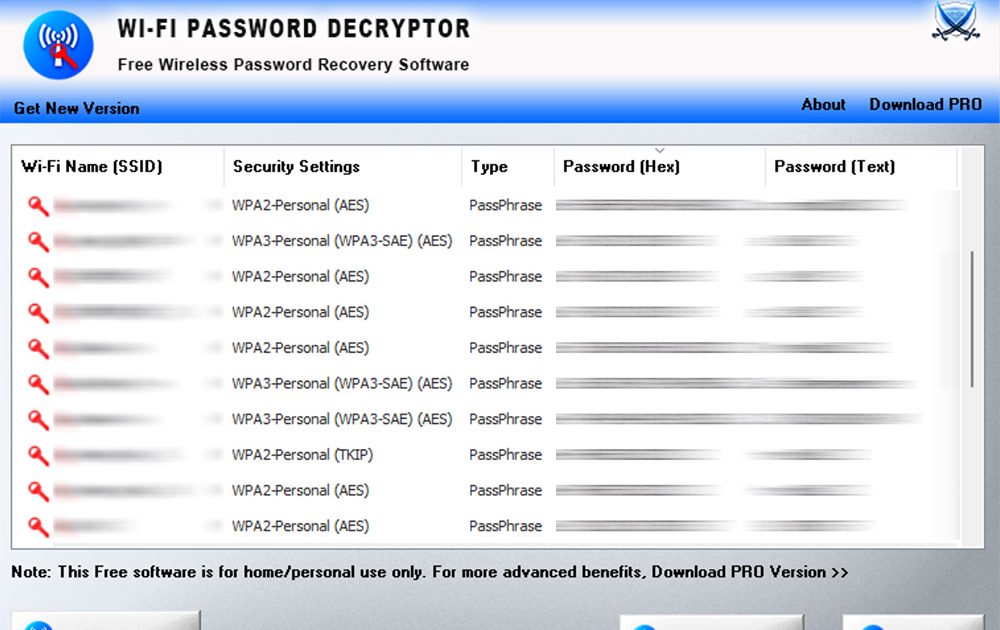
If you prefer a GUI and are on Windows, there are tiny portable tools that don’t need installation. Download ‘WirelessKeyView’ (by Nirsoft) from another computer onto a USB drive. Plug the USB into the target Windows machine, run the executable as administrator, and it instantly lists all saved WiFi passwords. Because it’s portable, it leaves no trace and works entirely offline. This is one of the simplest wifi password recovery method if you can transfer the file.

Common Pitfalls
- No admin rights: On school or work computers, you may not be able to run commands as administrator or open Keychain. Without admin access, these offline methods won’t work.
- Network never saved: If this computer has never connected to the target WiFi, the password isn’t stored. You’ll need to retrieve it from another device that has connected before.
- Malware risks: Downloading portable tools from untrusted sources can infect your system. Stick to reputable sites like Nirsoft’s official page.
Where to Next
Once you’ve recovered your password, consider backing it up so you never get stuck again. We have a guide on how to backup wifi passwords to usb that works on both Windows and Mac. Also, if you’re a power user, explore wifi password recovery powershell automation for scripting the whole process. And for Linux fans, our show wifi password network manager guide has even more options.