We’ve all been there: a friend asks for the WiFi password, and you draw a blank. Maybe you wrote it on a sticky note that’s long gone, or the router is buried behind a desk. The good news? You don’t need any special software to recover it. Every device you’ve ever connected to that network has the password stored — you just need to know where to look. This guide is for anyone who has access to a computer or phone that’s already connected to the WiFi but can’t remember the password. By the end, you’ll have the password in hand, no downloads required.
We’ll cover four main methods: using Windows Settings or Command Prompt, the Mac Keychain Access app, Android’s built-in QR code share (on Android 10 and up), and finally, logging into your router’s admin panel as a last resort. These techniques rely only on tools already on your device. If you’re looking for a more automated approach, check out the saved wifi password recovery tool guide for alternative built-in methods.
What You’ll Need
- A computer (Windows or Mac) or an Android phone that is currently connected to the WiFi network whose password you’ve forgotten.
- Administrator access on Windows (to use Command Prompt) or your Mac user password (to unlock Keychain).
- Optional: Router login credentials (usually printed on the router itself) if the device methods don’t work.
Step 1: Recover WiFi Password on Windows
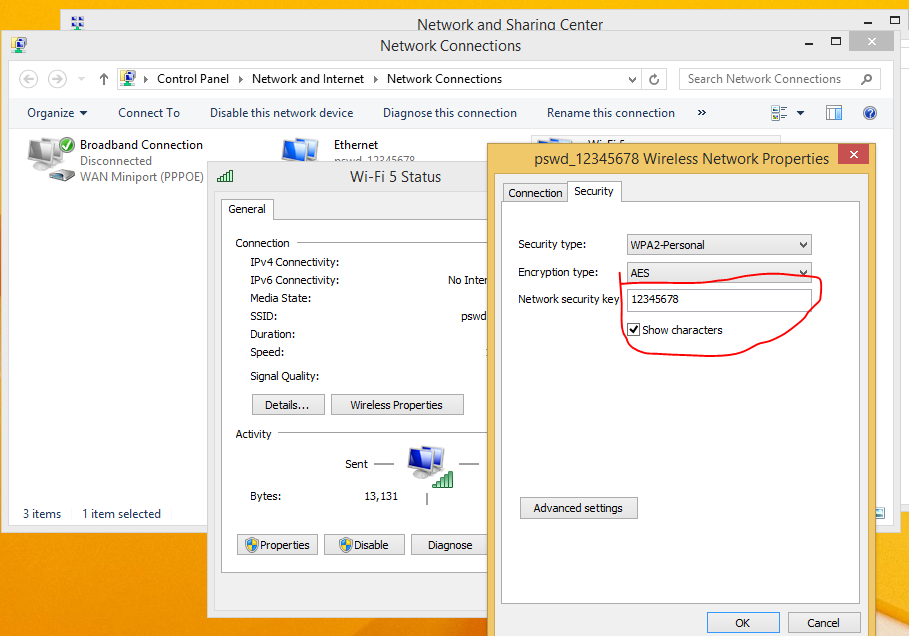
Windows stores your WiFi passwords in the Network and Sharing Center. You can access them through the Control Panel or, faster, via a quick command. The easiest way is to use the wireless properties dialog. Open the Start menu, type “Network Connections” and press Enter. Find your active WiFi network, right-click it, and select “Status”. Click “Wireless Properties”, then go to the “Security” tab. Check the box “Show characters” and the password will appear in the Network security key field. For a quick terminal-based method, see the wifi password recovery tutorial cmd for detailed steps.
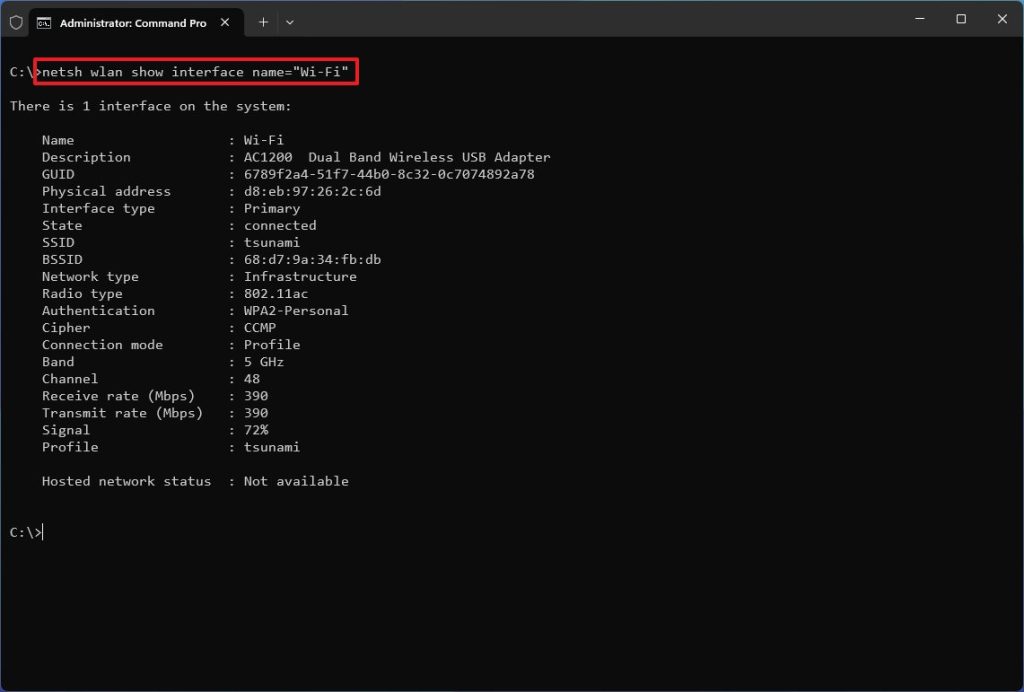
Alternatively, you can use the command line. Open Command Prompt as Administrator, type netsh wlan show profile name="YourNetworkName" key=clear (replace YourNetworkName with your actual SSID). Look for the “Key Content” line — that’s your password. For a full walkthrough, check out how to find saved wifi password on pc.
Step 2: Recover WiFi Password on Mac
On a Mac, all saved passwords are stored in the Keychain Access app. Open it from Applications > Utilities (or search with Spotlight). In the search bar, type the name of your WiFi network. Double-click the entry to open its properties. Check the box “Show password” — you’ll be prompted for your Mac’s admin username and password. Enter them, and the WiFi password will appear in the text field. This method works with any version of macOS. For a terminal alternative, you can use the security command; see the recover forgotten wifi password using terminal guide.
Step 3: Recover WiFi Password on Android
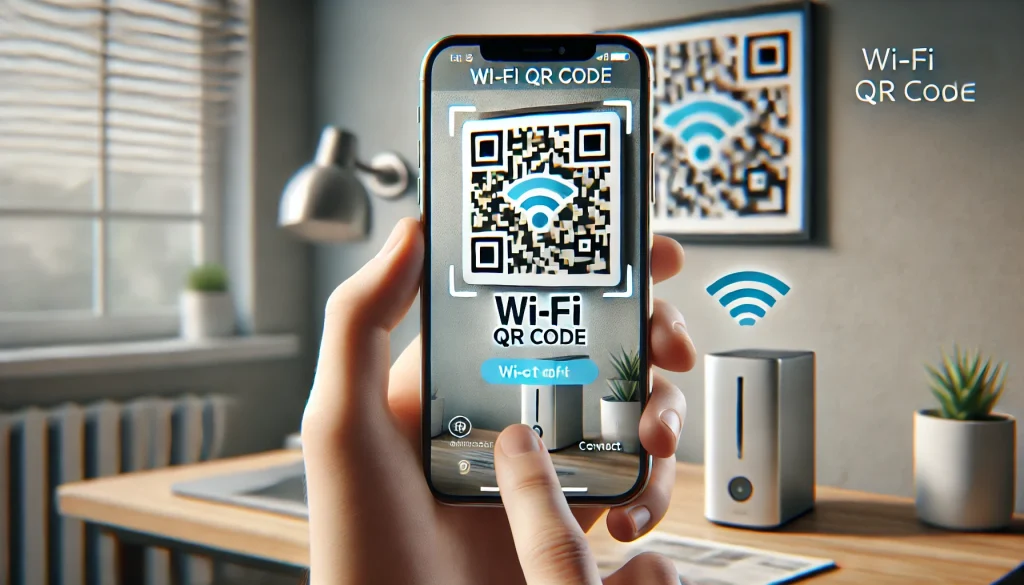
If you have an Android phone running Android 10 or later, you can view the saved WiFi password directly in the Settings app. Go to Settings > Network & Internet > WiFi. Tap on the network you’re connected to (or a saved one). You’ll see a share icon or a QR code — tap it. Your phone may ask you to verify your identity (PIN, pattern, or fingerprint). After that, a QR code appears, and the password is displayed underneath it. You can simply read it or scan the code with another device. For older Android versions, you might need to root the device, but try the wireless password recovery guide for alternative methods.
Step 4: Recover WiFi Password via Router Admin Panel
If none of the device methods work (e.g., you’re on a new device that hasn’t connected yet), you can log into your router’s web interface. Connect your computer to the router via Ethernet (or WiFi if you’re already on the network). Open a browser and enter your router’s IP address (common ones are 192.168.1.1, 192.168.0.1, or 192.168.1.254). Log in using the admin username and password — often printed on a sticker on the router, or default credentials like “admin/admin”. Once in, look for a section called Wireless, WiFi, or Security. The password is usually labeled as “Pre-Shared Key”, “Passphrase”, or “Wireless Key”. This method works on any router. For specific router brands, check out the forgotten wifi password recovery guide.
Common Pitfalls
- **Administrator access.** On Windows, if you’re not an admin, Command Prompt won’t show the key. Try the GUI method or ask the admin for help. On Mac, you need your login password to unlock Keychain.
- **Wrong network name.** Make sure you’re looking for the exact SSID, including spaces and capitalization. A typo will give you a blank or wrong result.
- **Router access denied.** If you changed the router admin password and forgot it, you may need to reset the router to factory defaults, which erases all settings. Use that only as a last resort.
Where to Next?
Now that you’ve recovered your password, write it down somewhere safe or use a password manager to store it. If you encounter any issues, the saved wifi password recovery tool guide covers more advanced built-in options. Or, if you prefer a more automated solution, see our wireless password recovery guide for all-in-one techniques. Happy browsing!



